Home
» LINUX
»
Use Manuskript to Organize Writing Projects on Linux
Use Manuskript to Organize Writing Projects on Linux
Manuskript is an open-source writing environment that combines planning and drafting in one Linux desktop app. Instead of keeping your synopsis, characters, plot threads, world notes, chapter outline, and manuscript in separate files, you can organize them inside one project and move between planning and writing as needed.
Install Manuskript on Linux
The Manuskript project currently publishes Linux packages and points users to Flatpak, Snap, DEB/RPM packages, or source builds. The safest starting point is the official Manuskript release page, because package names and versions can change.
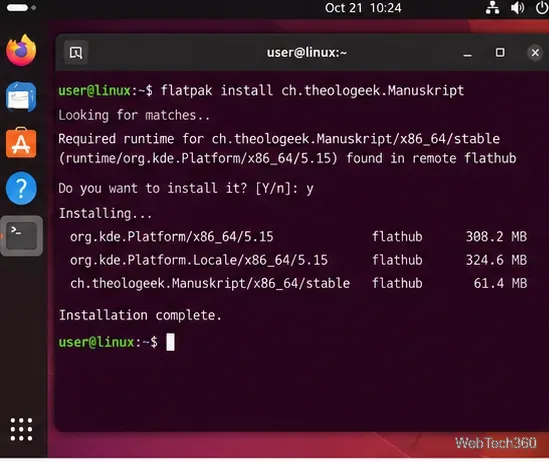
If Flatpak is already configured on your distribution, install Manuskript with:
flatpak install ch.theologeek.Manuskript
Installing Manuskript from a terminal with the Flatpak package ID used by the project.
Debian- and Ubuntu-based systems can also download the current .deb package from the release page, while Fedora-based systems can use the current .rpm. Follow the release notes for the exact filename rather than copying an old version number from a dated tutorial.
Create a project and set up the basics
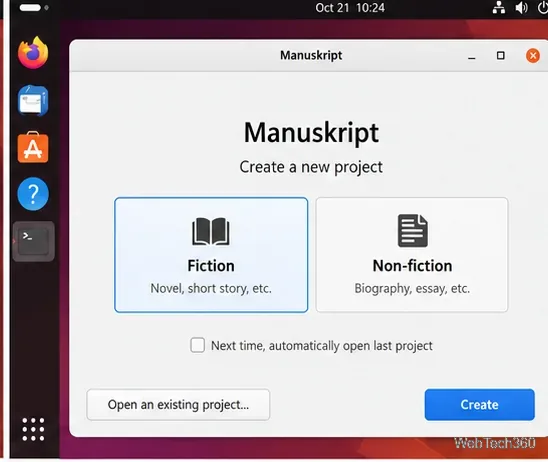
Start a new project. Open Manuskript and choose the template that fits your work. Fiction projects benefit most from the character, plot, world, and outline tools, but non-fiction writers can still use the structure for research-heavy or long-form projects.
Choose the project type that matches the way you plan to organize the work.
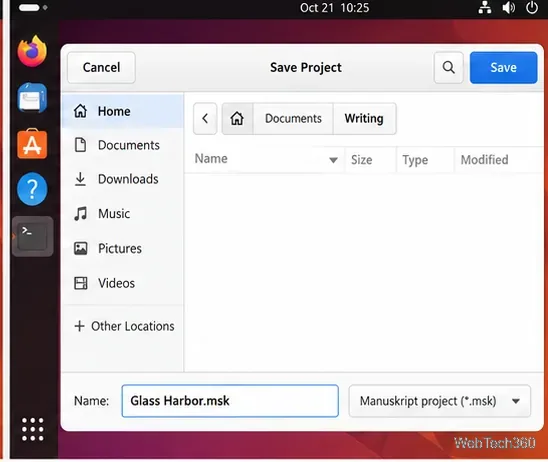
Save the project immediately. Give it a recognizable name and store it in a folder you can back up. Keeping the project file and related research in a dedicated folder makes later archiving much easier.
Save the Manuskript project with a clear name in a dedicated writing folder.
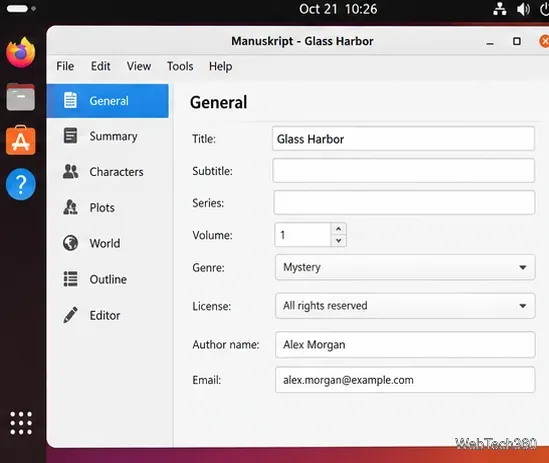
Fill in General information. Add the title, genre, author details, series information, or other metadata that is useful for this project. You do not need to complete every field before drafting.
The General section keeps high-level project metadata together.
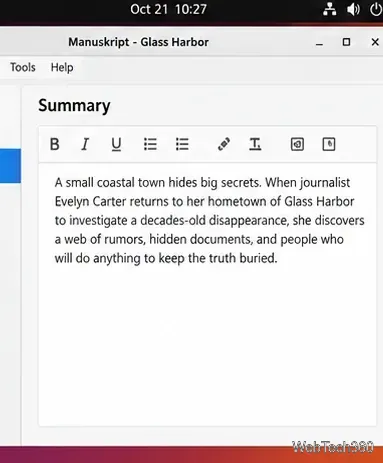
Write a short Summary. Use this space to capture the premise or working synopsis. A concise summary gives you a reference point when the outline starts getting complicated.
A short project summary can serve as the anchor for later planning decisions.
Organize characters, plots, and world notes
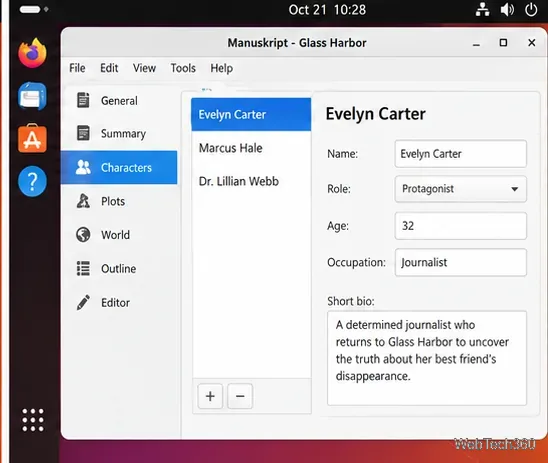
Add important characters. Create entries for major people in the story and record only the details that affect the manuscript. Names, roles, goals, relationships, and short notes are usually more useful than filling every possible field.
Character entries keep recurring people and their core details easy to reference.
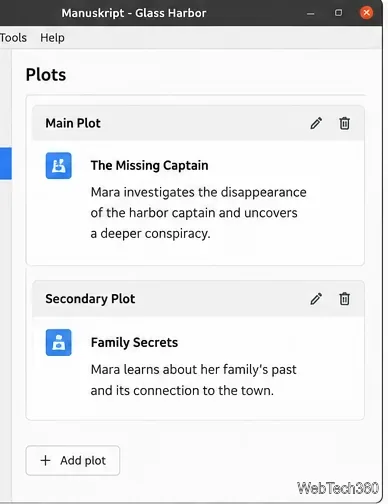
Separate plot threads. Use Plots for the main conflict and supporting threads. This helps you see whether a subplot disappears for too long or competes with the central story.
Separate plot cards make the primary story and supporting threads easier to track.
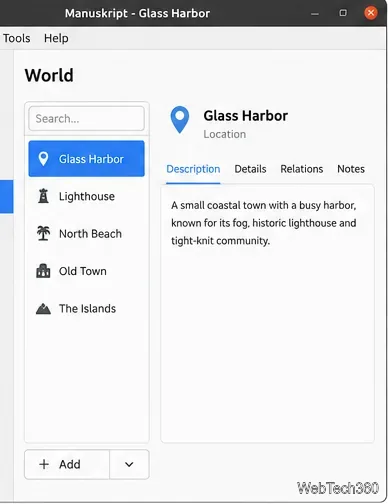
Build only the world information you need. World entries are useful for locations, organizations, objects, rules, or other recurring reference material. For non-fiction, the same idea can be used more selectively for topic notes and recurring entities.
World entries provide a compact reference for recurring places and other story elements.
Turn the plan into chapters and scenes
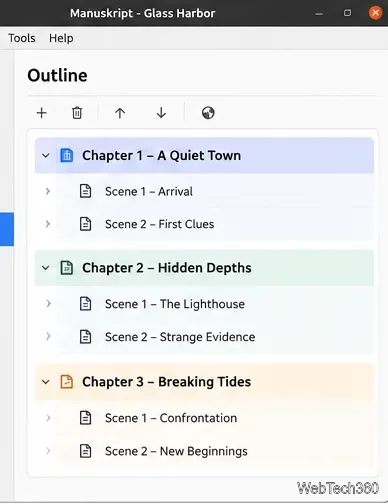
Create the outline. Break the manuscript into chapters and scenes, then reorder them until the sequence makes sense. Manuskript supports outlining and index-card-style planning, which is one of its main advantages over a plain text editor.
Use the outline to arrange chapters and scenes before or during drafting.
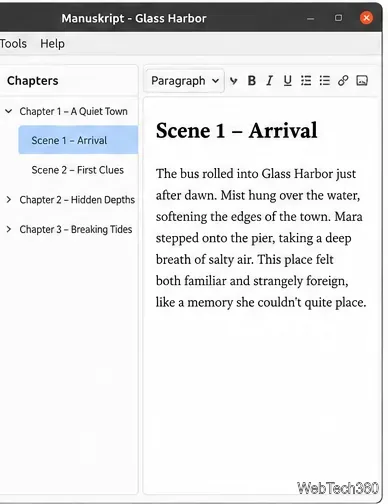
Draft in the Editor. Select a chapter or scene in the project tree and write its text in the editor. Keeping scenes as separate units makes long projects easier to navigate and reorganize.
The Editor keeps scene navigation beside the text you are currently drafting.
Use focus mode, export, and back up your work
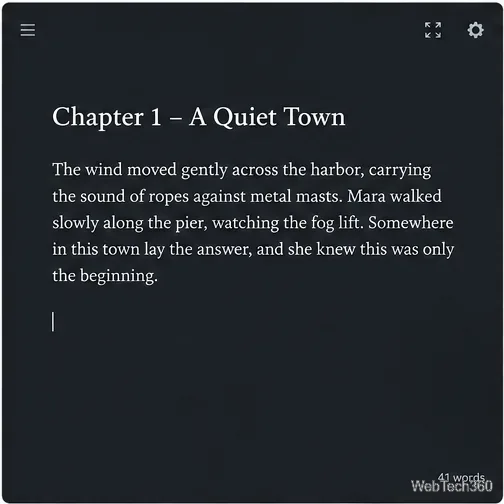
When you want fewer distractions, Manuskript includes a full-screen writing mode. The project also supports features such as outlines, index cards, automatic saving, spelling tools, and text analysis; the official repository lists the current feature set.
A distraction-free view keeps the current passage in focus while drafting.
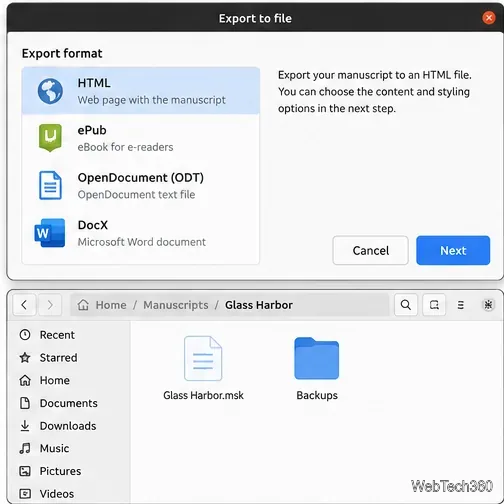
For sharing or publishing, use Manuskript's export tools. The project notes that installing Pandoc expands available formats, including ePub, OpenDocument, and DOCX. If an export format you need is missing, check the current Manuskript Wiki and release notes rather than assuming an older menu still applies.
Export the manuscript when needed, and keep separate backups of the project itself.
Back up the project regularly. Manuskript's own release notes warn that the application is still in early development and recommend frequent backups to reduce the risk of data loss from software bugs, power loss, or hardware failure. A simple routine is to close the project, copy its folder to a dated backup location, and keep another copy on separate storage or a versioned cloud service.
Used this way, Manuskript is most valuable as a single workspace for planning, reorganizing, and drafting a long writing project—not just as a text editor.