How to Screenshot on Mac: A Comprehensive Guide

Learn how to screenshot on Mac with shortcuts for the full screen, an area, or a window, plus the Screenshot app, clipboard, editing, and save-location tips.
The best Windows file manager depends on your workflow: choose Total Commander for dual-pane file work, Directory Opus for customization, Files for a modern Windows interface, Q-Dir to view four folders, or xplorer² for precise file selection.
Windows 11 File Explorer already supports tabs and local or cloud folders, so a replacement is most useful if you often move files, compare directories, rename batches, or keep many locations open. See Microsoft’s File Explorer guide and navigation guide for its built-in features.
| File manager | Best for | What to know |
|---|---|---|
| Total Commander | Dual-pane, keyboard-driven work | 30-day evaluation; paid license |
| Directory Opus | Customization and advanced workflows | Paid product with a free trial |
| Files | Modern interface with tabs and dual panes | Open source; free download and paid Store option |
| Q-Dir | Viewing up to four folders at once | Freeware; installed or portable |
| xplorer² | Precise selection and folder comparison | Free Lite edition and paid editions |
Total Commander keeps source and destination folders visible in two side-by-side file lists. It also offers search, directory comparison and synchronization, multi-rename, archive handling, tabs, and plugins. These tools suit people who manage many folders or prefer keyboard commands. Review Total Commander’s feature list if you rely on a specific archive format or plugin.
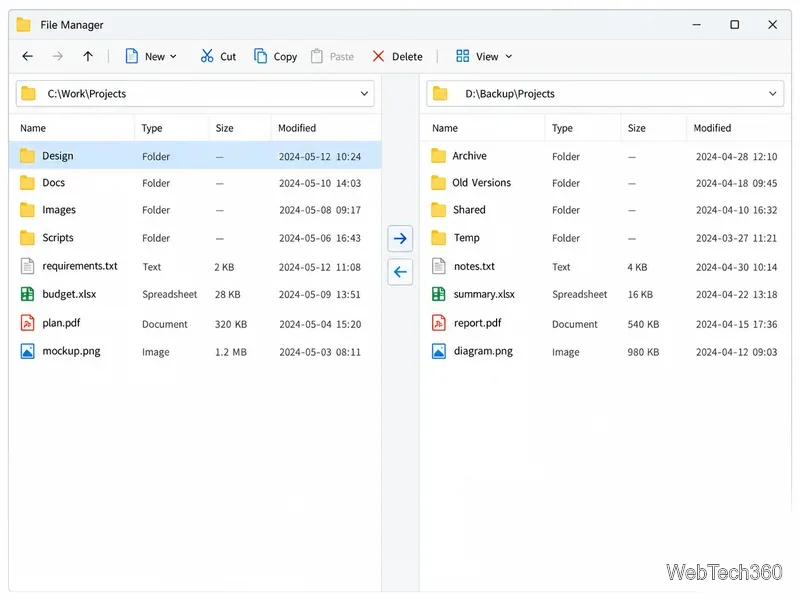
The interface is compact and practical rather than styled like a modern Windows app, so it can take time to learn. The Windows version is shareware: the developer offers a 30-day evaluation, after which you need a license or must remove it. Check the current license and evaluation terms for the terms that apply to your region.
Directory Opus can replace Explorer and lets you configure panes, folder trees, tabs, toolbars, and shortcuts. It includes queued copies, batch renaming, archive support, search, duplicate finding, synchronization, and metadata tools. The many settings suit tailored workflows but add a learning curve. GPSoftware offers a 30-day trial, with an extended evaluation available on request. Check Directory Opus and its download page for current licensing.
Files is an open-source file manager with tabs, dual panes, tags, and archive tools. Its current Windows-style interface keeps multiple locations together, while the second pane helps with folder-to-folder work. Download it free from the project or choose the Microsoft Store version to support development. See the Dual Pane documentation and use the official download page.
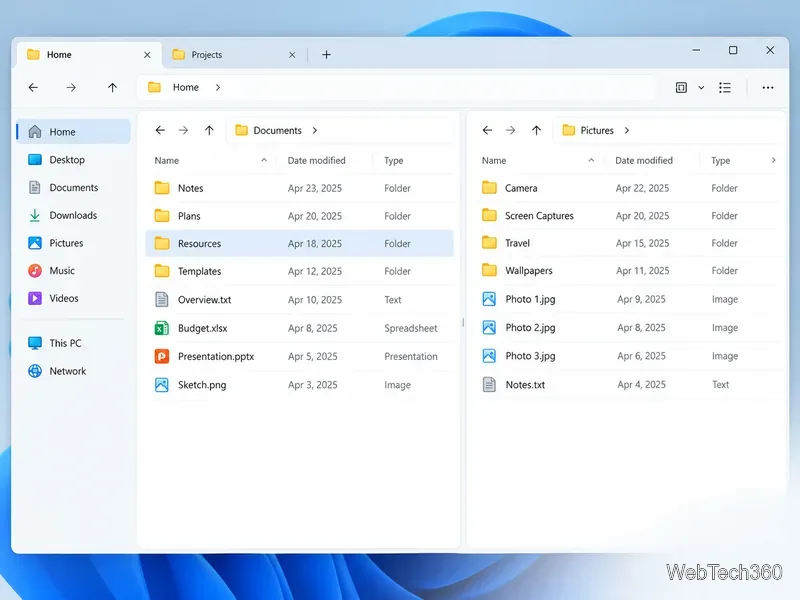
Q-Dir’s four-pane layout keeps several folders visible in one window, with tabs and favorites for saved folder combinations. Use it to sort downloads, backups, or removable drives without constantly switching windows. The compact grid can feel crowded on a small display. Q-Dir is freeware in installed or portable form; download it from the developer’s page and choose the package you need.
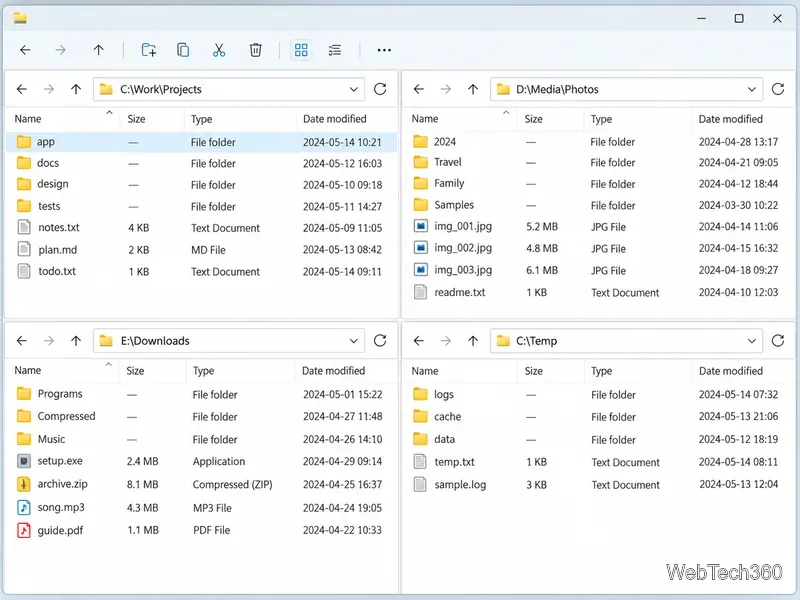
xplorer² combines an Explorer-style view with dual panes, tabs, filters, and folder comparison. Sticky selection keeps marked items selected as you click elsewhere, helping when you assemble a batch from a long list. The developer offers free Lite and paid Professional and Ultimate editions, plus a 21-day evaluation of the paid software. Check xplorer² Lite and the quick-start guide for current edition details.
Download each program from its developer’s site or the Microsoft Store, then check the edition and trial terms before relying on a feature. Keep File Explorer available while you decide; installing another manager does not require deleting Windows tools. Test copy, move, rename, archive, and network-folder operations on a small set of nonessential files first. Confirm whether a drag-and-drop operation copies or moves in the destination you are using, and make a backup before a large batch rename or synchronization.
A different file manager can make navigation and selection easier, but it cannot make a slow drive, network connection, or cloud provider transfer faster by itself. Choose the layout and controls that reduce mistakes and folder switching in your own routine.
Learn how to screenshot on Mac with shortcuts for the full screen, an area, or a window, plus the Screenshot app, clipboard, editing, and save-location tips.
Combine multiple images into a single PDF on macOS using Finder or Preview. Control page order, avoid cropping, and fix missing pages without extra software.
Learn how to show FPS on a Mac with Steam’s performance overlay or Apple’s Metal Performance HUD, plus fixes when the counter does not appear.
Use Option–Command–Esc to force quit an unresponsive Mac app, or close it from the Apple menu, Dock, Activity Monitor, or Terminal.
Set up Split View, resize or replace a pane, use Mission Control, and learn when desktop window tiling is a better fit on your Mac.
Learn how to remove EXIF data from photos on macOS, hide location in Photos, clean exported JPEG copies with ExifTool, and verify the result.
Sync two folders on a Mac with SyncTwoFolders, choose a one-way or two-way update, and preview changes before files are replaced or removed.
Back up a Tumblr blog on your Mac with Tumblr’s web export. Download and unpack the ZIP, keep its posts and media safe, and know what the archive leaves out.
Use Google Maps on your Mac in Safari or Chrome, find places and routes, switch map layers, and add a Safari web app to your Dock on macOS Sonoma 14 or later.
Compare five free WAV-to-MP3 converters for Windows and macOS, including online file limits, local batch tools, and practical export settings.








