How to Screenshot on Mac: A Comprehensive Guide

Learn how to screenshot on Mac with shortcuts for the full screen, an area, or a window, plus the Screenshot app, clipboard, editing, and save-location tips.
Finder does not have a text-entry address bar like some file managers, but macOS gives you three useful ways to see or use a location. Turn on the Path Bar to see clickable folders at the bottom of a Finder window. To put a full POSIX path such as /Users/alex/Documents/Projects in the window title, use a hidden Finder preference in Terminal. To copy a file or folder path, use Finder’s built-in Copy as Pathname command. These options solve different tasks, so start with the one you need.
The Path Bar is the simplest answer if you want to see where the open folder sits in your drive. It shows each parent folder as a clickable segment, so you can move up the hierarchy without opening a separate dialog.
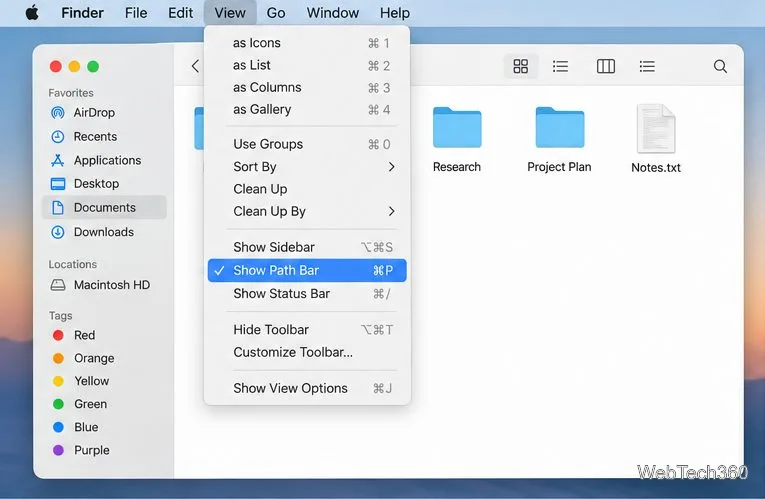
The path appears along the bottom edge of the window. Click a folder segment to show that folder’s subfolders in the window. The bar is a navigation control, not a field where you can type or edit a path. Apple also notes that holding Option can reveal the Path Bar momentarily. Apple’s Finder guide to file and folder information describes the Path Bar and its pathname actions.
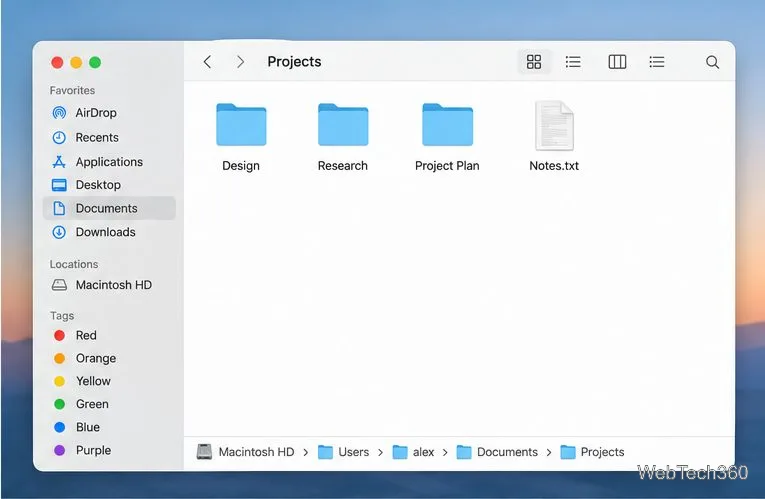
For example, click Documents in the chain to return to that parent folder. This is often faster than navigating backward repeatedly, especially when you have opened several nested folders.
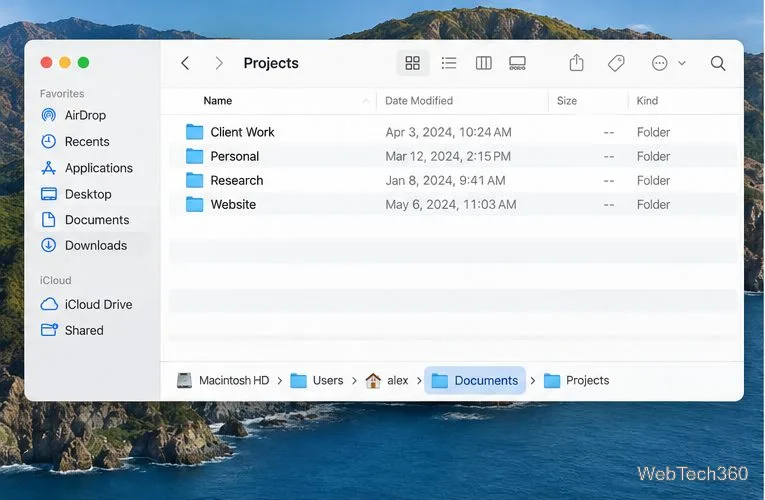
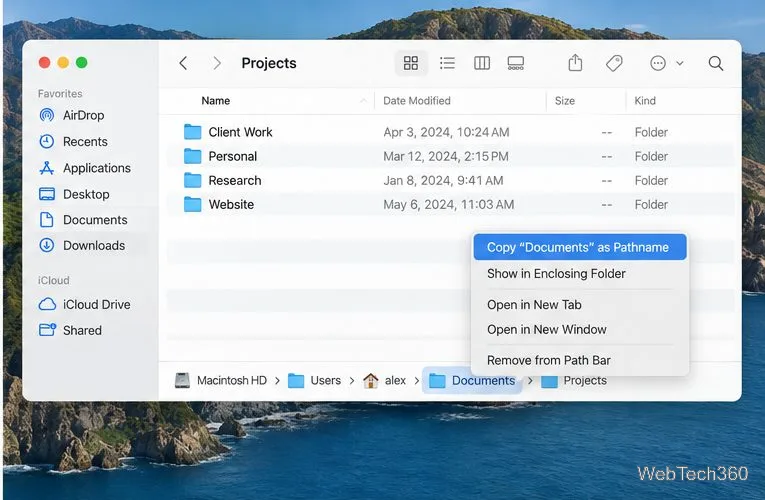
You can also Control-click a folder segment in the Path Bar and choose Copy “[folder]” as Pathname. That copies the selected folder’s full path to the clipboard. This is handy when a support form or Terminal command needs a folder location.
If by “location bar” you mean a full slash-separated path across the top of the window, Finder has no switch for it in System Settings. A longstanding, undocumented Finder preference can display the current folder’s POSIX path in the title area instead. Apple does not document this preference in its current Finder guide, so Apple could change its behavior in a future macOS release. It is a display preference; it does not rename, move, or edit your files.
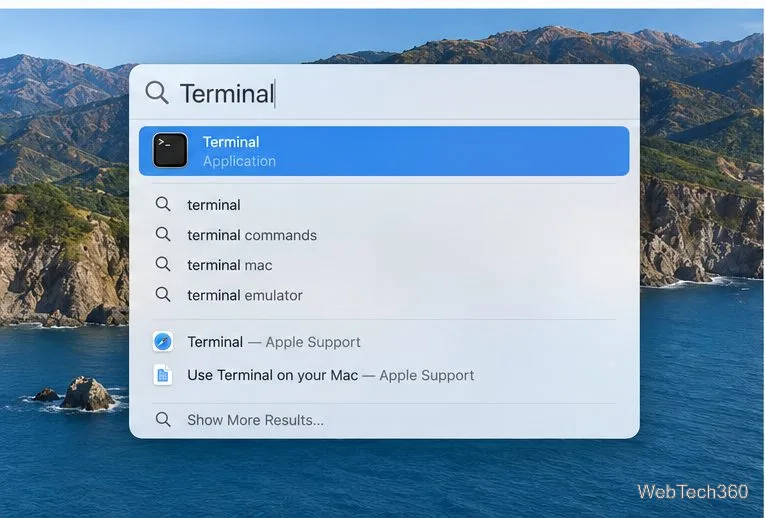
defaults write com.apple.finder _FXShowPosixPathInTitle -bool YESkillall FinderFinder should relaunch automatically. Its title area will show the current folder’s full path instead of only the folder name. The path is informational; you cannot click it to move through folders or select it to copy. Keep the Path Bar enabled as well if you want clickable navigation at the bottom.
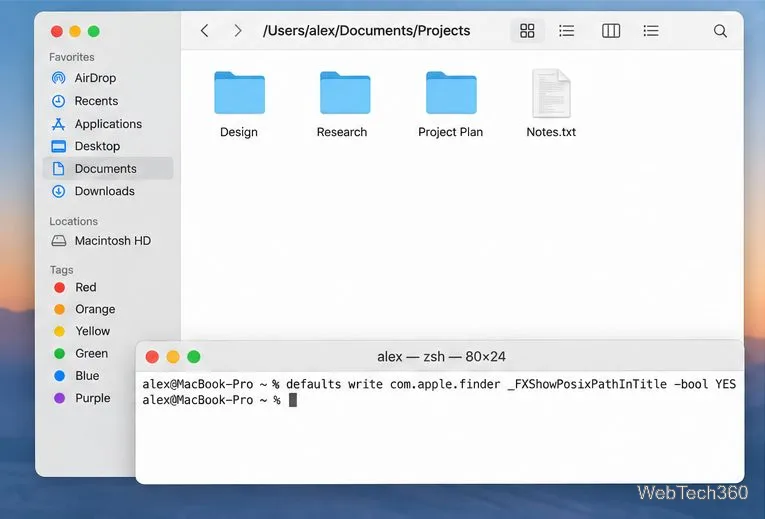
To remove the path from Finder’s title area, change YES to NO and restart Finder again:
defaults write com.apple.finder _FXShowPosixPathInTitle -bool NO
killall Finder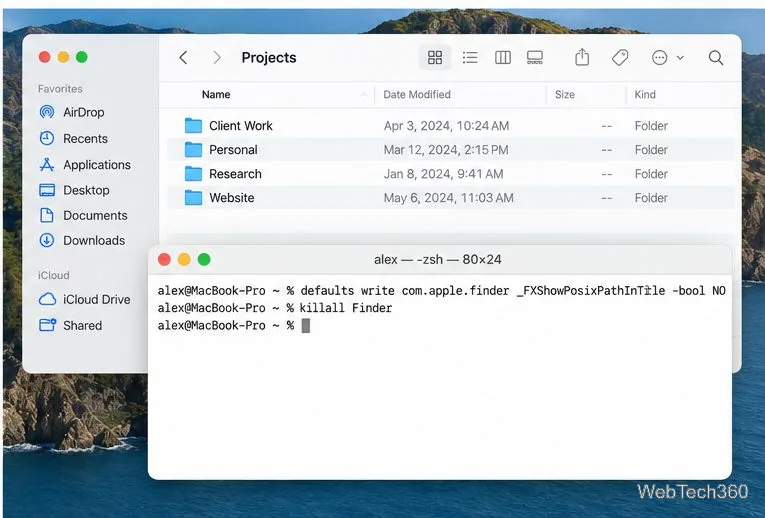
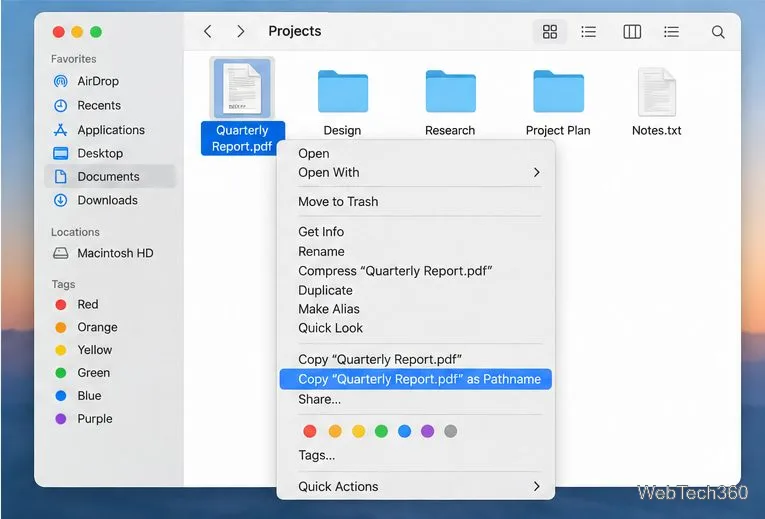
You do not need a separate utility just to copy a pathname. In Finder, select or right-click a file or folder while holding the Option key. Choose Copy “[item name]” as Pathname from the contextual menu, then paste it into a document, message, or Terminal window. Apple documents this built-in method in its Terminal guide to specifying files and folders.
If you already have a path and want Finder to open it, choose Go > Go to Folder or press Shift-Command-G, paste the path, and press Return. Apple’s Go to Folder instructions also explain how to enter a pathname directly.
The older advice to install FinderPath for basic path copying is unnecessary on current macOS: Finder already provides a native pathname command. The Path Bar and title display are also independent, so you can use either one—or both—depending on whether you want clickable navigation or a persistent text path.
Learn how to screenshot on Mac with shortcuts for the full screen, an area, or a window, plus the Screenshot app, clipboard, editing, and save-location tips.
Combine multiple images into a single PDF on macOS using Finder or Preview. Control page order, avoid cropping, and fix missing pages without extra software.
Learn how to show FPS on a Mac with Steam’s performance overlay or Apple’s Metal Performance HUD, plus fixes when the counter does not appear.
Use Option–Command–Esc to force quit an unresponsive Mac app, or close it from the Apple menu, Dock, Activity Monitor, or Terminal.
Set up Split View, resize or replace a pane, use Mission Control, and learn when desktop window tiling is a better fit on your Mac.
Learn how to remove EXIF data from photos on macOS, hide location in Photos, clean exported JPEG copies with ExifTool, and verify the result.
Sync two folders on a Mac with SyncTwoFolders, choose a one-way or two-way update, and preview changes before files are replaced or removed.
Back up a Tumblr blog on your Mac with Tumblr’s web export. Download and unpack the ZIP, keep its posts and media safe, and know what the archive leaves out.
Use Google Maps on your Mac in Safari or Chrome, find places and routes, switch map layers, and add a Safari web app to your Dock on macOS Sonoma 14 or later.
Compare five free WAV-to-MP3 converters for Windows and macOS, including online file limits, local batch tools, and practical export settings.








