How to Screenshot on Mac: A Comprehensive Guide

Learn how to screenshot on Mac with shortcuts for the full screen, an area, or a window, plus the Screenshot app, clipboard, editing, and save-location tips.
If your Mac is still running macOS Mojave and Software Update is offering Catalina, you can try the legacy softwareupdate ignore command to suppress that named upgrade. This is a temporary, version-specific workaround; it does not turn off Mojave updates by itself. Keep security updates enabled and confirm the command works on your exact macOS build.
These steps are for a Mac that has not installed Catalina yet. If your Mac already runs Catalina or a later macOS release, this command will not downgrade it or prevent all future system updates.
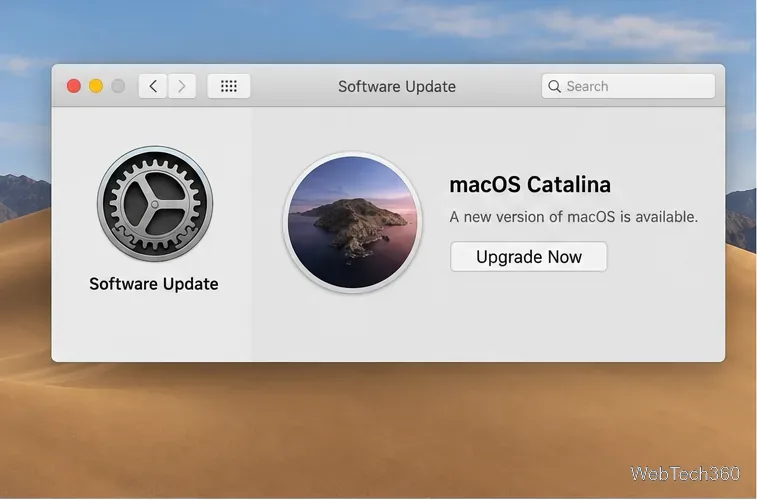
First choose Apple menu > About This Mac and confirm the Mac is on Mojave or an earlier release. Catalina changed app compatibility: Apple says macOS Mojave 10.14 was the last macOS version that runs 32-bit apps. If an app you rely on is 32-bit, it will not run in Catalina. Check with the app developer for a 64-bit version or an alternative before installing. Apple’s 32-bit app compatibility guide explains the change.
Make a current backup before changing system software settings. The goal here is to delay an upgrade while you check app support, not to leave an older system without a plan for security and compatibility.
sudo /usr/sbin/softwareupdate --ignore "macOS Catalina"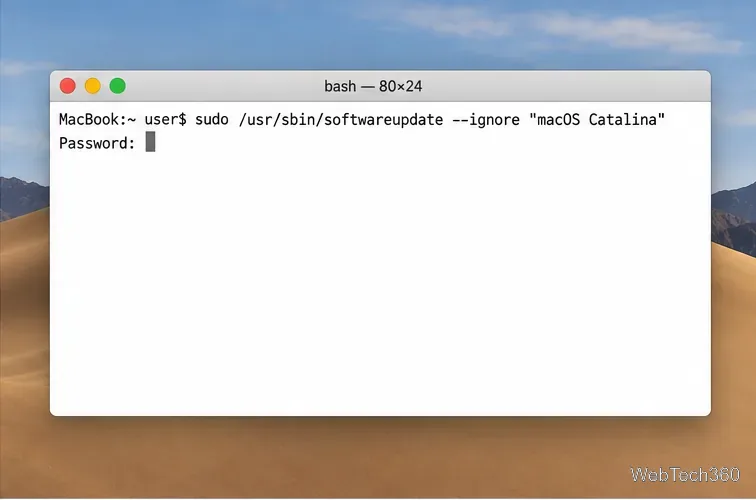
This command comes from the older Software Update workflow, and its support depends on the macOS release and build. Apple later restricted update-ignoring behavior: its managed-update guidance describes ignoring updates on Catalina and Mojave only for supervised devices in specific update workflows, and says indefinite ignoring is not supported in Big Sur and later. See Apple’s managed software updates session. If the command is rejected or does not hide Catalina, stop there; do not try unrelated flags or assume the upgrade is blocked.
On Mojave, open System Preferences > Software Update > Advanced. The wording and controls vary by macOS release. If shown, turning off Download new updates when available and Install macOS updates can prevent unattended downloads or installation, but it may not remove the Catalina offer from the screen.
Avoid turning off Check for updates for an extended period: it can also stop the Mac from checking for other updates. Leave Install system data files and security updates selected. Apple explains that background security and system-data updates help protect macOS; this setting is separate from deciding whether to install a major upgrade. Review Apple’s background updates guidance if your settings are arranged differently.
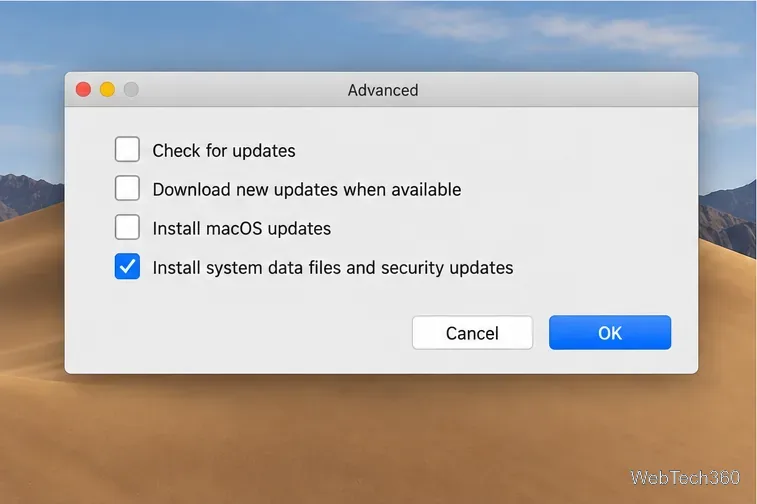
If you temporarily stop update checks, reopen Software Update periodically and install applicable security updates manually. A preference change is not a Catalina-only block, and it should not become a reason to ignore security maintenance.
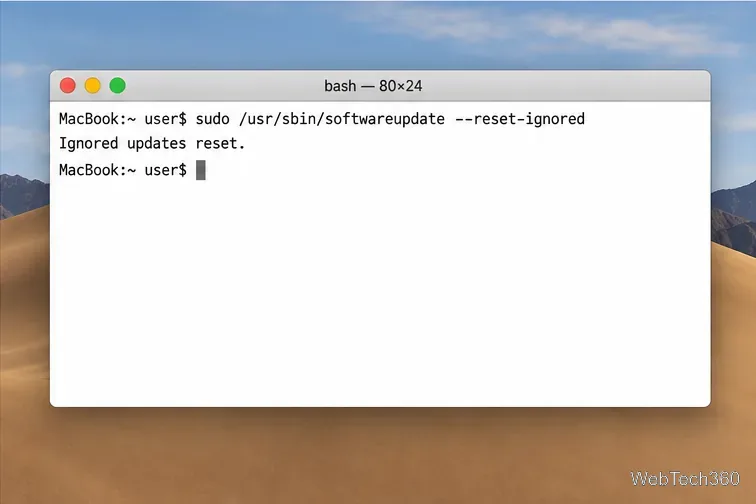
If the ignore command worked and you are ready to review Catalina again, open Terminal and run:
sudo /usr/sbin/softwareupdate --reset-ignored
Enter the administrator password if prompted, then return to System Preferences > Software Update and check again. This reset clears the ignored-update list as a whole, not just the Catalina label, so any other updates you had deliberately ignored may reappear too. If the reset command is unavailable on your macOS version, use Software Update’s normal controls instead.
Ignoring the Catalina offer does not remove an installer that is already downloaded, reverse an upgrade, or restore 32-bit app support after installation. It also is not a substitute for choosing a supported macOS release for your Mac. Apple recommends installing the latest macOS version compatible with the computer to get current security and stability improvements; check its macOS update guidance before deciding to stay on an older release. Treat the block as a short-term pause while you verify the apps and workflows you need.
Learn how to screenshot on Mac with shortcuts for the full screen, an area, or a window, plus the Screenshot app, clipboard, editing, and save-location tips.
Combine multiple images into a single PDF on macOS using Finder or Preview. Control page order, avoid cropping, and fix missing pages without extra software.
Learn how to show FPS on a Mac with Steam’s performance overlay or Apple’s Metal Performance HUD, plus fixes when the counter does not appear.
Use Option–Command–Esc to force quit an unresponsive Mac app, or close it from the Apple menu, Dock, Activity Monitor, or Terminal.
Set up Split View, resize or replace a pane, use Mission Control, and learn when desktop window tiling is a better fit on your Mac.
Learn how to remove EXIF data from photos on macOS, hide location in Photos, clean exported JPEG copies with ExifTool, and verify the result.
Sync two folders on a Mac with SyncTwoFolders, choose a one-way or two-way update, and preview changes before files are replaced or removed.
Back up a Tumblr blog on your Mac with Tumblr’s web export. Download and unpack the ZIP, keep its posts and media safe, and know what the archive leaves out.
Use Google Maps on your Mac in Safari or Chrome, find places and routes, switch map layers, and add a Safari web app to your Dock on macOS Sonoma 14 or later.
Compare five free WAV-to-MP3 converters for Windows and macOS, including online file limits, local batch tools, and practical export settings.








