How to Change Audio Input and Output on macOS

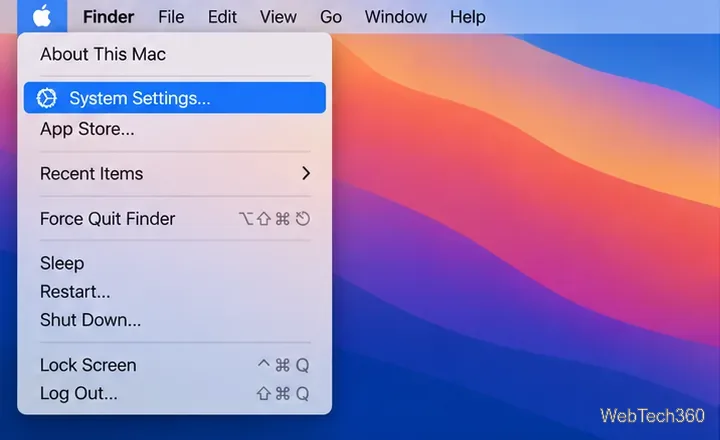
To change audio input or output on a Mac, open Apple menu > System Settings > Sound. Choose Output for speakers or headphones, or Input for a microphone. For quicker output changes, open Control Center > Sound and select a device. The device must be connected before it appears.

Connect your audio device first

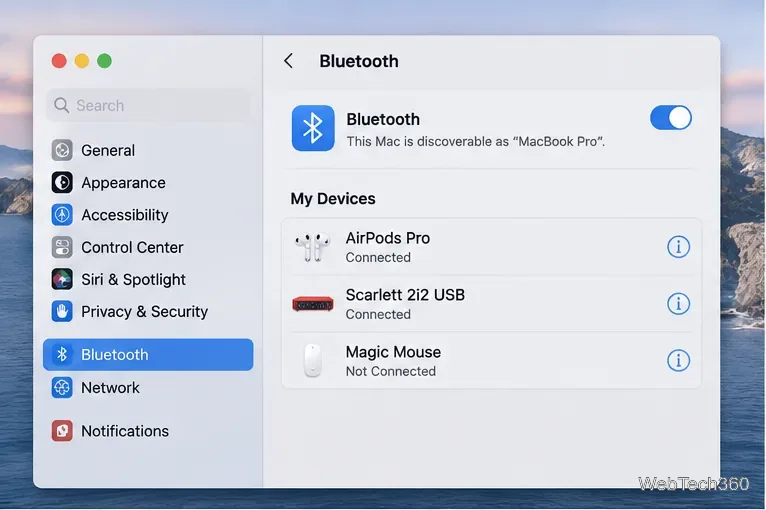
macOS can use built-in speakers and microphones, wired headphones, USB or Thunderbolt audio interfaces, compatible display speakers over HDMI or USB-C, AirPlay devices, and Bluetooth headsets. Plug in wired equipment or open System Settings > Bluetooth to connect wireless gear. A paired Bluetooth device may still need to connect before it appears as an audio source.

Bluetooth settings show AirPods Pro connected and a USB audio interface listed under My Devices.
Confirm wireless audio gear is connected before selecting it in Sound settings.

Change your Mac’s sound output

  1. Choose Apple menu > System Settings.
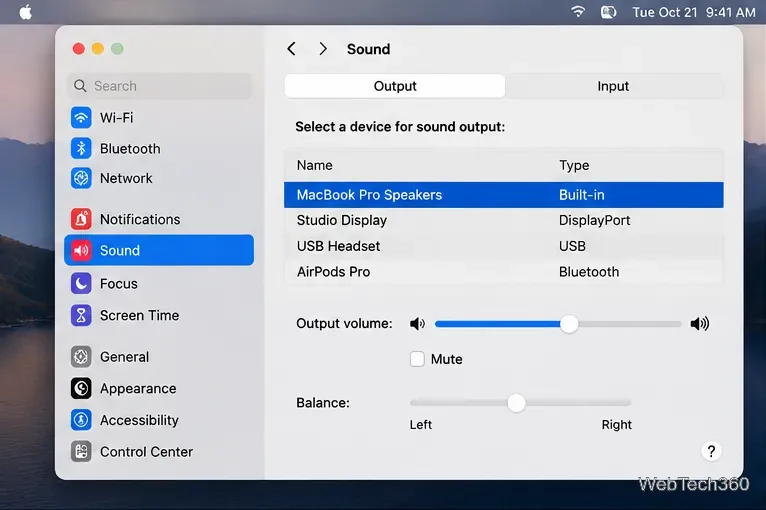
  2. Select Sound in the sidebar, then click Output.
  3. Select the speakers, headphones, display, audio interface, or AirPlay device you want to hear sound from.
  4. Adjust Output volume, mute, or move the Balance slider if needed.

For equipment plugged into the Mac’s audio jack, Apple says to choose Headphones. Some options vary by Mac model and connected hardware. See Apple’s sound output settings guide.

The Sound settings Output tab lists MacBook Pro Speakers, Studio Display, a USB headset, and AirPods Pro, with MacBook Pro Speakers selected.
Select an output device, then check its volume and balance.

Change your sound input or microphone

  1. Open Apple menu > System Settings > Sound.
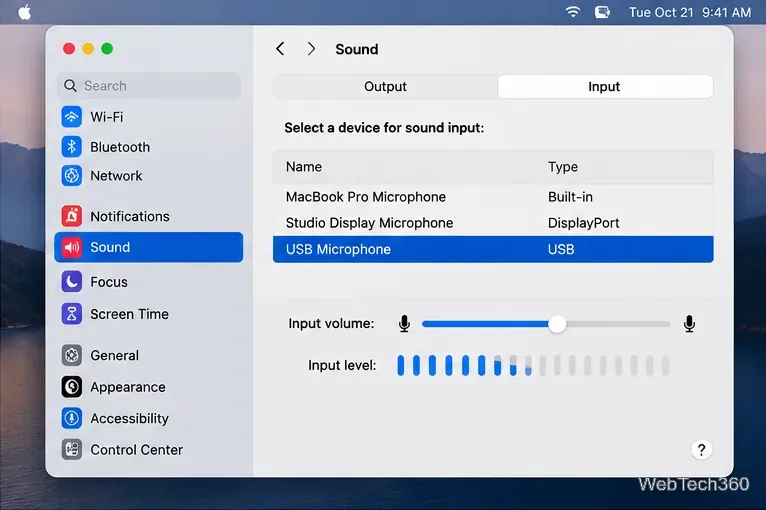
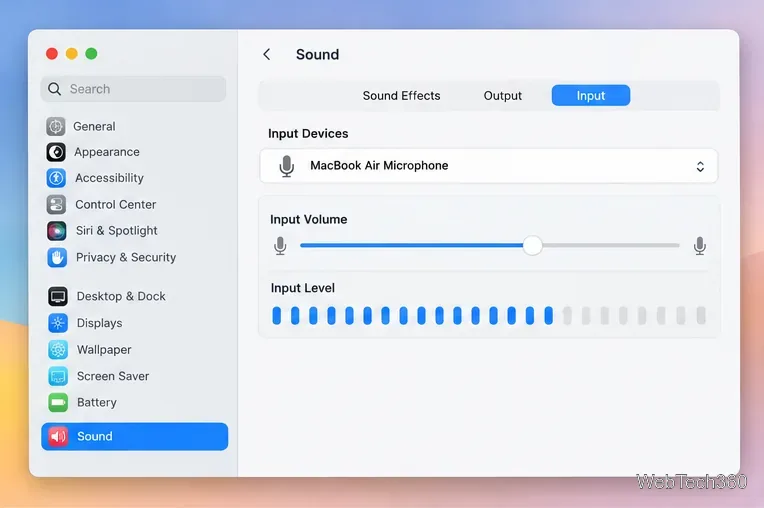
  2. Click Input, then select the microphone you want to use.
  3. Speak into the mic and watch the Input level meter to confirm macOS receives sound.
  4. If available, adjust Input volume so your voice registers clearly without distortion.

The list may include the Mac’s built-in microphone, a display microphone, a USB microphone or audio interface, a headset, or an iPhone microphone. Input-volume controls vary by device. See Apple’s sound input settings guide.

The Sound settings Input tab shows MacBook Pro Microphone, Studio Display Microphone, and USB Microphone, with the USB microphone selected and the input-level meter active.
Use the input-level meter to check whether your microphone picks up sound.

Switch output quickly from Control Center

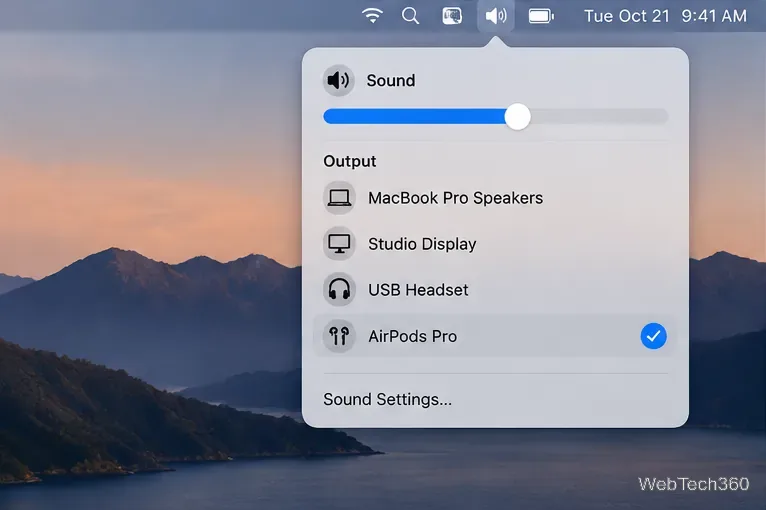
  1. Click the Control Center icon at the right side of the menu bar.
  2. Open the Sound control.
  3. Choose the output device you want to use. You can also adjust volume here.

This changes speakers or headphones without opening the full settings window. The Sound control changes output; use System Settings > Sound > Input to switch microphones. If Sound is missing, choose Edit Controls and add it. See Apple’s Control Center guide.

The macOS Control Center Sound panel lists MacBook Pro Speakers, Studio Display, USB Headset, and AirPods Pro, with AirPods Pro selected.
Select an output directly from Control Center’s Sound panel.

Keep the Sound icon in the menu bar

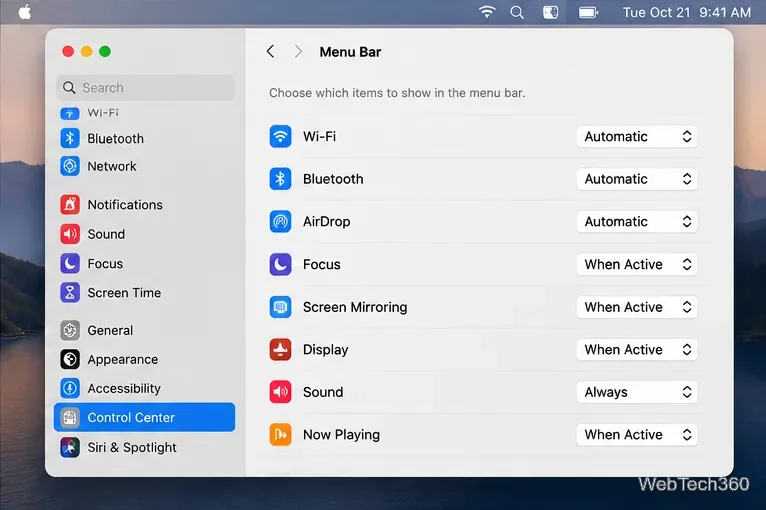
For quick volume access, open System Settings > Menu Bar, find Sound, and set it to Always. The layout can vary slightly by macOS version. This status item is useful for volume adjustments; use Control Center to choose an output device.

System Settings Menu Bar options show Sound set to Always so the sound status item remains visible.
Set Sound to Always to keep the status item visible in the menu bar.

Troubleshoot missing devices or apps using the wrong mic

  • The device is missing: Check the cable, adapter, power, and connection. For Bluetooth, verify it says Connected in System Settings > Bluetooth. A display appears as an output only if its connection and hardware support audio.
  • The output switches back: Apple notes that headphones or external speakers connected to a Mac linked to a display can cause the selection to revert to those devices. Unplug them before choosing the display’s built-in speakers in Sound settings, then test again. See Apple’s audio-device switching guidance.
  • An app still uses the old device: Check its own microphone and speaker selectors. Some apps manage their own audio route. If the app does not recognize the change, quit and reopen it.
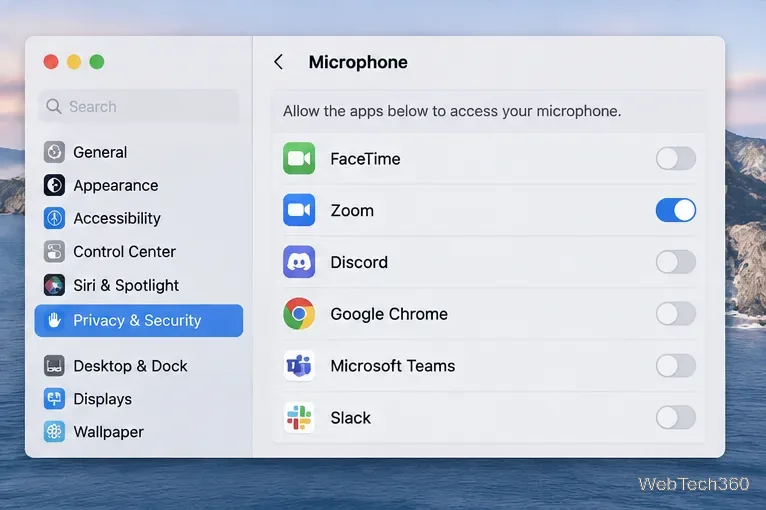
  • The microphone is silent in one app: Open System Settings > Privacy & Security > Microphone and allow access for that app. The menu-bar recording indicator can show when the microphone is in use. Follow Apple’s microphone privacy instructions.
  • You cannot hear anything: Return to Sound > Output, confirm the intended device is selected, check the volume and mute setting, and make sure the app’s own volume is not turned down.
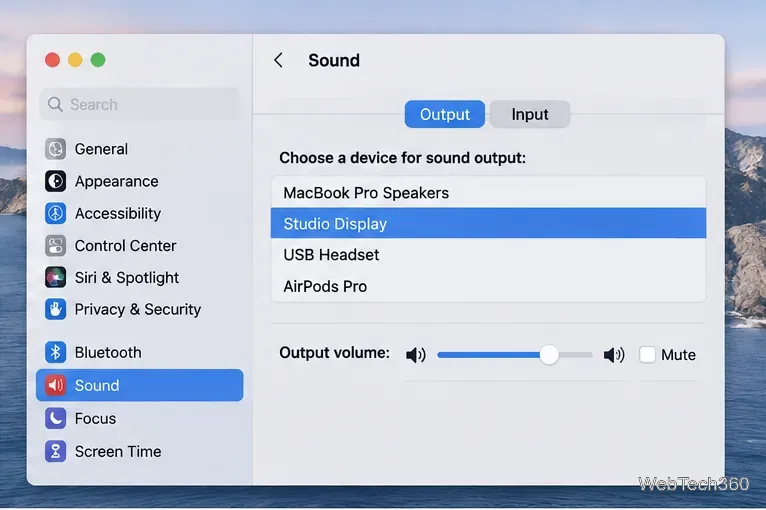
The Sound settings Output list has Studio Display selected, with MacBook Pro Speakers, USB Headset, and AirPods Pro also available.
If you want audio from a monitor, select it in Output and confirm it supports sound.
Privacy and Security microphone settings list FaceTime, Zoom, Discord, Chrome, Microsoft Teams, and Slack, with microphone access enabled for Zoom.
Allow microphone access for the app that needs to record or transmit your voice.

Play sound through multiple devices at once

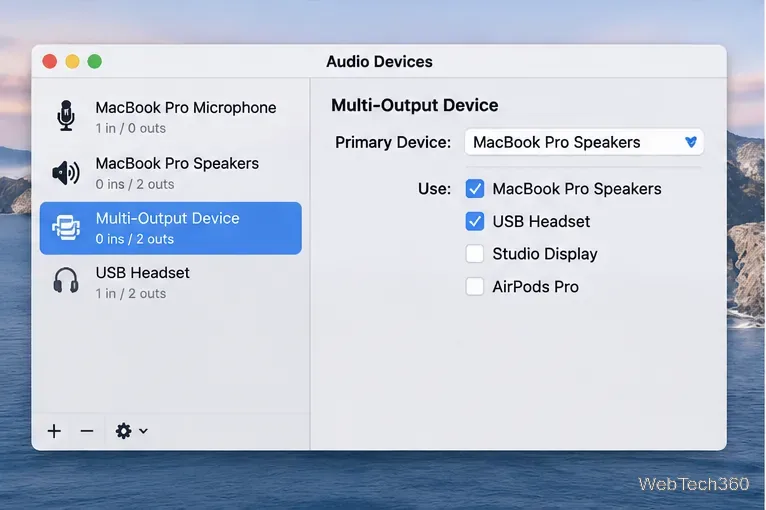
A normal output selection sends system audio to one device. To play the same sound through several outputs, open Audio MIDI Setup from Finder > Go > Utilities, click the add (+) button, and choose Create Multi-Output Device. Select Use for each output, choose a primary device, then select the new Multi-Output Device under System Settings > Sound > Output. An Aggregate Device instead combines channels from multiple devices for compatible audio apps; see Apple’s Aggregate Device guide. For simultaneous playback, follow Apple’s Multi-Output Device instructions.

Audio MIDI Setup shows a Multi-Output Device with MacBook Pro Speakers and USB Headset selected in the Use column.
Audio MIDI Setup can send the same sound to several output devices.

On older macOS releases, the panel may be called System Preferences instead of System Settings. The workflow is similar: open Sound, select Output or Input, and choose the device you want to use.

Leave a Comment

How to Take a Timed Screenshot from Terminal on macOS
How to Take a Timed Screenshot from Terminal on macOS

Set a custom delay for a timed screenshot from Terminal on macOS, then choose its filename, save folder, image format, and pointer settings.

How to Get a Catalina-Style Menu Bar on macOS Big Sur

How to Get a Catalina-Style Menu Bar on macOS Big Sur

Restore a solid Catalina-style menu bar on Big Sur with compatible Boring Old Menu Bar v1.27. Follow the install steps, set light and dark styles, and troubleshoot common issues.

How to Link an Apple ID to a Mac User Account

How to Link an Apple ID to a Mac User Account

Sign in with your Apple ID (now called an Apple Account) in System Settings, then configure the separate Mac login password recovery option for that user.

How to Hide Your Mac From Other Devices on a Network

How to Hide Your Mac From Other Devices on a Network

Turn off Mac sharing services and enable Firewall stealth mode to limit local discovery, with clear notes on what your router and other devices can still see.

How to Check the Mic on a Mac (Built-In or External)

How to Check the Mic on a Mac (Built-In or External)

Learn how to check a Mac microphone using Sound settings and QuickTime, choose the right input, verify permissions, and fix common no-input problems.

How to View CPU, RAM, Disk, and Network Usage in the macOS Menu Bar

How to View CPU, RAM, Disk, and Network Usage in the macOS Menu Bar

Use the free Stats app to show CPU, memory, disk, and network usage in the macOS menu bar, customize widgets, and fix missing icons on macOS 26.

How to Install a Mail Plugin on macOS

How to Install a Mail Plugin on macOS

Install a Mail plugin on macOS using the current Mail Extensions workflow, enable it in Mail settings, and handle older .mailbundle plugins safely.

How to Download YouTube Videos on macOS: Official Methods

How to Download YouTube Videos on macOS: Official Methods

Learn how to download YouTube videos on a Mac with YouTube Premium, save your own uploads as MP4 files, and avoid outdated downloader apps.

How to Download Older Versions of macOS from Apple

How to Download Older Versions of macOS from Apple

Learn how to download older macOS installers from Apple using the App Store, Terminal, or official DMG links, with compatibility and error tips.

How to Toggle the Touch Bar On or Off on macOS

How to Toggle the Touch Bar On or Off on macOS

macOS has no built-in Touch Bar off switch. Learn how to change Touch Bar settings and use Hide My Bar to toggle it off and back on.