How to Take a Timed Screenshot from Terminal on macOS
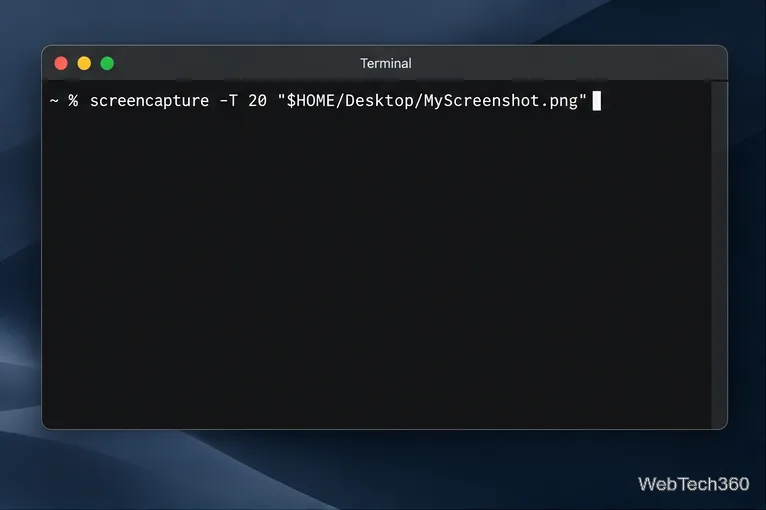
Set a custom delay for a timed screenshot from Terminal on macOS, then choose its filename, save folder, image format, and pointer settings.
The fastest way to check the mic on a Mac is to open System Settings > Sound > Input, select the microphone you want to use, and speak normally. If the Input level meter moves, macOS is receiving sound from that microphone. For a more complete test, make a short recording in QuickTime Player and play it back.
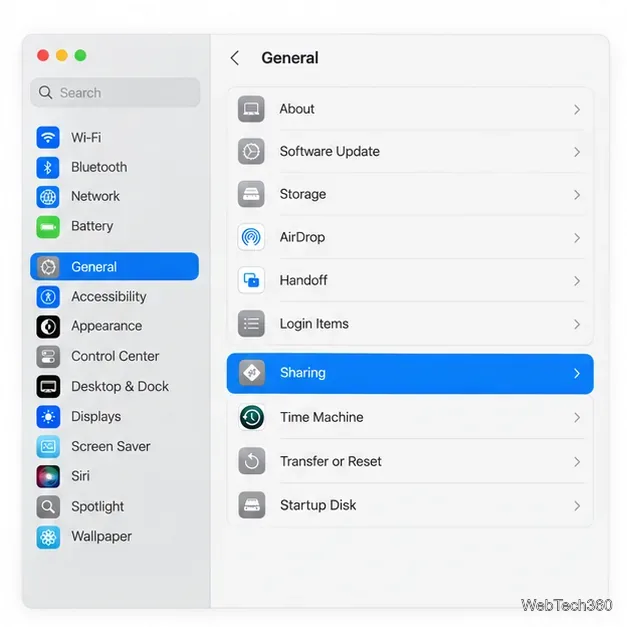
Current macOS versions use System Settings rather than the older System Preferences layout. Apple’s Sound input settings show every input device the Mac can currently use, including the built-in microphone, compatible external microphones, and other available audio inputs.
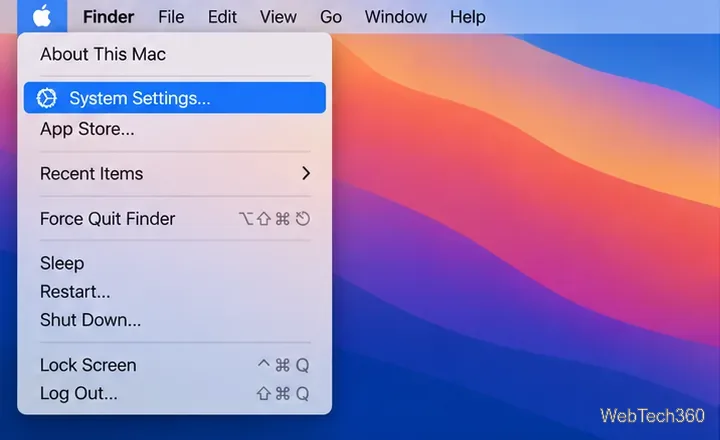
Choose the Apple menu > System Settings, click Sound in the sidebar, then open the Input section. If more than one microphone is available, select the one you actually want to test.
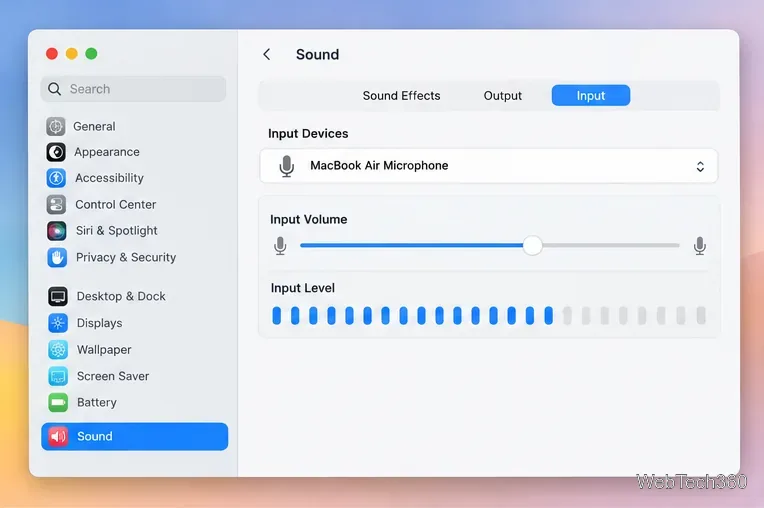
Speak at a normal distance and volume. The Input level bars should move with your voice. That confirms the Mac is detecting an audio signal. If the meter barely moves, raise Input volume gradually. If the meter stays completely still, make sure the correct microphone is selected before changing anything else.
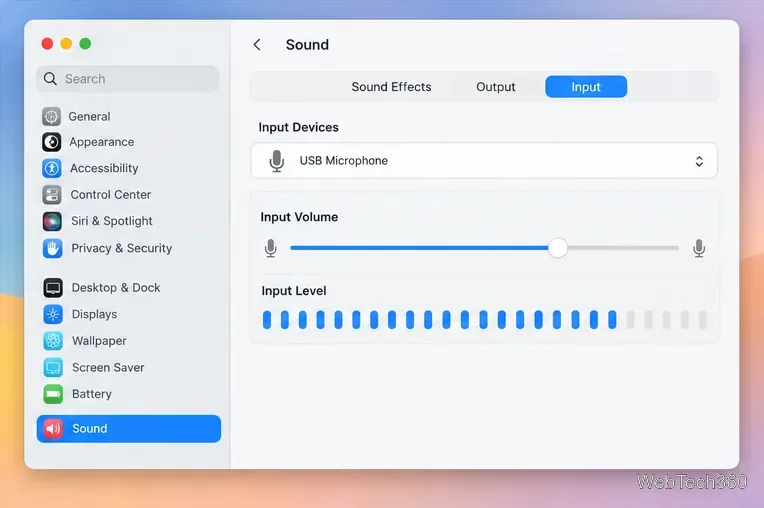
For an external USB microphone or audio interface, connect and power the device first, then return to Sound > Input. If macOS recognizes it, it should appear in the input-device list.
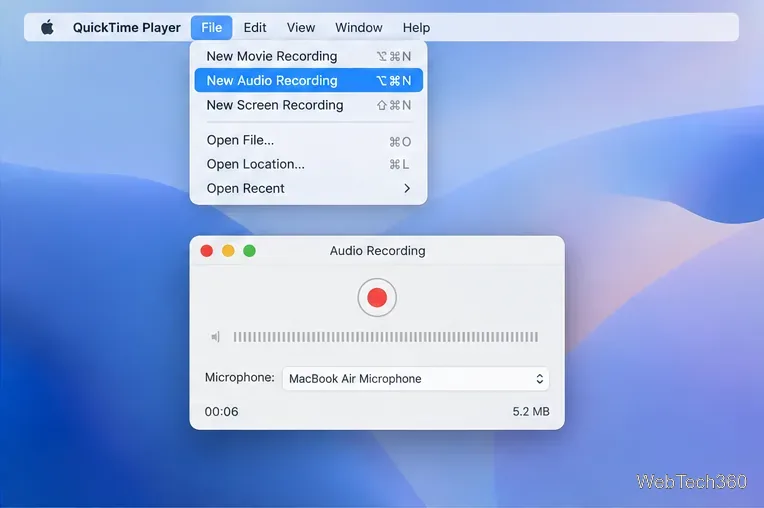
The system meter proves that macOS sees an input signal, but a short recording is better for checking how the microphone actually sounds. Open QuickTime Player, choose File > New Audio Recording, open the microphone selection control if necessary, and choose the mic you want to test. Record a few seconds, stop, and play the clip back.
Listen for a clear voice, reasonable volume, and obvious problems such as distortion, heavy background noise, or intermittent dropouts. Apple documents the same workflow in its QuickTime Player audio-recording guide.
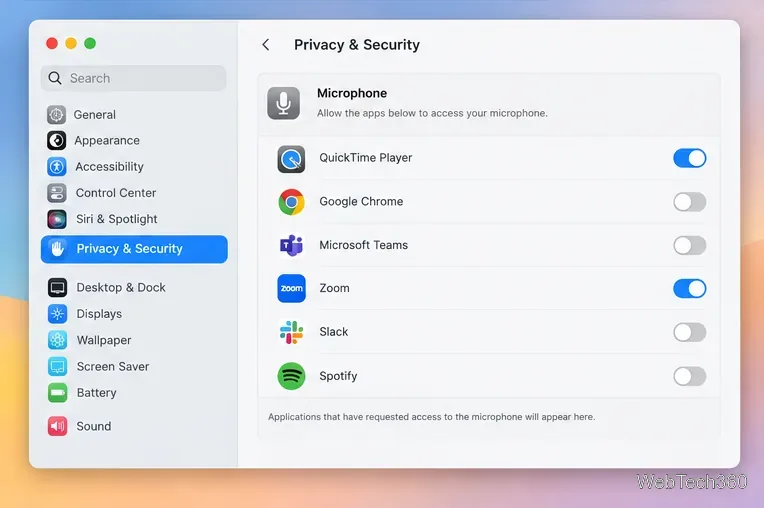
macOS controls microphone access per app. Open System Settings > Privacy & Security > Microphone and make sure access is enabled for the app that needs the mic. Apple notes that apps and websites may request microphone permission the first time they need it, and you can change that permission later in Privacy & Security. See Apple’s microphone privacy settings.
| What you see | What it usually means | What to do next |
|---|---|---|
| Input level moves | macOS is receiving a microphone signal | Record a short clip to check clarity and volume |
| Input level does not move | The wrong input may be selected, the mic may be muted, disconnected, or not recognized | Reselect the input, reconnect the device, and check its power or hardware mute |
| System meter works, one app does not | The app may not have microphone permission or may be using a different input | Check Privacy & Security and the app’s own audio settings |
| Recording is very quiet or distorted | The input level may be poorly matched to your voice or source | Adjust Input volume and repeat the recording test |
If the microphone still fails, focus on the signal path instead of installing random audio utilities. Built-in Mac microphones normally require no separate driver installation.
In most cases, the combination of the Input level meter, a short QuickTime recording, and the Microphone privacy settings is enough to identify whether the problem is the microphone itself, the selected input, or an app permission.
Set a custom delay for a timed screenshot from Terminal on macOS, then choose its filename, save folder, image format, and pointer settings.
Restore a solid Catalina-style menu bar on Big Sur with compatible Boring Old Menu Bar v1.27. Follow the install steps, set light and dark styles, and troubleshoot common issues.
Sign in with your Apple ID (now called an Apple Account) in System Settings, then configure the separate Mac login password recovery option for that user.
Turn off Mac sharing services and enable Firewall stealth mode to limit local discovery, with clear notes on what your router and other devices can still see.
Learn how to check a Mac microphone using Sound settings and QuickTime, choose the right input, verify permissions, and fix common no-input problems.
Use the free Stats app to show CPU, memory, disk, and network usage in the macOS menu bar, customize widgets, and fix missing icons on macOS 26.
Install a Mail plugin on macOS using the current Mail Extensions workflow, enable it in Mail settings, and handle older .mailbundle plugins safely.
Learn how to download YouTube videos on a Mac with YouTube Premium, save your own uploads as MP4 files, and avoid outdated downloader apps.
Learn how to download older macOS installers from Apple using the App Store, Terminal, or official DMG links, with compatibility and error tips.
macOS has no built-in Touch Bar off switch. Learn how to change Touch Bar settings and use Hide My Bar to toggle it off and back on.