How to Screenshot on Mac: A Comprehensive Guide

Learn how to screenshot on Mac with shortcuts for the full screen, an area, or a window, plus the Screenshot app, clipboard, editing, and save-location tips.
To adjust an external display on a Mac, open Apple menu > System Settings > Displays, select the monitor, and move its Brightness slider if one is available. Some Apple displays and compatible third-party screens expose brightness to macOS. Many monitors do not. If there is no slider, use the monitor’s own buttons or a utility that sends brightness commands over DDC/CI.
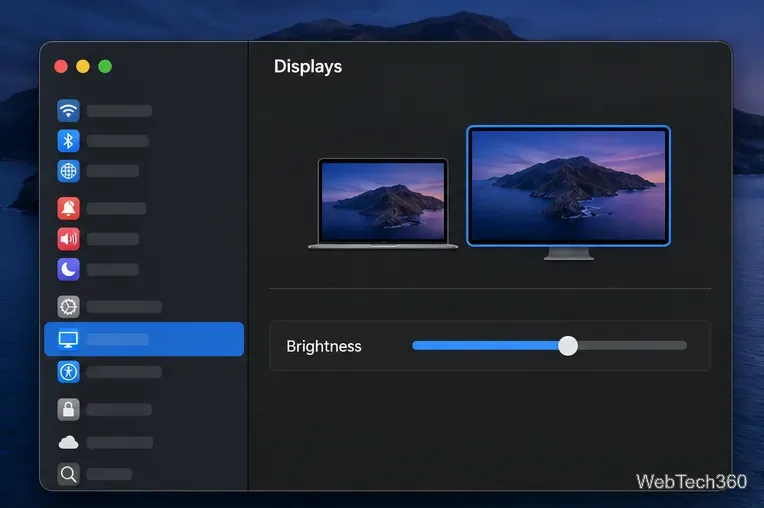
Apple documents brightness controls in Displays settings, while noting that the controls depend on the connected display. The brightness keys on a Mac keyboard may change the built-in screen without affecting a standard third-party monitor. If the slider is missing or does not change the external screen, move to the monitor’s own controls or the DDC/CI option below. See Apple’s Mac display brightness guide and external display setup guide.
Most monitors have buttons or a small joystick along the bottom edge or back. Press one to open the on-screen display (OSD), then look for Brightness, Picture, or a similar menu. Choose the brightness setting and raise or lower it. The button names and menu layout differ by manufacturer, so check the monitor manual if the controls are hard to find.
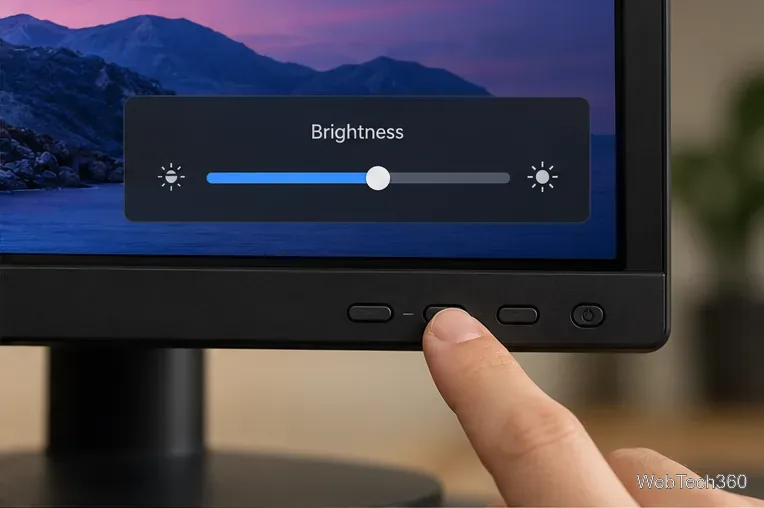
This changes the screen’s backlight or panel brightness at the monitor. It does not depend on macOS recognizing a brightness control. Apple likewise advises using a non-Apple display’s built-in controls when necessary. If you use an Apple display and its brightness slider is missing, check the cable and connection, then consult Apple’s external display troubleshooting steps.
For a menu-bar slider or keyboard shortcuts, use a monitor utility that supports your display. One free option is MonitorControl. Its current project documentation says it uses DDC for supported external displays, Apple’s native protocol for Apple and built-in displays, and software dimming for some virtual or unsupported screens. DDC/CI is the monitor-to-computer control channel that lets software send settings such as brightness to the display. It adjusts actual monitor brightness only when the display and the entire cable or adapter path support that control.
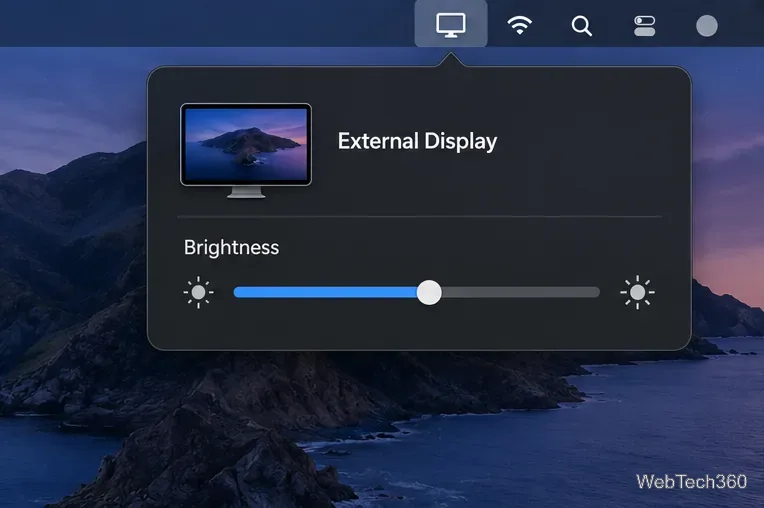
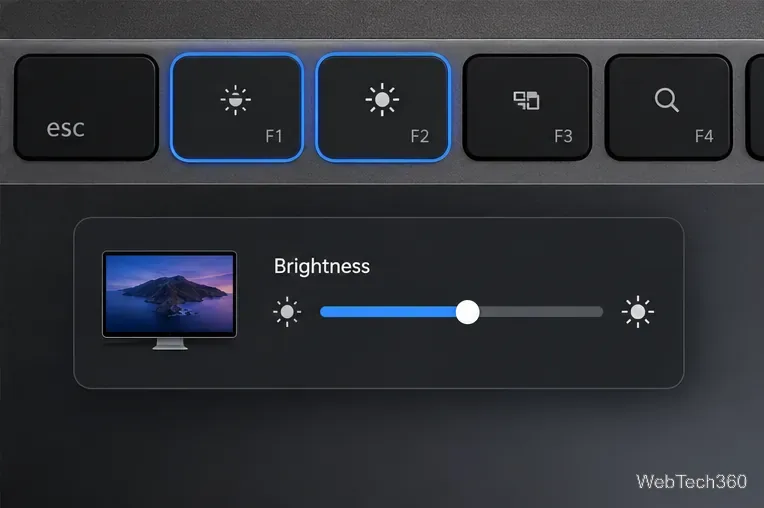
With more than one monitor, check which screen is selected before changing brightness. MonitorControl supports per-display controls and also offers options to synchronize displays. For macOS 27, its README specifies version 4.4.0 or later. The project also notes that on macOS Tahoe, the system brightness overlay’s percentage may not update even when the control itself works; use the monitor or app slider to confirm the change.
macOS cannot add hardware brightness control to a monitor that does not expose a compatible control path. In that case, the monitor’s own buttons remain the reliable way to change its brightness.
Learn how to screenshot on Mac with shortcuts for the full screen, an area, or a window, plus the Screenshot app, clipboard, editing, and save-location tips.
Combine multiple images into a single PDF on macOS using Finder or Preview. Control page order, avoid cropping, and fix missing pages without extra software.
Learn how to show FPS on a Mac with Steam’s performance overlay or Apple’s Metal Performance HUD, plus fixes when the counter does not appear.
Use Option–Command–Esc to force quit an unresponsive Mac app, or close it from the Apple menu, Dock, Activity Monitor, or Terminal.
Set up Split View, resize or replace a pane, use Mission Control, and learn when desktop window tiling is a better fit on your Mac.
Learn how to remove EXIF data from photos on macOS, hide location in Photos, clean exported JPEG copies with ExifTool, and verify the result.
Sync two folders on a Mac with SyncTwoFolders, choose a one-way or two-way update, and preview changes before files are replaced or removed.
Back up a Tumblr blog on your Mac with Tumblr’s web export. Download and unpack the ZIP, keep its posts and media safe, and know what the archive leaves out.
Use Google Maps on your Mac in Safari or Chrome, find places and routes, switch map layers, and add a Safari web app to your Dock on macOS Sonoma 14 or later.
Compare five free WAV-to-MP3 converters for Windows and macOS, including online file limits, local batch tools, and practical export settings.








