How to Take a Timed Screenshot from Terminal on macOS
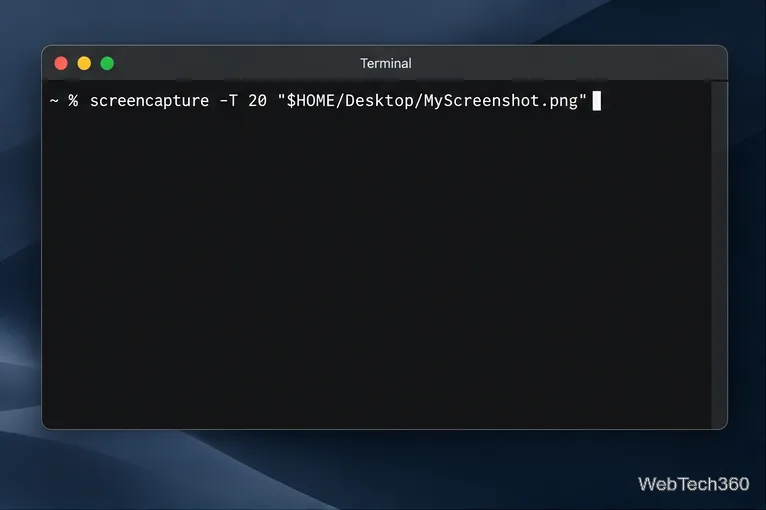
Set a custom delay for a timed screenshot from Terminal on macOS, then choose its filename, save folder, image format, and pointer settings.
You can still download many older versions of macOS directly from Apple. The best method depends on the release you need: Apple currently provides App Store links for several newer legacy releases, direct disk-image downloads for older OS X/macOS releases, and a Terminal command that can fetch compatible full installers. Avoid third-party archives when an Apple-hosted copy is available.
Apple’s current macOS download and installation page is the safest starting point. It lists these older releases by download method:
| Method | Versions Apple currently lists |
|---|---|
| Mac App Store | macOS Sequoia 15, Sonoma 14, Ventura 13, Monterey 12, Big Sur 11, Catalina 10.15, Mojave 10.14, and High Sierra 10.13 |
| Direct browser download | macOS Sierra 10.12, OS X El Capitan 10.11, OS X Yosemite 10.10, OS X Mountain Lion 10.8, and OS X Lion 10.7 |
| Terminal | Compatible full installers that Apple currently makes available for your Mac |
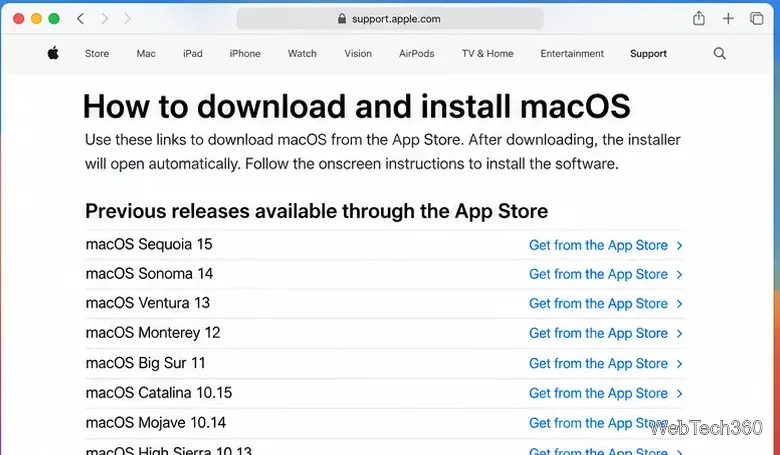
For the releases Apple lists in the App Store, use the links on Apple’s support page rather than relying on App Store search results.
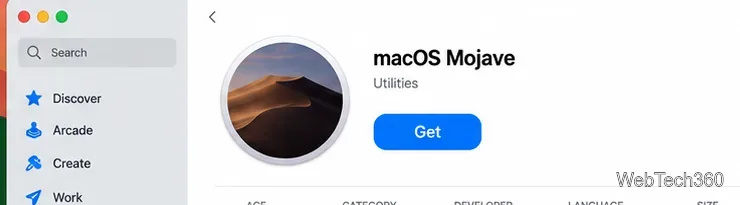
If the Get button is unavailable or the App Store says the release is not compatible, that Mac may not support that macOS version.
On a Mac running macOS Catalina 10.15 or later, Terminal can show full installers that Apple currently offers for that Mac. First open Terminal and run:
softwareupdate --list-full-installers
Then fetch the compatible version you want by replacing [number] with the version number shown by Apple:
softwareupdate --fetch-full-installer --full-installer-version [number]
The completed installer is saved in the Applications folder. Apple notes that Terminal cannot fetch a compatible release earlier than the macOS version that originally came with the Mac, or the closest version still available. If Terminal reports that the update was not found, run the list command again and choose a version that is actually offered.

Apple distributes these older releases as disk-image files from links on its support page. Use a compatible Mac to complete the installer setup.
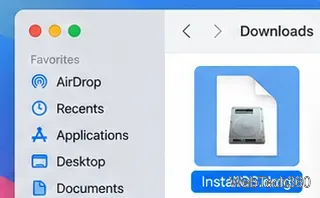
Downloading an installer does not mean every Mac can run it. Apple’s download page links to compatibility information for supported macOS releases, and Software Update or the App Store can refuse downloads that are not compatible with the Mac you are using.
If your goal is to install macOS on several Macs or install when the normal methods are unavailable, Apple also documents how to create a bootable macOS installer. In most cases, the Mac used to download the installer must itself be compatible with that macOS release.
For security and integrity, stick to Apple-hosted installers whenever possible. Apple’s current public download page does not offer every historical Mac OS X release, so a version missing from that page should not be assumed to have a current official public download.
Set a custom delay for a timed screenshot from Terminal on macOS, then choose its filename, save folder, image format, and pointer settings.
Restore a solid Catalina-style menu bar on Big Sur with compatible Boring Old Menu Bar v1.27. Follow the install steps, set light and dark styles, and troubleshoot common issues.
Sign in with your Apple ID (now called an Apple Account) in System Settings, then configure the separate Mac login password recovery option for that user.
Turn off Mac sharing services and enable Firewall stealth mode to limit local discovery, with clear notes on what your router and other devices can still see.
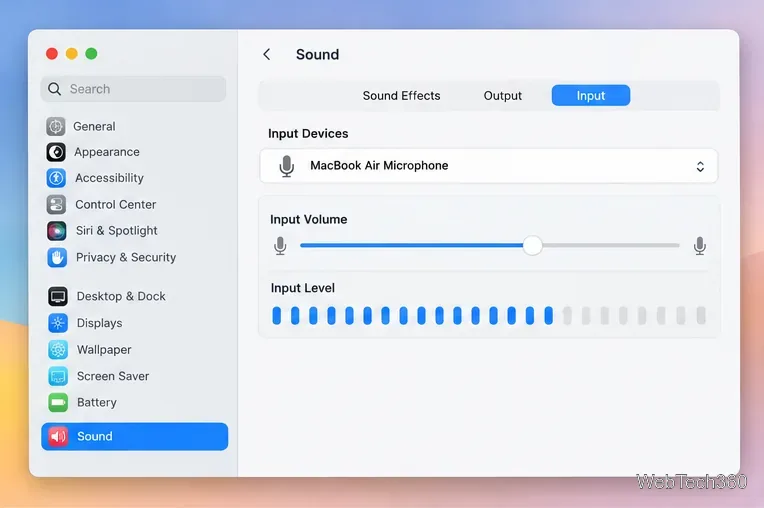
Learn how to check a Mac microphone using Sound settings and QuickTime, choose the right input, verify permissions, and fix common no-input problems.
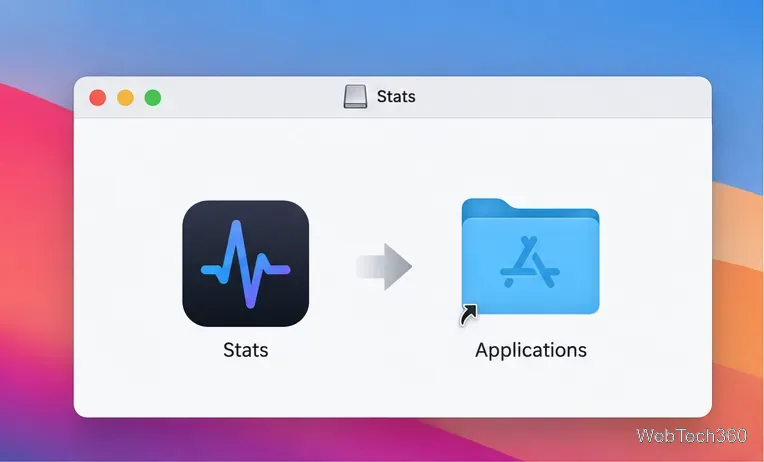
Use the free Stats app to show CPU, memory, disk, and network usage in the macOS menu bar, customize widgets, and fix missing icons on macOS 26.
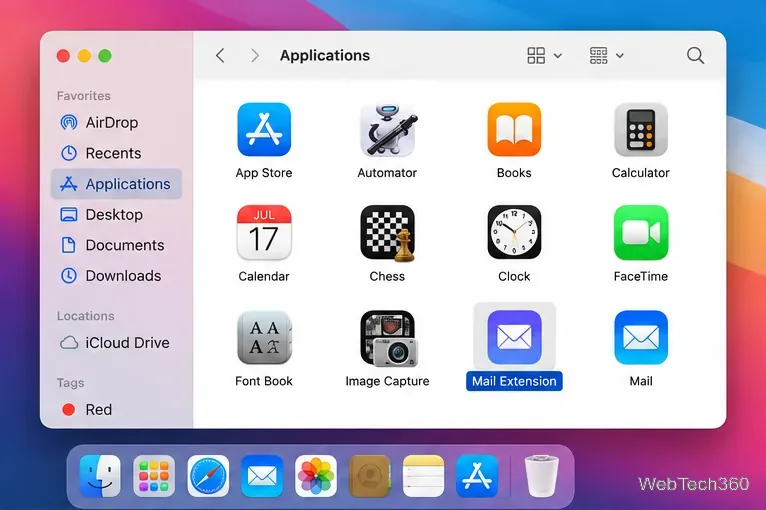
Install a Mail plugin on macOS using the current Mail Extensions workflow, enable it in Mail settings, and handle older .mailbundle plugins safely.
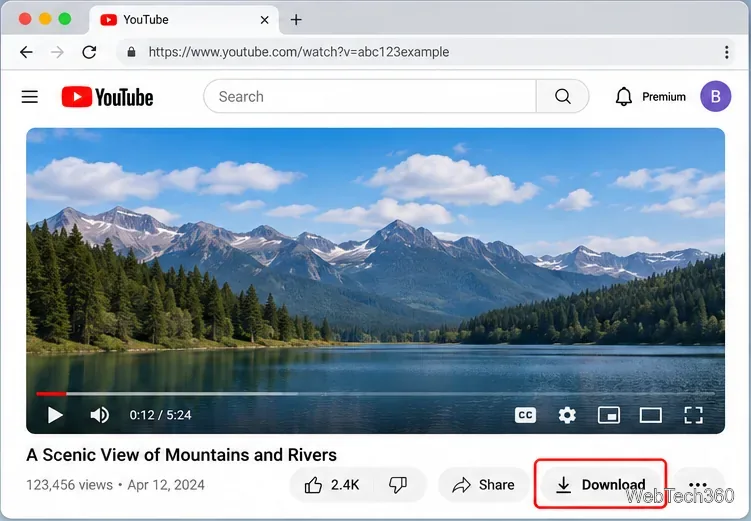
Learn how to download YouTube videos on a Mac with YouTube Premium, save your own uploads as MP4 files, and avoid outdated downloader apps.
Learn how to download older macOS installers from Apple using the App Store, Terminal, or official DMG links, with compatibility and error tips.
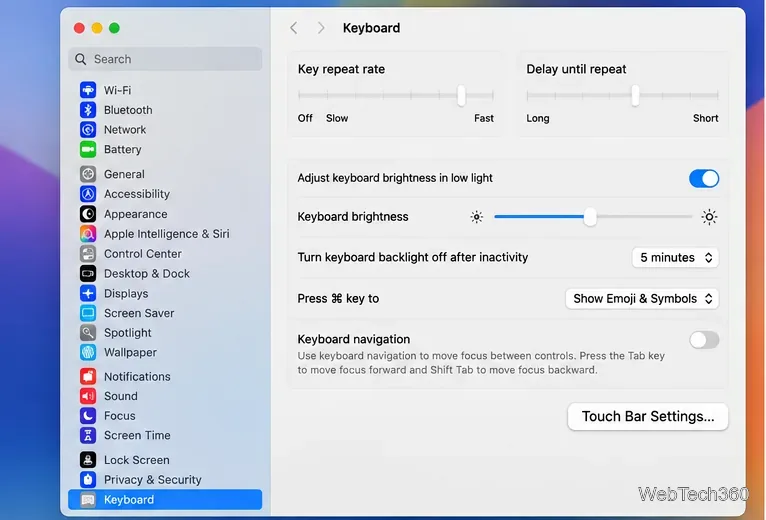
macOS has no built-in Touch Bar off switch. Learn how to change Touch Bar settings and use Hide My Bar to toggle it off and back on.