How to Take a Timed Screenshot from Terminal on macOS
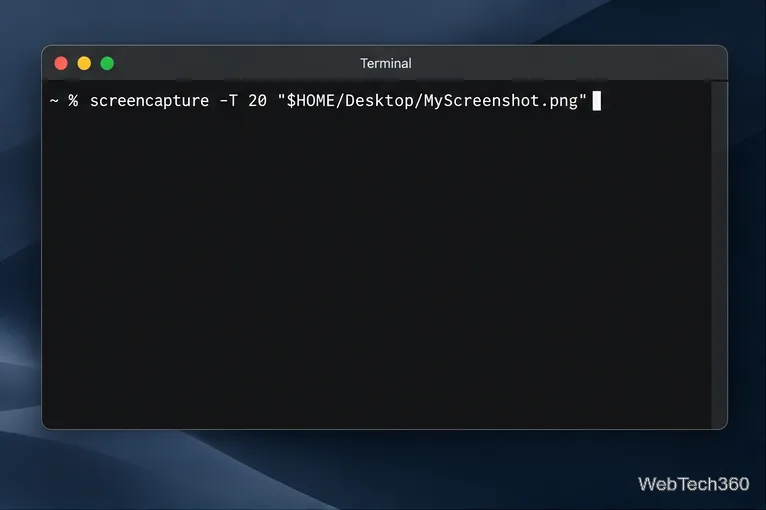
Set a custom delay for a timed screenshot from Terminal on macOS, then choose its filename, save folder, image format, and pointer settings.
The simplest supported way to download YouTube videos on macOS is YouTube Premium. On a Mac, YouTube currently supports offline downloads in Chrome, Edge, Firefox, and Opera. Open a video while signed in to your Premium account, click Download, then play the saved video later from YouTube's Downloads page. Safari is not currently listed as a supported desktop browser for this feature.
If you need an actual MP4 file in Finder, the official option is different: YouTube lets you download videos that you uploaded yourself through YouTube Studio. For a large library of your own uploads, Google Takeout is the better bulk-export option.
| What you want | Best supported method | What you get |
|---|---|---|
| Watch another creator's video offline | YouTube Premium | An offline copy managed inside YouTube |
| Save your own uploaded video as a file | YouTube Studio | An MP4 file |
| Export many of your own YouTube videos | Google Takeout | A downloadable account-data archive |
This is the most reliable option when you want to watch a video without an internet connection but do not need a standalone MP4 file.
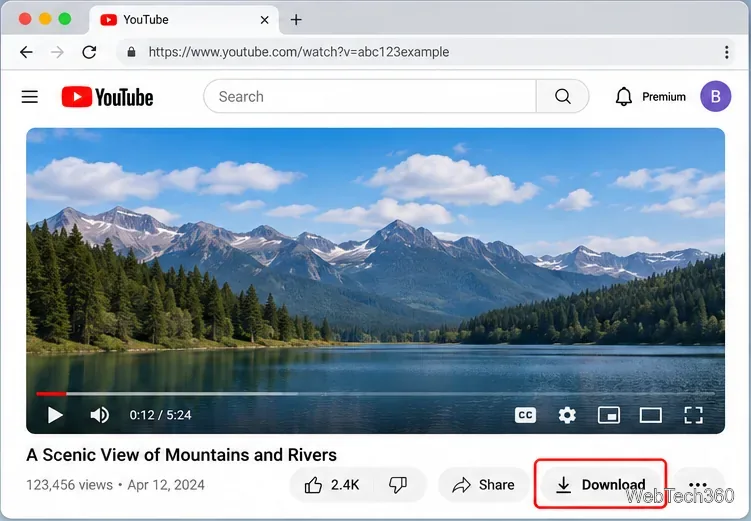
YouTube says interrupted downloads resume when you reconnect. You can also change the default download quality from Settings > Downloads > Download quality. Higher quality uses more storage and takes longer to download. See YouTube's official offline-download instructions for the current supported browsers and controls.
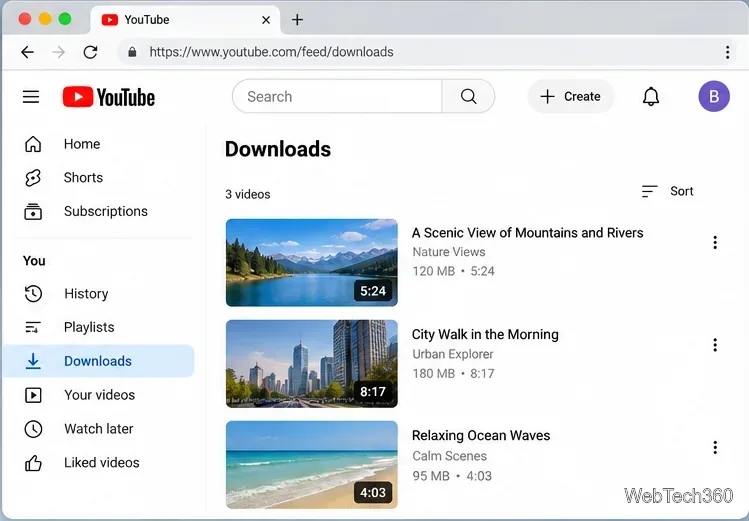
Premium downloads are intended for offline playback through YouTube, not as ordinary video files you can move around in Finder. YouTube also requires periodic reconnection so it can confirm that the video and your membership are still available. Its help documentation says offline videos may need an internet check after up to 29 days, while some countries and regions can require a check sooner.
If the video is yours and you want a normal file on your Mac, use YouTube Studio:
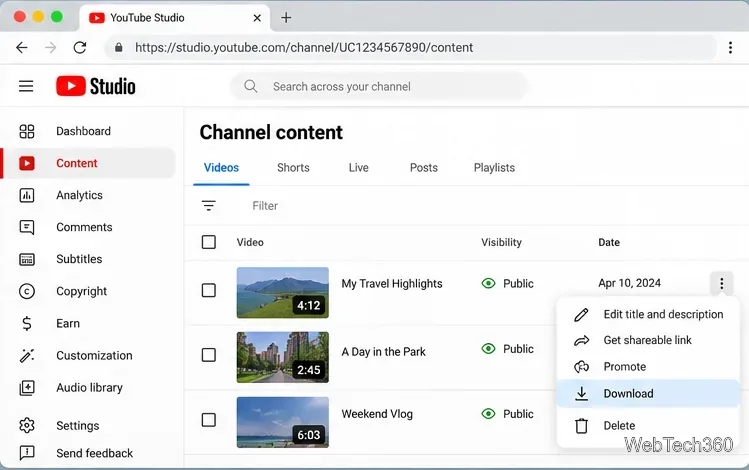
According to YouTube Help, Studio downloads are MP4 files in either 720p or 360p, depending on the video size. YouTube also limits an individual uploaded video to five downloads in a 24-hour period. A download may be unavailable if the video was removed, has a copyright or Community Guidelines strike, or uses certain preapproved audio tracks.
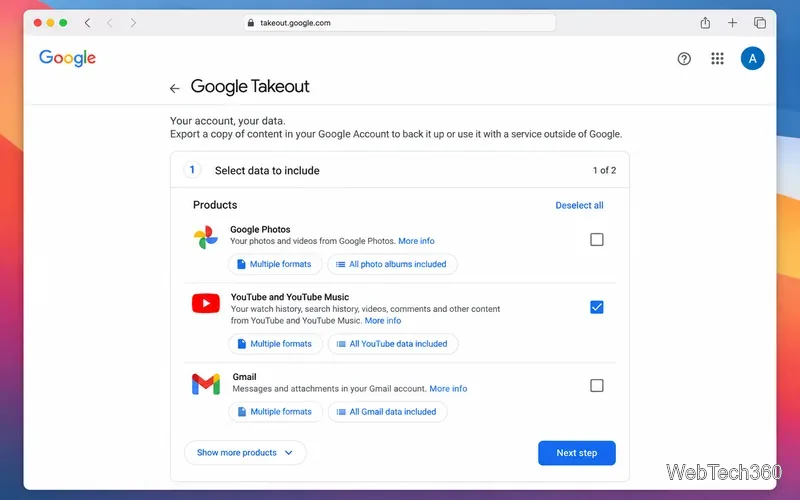
For a channel archive, Google Takeout can export YouTube data, including videos associated with your account. Select YouTube and YouTube Music, choose the data you want included, and continue through the archive options. Google documents the process in its Takeout help page.
Older Mac guides often recommended ViDL, youtube-dl front ends, browser bookmarklets, or web converters. Those workflows can break when YouTube changes its site, and they are not YouTube's supported download path. Some converter sites also rely on aggressive ads, redirects, or installers that are unnecessary for the official methods above.
YouTube's Terms of Service restrict downloading or reproducing content unless the service specifically permits it, you have permission from YouTube and the relevant rights holder, or applicable law allows it. For videos uploaded by someone else, use YouTube's own Download feature when available or obtain permission from the rights holder rather than assuming a third-party downloader is authorized.
For most Mac users, the key distinction is simple: YouTube Premium is for offline viewing inside YouTube, while YouTube Studio or Google Takeout is for downloading files you own.
Set a custom delay for a timed screenshot from Terminal on macOS, then choose its filename, save folder, image format, and pointer settings.
Restore a solid Catalina-style menu bar on Big Sur with compatible Boring Old Menu Bar v1.27. Follow the install steps, set light and dark styles, and troubleshoot common issues.
Sign in with your Apple ID (now called an Apple Account) in System Settings, then configure the separate Mac login password recovery option for that user.
Turn off Mac sharing services and enable Firewall stealth mode to limit local discovery, with clear notes on what your router and other devices can still see.
Learn how to check a Mac microphone using Sound settings and QuickTime, choose the right input, verify permissions, and fix common no-input problems.
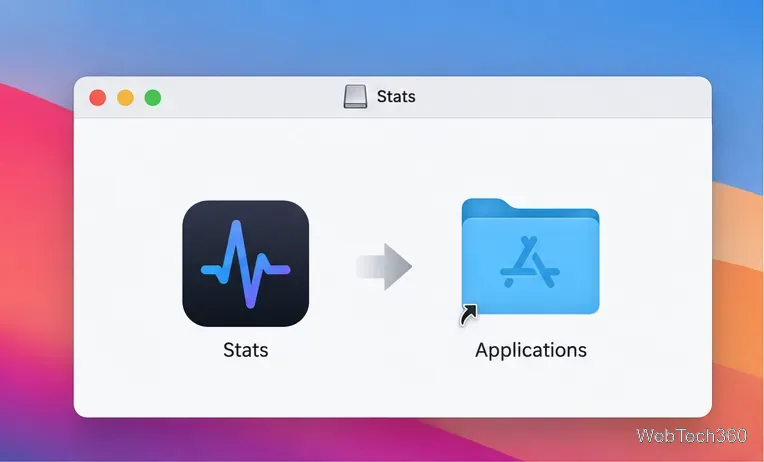
Use the free Stats app to show CPU, memory, disk, and network usage in the macOS menu bar, customize widgets, and fix missing icons on macOS 26.
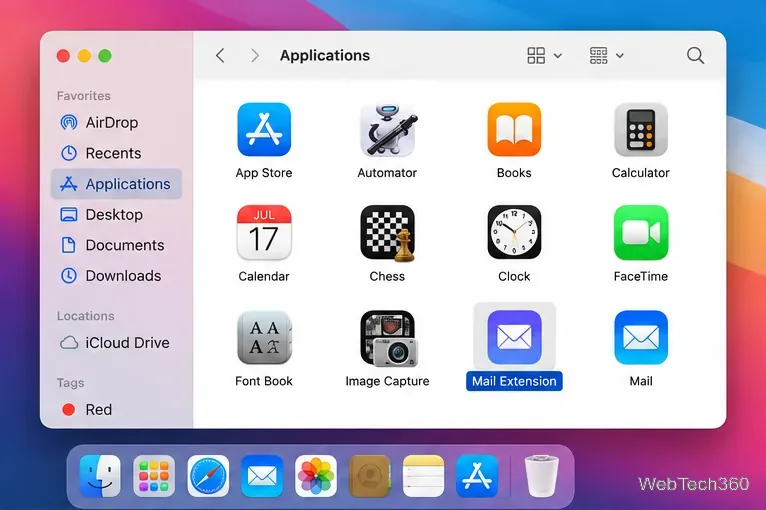
Install a Mail plugin on macOS using the current Mail Extensions workflow, enable it in Mail settings, and handle older .mailbundle plugins safely.
Learn how to download YouTube videos on a Mac with YouTube Premium, save your own uploads as MP4 files, and avoid outdated downloader apps.
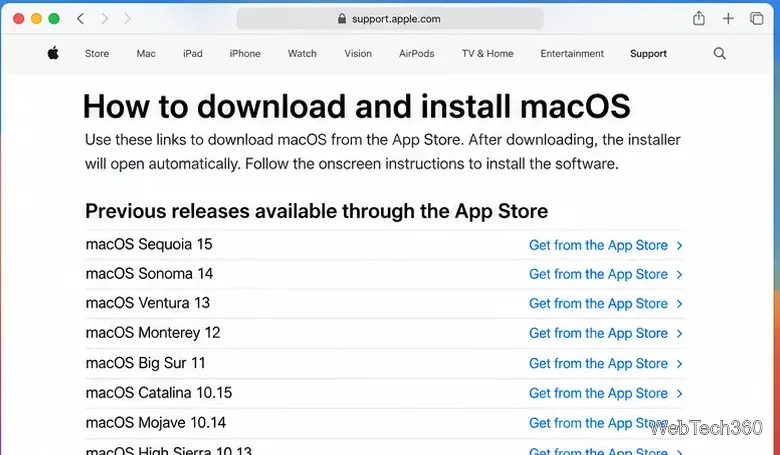
Learn how to download older macOS installers from Apple using the App Store, Terminal, or official DMG links, with compatibility and error tips.
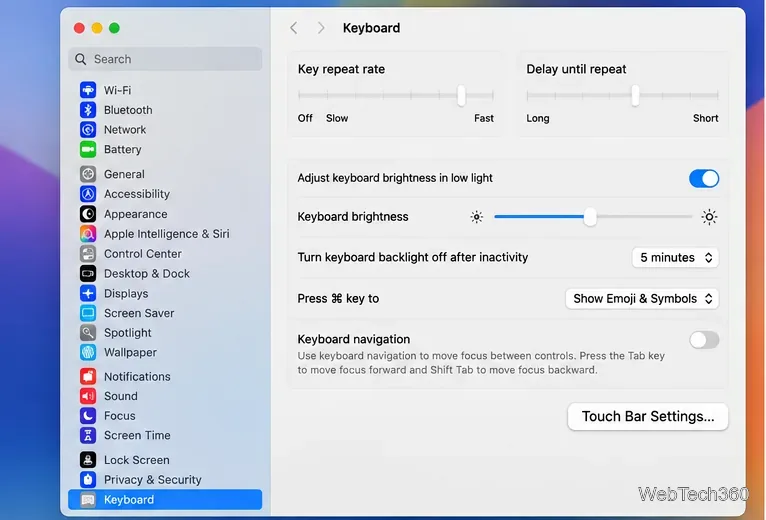
macOS has no built-in Touch Bar off switch. Learn how to change Touch Bar settings and use Hide My Bar to toggle it off and back on.