How to Screenshot on Mac: A Comprehensive Guide

Learn how to screenshot on Mac with shortcuts for the full screen, an area, or a window, plus the Screenshot app, clipboard, editing, and save-location tips.
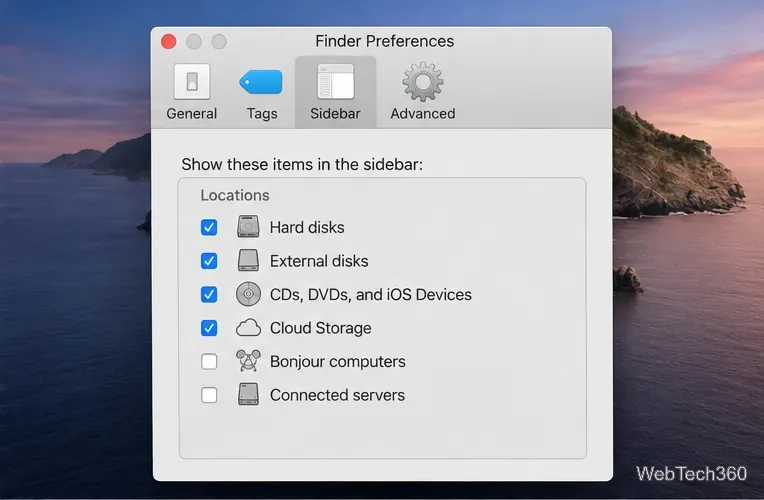
If your iPhone is missing from Locations in Finder on macOS Catalina, first turn on the Finder sidebar option for iOS devices. In a Finder window, choose Finder > Preferences > Sidebar, then check CDs, DVDs, and iOS Devices under Locations. Connect the iPhone with a USB data cable, unlock it, and tap Trust if prompted. These steps address both a hidden sidebar entry and a Mac that is not recognizing the phone.
Catalina moved iPhone syncing from iTunes to Finder. Once connected, the iPhone should appear by name in a Finder window, where you can view its details and available sync options. Apple’s Finder syncing guidance identifies the “CDs, DVDs, and iOS Devices” sidebar checkbox as the setting to check when a device is missing.
Open a Finder window. If its left-hand sidebar is missing entirely, choose View > Show Sidebar from the menu bar. This is different from the iPhone setting: showing the sidebar reveals the whole column, while the Sidebar preferences determine which items can appear inside it.
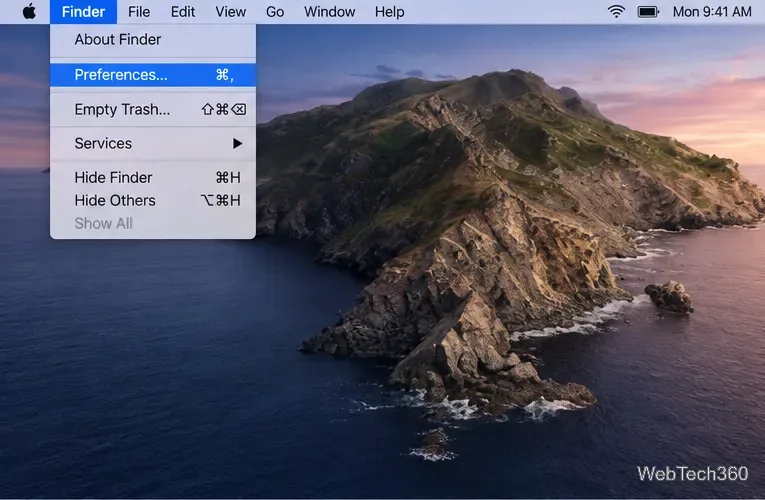
Click a Finder window so Finder is the active app, then choose Finder > Preferences. Select the Sidebar tab. Under Locations, check CDs, DVDs, and iOS Devices. Close the preferences window; the setting takes effect for Finder windows without restarting the Mac.
Now connect the iPhone and look under Locations in the Finder sidebar. If the checkbox was already on, leave it enabled and continue with the connection checks below. The sidebar option controls visibility; it cannot make a phone appear if the Mac does not detect a working data connection.
Connect the iPhone directly to the Mac with a USB cable, wake the phone, and enter its passcode to unlock it. If the Trust This Computer? alert appears on the iPhone, tap Trust and enter the passcode again if requested. The trust decision allows the Mac to access device data and display the phone in Finder. If you tap Don’t Trust, Finder may not be able to show the device’s contents.
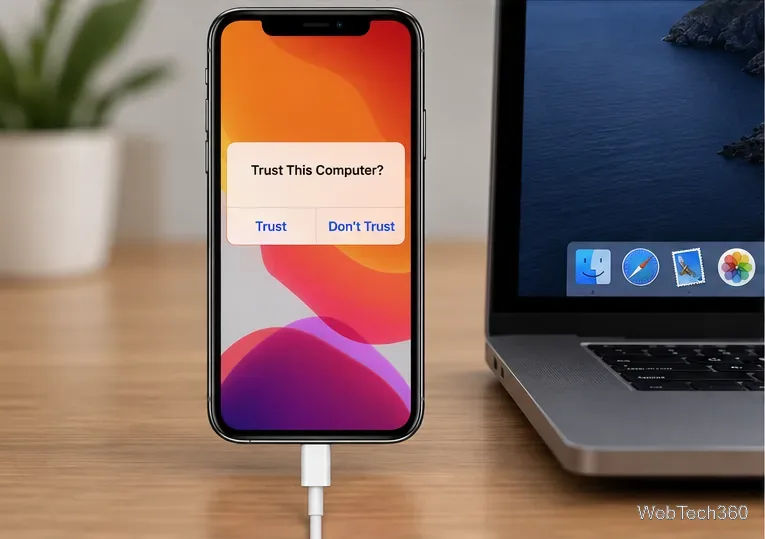
If you previously declined the prompt or it never appears, disconnect and reconnect the iPhone, then restart both devices and try again. As a last resort, reset the iPhone’s location and privacy settings to trigger the trust prompt again. On current iOS versions, the route is Settings > General > Transfer or Reset iPhone > Reset > Reset Location & Privacy; menu wording can differ on older iOS releases. This resets location and privacy permissions, so use it only after reconnecting and restarting have failed. See Apple’s instructions for the “Trust This Computer” alert.
A cable can charge an iPhone without carrying data. Try a different cable that supports both charging and data, and connect it directly to a Mac USB port rather than through a hub or keyboard. If the Mac has a different port, test that one too. If the phone does not chime or vibrate when plugged in, disconnect it and check its charging port for visible debris; do not force anything into the port.
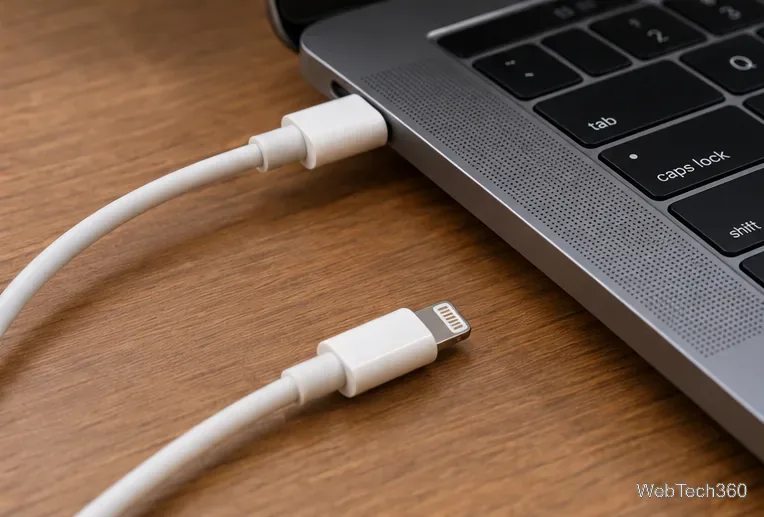
Try the same iPhone and cable with another port or Mac, or connect another data-capable device to the original port. These comparisons help identify whether the fault is with the cable, the iPhone port, or the Mac. Apple’s computer recognition checklist recommends checking the cable and connection, trying another data cable, and testing another USB port or Mac.
When the connection works, the iPhone’s name appears under Locations. Select it to open the Finder device view and manage supported syncing or backup options. If it is visible in Finder but not listed in another app, the USB connection is working; troubleshoot that app separately.
Learn how to screenshot on Mac with shortcuts for the full screen, an area, or a window, plus the Screenshot app, clipboard, editing, and save-location tips.
Combine multiple images into a single PDF on macOS using Finder or Preview. Control page order, avoid cropping, and fix missing pages without extra software.
Learn how to show FPS on a Mac with Steam’s performance overlay or Apple’s Metal Performance HUD, plus fixes when the counter does not appear.
Use Option–Command–Esc to force quit an unresponsive Mac app, or close it from the Apple menu, Dock, Activity Monitor, or Terminal.
Set up Split View, resize or replace a pane, use Mission Control, and learn when desktop window tiling is a better fit on your Mac.
Learn how to remove EXIF data from photos on macOS, hide location in Photos, clean exported JPEG copies with ExifTool, and verify the result.
Sync two folders on a Mac with SyncTwoFolders, choose a one-way or two-way update, and preview changes before files are replaced or removed.
Back up a Tumblr blog on your Mac with Tumblr’s web export. Download and unpack the ZIP, keep its posts and media safe, and know what the archive leaves out.
Use Google Maps on your Mac in Safari or Chrome, find places and routes, switch map layers, and add a Safari web app to your Dock on macOS Sonoma 14 or later.
Compare five free WAV-to-MP3 converters for Windows and macOS, including online file limits, local batch tools, and practical export settings.








