How to Screenshot on Mac: A Comprehensive Guide

Learn how to screenshot on Mac with shortcuts for the full screen, an area, or a window, plus the Screenshot app, clipboard, editing, and save-location tips.
If a trusted .command script triggers “File could not be executed because you do not have appropriate access privileges,” it usually needs the execute permission. In Terminal, add that permission for your account with chmod u+x, then run the script again. This changes the file’s permission bit; it does not verify the script or bypass macOS security checks, so inspect the file and trust its source before running it.
Make sure the file really ends in .command and that you know where it came from. A command script can run Terminal commands with your account’s access. If you did not expect the file or cannot verify its source, do not run it. Open it in a text editor to review its contents or get a clean copy from the developer.
Finder’s Get Info window is useful for checking a filename and general sharing permissions, but it does not provide a simple control for adding the shell execute bit to a script. Apple documents chmod as the Terminal method for making a shell script executable in its Terminal User Guide.
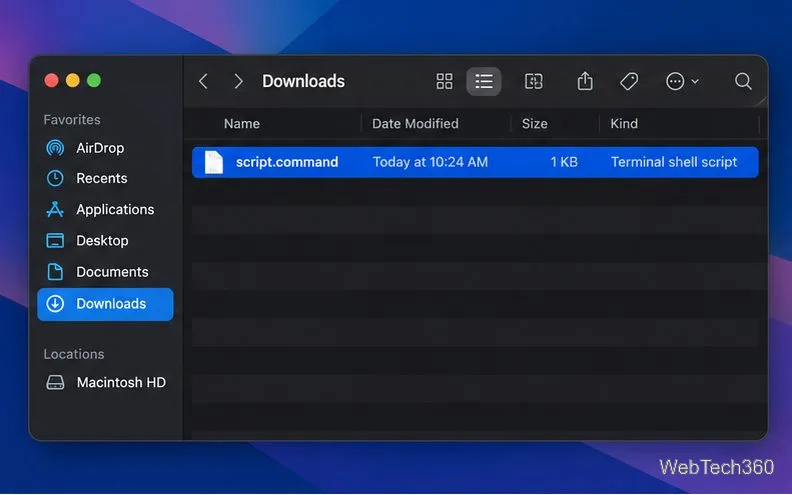
script.command, enter this command and press Return:
chmod u+x "$HOME/Downloads/script.command"chmod u+x (including the final space) and drag the file from Finder into the Terminal window to insert its path. Do not type the words “path to file” literally.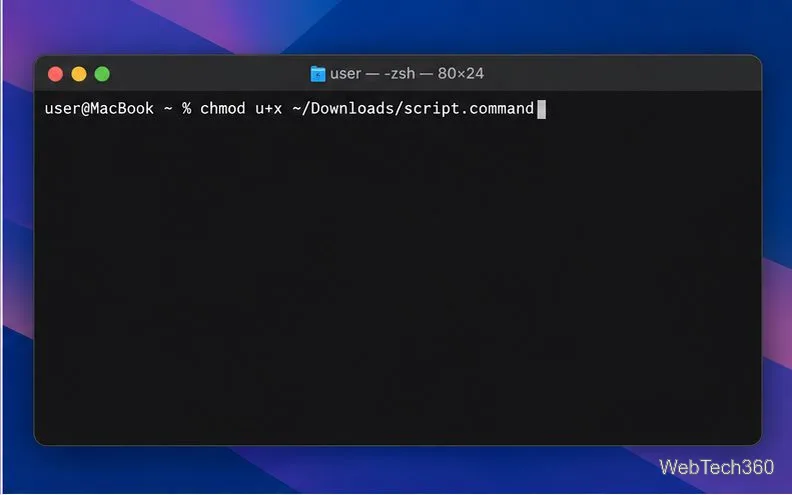
The command normally returns to a prompt without printing a success message. u means the file’s owner, and +x adds permission to execute it. This is narrower than making the script executable for every account on the Mac. It should not require an administrator password when you own the file and can change its permissions.
cd "$HOME/Downloads"
./script.command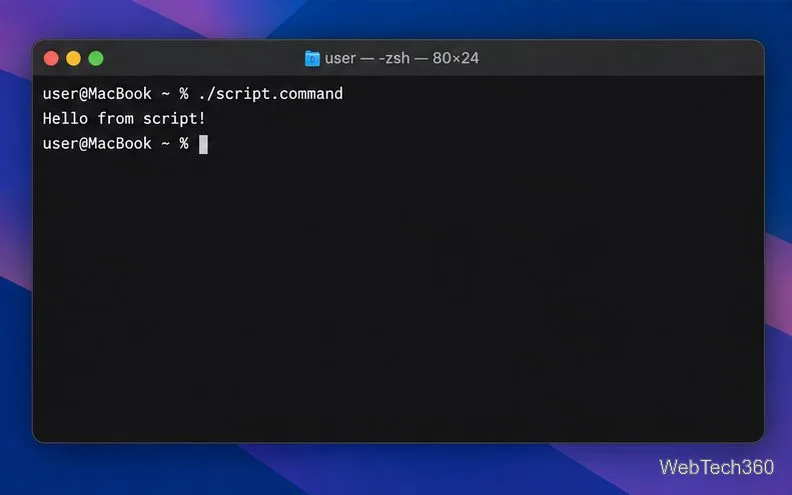
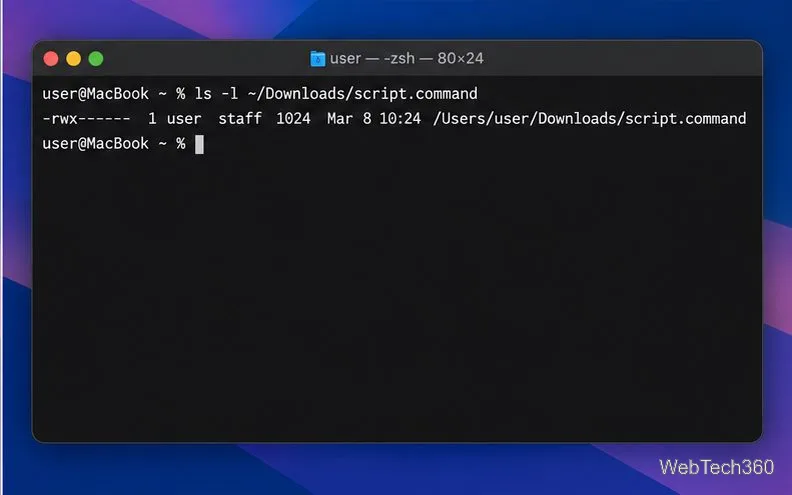
To see the file’s permissions, run:
ls -l "$HOME/Downloads/script.command"When the current account owns the file and execute permission is set, the first permission group should include an x, such as -rwx. Apple’s Mac permissions guide explains how file and folder access differs among users.
sudo as a first step.Do not use chmod a+x unless you intentionally want other local accounts to have execute permission, and avoid broad commands such as chmod -R or changing permissions across system folders. To undo the execute bit you added for your account, run chmod u-x "$HOME/Downloads/script.command".
For an app verification alert, follow Apple’s guidance for safely opening apps only when you have confirmed the app is from a trustworthy source. Do not override a warning that says software will damage your computer or that macOS detected malware. Apple also documents newer Terminal paste protections in its Terminal and script protections guide.
Learn how to screenshot on Mac with shortcuts for the full screen, an area, or a window, plus the Screenshot app, clipboard, editing, and save-location tips.
Combine multiple images into a single PDF on macOS using Finder or Preview. Control page order, avoid cropping, and fix missing pages without extra software.
Learn how to show FPS on a Mac with Steam’s performance overlay or Apple’s Metal Performance HUD, plus fixes when the counter does not appear.
Use Option–Command–Esc to force quit an unresponsive Mac app, or close it from the Apple menu, Dock, Activity Monitor, or Terminal.
Set up Split View, resize or replace a pane, use Mission Control, and learn when desktop window tiling is a better fit on your Mac.
Learn how to remove EXIF data from photos on macOS, hide location in Photos, clean exported JPEG copies with ExifTool, and verify the result.
Sync two folders on a Mac with SyncTwoFolders, choose a one-way or two-way update, and preview changes before files are replaced or removed.
Back up a Tumblr blog on your Mac with Tumblr’s web export. Download and unpack the ZIP, keep its posts and media safe, and know what the archive leaves out.
Use Google Maps on your Mac in Safari or Chrome, find places and routes, switch map layers, and add a Safari web app to your Dock on macOS Sonoma 14 or later.
Compare five free WAV-to-MP3 converters for Windows and macOS, including online file limits, local batch tools, and practical export settings.








