How to Take a Timed Screenshot from Terminal on macOS
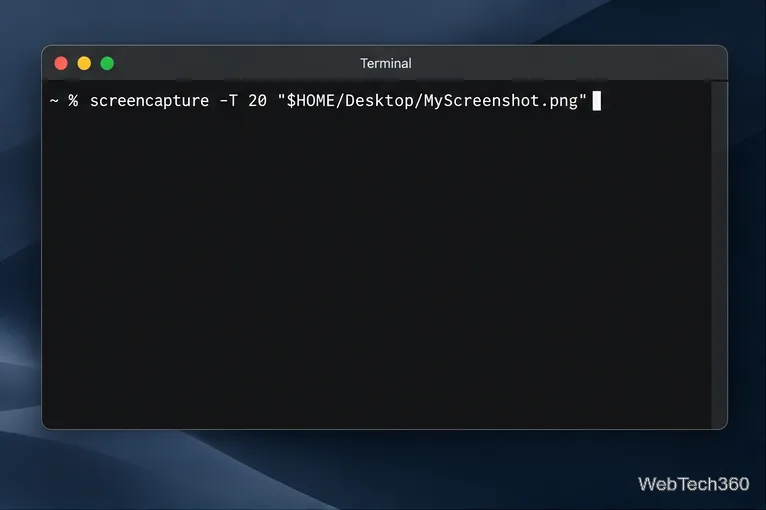
Set a custom delay for a timed screenshot from Terminal on macOS, then choose its filename, save folder, image format, and pointer settings.
To bring back the solid Catalina look on a Mac running Big Sur, install Boring Old Menu Bar version 1.27 and choose the Catalina styles for Light Mode and Dark Mode. Big Sur does not include a built-in switch for the Catalina bar colors. The app provides the closest match while leaving Apple's menu bar controls and icons in place.
Big Sur changed the menu bar to a translucent surface that picks up color from the desktop wallpaper. If the wallpaper is bright or busy, menu titles and status icons can be harder to distinguish.
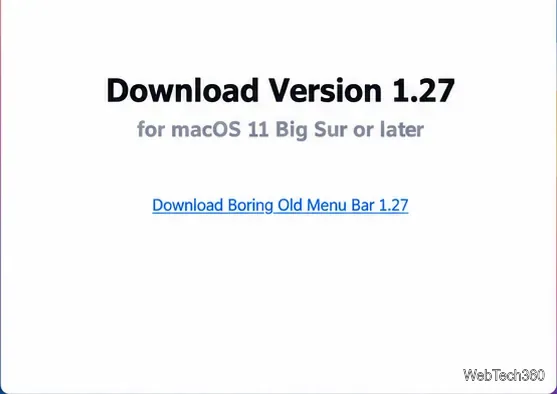
Big Sur is macOS 11, so use the developer's Boring Old Menu Bar version 1.27 download, which is listed for macOS 11 Big Sur or later. The current main download page offers newer builds for later systems: version 1.28 is for macOS 13 through 26, and version 1.31 is for macOS 27 on Apple silicon. Those aren't the Big Sur download.
The developer currently lists a 14-day trial and a $9.95 one-time purchase. The trial stops working after 14 days; check the official purchase page for current license and upgrade terms.
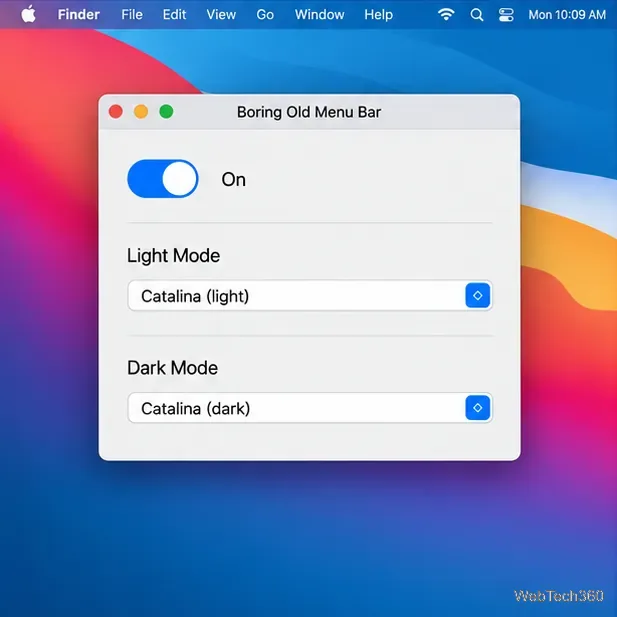
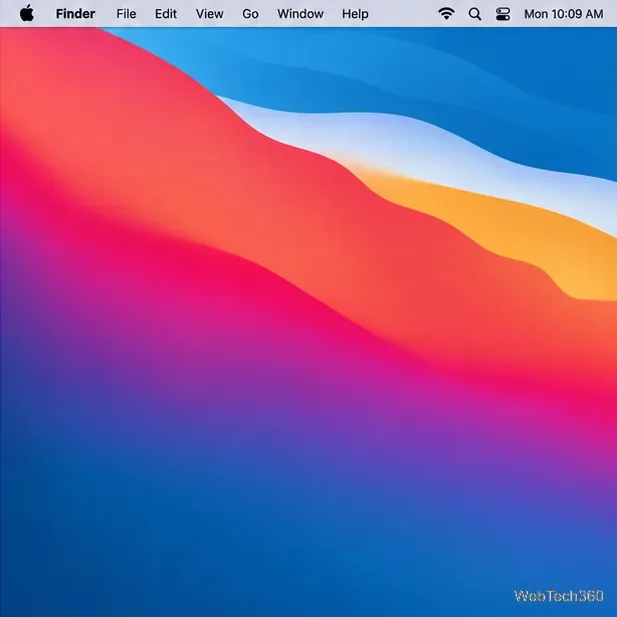
Boring Old Menu Bar does not replace Apple's menu bar. On Big Sur, version 1.27 works by capturing the desktop wallpaper, placing a solid strip behind the menu bar, and setting that edited copy as the wallpaper. The developer notes that versions before 1.29 use this screenshot-based method; macOS may therefore ask for Screen Recording permission. Grant it only if you want the app to capture the desktop image. The vendor's version history explains the later change to rendering wallpaper files.
Because the app updates the wallpaper, a change may take a moment and the menu bar can briefly look translucent while it refreshes. Switching the app off restores the original wallpaper. With multiple desktops (Spaces), each desktop has its own wallpaper; visit each Space and pause for a few seconds so the app can apply the bar there. Dynamic wallpapers or frequent wallpaper changes can trigger more refreshes.
You can also choose Custom in the style menu and select a color for Light Mode and Dark Mode separately. The Catalina presets are the quickest way to match the older macOS appearance; custom colors are useful if you want a different solid backdrop.
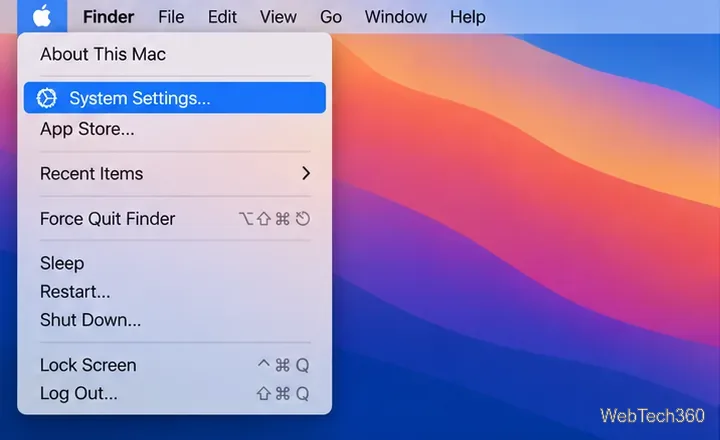
If you only want a more solid background and do not need the Catalina colors, Big Sur includes an accessibility option: open Apple menu > System Preferences > Accessibility > Display, then turn on Reduce transparency. Apple describes this as replacing transparent macOS backgrounds with a solid background, but it does not reproduce the specific Catalina light and dark styles and can affect other transparent interface areas too. See Apple's guide to making transparent items solid.
If you use Boring Old Menu Bar, leave Reduce Transparency off. The developer says that setting makes macOS draw its own gray bar over the app's wallpaper-based color, which can make the custom bar seem not to work. If the bar is solid gray rather than the selected Catalina color, check this setting first.
For Big Sur, version 1.27 is the key detail: it supplies the Catalina light and dark menu bar styles on macOS 11, while the newer downloads target later macOS releases.
Set a custom delay for a timed screenshot from Terminal on macOS, then choose its filename, save folder, image format, and pointer settings.
Restore a solid Catalina-style menu bar on Big Sur with compatible Boring Old Menu Bar v1.27. Follow the install steps, set light and dark styles, and troubleshoot common issues.
Sign in with your Apple ID (now called an Apple Account) in System Settings, then configure the separate Mac login password recovery option for that user.
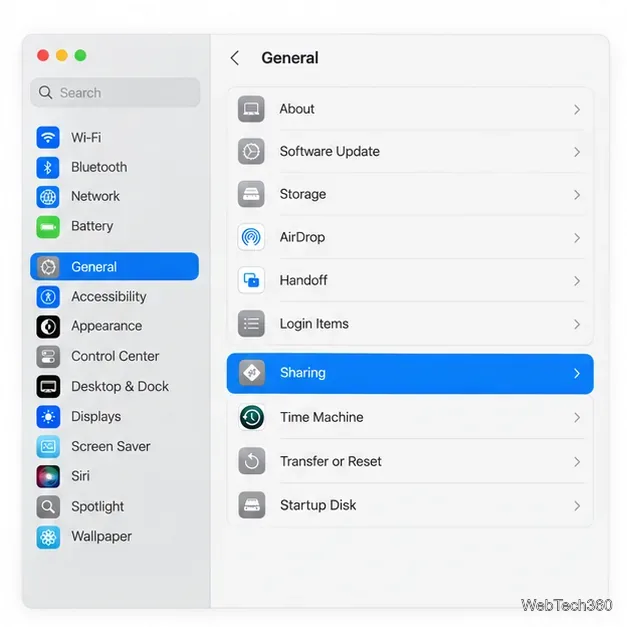
Turn off Mac sharing services and enable Firewall stealth mode to limit local discovery, with clear notes on what your router and other devices can still see.
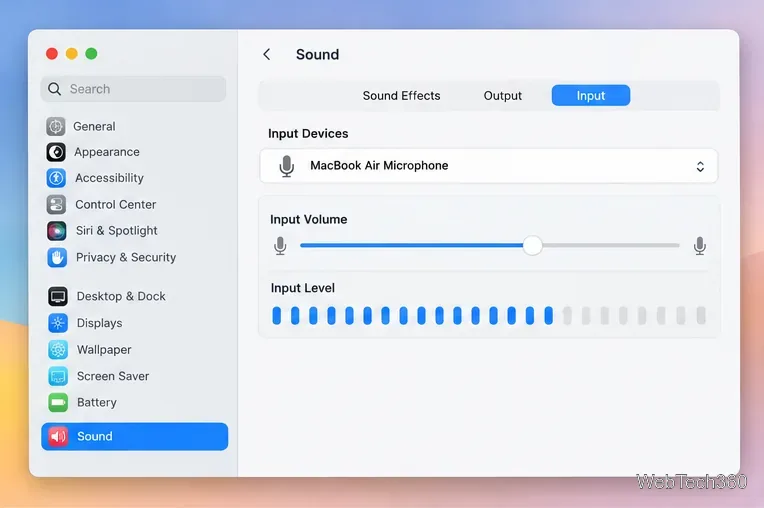
Learn how to check a Mac microphone using Sound settings and QuickTime, choose the right input, verify permissions, and fix common no-input problems.
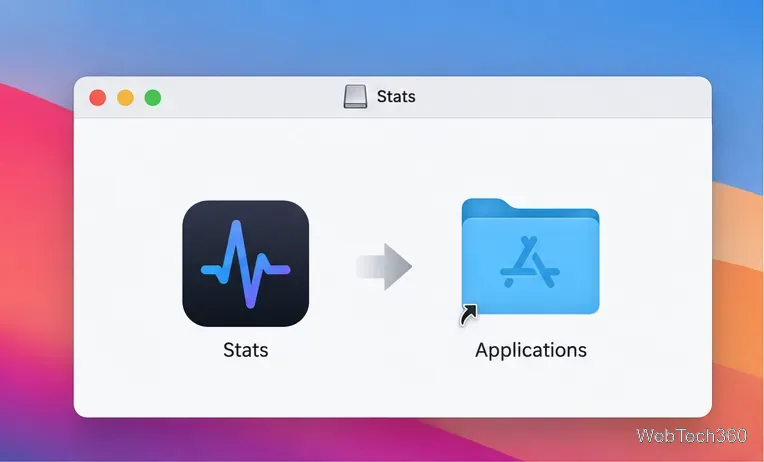
Use the free Stats app to show CPU, memory, disk, and network usage in the macOS menu bar, customize widgets, and fix missing icons on macOS 26.
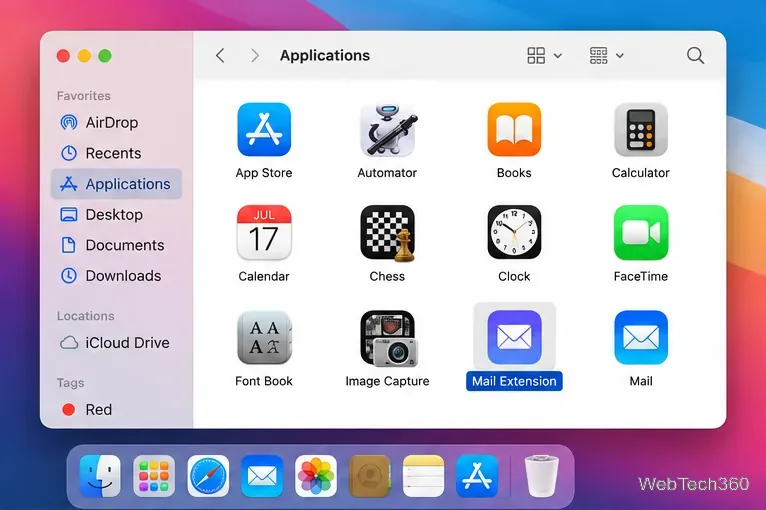
Install a Mail plugin on macOS using the current Mail Extensions workflow, enable it in Mail settings, and handle older .mailbundle plugins safely.
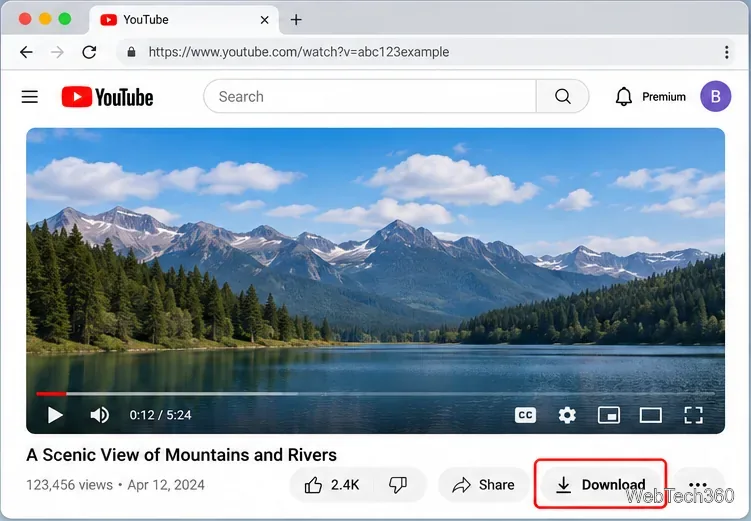
Learn how to download YouTube videos on a Mac with YouTube Premium, save your own uploads as MP4 files, and avoid outdated downloader apps.
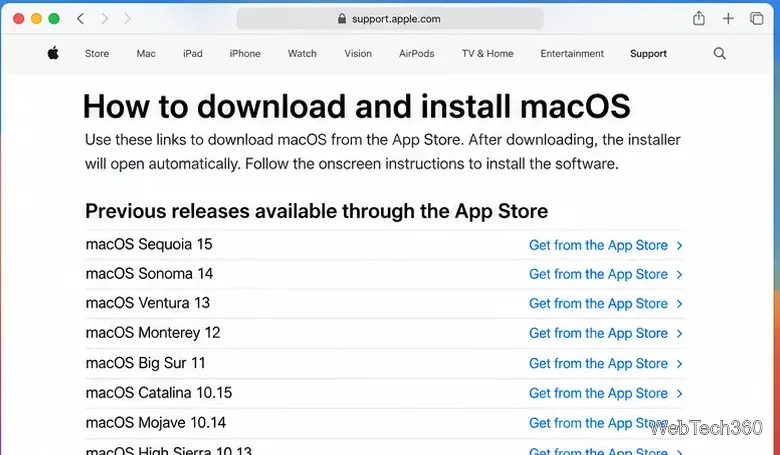
Learn how to download older macOS installers from Apple using the App Store, Terminal, or official DMG links, with compatibility and error tips.
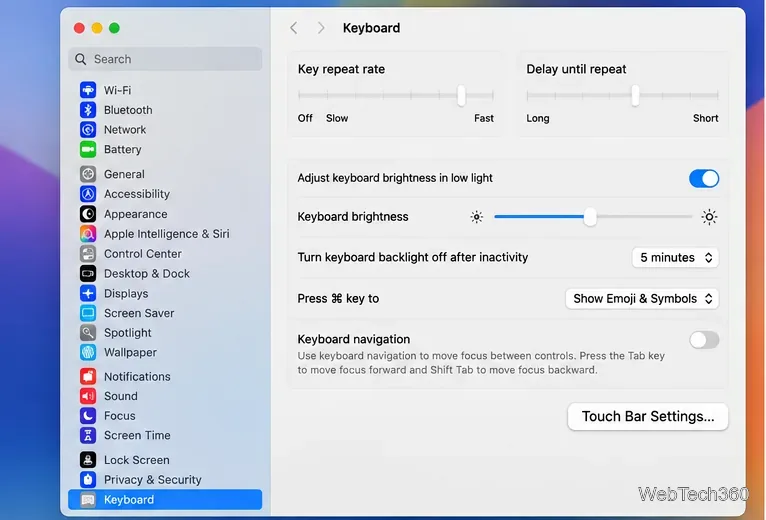
macOS has no built-in Touch Bar off switch. Learn how to change Touch Bar settings and use Hide My Bar to toggle it off and back on.