How to Screenshot on Mac: A Comprehensive Guide

Learn how to screenshot on Mac with shortcuts for the full screen, an area, or a window, plus the Screenshot app, clipboard, editing, and save-location tips.
To group files in one Finder folder, open that folder and choose a category from the Group control in the Finder toolbar. You can group items by attributes such as kind, date, size, or tags. Finder saves the arrangement for that folder until you change it, and grouping only changes how items appear—it does not move or rename files.
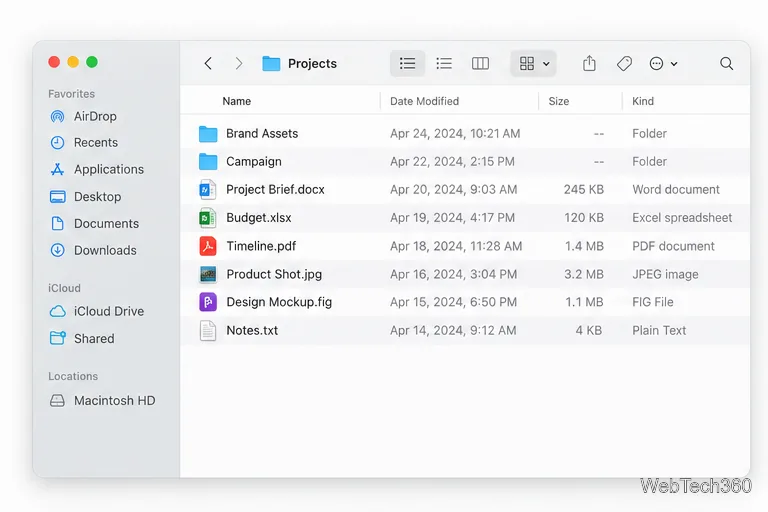
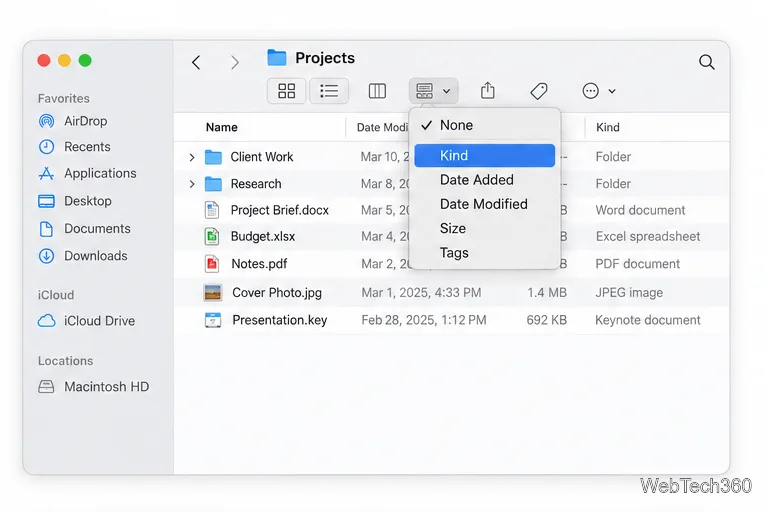
Some macOS versions also show a Group By menu in the folder’s view options. With the target folder open, choose View > Show View Options or press Command-J. If the panel includes Group By, choose the attribute there. If you do not see that control, use the toolbar’s Group menu instead; Finder’s current help describes that toolbar route.
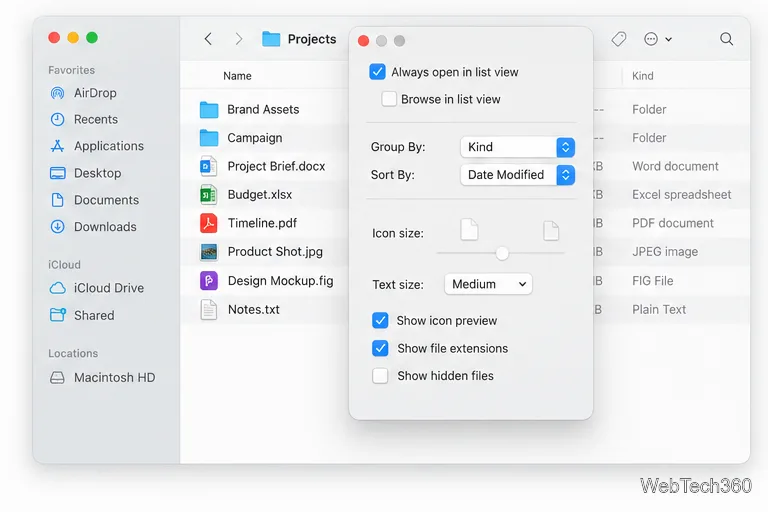
The Always open in option in View Options controls which view the folder opens in, such as List view. It is useful if the folder keeps opening in a different view, but it is separate from the Group setting. If the folder contains subfolders and you also want them to use that view, Apple provides a separate Browse in option.
For a folder-specific layout, change the Group setting while that folder is open and leave Use as Defaults alone. Apple describes that button as applying view settings to other folders that use the same view; it is not needed to save a change for the folder you are working in. The option is also unavailable in Column view. You can still choose a different grouping for another folder by opening that folder and changing its own Group setting.
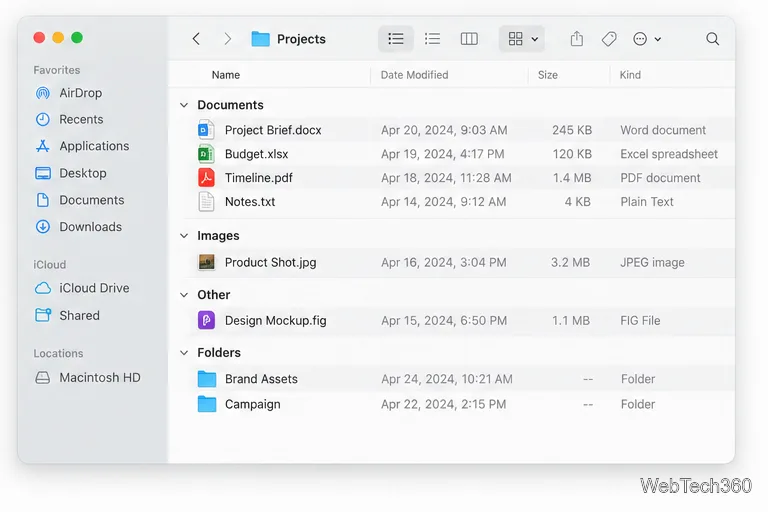
Grouping creates sections based on a shared attribute, such as file kind or date. Sorting controls the order of items, for example by name or date modified. If you want a particular order within a group, adjust the sort order separately. In List view, clicking a column heading changes the order by that column; you can click it again to reverse the direction.
For version-specific details, see Apple’s guides to sorting and grouping items in Finder, customizing a folder’s view, and customizing the Finder toolbar.
Learn how to screenshot on Mac with shortcuts for the full screen, an area, or a window, plus the Screenshot app, clipboard, editing, and save-location tips.
Combine multiple images into a single PDF on macOS using Finder or Preview. Control page order, avoid cropping, and fix missing pages without extra software.
Learn how to show FPS on a Mac with Steam’s performance overlay or Apple’s Metal Performance HUD, plus fixes when the counter does not appear.
Use Option–Command–Esc to force quit an unresponsive Mac app, or close it from the Apple menu, Dock, Activity Monitor, or Terminal.
Set up Split View, resize or replace a pane, use Mission Control, and learn when desktop window tiling is a better fit on your Mac.
Learn how to remove EXIF data from photos on macOS, hide location in Photos, clean exported JPEG copies with ExifTool, and verify the result.
Sync two folders on a Mac with SyncTwoFolders, choose a one-way or two-way update, and preview changes before files are replaced or removed.
Back up a Tumblr blog on your Mac with Tumblr’s web export. Download and unpack the ZIP, keep its posts and media safe, and know what the archive leaves out.
Use Google Maps on your Mac in Safari or Chrome, find places and routes, switch map layers, and add a Safari web app to your Dock on macOS Sonoma 14 or later.
Compare five free WAV-to-MP3 converters for Windows and macOS, including online file limits, local batch tools, and practical export settings.








