How to Take a Timed Screenshot from Terminal on macOS
Set a custom delay for a timed screenshot from Terminal on macOS, then choose its filename, save folder, image format, and pointer settings.
To make a Mac less discoverable to other computers on a local network, turn off the sharing services you do not use and enable the built-in firewall’s stealth mode. This limits common ways other devices can find or connect to your Mac, but it does not make the computer invisible while it remains connected to Wi-Fi or Ethernet. The router can still see an active client, and some basic network functions may continue.
macOS has no single switch that removes an active Mac from every network device list. Sharing settings disable specific services, while Firewall stealth mode reduces responses to certain probes; neither conceals the connection from the network operator. Sharing controls are system-wide, not separate profiles for each Wi-Fi network.
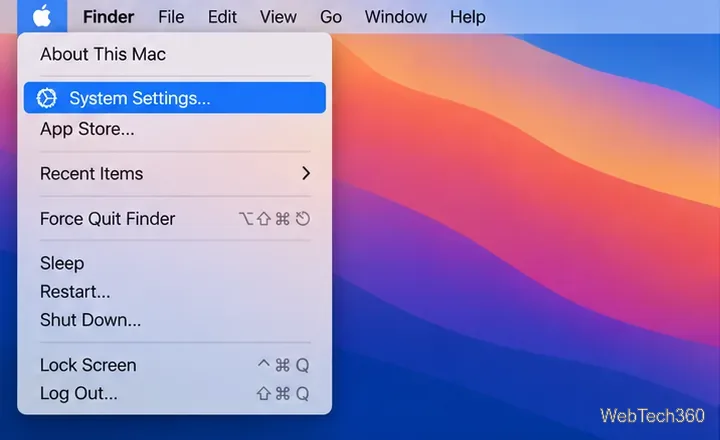
On current macOS versions, choose Apple menu → System Settings → General → Sharing. You may need to scroll in the General settings list to find Sharing. Apple documents the current controls in its Mac Sharing settings guide.
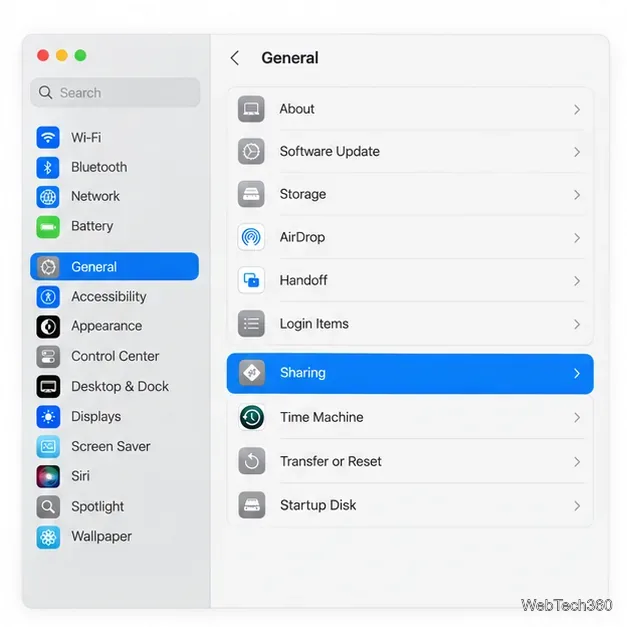
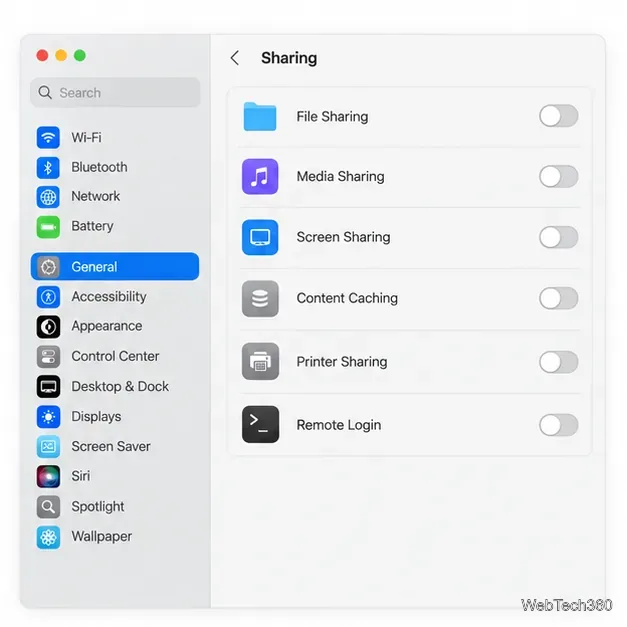
In the Sharing pane, switch off the services that should not accept connections from nearby computers. For the broadest reduction in network sharing, review every item shown. Common examples include:
Turning off a service can interrupt a workflow: for example, another computer will no longer be able to use a shared folder, printer, or remote desktop session. If you still need one of these features, leave that service on and restrict its access using the service’s Info button and user controls where available. Some options may be locked or unavailable on a Mac managed by an organization.
Open Apple menu → System Settings → Network → Firewall, then turn on Firewall if it is off. This firewall controls unwanted incoming connections to apps and services. Apple notes that sharing services can open specific connections when enabled, so disabling unused services in Sharing remains useful even with the firewall active. See Apple’s instructions for blocking connections with the Mac firewall.
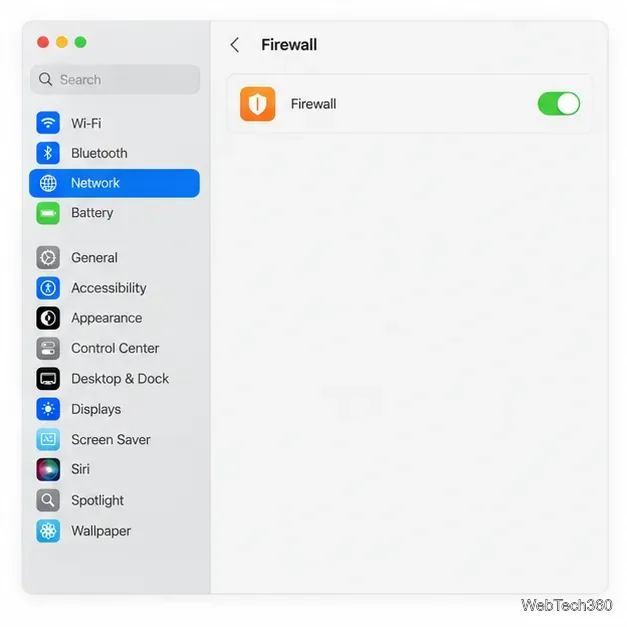
With Firewall on, click Options, select Enable stealth mode, and click OK. If you do not see Options, first turn on the firewall. Stealth mode makes the Mac ignore certain probes, including ping requests and connection attempts to closed TCP or UDP ports. It makes the computer harder to detect through those checks, but it does not block every authorized app or remove the Mac from the network. Apple explains the behavior in its stealth mode instructions.
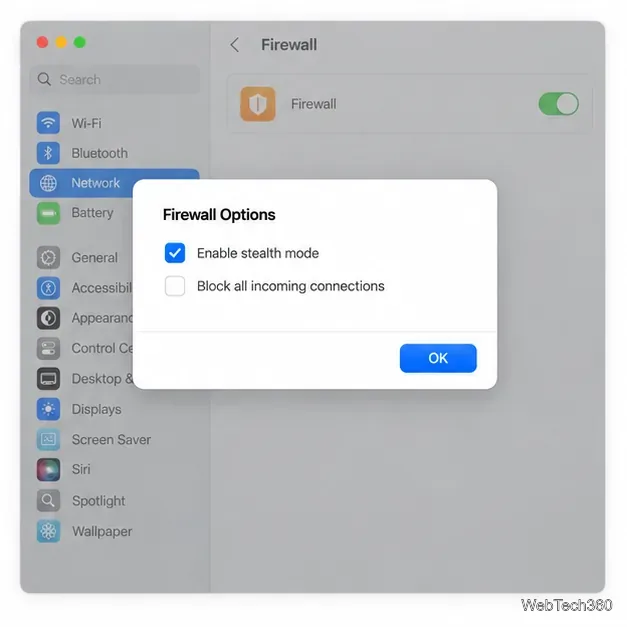
Optional: Firewall Options may also include Block all incoming connections. This blocks connections to nonessential services and apps, but Apple says basic network services may still be allowed. It can also interfere with apps and sharing features, so enable it only if you understand that trade-off and do not need inbound connections.
Stealth mode is a response to probing; it is not a way to disappear from the router. The Wi-Fi access point or router still has to manage your connection and may list the Mac as a connected device. The local hostname is also a network identifier: Apple says it is displayed on the local network and can identify the Mac to Bonjour-compatible services; see its guidance on a Mac’s name and network address. Turning sharing off and enabling stealth mode should therefore be treated as reducing discoverability and access, not as anonymity.
If the Mac’s current name reveals personal information, you can change the computer name or local hostname in Sharing settings. A different name may reveal less, but it remains a name on the network and does not hide the device. For separation from other clients, use a guest network or client isolation if the network administrator offers it. To stop the Mac from appearing as a connected client at all, disconnect Wi-Fi and Ethernet.
Set a custom delay for a timed screenshot from Terminal on macOS, then choose its filename, save folder, image format, and pointer settings.
Restore a solid Catalina-style menu bar on Big Sur with compatible Boring Old Menu Bar v1.27. Follow the install steps, set light and dark styles, and troubleshoot common issues.
Sign in with your Apple ID (now called an Apple Account) in System Settings, then configure the separate Mac login password recovery option for that user.
Turn off Mac sharing services and enable Firewall stealth mode to limit local discovery, with clear notes on what your router and other devices can still see.
Learn how to check a Mac microphone using Sound settings and QuickTime, choose the right input, verify permissions, and fix common no-input problems.
Use the free Stats app to show CPU, memory, disk, and network usage in the macOS menu bar, customize widgets, and fix missing icons on macOS 26.
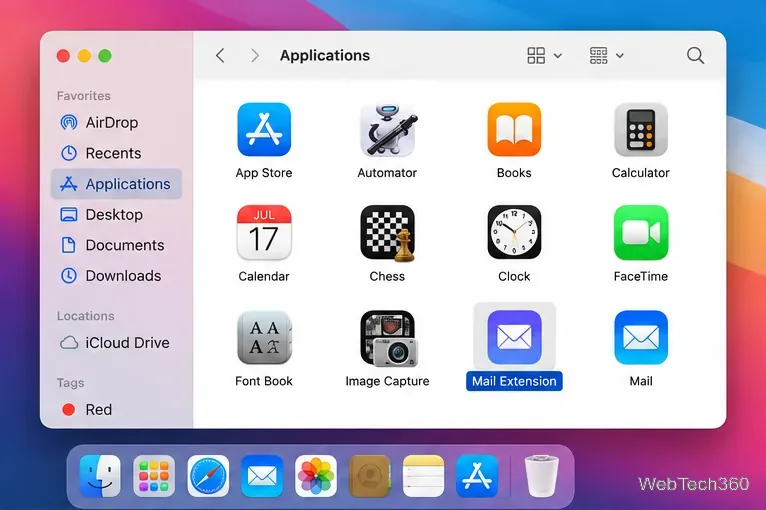
Install a Mail plugin on macOS using the current Mail Extensions workflow, enable it in Mail settings, and handle older .mailbundle plugins safely.
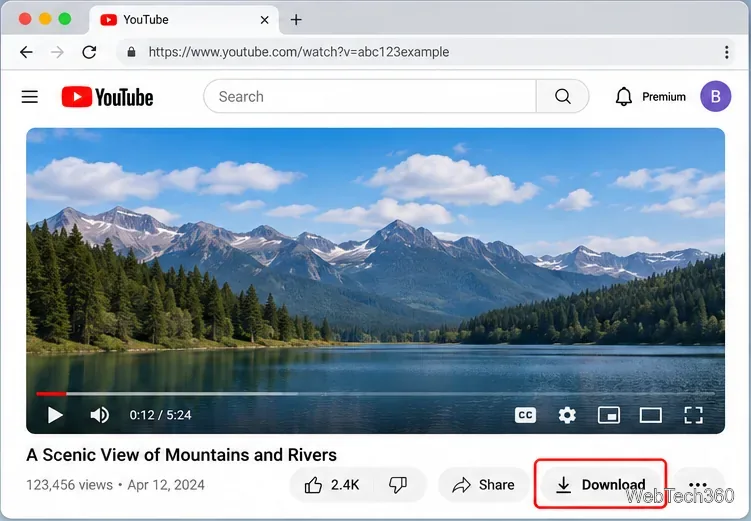
Learn how to download YouTube videos on a Mac with YouTube Premium, save your own uploads as MP4 files, and avoid outdated downloader apps.
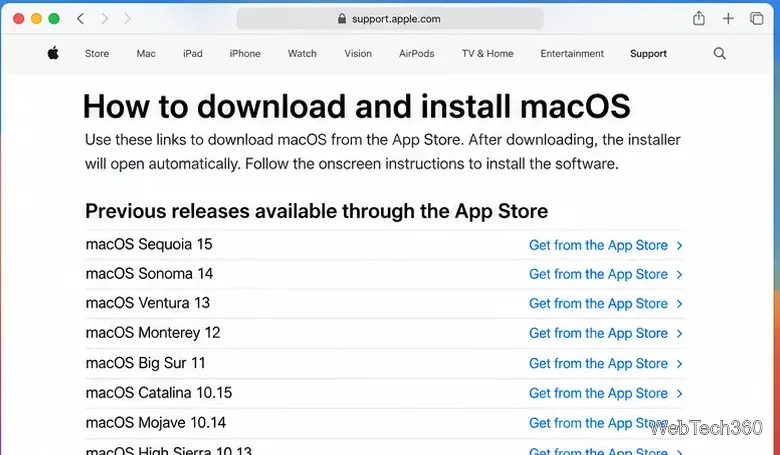
Learn how to download older macOS installers from Apple using the App Store, Terminal, or official DMG links, with compatibility and error tips.
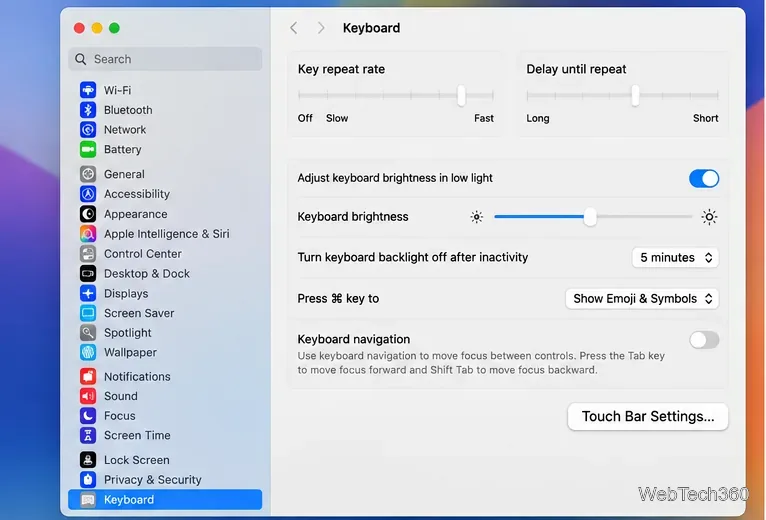
macOS has no built-in Touch Bar off switch. Learn how to change Touch Bar settings and use Hide My Bar to toggle it off and back on.