How to Take a Timed Screenshot from Terminal on macOS
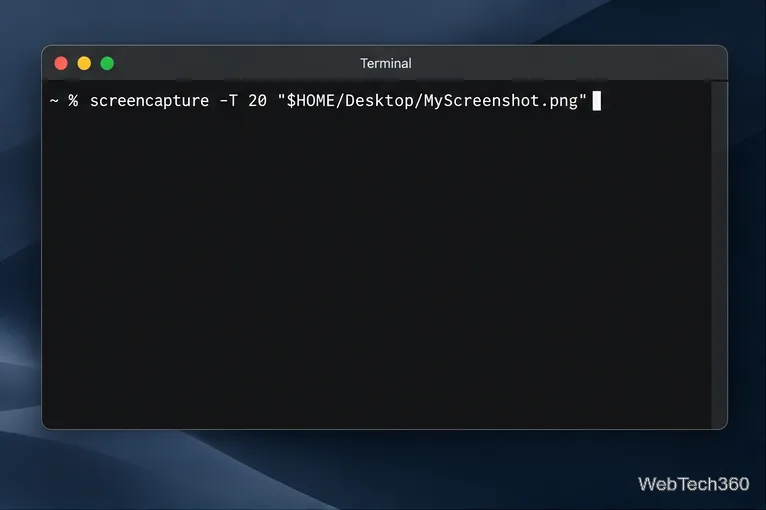
Set a custom delay for a timed screenshot from Terminal on macOS, then choose its filename, save folder, image format, and pointer settings.
If you want to install a Mail plugin on a Mac today, the supported route is usually to install the Mac app that contains the extension, then enable that extension inside Apple Mail. The older method of copying a .mailbundle folder into your user Library belongs to the legacy plug-in system and should not be treated as the default on current macOS versions.
Apple’s current Mail documentation calls these add-ons Mail extensions. They can add compose tools, message actions, content blocking, or message-security features. Apple documents managing them from Mail > Settings > Extensions. See Apple’s Mail extensions guide and the MailKit documentation.
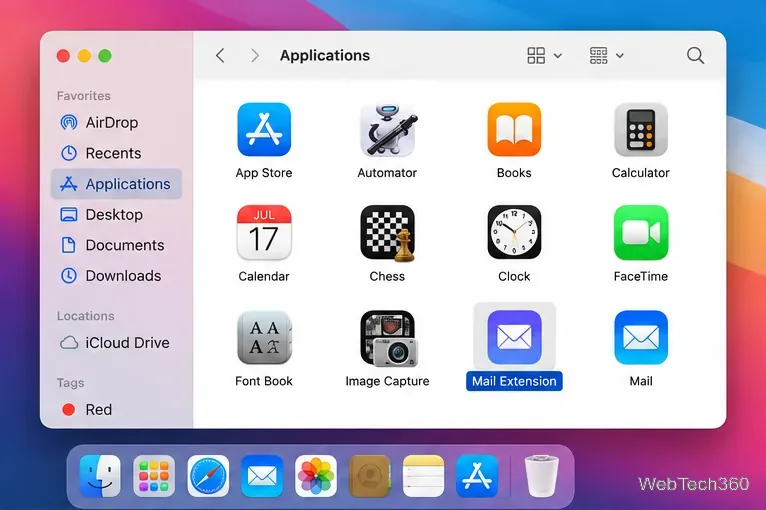
Start with the developer’s current download. Many Mail extensions are bundled inside a normal Mac app, so you install the app first. If it comes from the App Store, use the normal Get or Install button. If it comes directly from the developer, open the downloaded .dmg or .pkg and follow the installer’s instructions.
Do not download an old copy of a plug-in from an unofficial mirror just because it includes a .mailbundle folder. For software downloaded outside the App Store, macOS uses Gatekeeper and notarization checks to help verify the developer and detect known malicious software. Apple explains these protections in its guide to safely opening apps on a Mac.
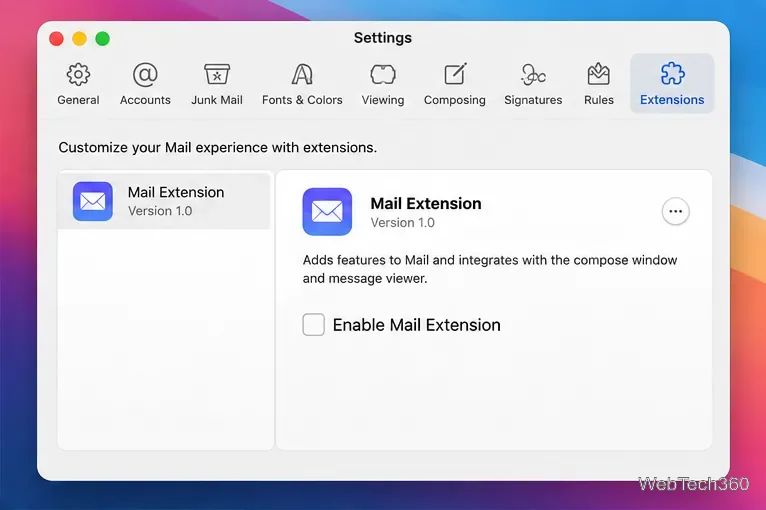
Open Mail, then choose Mail > Settings from the menu bar. Select Extensions. Apple lists available Mail extensions here, along with information about the selected extension.
If you do not see an Extensions pane, first confirm that the add-on actually supports your macOS version and that you installed the latest release from its developer. A legacy plug-in may not expose a modern Mail extension at all.
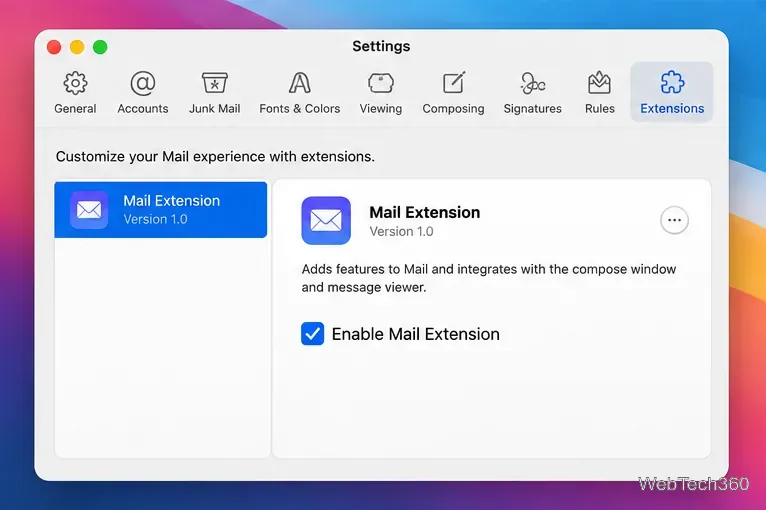
Select the extension and turn it on by checking its box. Apple states that enabling or disabling a Mail extension takes effect immediately, so the old instruction to click “Apply and Restart Mail” is no longer the general workflow for current Mail extensions.
If the extension needs account access, message permissions, or an initial setup step, follow the developer’s own prompts. Only grant permissions that make sense for the feature you are installing.
Where the extension appears depends on what it does. A compose extension may add a control to a new-message window, while other extensions can act on incoming messages, block remote content, or provide signing and encryption features. Apple notes that some extension buttons can be added by customizing the Mail toolbar if they are not already visible.
A .mailbundle is associated with Apple Mail’s older plug-in architecture. Older instructions commonly told users to create a Bundles folder under ~/Library/Mail/, copy the plug-in there, sign out or restart Mail, and then use a Manage Plug-ins button. That process is not a good general recommendation for a current Mac.
If your add-on is available only as a .mailbundle, check the developer’s documentation for explicit support for your exact macOS release. If the developer offers a newer MailKit-based version, use that instead. Avoid manually moving plug-in folders into hidden Library locations unless the developer specifically requires it for the OS version you are running.
.mailbundle may simply not be compatible with a modern release of Mail.Go to Mail > Settings > Extensions, select the extension, and use the uninstall option when available. Apple also notes that deleting the app that contains the extension removes that extension. If you only want to stop using it temporarily, clear its checkbox instead.
The key difference from older guides is simple: for current macOS, install the developer’s supported app, then manage its Mail extension from Mail settings. Treat manual .mailbundle installation as a legacy, version-specific exception rather than the standard method.
Set a custom delay for a timed screenshot from Terminal on macOS, then choose its filename, save folder, image format, and pointer settings.
Restore a solid Catalina-style menu bar on Big Sur with compatible Boring Old Menu Bar v1.27. Follow the install steps, set light and dark styles, and troubleshoot common issues.
Sign in with your Apple ID (now called an Apple Account) in System Settings, then configure the separate Mac login password recovery option for that user.
Turn off Mac sharing services and enable Firewall stealth mode to limit local discovery, with clear notes on what your router and other devices can still see.
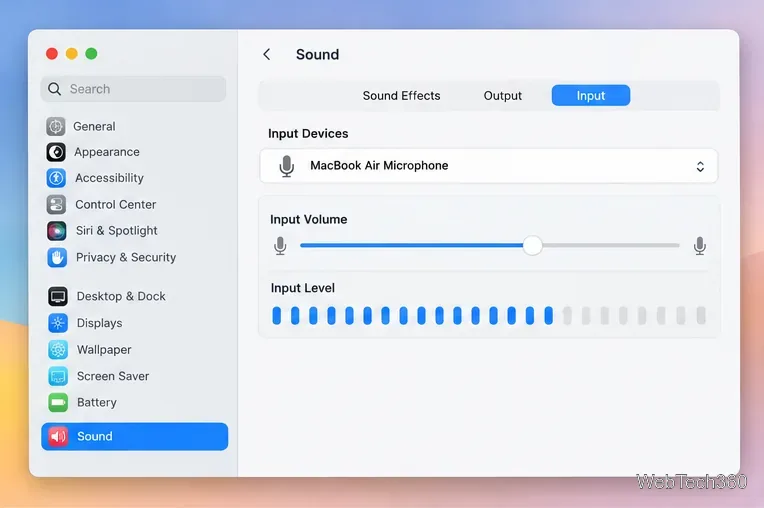
Learn how to check a Mac microphone using Sound settings and QuickTime, choose the right input, verify permissions, and fix common no-input problems.
Use the free Stats app to show CPU, memory, disk, and network usage in the macOS menu bar, customize widgets, and fix missing icons on macOS 26.
Install a Mail plugin on macOS using the current Mail Extensions workflow, enable it in Mail settings, and handle older .mailbundle plugins safely.
Learn how to download YouTube videos on a Mac with YouTube Premium, save your own uploads as MP4 files, and avoid outdated downloader apps.
Learn how to download older macOS installers from Apple using the App Store, Terminal, or official DMG links, with compatibility and error tips.
macOS has no built-in Touch Bar off switch. Learn how to change Touch Bar settings and use Hide My Bar to toggle it off and back on.