How to Link an Apple ID to a Mac User Account

To link an Apple ID to a Mac account, sign in to your Apple Account in System Settings while logged in to the macOS user you want to connect. To use it for Mac password recovery too, enable a separate setting for that user. Apple now calls Apple ID an Apple Account; your existing sign-in details still work.

What linking an Apple Account means

The sign-in applies to the Mac user who is currently logged in. That user can use services such as iCloud, the App Store, Find My, Messages, and FaceTime, depending on what is set up. Other macOS user accounts can use different Apple Accounts. Your Apple Account password is separate from your Mac login password: signing in does not rename the Mac user or change the password you use at the login screen.

Sign in to your Apple Account on a Mac

  1. Log in to the Mac user account you want to connect.
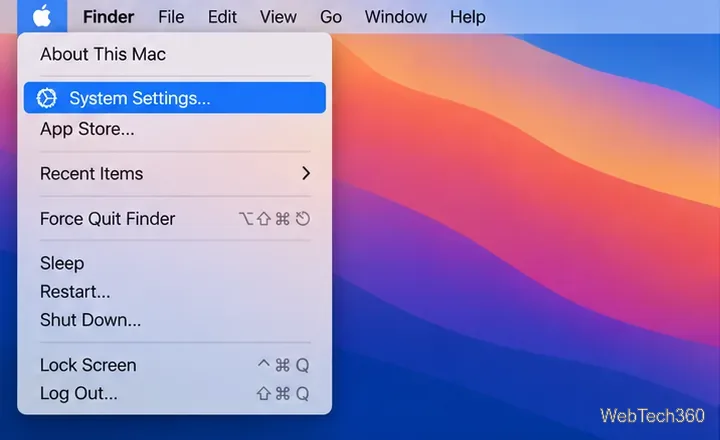
  2. Choose the Apple menu, then click System Settings.
The Apple menu is open with System Settings highlighted.
Choose System Settings from the Apple menu to reach the account controls.
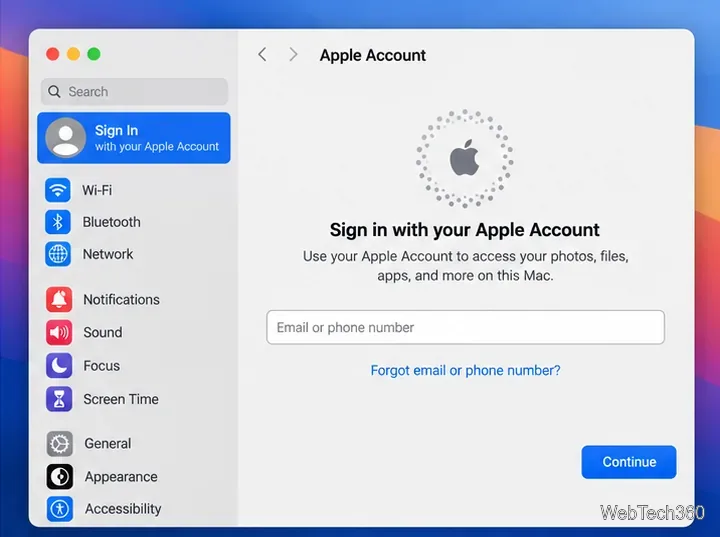
  1. Click Sign in at the top of the sidebar. If you see your name there, this user is already signed in; click the name to review the account.
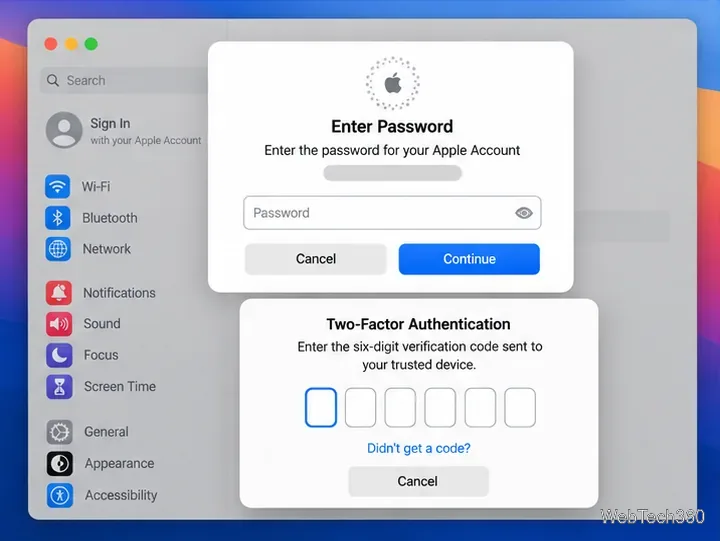
  2. Enter the email address or phone number for your Apple Account, click Continue, then enter the account password and follow the prompts.
  3. If asked, enter the six-digit two-factor verification code sent to a trusted Apple device or phone number.
System Settings shows Sign In and an Apple Account email or phone number field.
Enter the email address or phone number associated with the Apple Account.
Apple Account sign-in asks for a password and a six-digit two-factor code.
The sign-in flow may request the account password and a verification code.

Finish the on-screen prompts and confirm your name appears in the sidebar. Apple may separately ask you to complete media-account setup when you first use the App Store or another media service. See Apple’s current Mac sign-in instructions.

The Apple Account settings pane displays the signed-in user name and profile.
The account name and profile in System Settings indicate that this Mac user is signed in.

Allow password recovery for this Mac user

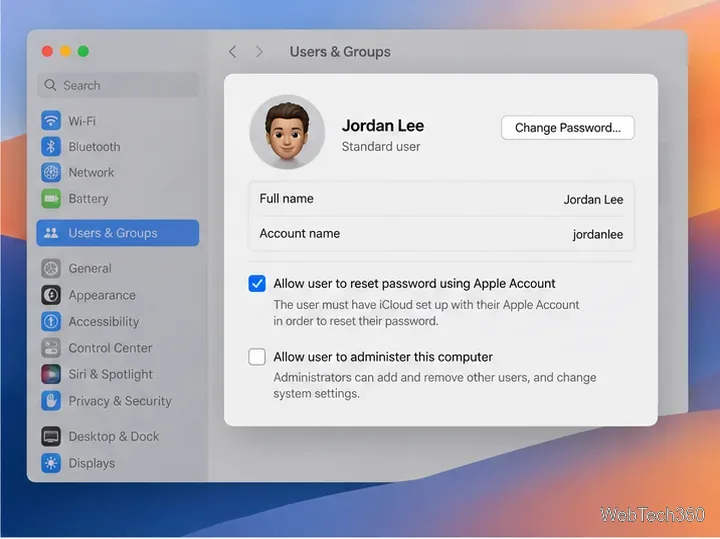
Signing in by itself does not enable Apple Account password recovery. The user must have iCloud set up on the Mac, and the reset permission must be on for the correct account.

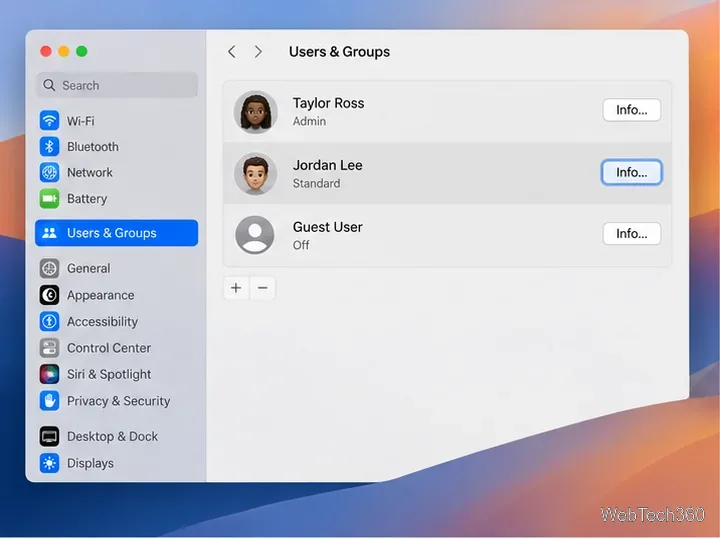
  1. Open Apple menu > System Settings > Users & Groups. Scroll the sidebar if needed.
  2. Click the Info button beside the Mac user you want to configure.
  3. Turn on Allow user to reset password using Apple Account. If prompted to authenticate, use an administrator account.
The Users & Groups pane lists Mac accounts and an Info button beside a user.
Open the Info controls beside the Mac user you want to configure.
A Mac user settings pane has Allow user to reset password using Apple Account selected.
Enable the Apple Account reset option for this specific Mac user.

The option is unavailable for Guest User. It may also be unavailable when FileVault is configured to let that user reset the password at startup with an Apple Account; in that case, use the startup recovery method instead. Apple explains the iCloud requirement and FileVault exception in its Users & Groups settings guide.

Reset the Mac login password with an Apple Account

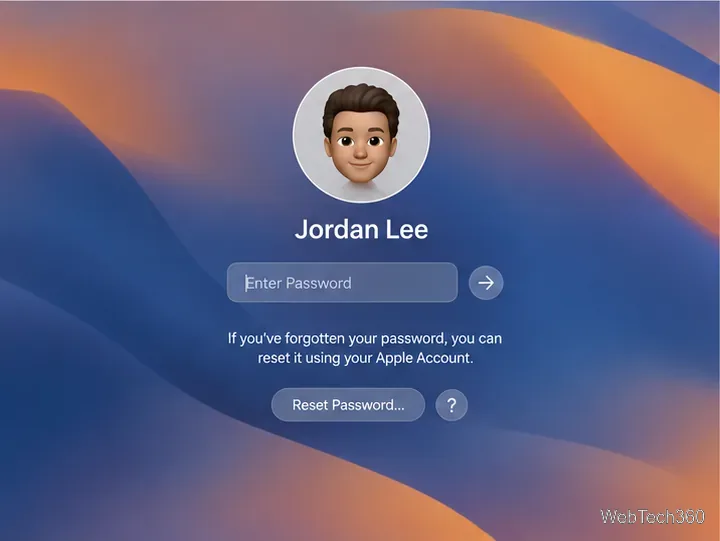
At the login screen, the normal credential is the Mac user’s login password, not the Apple Account password. Check Caps Lock and the keyboard layout first. If the login password still fails, Apple says reset options may appear after entering it up to three times.

  1. Click the question-mark button or reset message beside the password field, if one appears. The message can say Reset Password or offer to restart and show password-reset options.
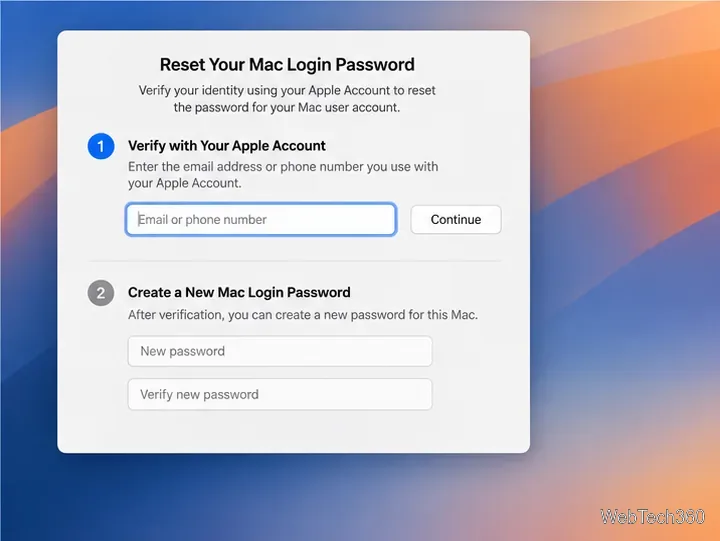
  2. Follow the recovery prompts. If asked, enter the Apple Account email or phone number and password, verify with a code, and select the Mac user to reset.
  3. If the Mac asks for a FileVault recovery key or another method instead, follow that prompt. A FileVault recovery key is different from an Apple Account recovery key.
  4. Create and confirm a new Mac login password, then restart if prompted. macOS may ask to create a new keychain for saved passwords.
The Mac login window shows a user, a password field, and a Reset Password option.
A reset message may appear at the login window after failed password attempts.
A password-reset screen asks to verify an Apple Account before creating a new Mac login password.
Follow the recovery prompts to verify the account and set a new Mac login password.

Recovery screens vary with the Mac’s security settings. If no reset option appears, continue with Apple’s forgotten Mac login password instructions, which include macOS Recovery. The permission must be set up before you are locked out; you cannot turn it on from the login screen.

If sign-in or password recovery is unavailable

  • Your name appears instead of Sign in: the current Mac user is already signed in. Open the account pane to see its settings.
  • The reset checkbox is missing: verify that you selected the right user and that iCloud is set up. Guest User and some FileVault configurations do not show the checkbox.
  • Your Apple Account password does not unlock the Mac: use the Mac login password at the normal login screen. Enter the Apple Account only when a recovery prompt asks you to verify it.
  • The Mac has multiple users: sign in separately in each account that needs Apple services; the recovery option is also set per user.

For account-access trouble, Apple’s support page explains how to recover access to an Apple Account.

Leave a Comment

How to Take a Timed Screenshot from Terminal on macOS
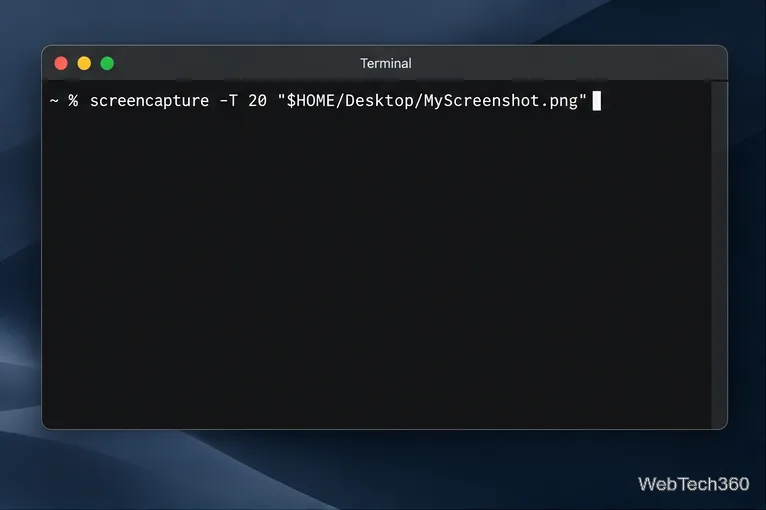
How to Take a Timed Screenshot from Terminal on macOS

Set a custom delay for a timed screenshot from Terminal on macOS, then choose its filename, save folder, image format, and pointer settings.

How to Get a Catalina-Style Menu Bar on macOS Big Sur

How to Get a Catalina-Style Menu Bar on macOS Big Sur

Restore a solid Catalina-style menu bar on Big Sur with compatible Boring Old Menu Bar v1.27. Follow the install steps, set light and dark styles, and troubleshoot common issues.

How to Link an Apple ID to a Mac User Account

How to Link an Apple ID to a Mac User Account

Sign in with your Apple ID (now called an Apple Account) in System Settings, then configure the separate Mac login password recovery option for that user.

How to Hide Your Mac From Other Devices on a Network

How to Hide Your Mac From Other Devices on a Network

Turn off Mac sharing services and enable Firewall stealth mode to limit local discovery, with clear notes on what your router and other devices can still see.

How to Check the Mic on a Mac (Built-In or External)

How to Check the Mic on a Mac (Built-In or External)

Learn how to check a Mac microphone using Sound settings and QuickTime, choose the right input, verify permissions, and fix common no-input problems.

How to View CPU, RAM, Disk, and Network Usage in the macOS Menu Bar

How to View CPU, RAM, Disk, and Network Usage in the macOS Menu Bar

Use the free Stats app to show CPU, memory, disk, and network usage in the macOS menu bar, customize widgets, and fix missing icons on macOS 26.

How to Install a Mail Plugin on macOS

How to Install a Mail Plugin on macOS

Install a Mail plugin on macOS using the current Mail Extensions workflow, enable it in Mail settings, and handle older .mailbundle plugins safely.

How to Download YouTube Videos on macOS: Official Methods

How to Download YouTube Videos on macOS: Official Methods

Learn how to download YouTube videos on a Mac with YouTube Premium, save your own uploads as MP4 files, and avoid outdated downloader apps.

How to Download Older Versions of macOS from Apple

How to Download Older Versions of macOS from Apple

Learn how to download older macOS installers from Apple using the App Store, Terminal, or official DMG links, with compatibility and error tips.

How to Toggle the Touch Bar On or Off on macOS

How to Toggle the Touch Bar On or Off on macOS

macOS has no built-in Touch Bar off switch. Learn how to change Touch Bar settings and use Hide My Bar to toggle it off and back on.