How to Remap a Windows Keyboard for a Mac

You can make a Windows keyboard feel more familiar on a Mac by assigning its physical Ctrl key to Command. Then common shortcuts such as copy, paste, and save work with the key your fingers expect. Use macOS’s built-in Modifier Keys settings; you do not need a third-party remapping app for this change.

The key adjustment is specific to a keyboard. If you use a MacBook, select the external Windows keyboard in Settings so the change does not affect the built-in keyboard.

How a Windows keyboard’s modifier keys work on a Mac

Many Mac shortcuts use Command where Windows users expect Ctrl: Command-C copies, Command-V pastes, and Command-S saves. On a PC keyboard, Alt serves as Option; Apple’s Mac shortcut guide says to use the Ctrl key or Windows-logo key in place of Command. Which physical key sends Command can vary, so inspect the selected keyboard’s current mapping instead of assuming every model behaves alike. Apple’s Modifier Keys settings let you change the action assigned to each modifier.

If your goal is to press the physical Ctrl key for familiar editing shortcuts, use this target layout:

Physical keySet its Mac action toExample
CtrlCommandCtrl-C copies
Windows logoControlUse it for Control-click or Control-based commands
AltOptionKeep the current action
ShiftShiftKeep the current action

On a typical PC layout, the Modifier Keys pane calls these first two rows “Control Key” and “Command Key.” The menu beside each row chooses the action macOS performs when you press that key.

Remap the external keyboard

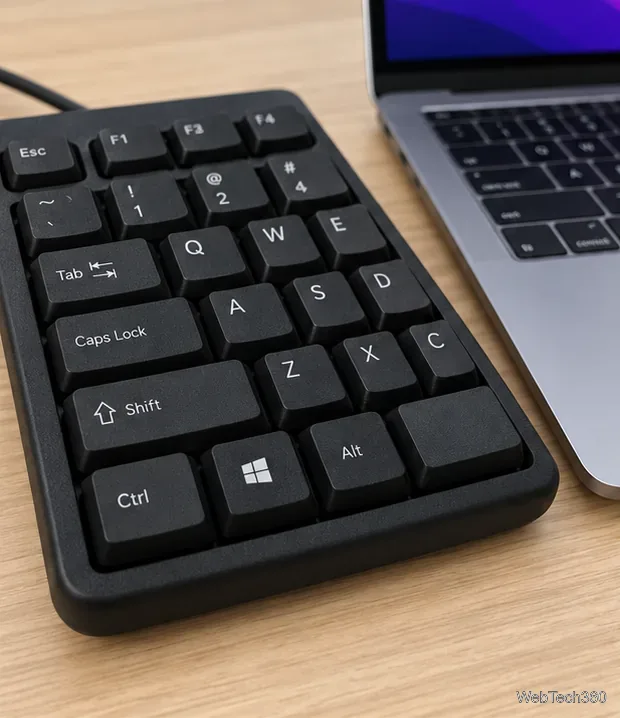
  1. Connect the keyboard. Plug it in or pair it over Bluetooth, then press a few keys to confirm that the Mac recognizes it. Identify the Ctrl, Windows-logo, and Alt keys on the keyboard itself.
    A black PC keyboard with Ctrl, Windows-logo, and Alt keys sits beside a MacBook.
    Identify the physical Ctrl, Windows-logo, and Alt keys before changing their Mac actions.
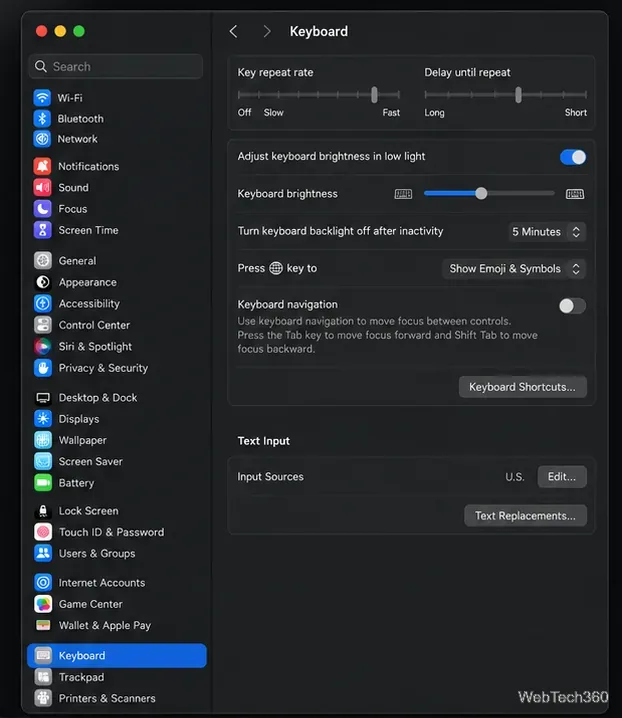
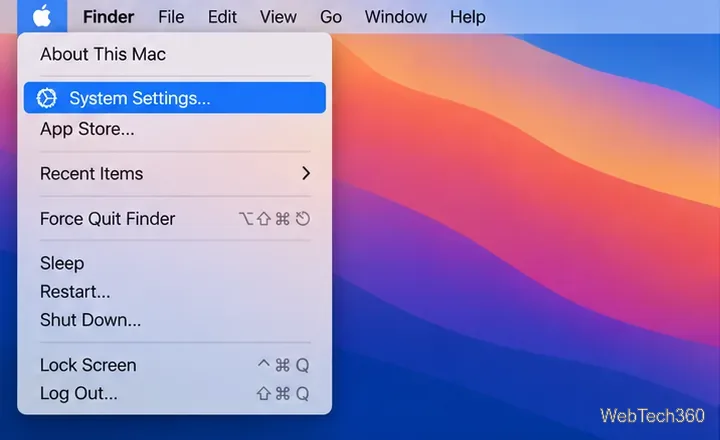
  2. Open Keyboard settings. Choose Apple menu > System Settings, select Keyboard in the sidebar, then click Keyboard Shortcuts. In the sidebar of the shortcuts window, select Modifier Keys.
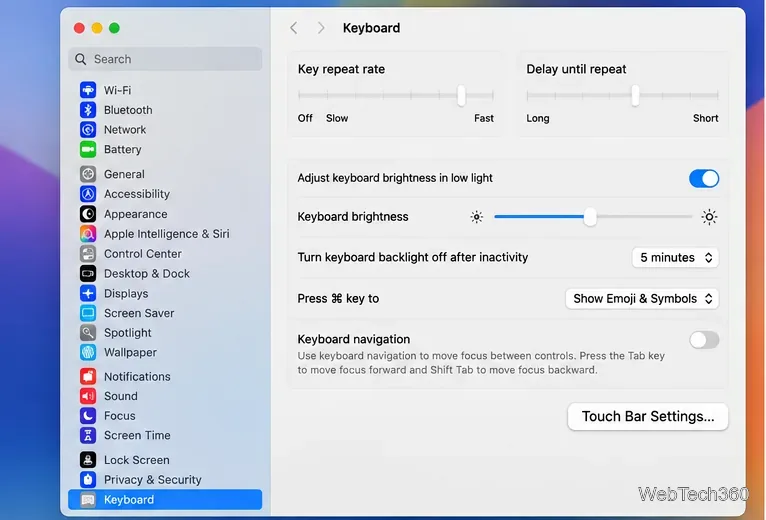
    The Keyboard pane in macOS System Settings shows the Keyboard Shortcuts button.
    Open Keyboard Shortcuts from the Keyboard section of System Settings.
  3. Select the Windows keyboard. If a keyboard picker appears at the top, choose the connected external device. It may appear under its brand name or as “USB Keyboard.” This step matters when you also use a MacBook’s built-in keyboard: modifier settings apply to the selected keyboard.
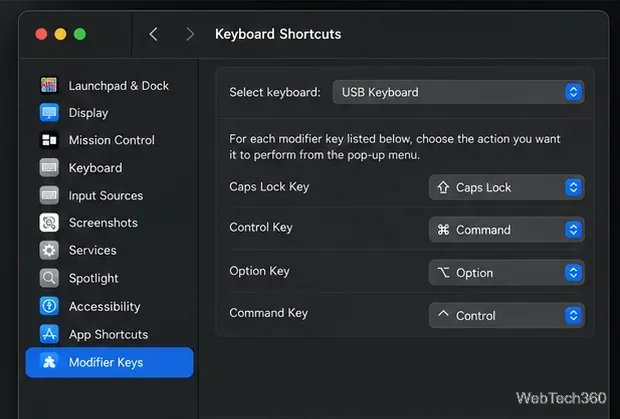
  4. Swap Control and Command. Open the Control Key menu and choose Command. Then open the Command Key menu and choose Control. Leave Option and Shift unchanged unless you have a separate reason to customize them. The result is that physical Ctrl sends Command, while the Windows-logo key sends Control.
    The Modifier Keys pane has USB Keyboard selected, with Control Key set to Command and Command Key set to Control.
    Set Control Key to Command and Command Key to Control for the external keyboard.
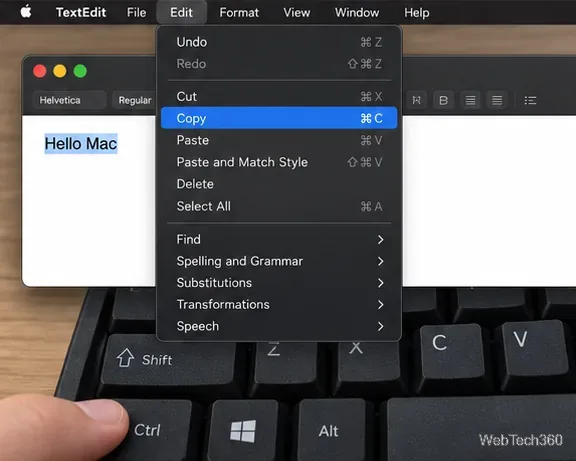
  5. Test a familiar shortcut. Open TextEdit or another app, type a short line, select it, and press the physical Ctrl-C followed by Ctrl-V. The selected text should copy and paste. Menus may still show the Command symbol (⌘), because the Mac displays the action macOS receives rather than the label printed on the key.
    TextEdit shows Copy with the Command-C shortcut while a finger presses Ctrl on a PC keyboard.
    After remapping, pressing the physical Ctrl key should trigger the Mac’s Command-C shortcut.

What to check if the keys still feel wrong

  • Confirm the selected device. Return to Modifier Keys and make sure the external keyboard, not the MacBook keyboard or another connected device, is selected. Some keyboards expose more than one device name; try the active one and test again.
  • Use Restore Defaults to undo the change. The Modifier Keys pane includes a Restore Defaults control. You can also set only one menu back to its original action if you want to keep a partial remap.
  • Remember that Control still has Mac uses. Control-click opens a context menu, and some command-line shortcuts depend on Control. With the layout above, use the physical Windows-logo key for those actions. Applications can also define their own shortcuts, so test the apps you use most.
  • Check keyboard software. If the Mac does not follow the menu choices, a keyboard manufacturer’s utility may have its own remapping layer. Check that utility’s layout before changing additional macOS settings.

For the exact current menu path and key equivalents, see Apple’s guide to changing modifier-key behavior, Apple’s Mac keyboard shortcuts guide, and Apple’s Windows-key equivalents for Mac.

Leave a Comment

How to Take a Timed Screenshot from Terminal on macOS
How to Take a Timed Screenshot from Terminal on macOS

Set a custom delay for a timed screenshot from Terminal on macOS, then choose its filename, save folder, image format, and pointer settings.

How to Get a Catalina-Style Menu Bar on macOS Big Sur

How to Get a Catalina-Style Menu Bar on macOS Big Sur

Restore a solid Catalina-style menu bar on Big Sur with compatible Boring Old Menu Bar v1.27. Follow the install steps, set light and dark styles, and troubleshoot common issues.

How to Link an Apple ID to a Mac User Account

How to Link an Apple ID to a Mac User Account

Sign in with your Apple ID (now called an Apple Account) in System Settings, then configure the separate Mac login password recovery option for that user.

How to Hide Your Mac From Other Devices on a Network

How to Hide Your Mac From Other Devices on a Network

Turn off Mac sharing services and enable Firewall stealth mode to limit local discovery, with clear notes on what your router and other devices can still see.

How to Check the Mic on a Mac (Built-In or External)

How to Check the Mic on a Mac (Built-In or External)

Learn how to check a Mac microphone using Sound settings and QuickTime, choose the right input, verify permissions, and fix common no-input problems.

How to View CPU, RAM, Disk, and Network Usage in the macOS Menu Bar

How to View CPU, RAM, Disk, and Network Usage in the macOS Menu Bar

Use the free Stats app to show CPU, memory, disk, and network usage in the macOS menu bar, customize widgets, and fix missing icons on macOS 26.

How to Install a Mail Plugin on macOS

How to Install a Mail Plugin on macOS

Install a Mail plugin on macOS using the current Mail Extensions workflow, enable it in Mail settings, and handle older .mailbundle plugins safely.

How to Download YouTube Videos on macOS: Official Methods

How to Download YouTube Videos on macOS: Official Methods

Learn how to download YouTube videos on a Mac with YouTube Premium, save your own uploads as MP4 files, and avoid outdated downloader apps.

How to Download Older Versions of macOS from Apple

How to Download Older Versions of macOS from Apple

Learn how to download older macOS installers from Apple using the App Store, Terminal, or official DMG links, with compatibility and error tips.

How to Toggle the Touch Bar On or Off on macOS

How to Toggle the Touch Bar On or Off on macOS

macOS has no built-in Touch Bar off switch. Learn how to change Touch Bar settings and use Hide My Bar to toggle it off and back on.