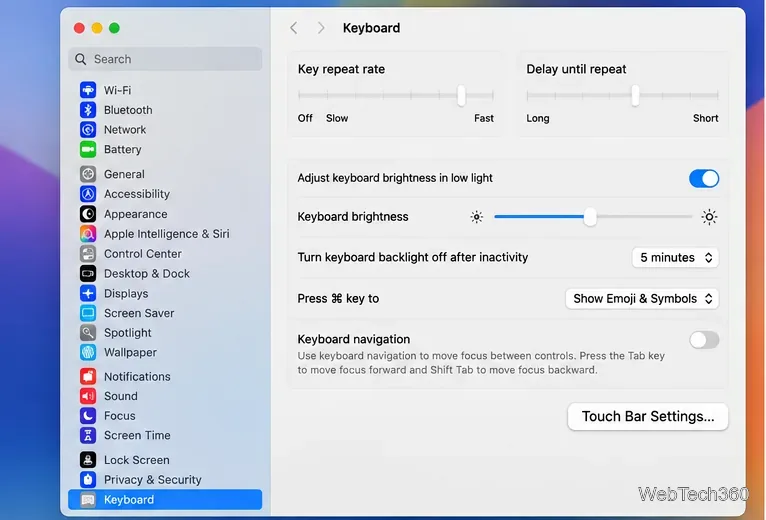
How to Take a Timed Screenshot from Terminal on macOS
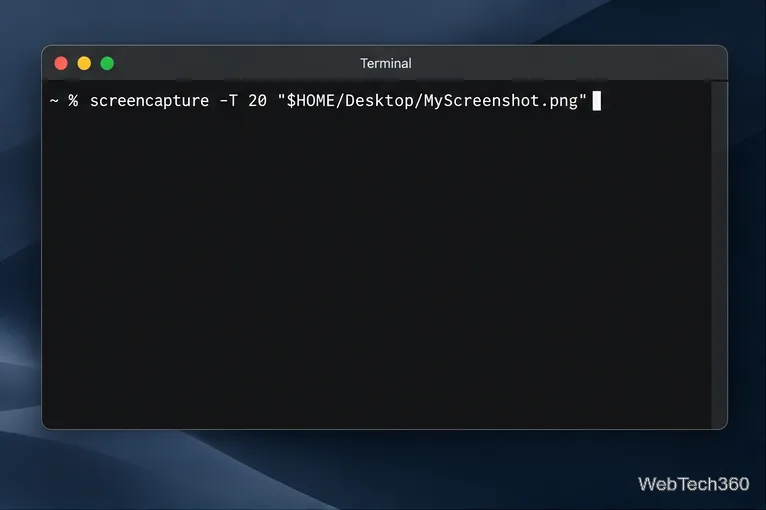
Set a custom delay for a timed screenshot from Terminal on macOS, then choose its filename, save folder, image format, and pointer settings.
To rename a drive on macOS, select its mounted volume in Finder, press Return, type the new name, and press Return again. This changes the name Finder shows for the volume; it does not erase or reformat the drive. Apple supports renaming most disks, including the internal disk, directly from Finder.
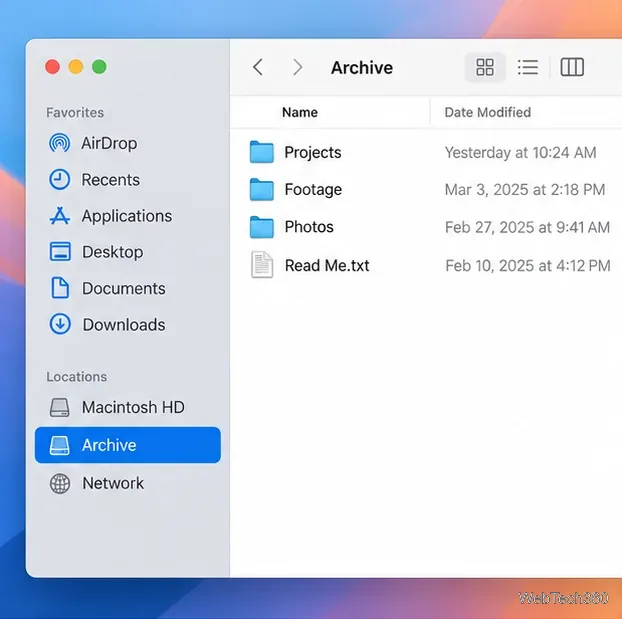
People often say “disk” to mean any drive they see in Finder. Technically, a physical storage device can contain a partition or APFS container, and that container can hold one or more volumes. The name you usually see in Finder belongs to a volume, such as “Macintosh HD” or an external volume called “Archive.” Renaming that volume does not change the physical drive’s model name or create a new partition.
If you are unsure which item to change, use Disk Utility to inspect the hierarchy first. Apple’s Disk Utility guide explains that “Show All Devices” lists each storage device, its containers, and its volumes.
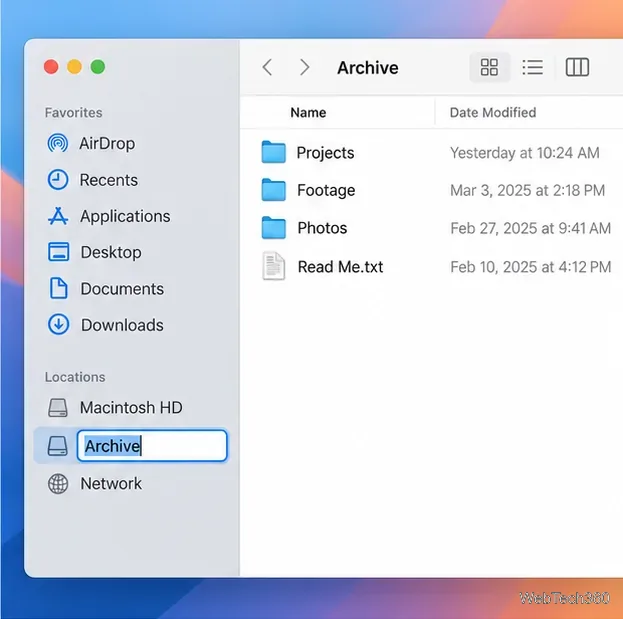
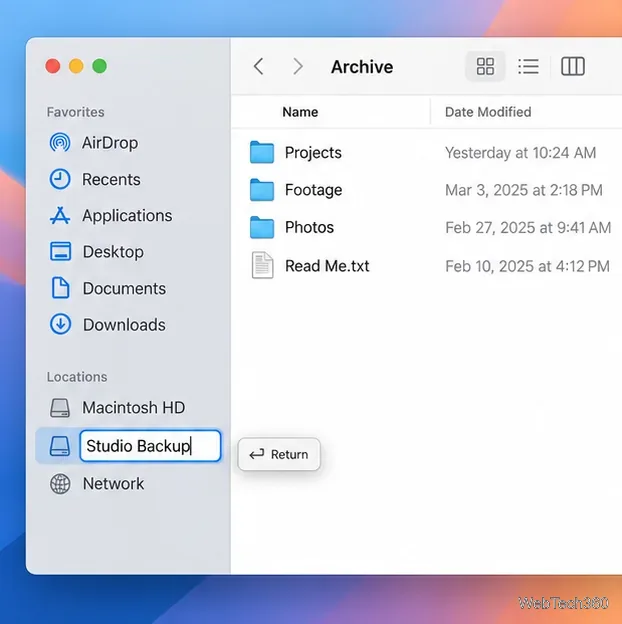
Finder should now display the new label in its sidebar or on the desktop. If the old name remains, click another item and check again; make sure the edit field was committed with Return rather than canceled with Escape. Apple’s instructions for renaming files, folders, and disks describe the same select, enter, and Return workflow.
If Finder does not show the drive, open Disk Utility and choose View > Show All Devices. Look for the external device and its indented volume. This helps you confirm that you are targeting the volume rather than the whole physical device. Select an item and use Disk Utility’s Info button to review details such as its format and mount point, as described in Apple’s disk information guide.
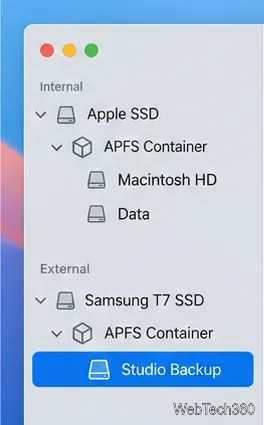
Renaming a volume changes the label people use to identify it in Finder. Files stay on the drive, but an app, shortcut, or script that refers to an external volume by its old path, such as /Volumes/Archive, may need that reference updated after the volume is renamed. If you are renaming the internal startup disk, use the visible volume in Finder; changing its label is different from changing your Mac’s computer or network name. Apple notes that a renamed hard disk can still appear with its original name on a network.
For a removable drive, choose a unique, recognizable label and confirm it appears in Finder after you press Return. That is all you need for a straightforward disk rename on macOS.
Set a custom delay for a timed screenshot from Terminal on macOS, then choose its filename, save folder, image format, and pointer settings.
Restore a solid Catalina-style menu bar on Big Sur with compatible Boring Old Menu Bar v1.27. Follow the install steps, set light and dark styles, and troubleshoot common issues.
Sign in with your Apple ID (now called an Apple Account) in System Settings, then configure the separate Mac login password recovery option for that user.
Turn off Mac sharing services and enable Firewall stealth mode to limit local discovery, with clear notes on what your router and other devices can still see.
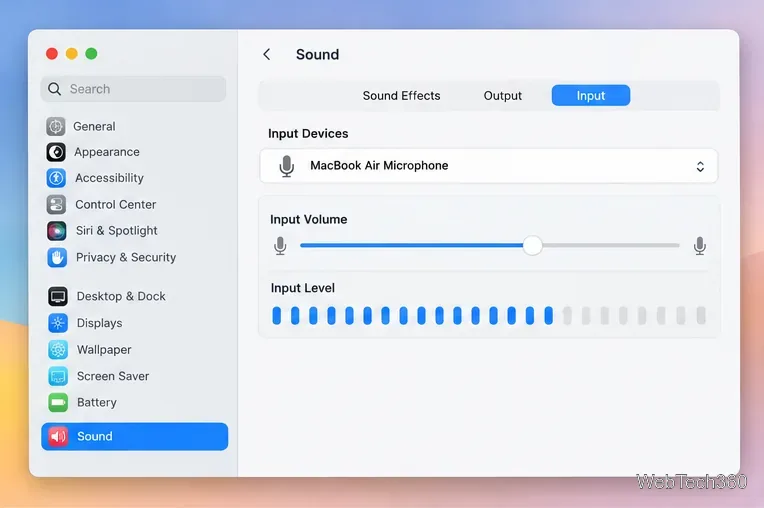
Learn how to check a Mac microphone using Sound settings and QuickTime, choose the right input, verify permissions, and fix common no-input problems.
Use the free Stats app to show CPU, memory, disk, and network usage in the macOS menu bar, customize widgets, and fix missing icons on macOS 26.
Install a Mail plugin on macOS using the current Mail Extensions workflow, enable it in Mail settings, and handle older .mailbundle plugins safely.
Learn how to download YouTube videos on a Mac with YouTube Premium, save your own uploads as MP4 files, and avoid outdated downloader apps.
Learn how to download older macOS installers from Apple using the App Store, Terminal, or official DMG links, with compatibility and error tips.
macOS has no built-in Touch Bar off switch. Learn how to change Touch Bar settings and use Hide My Bar to toggle it off and back on.