How to Take a Timed Screenshot from Terminal on macOS
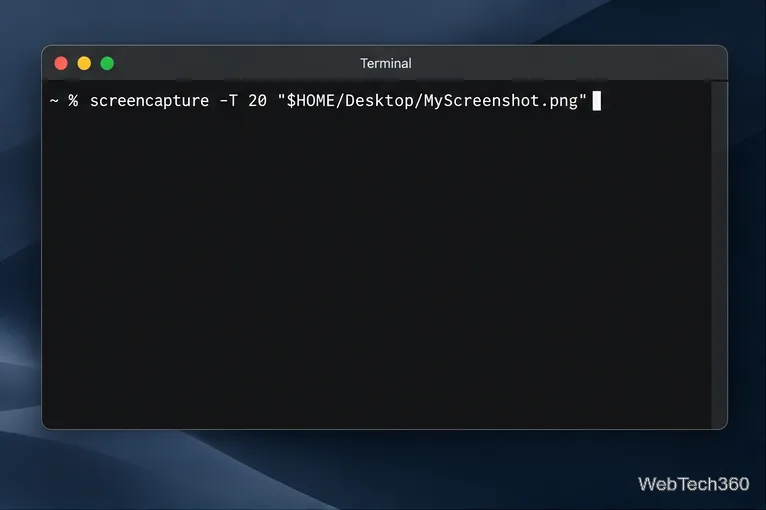
Set a custom delay for a timed screenshot from Terminal on macOS, then choose its filename, save folder, image format, and pointer settings.
If a Mac drive is reporting errors, behaving strangely, or preventing macOS from starting, the built-in Disk Utility app is the first repair tool to try. Its First Aid feature checks the file system and storage structure for errors and attempts to repair problems it can fix. You can run it from a normal macOS session for most external or secondary drives, or from macOS Recovery when you need to repair the startup disk.
Before you begin, make sure you have a current backup of important files. Apple specifically recommends backing up because Disk Utility can find damage that it cannot repair. See Apple's current Disk Utility repair instructions.
If macOS starts normally, open Applications > Utilities > Disk Utility. You can also press Command + Space, search for Disk Utility, and open the app from Spotlight.
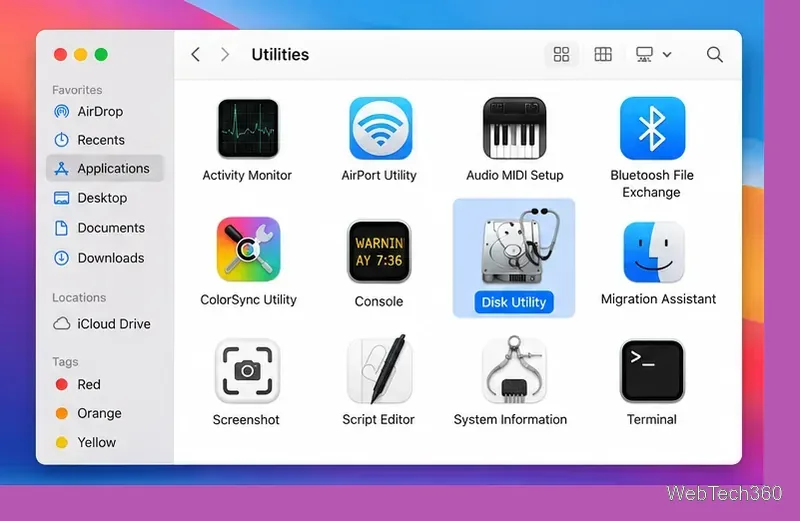
If you are repairing the Mac's startup disk, or the Mac does not start all the way to the desktop, open Disk Utility from macOS Recovery instead. The startup method depends on the Mac:
| Mac type | How to start macOS Recovery |
|---|---|
| Apple silicon | Shut down the Mac. Press and hold the power button until startup options appear. Select Options, then click Continue. |
| Intel | Turn on or restart the Mac, then immediately press and hold Command-R until the recovery screen appears. |
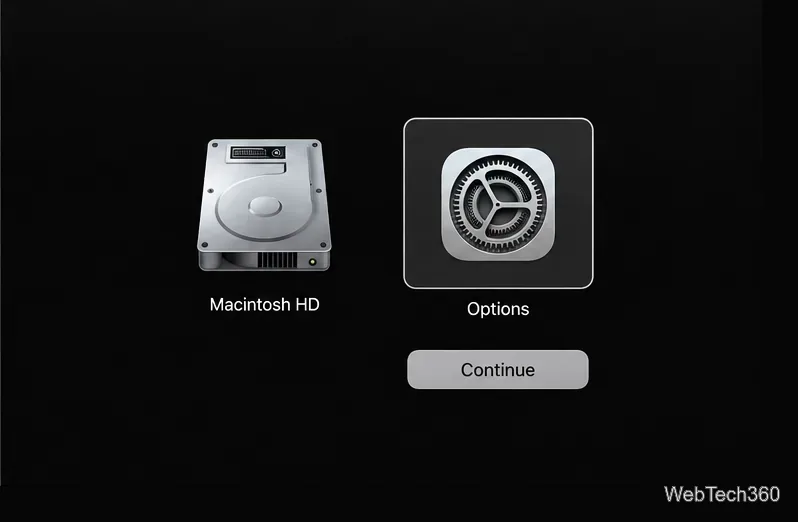
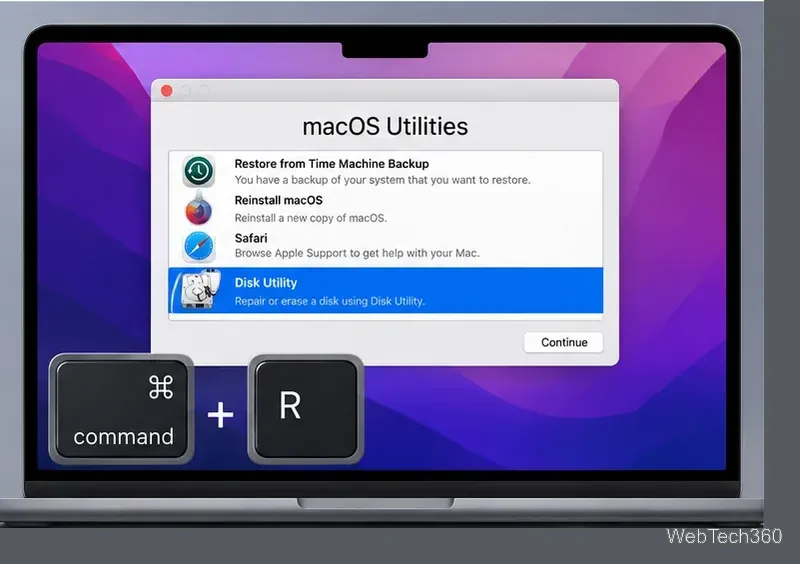
Apple documents the Intel startup shortcuts separately in its Mac startup key combinations guide.
Once Disk Utility is open, do not simply select the first item you see and run First Aid once. Apple recommends working from the lowest volume upward, then checking the volume group, container, and finally the physical storage device.
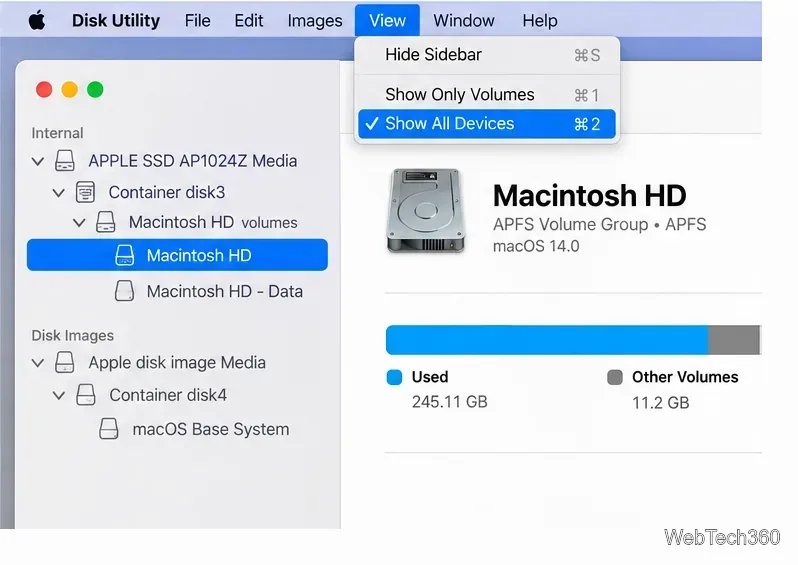
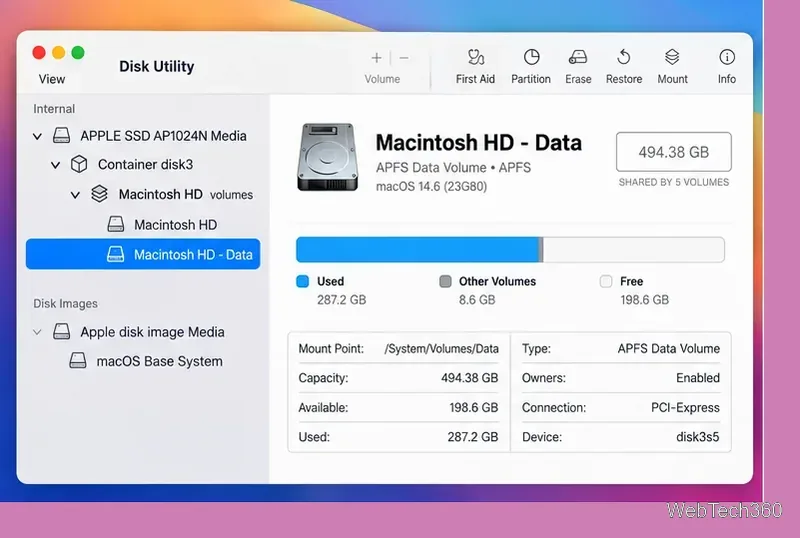
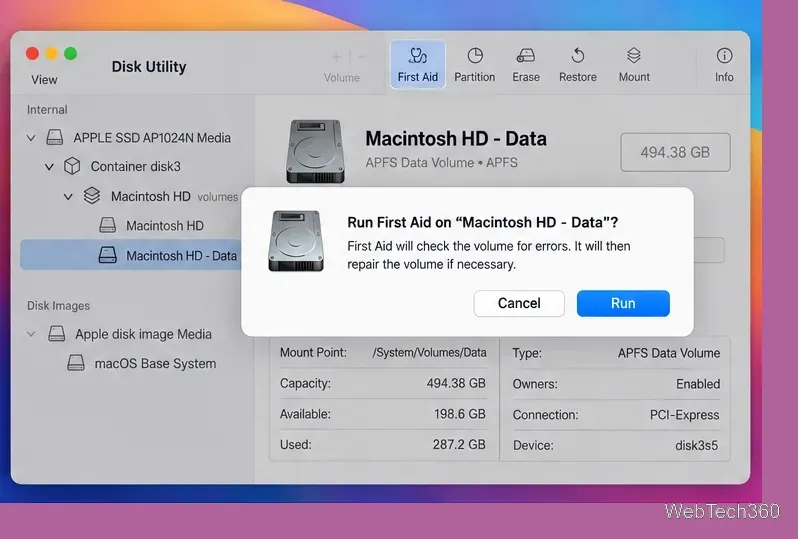
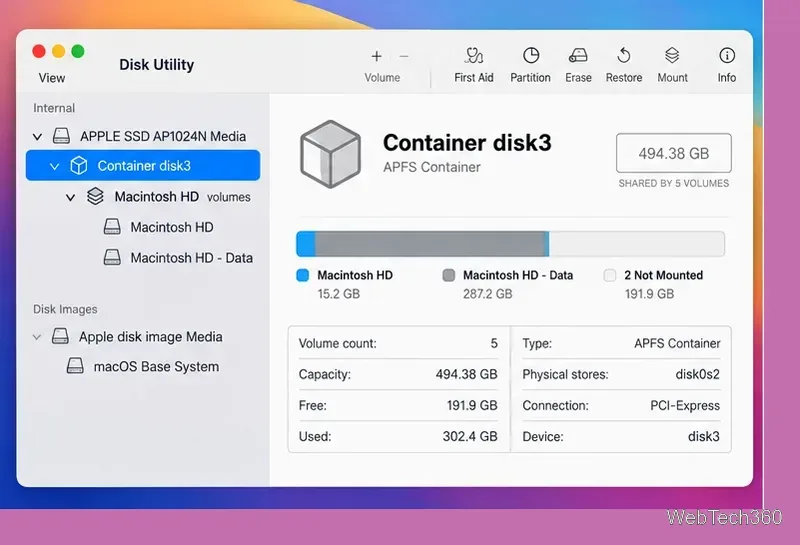
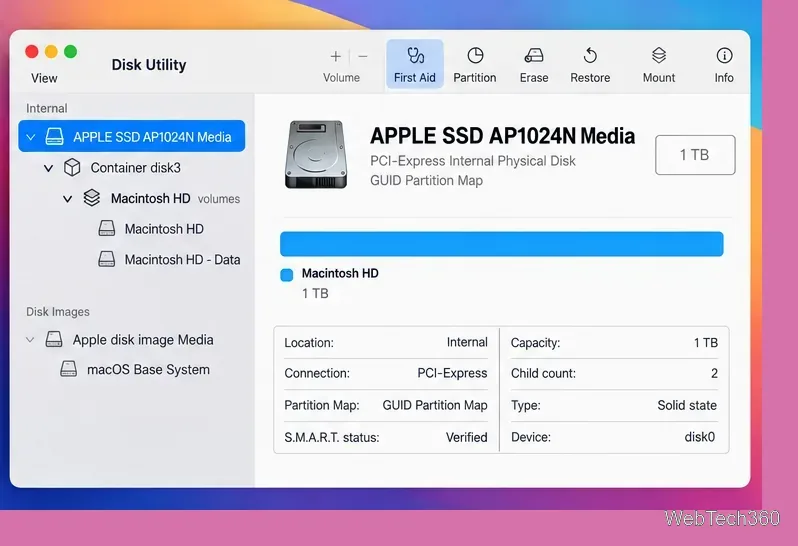
If Disk Utility reports that it repaired the errors, quit Disk Utility and restart the Mac. If you ran First Aid from Recovery, choose Apple menu > Restart.
If Disk Utility finds errors it cannot repair, do not keep rerunning First Aid indefinitely. Back up or recover any accessible data first. Apple's documented next step is to erase and reformat the disk, which removes its contents, and then restore your data or reinstall macOS as appropriate.
If the storage device does not appear in Disk Utility at all, shut down the Mac and disconnect nonessential devices before trying again. For an external drive, also check its cable, power, and connection. If an internal startup disk still does not appear, or an erase operation fails, the Mac or storage device may need service.
Running First Aid is a repair operation, not an erase command, so it is designed to check and repair the disk structure without intentionally deleting your files. However, existing file-system damage can make data inaccessible, and no repair utility can guarantee recovery. That is why a current backup should come before disk repair whenever the Mac is still usable.
Set a custom delay for a timed screenshot from Terminal on macOS, then choose its filename, save folder, image format, and pointer settings.
Restore a solid Catalina-style menu bar on Big Sur with compatible Boring Old Menu Bar v1.27. Follow the install steps, set light and dark styles, and troubleshoot common issues.
Sign in with your Apple ID (now called an Apple Account) in System Settings, then configure the separate Mac login password recovery option for that user.
Turn off Mac sharing services and enable Firewall stealth mode to limit local discovery, with clear notes on what your router and other devices can still see.
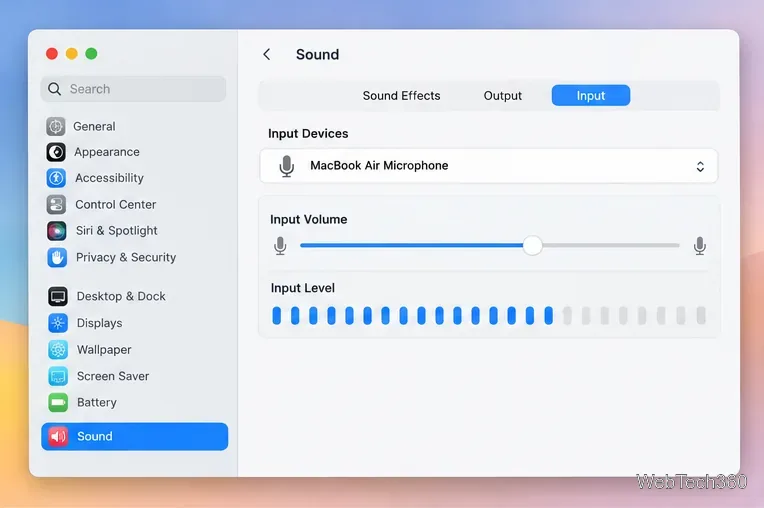
Learn how to check a Mac microphone using Sound settings and QuickTime, choose the right input, verify permissions, and fix common no-input problems.
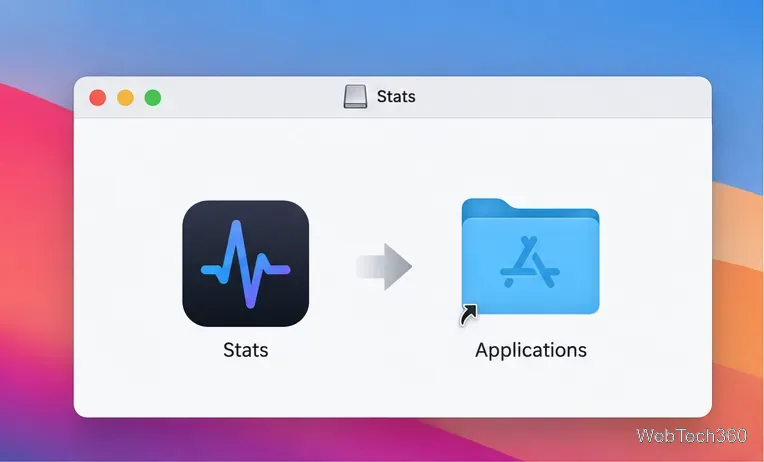
Use the free Stats app to show CPU, memory, disk, and network usage in the macOS menu bar, customize widgets, and fix missing icons on macOS 26.
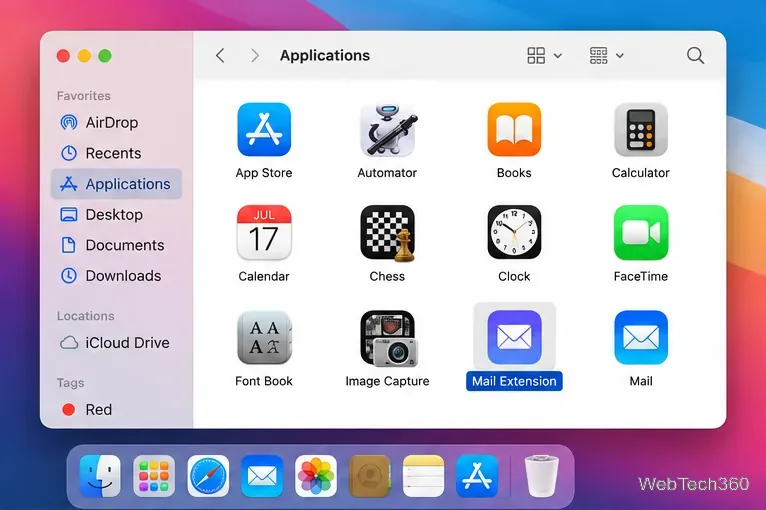
Install a Mail plugin on macOS using the current Mail Extensions workflow, enable it in Mail settings, and handle older .mailbundle plugins safely.
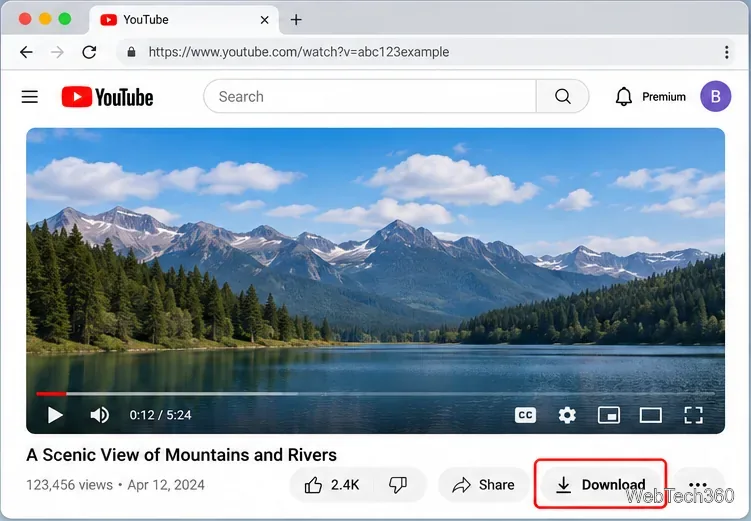
Learn how to download YouTube videos on a Mac with YouTube Premium, save your own uploads as MP4 files, and avoid outdated downloader apps.
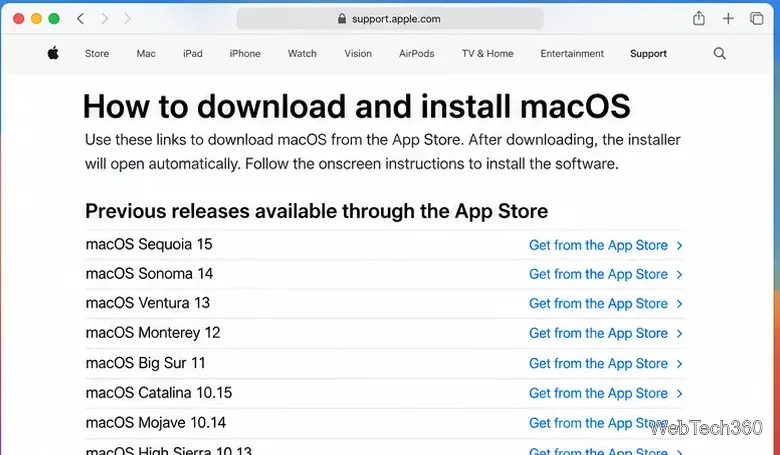
Learn how to download older macOS installers from Apple using the App Store, Terminal, or official DMG links, with compatibility and error tips.
macOS has no built-in Touch Bar off switch. Learn how to change Touch Bar settings and use Hide My Bar to toggle it off and back on.