How to Screenshot on Mac: A Comprehensive Guide

Learn how to screenshot on Mac with shortcuts for the full screen, an area, or a window, plus the Screenshot app, clipboard, editing, and save-location tips.
To reset Bluetooth on macOS, turn Bluetooth off and back on in System Settings, then restart your Mac. If the problem affects just one accessory, forget that device and pair it again. These steps refresh the connection without deleting system preference files. Keep a wired mouse or keyboard handy before toggling Bluetooth on a desktop Mac.
Save any work and make sure you can still control your Mac if Bluetooth accessories disconnect. Apple notes that a desktop Mac won’t let you turn Bluetooth off when its only mouse, keyboard, or trackpad is connected through Bluetooth. Use a wired input device or another available way to control the Mac first.
The steps below use current macOS settings. Older web instructions may tell you to remove Bluetooth preference files or open a hidden Debug menu. Those steps are not part of Apple’s current Mac help for Bluetooth connection problems; start with the built-in controls and target only the accessory that is failing.
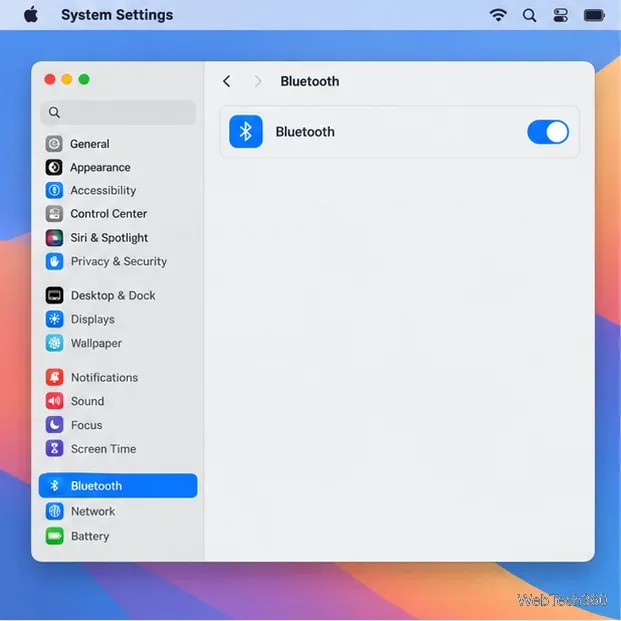
Choose Apple menu > System Settings, then select Bluetooth in the sidebar. Switch Bluetooth off, wait a few seconds, and switch it back on. You can also use the Bluetooth control in Control Center. This refreshes the Mac’s Bluetooth connection; it may also interrupt Continuity, Handoff, or Instant Hotspot while Bluetooth is off.
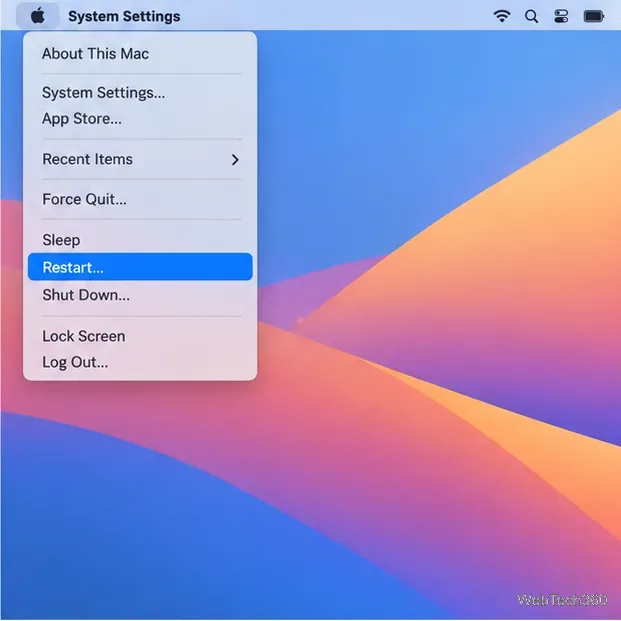
If the switch does not clear the problem, choose Apple menu > Restart. Let macOS finish starting, then try the accessory again. A normal restart is enough for this step; don’t force the Mac to shut down unless it has stopped responding.
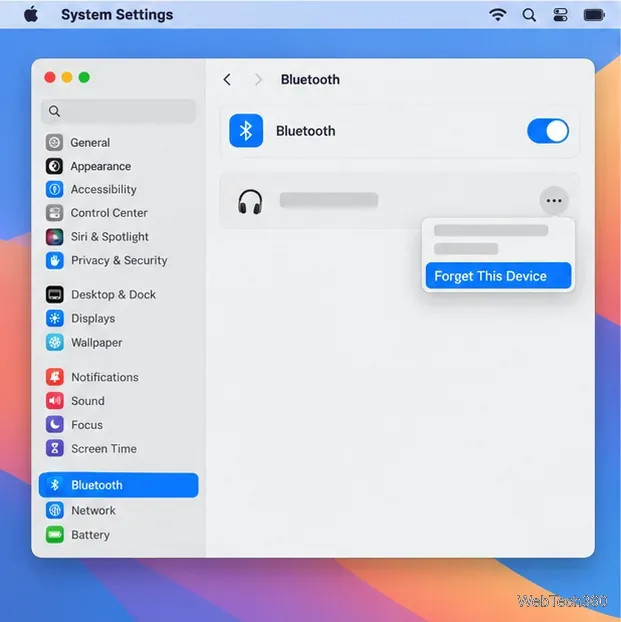
If your other Bluetooth devices work, remove the pairing for the one that does not. Open System Settings > Bluetooth, Control-click the accessory’s name, and choose Forget or Forget This Device. In some versions, the same command is inside the accessory’s details menu. Forgetting it removes that pairing from the Mac, so the accessory will need to be connected again.
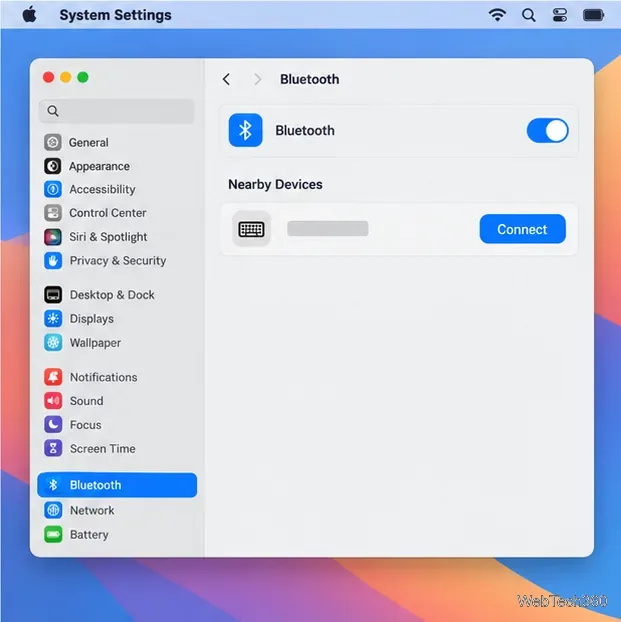
Turn the accessory on, charge it if needed, and put it in pairing or discovery mode using its manufacturer’s instructions. Keep it close to the Mac. In System Settings > Bluetooth, look under Nearby Devices and click Connect beside the accessory. Accept a prompt or enter a pairing code if macOS asks.
If Bluetooth is missing, unavailable, or still will not turn on after a restart and update, contact Apple Support. If you suspect a hardware problem, Apple Diagnostics can help identify which Mac hardware component may be at fault. For a Magic Keyboard, Magic Mouse, or Magic Trackpad, Apple also provides device-specific connection steps.
Turning Bluetooth off and on or restarting the Mac does not ask macOS to forget every accessory. The Forget command is different: it removes the selected accessory’s pairing, and you must connect it again before using it. If you only have trouble with one mouse, speaker, keyboard, or headset, use the per-device step first rather than trying to reset every connection.
For Apple’s current instructions, see how to turn Bluetooth on or off on Mac and how to connect or forget a Bluetooth device.
Learn how to screenshot on Mac with shortcuts for the full screen, an area, or a window, plus the Screenshot app, clipboard, editing, and save-location tips.
Combine multiple images into a single PDF on macOS using Finder or Preview. Control page order, avoid cropping, and fix missing pages without extra software.
Learn how to show FPS on a Mac with Steam’s performance overlay or Apple’s Metal Performance HUD, plus fixes when the counter does not appear.
Use Option–Command–Esc to force quit an unresponsive Mac app, or close it from the Apple menu, Dock, Activity Monitor, or Terminal.
Set up Split View, resize or replace a pane, use Mission Control, and learn when desktop window tiling is a better fit on your Mac.
Learn how to remove EXIF data from photos on macOS, hide location in Photos, clean exported JPEG copies with ExifTool, and verify the result.
Sync two folders on a Mac with SyncTwoFolders, choose a one-way or two-way update, and preview changes before files are replaced or removed.
Back up a Tumblr blog on your Mac with Tumblr’s web export. Download and unpack the ZIP, keep its posts and media safe, and know what the archive leaves out.
Use Google Maps on your Mac in Safari or Chrome, find places and routes, switch map layers, and add a Safari web app to your Dock on macOS Sonoma 14 or later.
Compare five free WAV-to-MP3 converters for Windows and macOS, including online file limits, local batch tools, and practical export settings.








