How to Reset Touch ID on a MacBook: Remove and Add a Fingerprint

To reset Touch ID on a MacBook, delete the saved fingerprint from your account in System Settings > Touch ID & Password, then add it again. You can remove one print that is not being recognized or delete every print saved to the account for a clean restart. This process does not change your Mac login password, erase files, or reinstall macOS.

Before resetting, know that a password prompt is sometimes normal. macOS requires your password after a restart or shutdown, after more than 48 hours without unlocking, while changing Touch ID settings, or after five unsuccessful fingerprint matches. In those cases, enter your Mac account password once; you may not need to remove a fingerprint.

Before you reset Touch ID

Make sure you know the password for the Mac user account whose fingerprints you plan to change. You will need it to unlock the settings and enroll a replacement. Also check that your finger and the sensor are clean and dry. Moisture, lotion, sweat, oils, cuts, or dry skin can interfere with recognition. If the sensor needs cleaning, follow Apple’s instructions for your MacBook model; use a soft, lint-free cloth and never spray cleaner directly onto the computer.

Delete a saved fingerprint

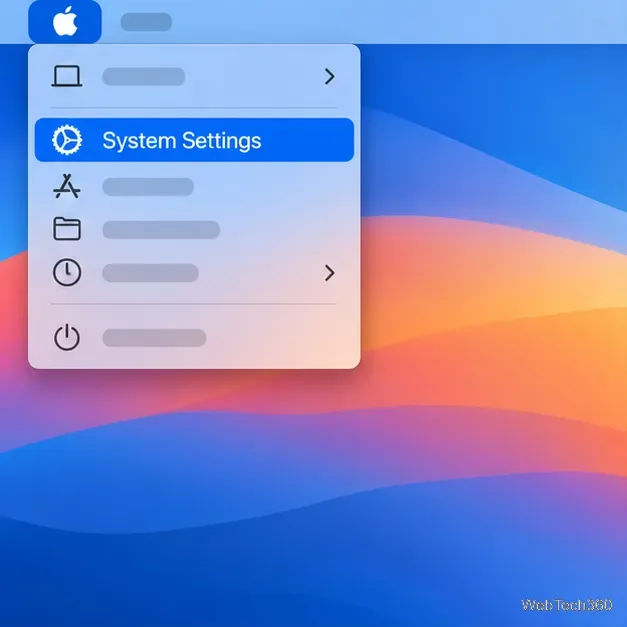
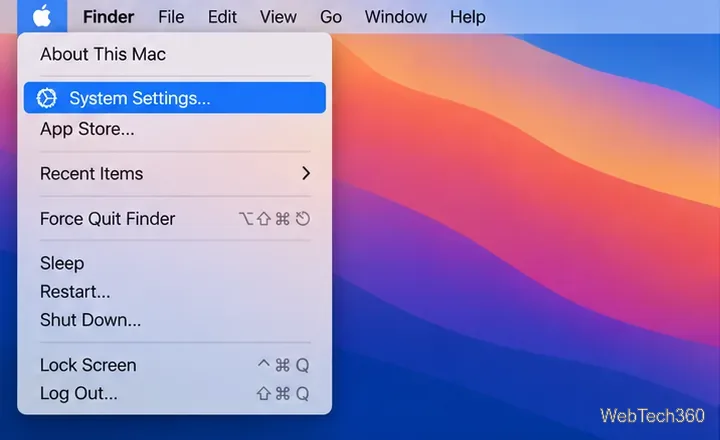
  1. Choose the Apple menu in the top-left corner of the screen, then select System Settings.
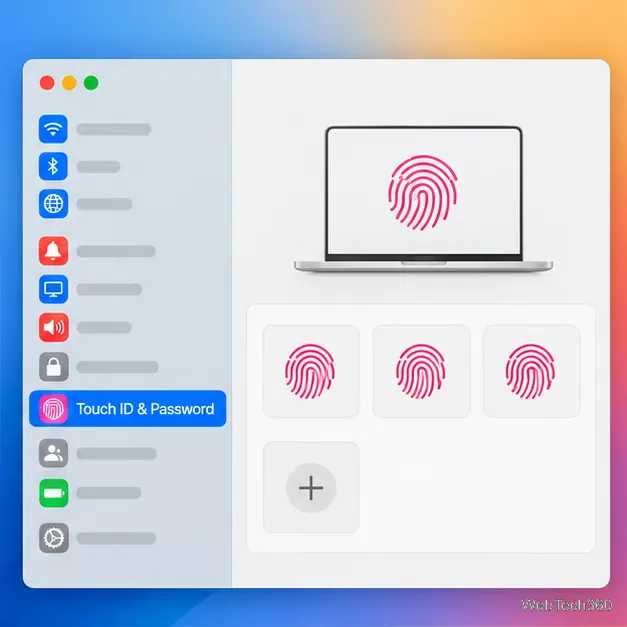
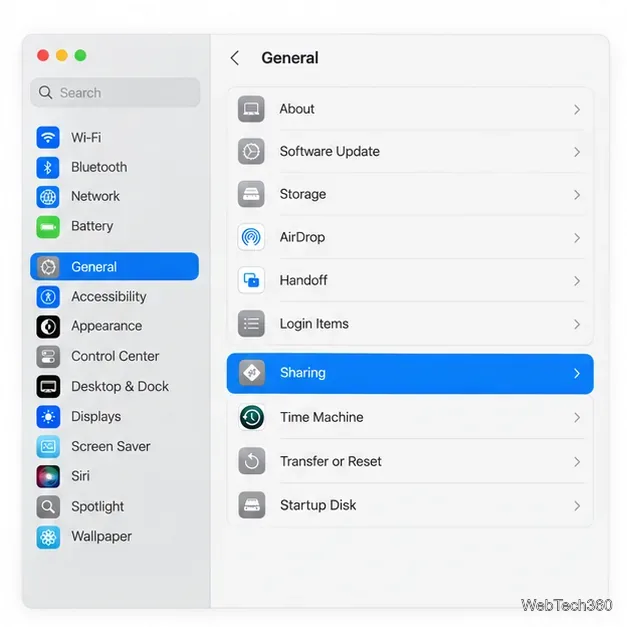
  2. In the sidebar, click Touch ID & Password. Scroll down the sidebar if you do not see it.
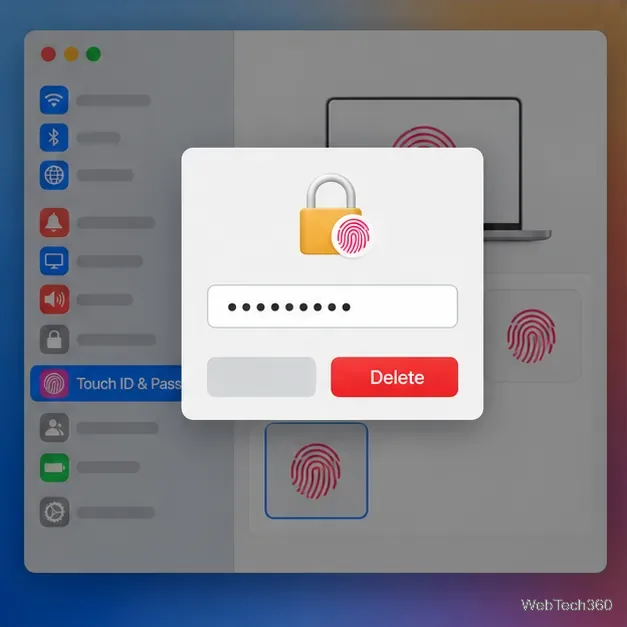
  3. Click the fingerprint you want to remove. Enter the password for the currently signed-in Mac account when prompted, click Unlock, and then click Delete.
A Mac desktop with the Apple menu open and System Settings highlighted.
Open the Apple menu and choose System Settings.
The Touch ID & Password pane selected in System Settings, with saved fingerprint tiles visible.
Select Touch ID & Password to review the fingerprints saved for your account.
A fingerprint tile selected behind a password prompt with a Delete button.
Authenticate with your Mac login password, then choose Delete for the selected print.

If only one finger is giving you trouble, delete that fingerprint and leave the others in place. To fully reset Touch ID for this account, repeat the delete step for each saved fingerprint. The change applies to the current user account; other users manage their own Touch ID settings. Once you have removed the prints you want to replace, continue with enrollment below.

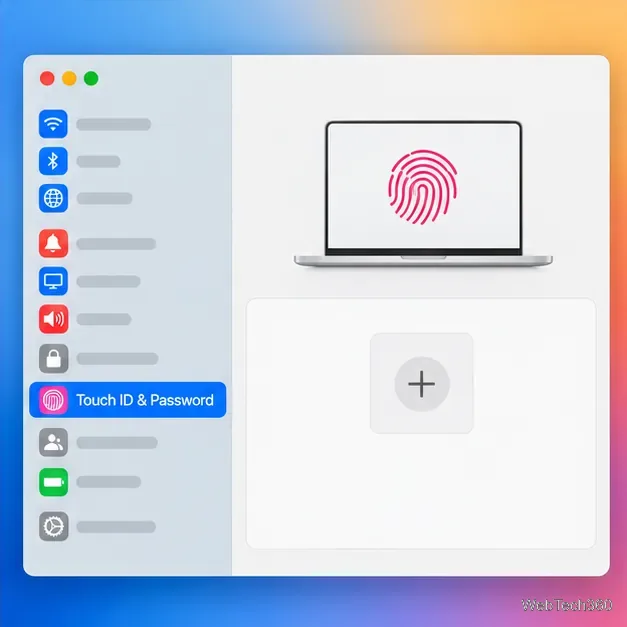
The Touch ID settings pane with no saved fingerprint tiles and a plus control.
After deleting the prints you want to replace, the pane is ready for enrollment.

Add your fingerprint again

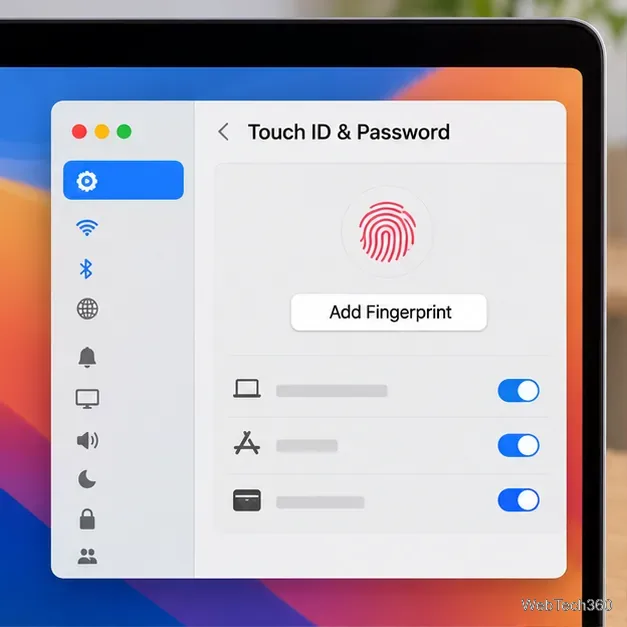
  1. In Touch ID & Password, click Add Fingerprint.
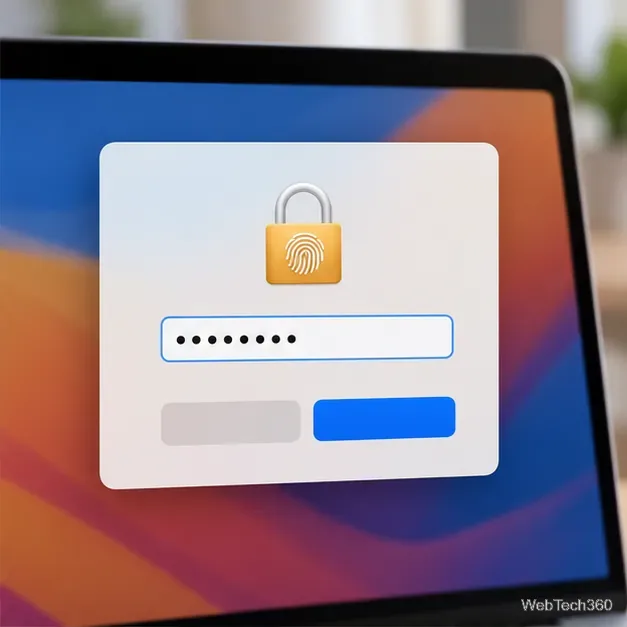
  2. Enter the Mac account password and follow the instructions on screen.
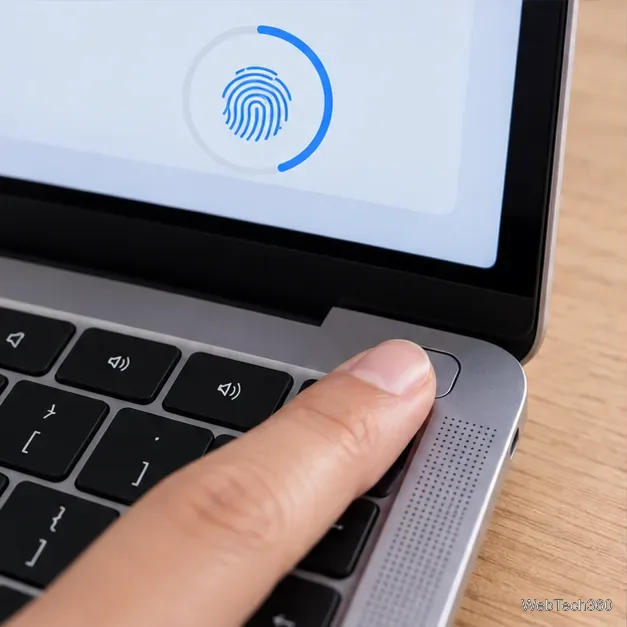
  3. When asked, place the finger you want to register on the Touch ID sensor in the keyboard’s upper-right corner. Lift and rest it again as directed so the Mac can capture the print. Follow any prompts to adjust how you position your finger.
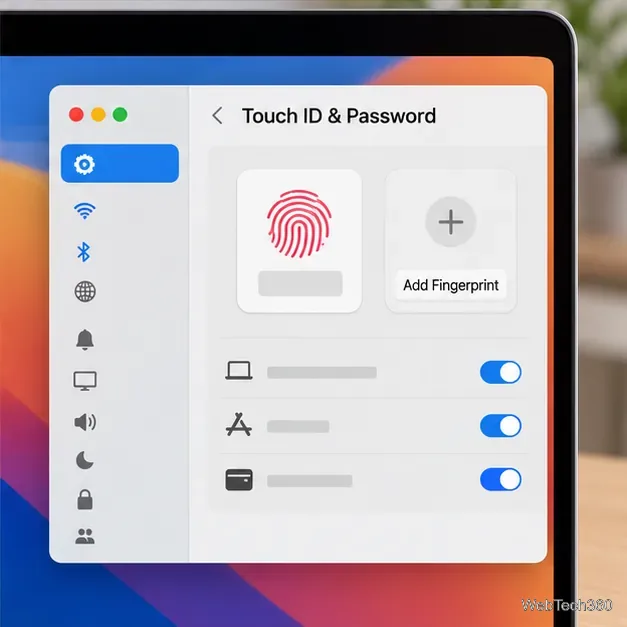
  4. After enrollment finishes, click the name below the fingerprint to rename it if you want. Select the checkboxes for the features you want Touch ID to control, such as unlocking the Mac, Apple Pay, purchases, password autofill, or fast user switching. Availability can vary by Mac and account setup.
The Touch ID & Password pane showing the Add Fingerprint button.
Choose Add Fingerprint to begin registering a new print.
A macOS authentication dialog prompting for the account password before Touch ID enrollment.
Enter the password for the Mac account that is currently signed in.
A fingertip resting on the MacBook Touch ID sensor while an enrollment indicator appears onscreen.
Follow the prompts and lift and rest your finger on the sensor as needed.
The Touch ID settings pane showing an enrolled fingerprint tile and Touch ID use toggles.
Name the saved print if you like, then select the Touch ID features you want to use.

Apple allows up to three fingerprints for one user account and up to five fingerprints total on a Mac. If Add Fingerprint is unavailable, check whether the account has reached its limit or whether other users’ fingerprints are using the Mac-wide capacity.

If Touch ID still does not work

  • Check the conditions. Dry your hands and the sensor, then try again. Changes in skin condition and residue can make an otherwise valid print harder to read.
  • Check the feature setting. If Touch ID works to unlock the Mac but not for a purchase or password autofill, confirm that the relevant option is enabled in Touch ID & Password.
  • Update and restart. Install available macOS updates and restart the Mac. Apple also recommends deleting and adding the fingerprint again, or trying a different finger, when recognition remains unreliable.
  • Get service if enrollment fails. If the sensor is missing from settings, Add Fingerprint stays unavailable despite available slots, or the Mac cannot complete enrollment after these checks, contact Apple Support or an Apple Authorized Service Provider. A firmware or SMC reset is not Apple’s general Touch ID troubleshooting procedure.

For model-specific cleaning directions, Apple says to shut down the MacBook, unplug its power adapter, and clean the Touch ID power button on applicable MacBook Pro models with a soft, lint-free cloth dampened with water only. Keep moisture out of openings.

Apple references

Leave a Comment

How to Take a Timed Screenshot from Terminal on macOS
How to Take a Timed Screenshot from Terminal on macOS

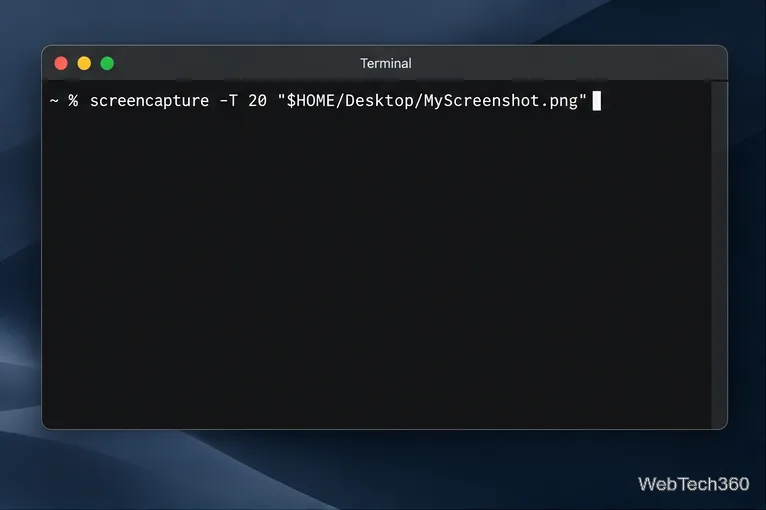
Set a custom delay for a timed screenshot from Terminal on macOS, then choose its filename, save folder, image format, and pointer settings.

How to Get a Catalina-Style Menu Bar on macOS Big Sur

How to Get a Catalina-Style Menu Bar on macOS Big Sur

Restore a solid Catalina-style menu bar on Big Sur with compatible Boring Old Menu Bar v1.27. Follow the install steps, set light and dark styles, and troubleshoot common issues.

How to Link an Apple ID to a Mac User Account

How to Link an Apple ID to a Mac User Account

Sign in with your Apple ID (now called an Apple Account) in System Settings, then configure the separate Mac login password recovery option for that user.

How to Hide Your Mac From Other Devices on a Network

How to Hide Your Mac From Other Devices on a Network

Turn off Mac sharing services and enable Firewall stealth mode to limit local discovery, with clear notes on what your router and other devices can still see.

How to Check the Mic on a Mac (Built-In or External)

How to Check the Mic on a Mac (Built-In or External)

Learn how to check a Mac microphone using Sound settings and QuickTime, choose the right input, verify permissions, and fix common no-input problems.

How to View CPU, RAM, Disk, and Network Usage in the macOS Menu Bar

How to View CPU, RAM, Disk, and Network Usage in the macOS Menu Bar

Use the free Stats app to show CPU, memory, disk, and network usage in the macOS menu bar, customize widgets, and fix missing icons on macOS 26.

How to Install a Mail Plugin on macOS

How to Install a Mail Plugin on macOS

Install a Mail plugin on macOS using the current Mail Extensions workflow, enable it in Mail settings, and handle older .mailbundle plugins safely.

How to Download YouTube Videos on macOS: Official Methods

How to Download YouTube Videos on macOS: Official Methods

Learn how to download YouTube videos on a Mac with YouTube Premium, save your own uploads as MP4 files, and avoid outdated downloader apps.

How to Download Older Versions of macOS from Apple

How to Download Older Versions of macOS from Apple

Learn how to download older macOS installers from Apple using the App Store, Terminal, or official DMG links, with compatibility and error tips.

How to Toggle the Touch Bar On or Off on macOS

How to Toggle the Touch Bar On or Off on macOS

macOS has no built-in Touch Bar off switch. Learn how to change Touch Bar settings and use Hide My Bar to toggle it off and back on.