How to Screenshot on Mac: A Comprehensive Guide

Learn how to screenshot on Mac with shortcuts for the full screen, an area, or a window, plus the Screenshot app, clipboard, editing, and save-location tips.
To resize desktop icons on macOS, open Finder’s desktop view options and move the Icon size slider. Drag it right to make files and folders larger or left to make them smaller. The same panel lets you adjust desktop label text and the spacing between icons, so you can make the layout easier to read without changing your screen resolution.
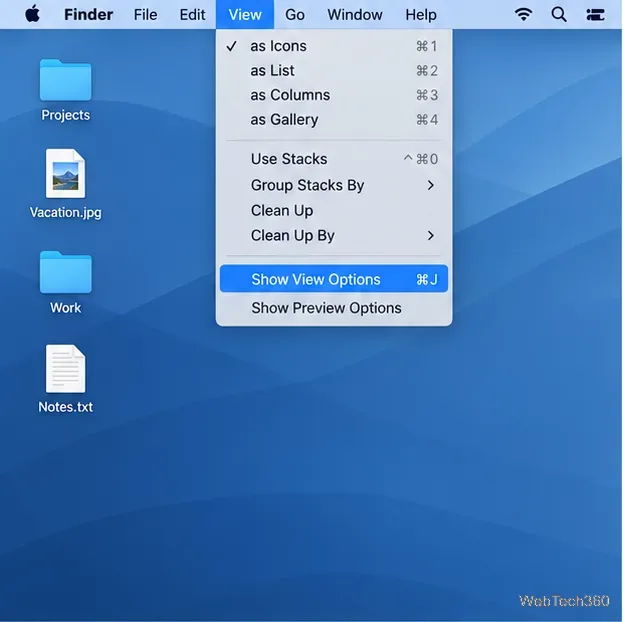
A small options panel appears. It controls the desktop layout. If a Finder window is active instead, the same command opens options for that window’s folder, so check that you can see the desktop before changing its icons.
In the options panel, find Icon size. Drag its slider to the right to enlarge desktop file and folder icons, or to the left to shrink them. The desktop updates as you move the slider, so you can stop when the icons are easy to recognize but still leave room for your files.
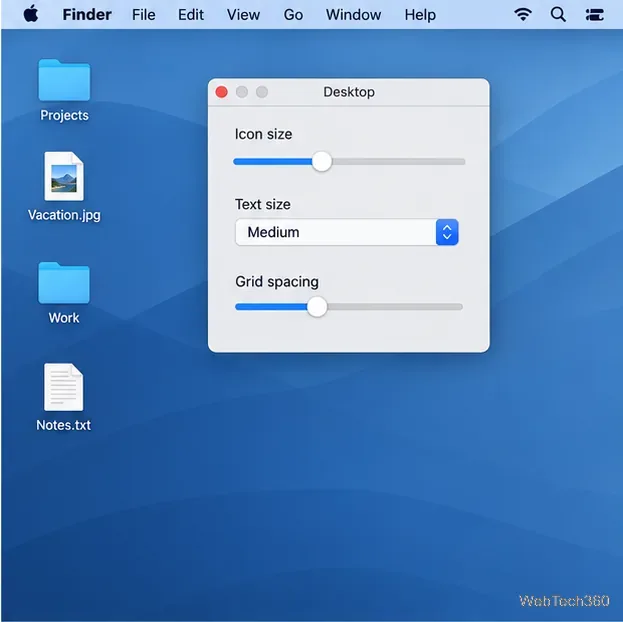
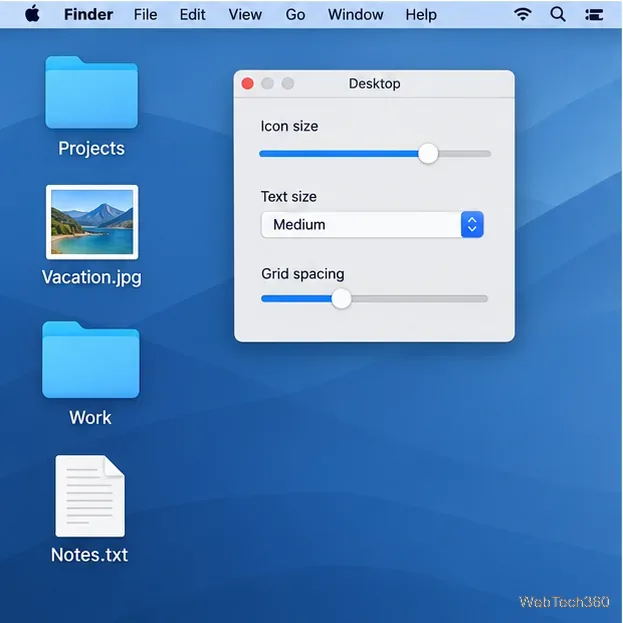
This setting changes how Finder displays items on the desktop. It does not resize the files themselves, change an image’s actual dimensions, or enlarge every control on the screen. There is no need to restart your Mac, and you can reopen the panel later to choose a different size.
Icon size is only part of the layout. Use Text size to make file and folder names easier to read. The label control is separate from the icon slider, so you can keep the icons compact while increasing their names, or enlarge icons without making every label larger.
Grid spacing changes the distance between desktop items. If larger icons look crowded or labels run close together, move the spacing slider to the right. If you use smaller icons and want more items to fit across the desktop, reduce the spacing. There is no single best setting: choose a combination that leaves labels readable and makes each item easy to select.
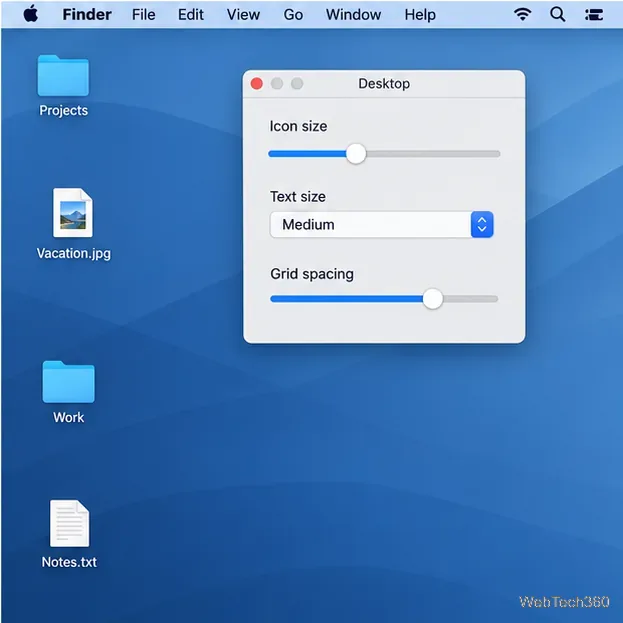
Make one change at a time and check the desktop after each adjustment. A practical setup is to choose an icon size first, set label text for readability, then tune spacing. This makes it easier to see which control fixed a cramped or hard-to-read layout.
The desktop’s Show View Options panel affects desktop items. To change how items appear inside a Finder folder, open that folder and choose View > Show View Options while its window is active. Finder’s controls depend on the view: icon size is available in Icon and List views, while Column view does not offer that control; Gallery view has a thumbnail-size option.
The Dock has its own size setting. Open Apple menu > System Settings > Desktop & Dock and adjust Size to change Dock icons. That slider does not resize files and folders on the desktop. If the entire interface or text across multiple apps is too small, macOS also offers broader display and accessibility options; those affect more than desktop item icons.
Apple’s current instructions cover resizing and arranging desktop or Finder icons, and its Mac text and icon size guide explains the related desktop and Dock controls. Labels or panel styling can vary slightly between macOS releases, but the desktop option you need is Show View Options.
Learn how to screenshot on Mac with shortcuts for the full screen, an area, or a window, plus the Screenshot app, clipboard, editing, and save-location tips.
Combine multiple images into a single PDF on macOS using Finder or Preview. Control page order, avoid cropping, and fix missing pages without extra software.
Learn how to show FPS on a Mac with Steam’s performance overlay or Apple’s Metal Performance HUD, plus fixes when the counter does not appear.
Use Option–Command–Esc to force quit an unresponsive Mac app, or close it from the Apple menu, Dock, Activity Monitor, or Terminal.
Set up Split View, resize or replace a pane, use Mission Control, and learn when desktop window tiling is a better fit on your Mac.
Learn how to remove EXIF data from photos on macOS, hide location in Photos, clean exported JPEG copies with ExifTool, and verify the result.
Sync two folders on a Mac with SyncTwoFolders, choose a one-way or two-way update, and preview changes before files are replaced or removed.
Back up a Tumblr blog on your Mac with Tumblr’s web export. Download and unpack the ZIP, keep its posts and media safe, and know what the archive leaves out.
Use Google Maps on your Mac in Safari or Chrome, find places and routes, switch map layers, and add a Safari web app to your Dock on macOS Sonoma 14 or later.
Compare five free WAV-to-MP3 converters for Windows and macOS, including online file limits, local batch tools, and practical export settings.








