How to Screenshot on Mac: A Comprehensive Guide

Learn how to screenshot on Mac with shortcuts for the full screen, an area, or a window, plus the Screenshot app, clipboard, editing, and save-location tips.
If your MacBook Pro Touch Bar is frozen, blank, or showing controls that no longer respond, you can often restart its background process without restarting the entire Mac. The quickest approach is to use Terminal; Activity Monitor offers a graphical alternative. These steps apply only to MacBook Pro models equipped with a Touch Bar.
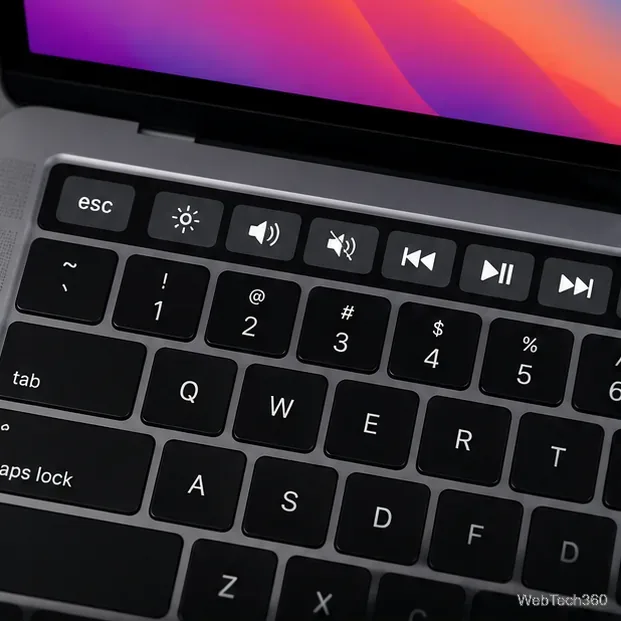
Terminal can stop the Touch Bar service so macOS can launch it again. You do not need to reinstall macOS or erase any files. Save any work in progress first, then follow these steps.
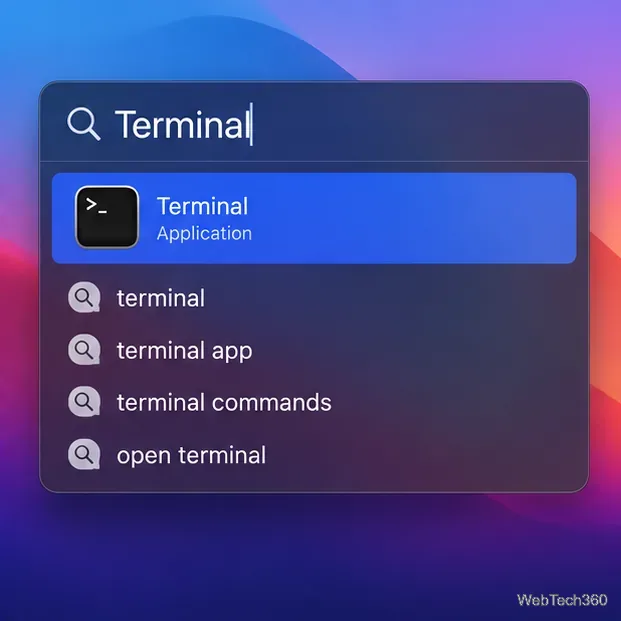
sudo pkill TouchBarServer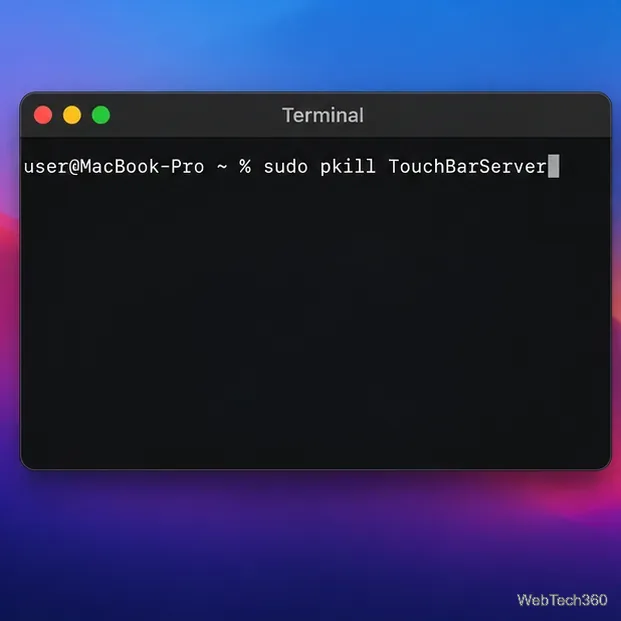
The command stops a process by name; macOS is expected to start the service again as needed. If Terminal reports that no matching process was found, or the bar does not recover, move to Activity Monitor rather than repeatedly running commands. Process names and behavior can vary between macOS versions.
If you would rather avoid the command line, Activity Monitor lets you locate the related process and quit it from a window.
TouchBarServer. Depending on your macOS version, a related Touch Bar process may have a slightly different name.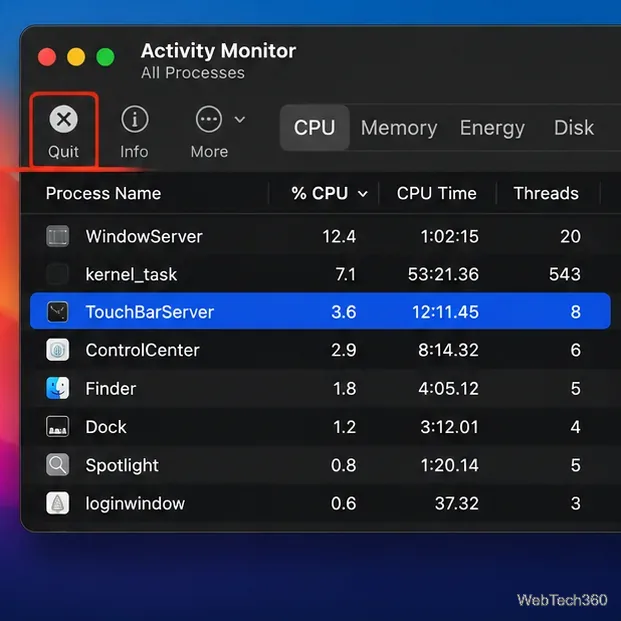
Quitting the Touch Bar process should not delete your data, but it may interrupt the controls currently displayed. Do not quit other system processes simply because their names look unfamiliar.
If the bar works but shows the wrong controls—or appears empty rather than frozen—check its configuration before doing more troubleshooting. On supported versions of macOS, open the Apple menu > System Settings > Keyboard, then open Touch Bar Settings. The wording and layout can differ on older macOS releases, where the app is called System Preferences.
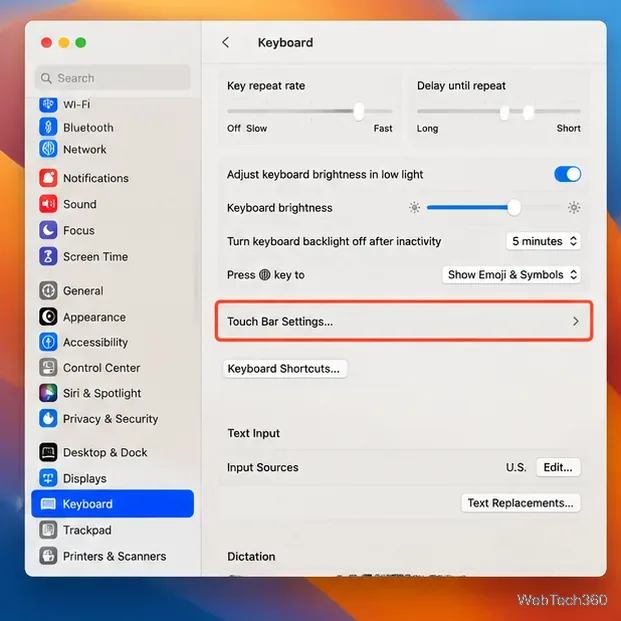
Review the option for what the Touch Bar shows, such as app controls, the expanded Control Strip, or function keys. Also check whether the Control Strip is enabled. Available choices depend on your Mac and macOS version. Apple’s guide explains the available options in Change Touch Bar settings on Mac.
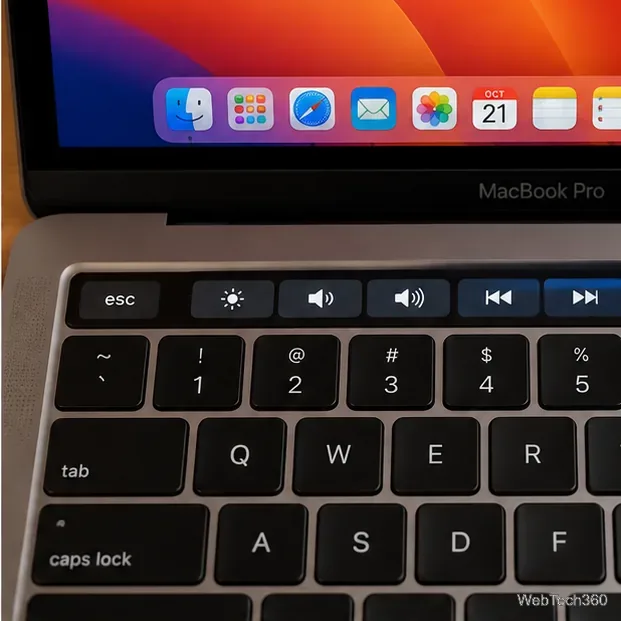
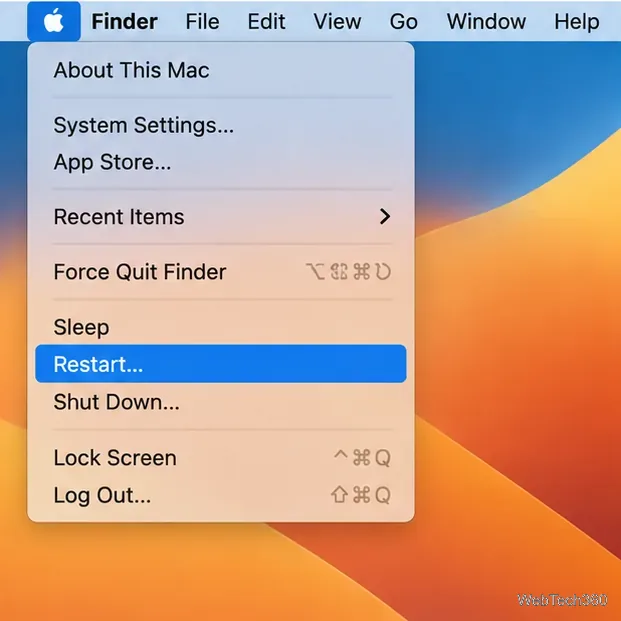
A full restart can clear a broader temporary macOS issue. Save your documents, close apps if possible, choose Apple menu > Restart, and test the Touch Bar after signing in again. If the screen is frozen and you cannot use the menu, try to save what you can first; forcing the Mac to shut down can cause unsaved work to be lost.
If the problem returns repeatedly, check System Settings > General > Software Update for compatible updates. Back up important data before a major operating-system upgrade. Avoid deleting system files or following instructions to reinstall macOS as an early troubleshooting step; that is usually unnecessary for a single unresponsive Touch Bar.
If the Touch Bar remains completely dark after restarting the process and the Mac, or if the issue occurs consistently across apps and user sessions, the cause may not be a temporary software glitch. A normal restart does not repair a failed display or other hardware fault. Arrange an assessment through Apple Support repair options or an Apple Authorized Service Provider, especially if the Mac has suffered a spill, impact, or other physical damage.
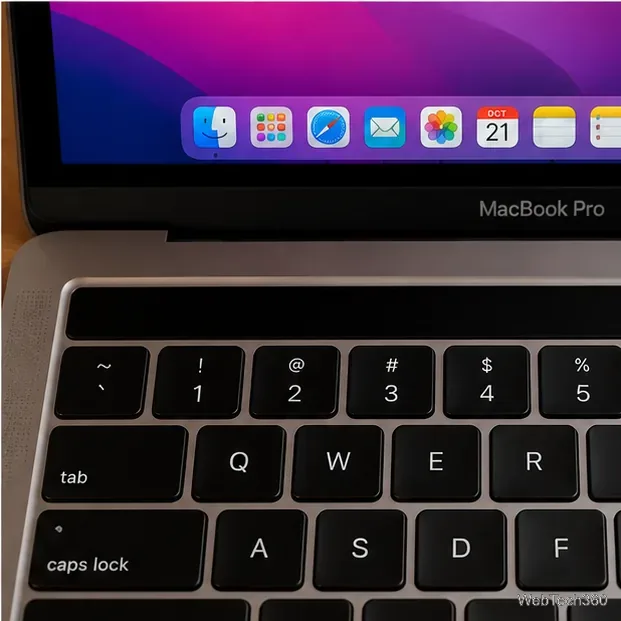
sudo pkill TouchBarServer in Terminal.For general Touch Bar controls and gestures, see Apple’s Use the Touch Bar on Mac guide. Restarting the service is a focused first step—not a guarantee of repair when the underlying cause is a deeper macOS or hardware problem.
Learn how to screenshot on Mac with shortcuts for the full screen, an area, or a window, plus the Screenshot app, clipboard, editing, and save-location tips.
Combine multiple images into a single PDF on macOS using Finder or Preview. Control page order, avoid cropping, and fix missing pages without extra software.
Learn how to show FPS on a Mac with Steam’s performance overlay or Apple’s Metal Performance HUD, plus fixes when the counter does not appear.
Use Option–Command–Esc to force quit an unresponsive Mac app, or close it from the Apple menu, Dock, Activity Monitor, or Terminal.
Set up Split View, resize or replace a pane, use Mission Control, and learn when desktop window tiling is a better fit on your Mac.
Learn how to remove EXIF data from photos on macOS, hide location in Photos, clean exported JPEG copies with ExifTool, and verify the result.
Sync two folders on a Mac with SyncTwoFolders, choose a one-way or two-way update, and preview changes before files are replaced or removed.
Back up a Tumblr blog on your Mac with Tumblr’s web export. Download and unpack the ZIP, keep its posts and media safe, and know what the archive leaves out.
Use Google Maps on your Mac in Safari or Chrome, find places and routes, switch map layers, and add a Safari web app to your Dock on macOS Sonoma 14 or later.
Compare five free WAV-to-MP3 converters for Windows and macOS, including online file limits, local batch tools, and practical export settings.








