How to Screenshot on Mac: A Comprehensive Guide

Learn how to screenshot on Mac with shortcuts for the full screen, an area, or a window, plus the Screenshot app, clipboard, editing, and save-location tips.
To right-click without a mouse, open the context menu from the keyboard. On Windows, select an item and press Shift+F10. On a Mac, use the Contextual Menu key on a supported Magic Keyboard. If you need to move the pointer first, turn on Mouse Keys and set up the right-click action for your system.
If an external mouse has failed but a MacBook’s trackpad still works, hold Control while clicking, or use the trackpad’s secondary-click gesture if it is enabled.
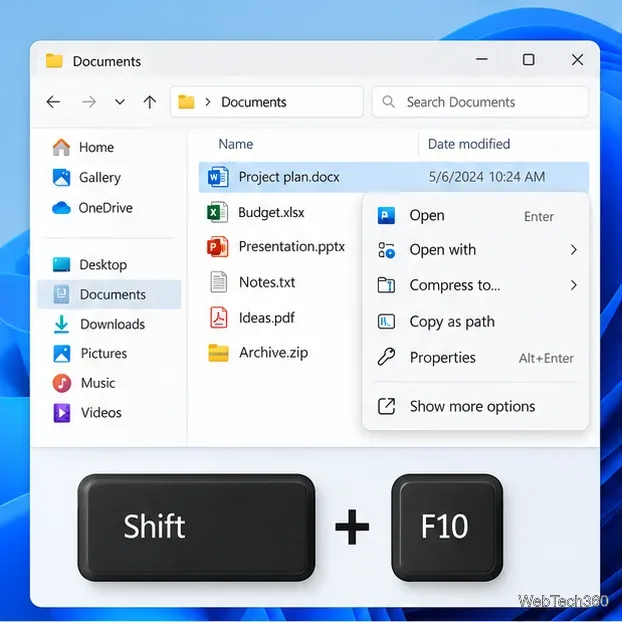
Give the target keyboard focus first. In File Explorer, use the arrow keys to select a file or folder. In other apps, use Tab or the arrow keys to reach the control or item. Press Shift+F10 to open its context menu, use the arrow keys to choose a command, then press Enter. Press Esc to close the menu.
A keyboard with a Menu or Context key can open the same menu for the focused item. The key is often near the right-side Alt and Ctrl keys and may show a small menu icon, but many laptops omit it. If F10 is mapped to a media control, try Fn+Shift+F10.
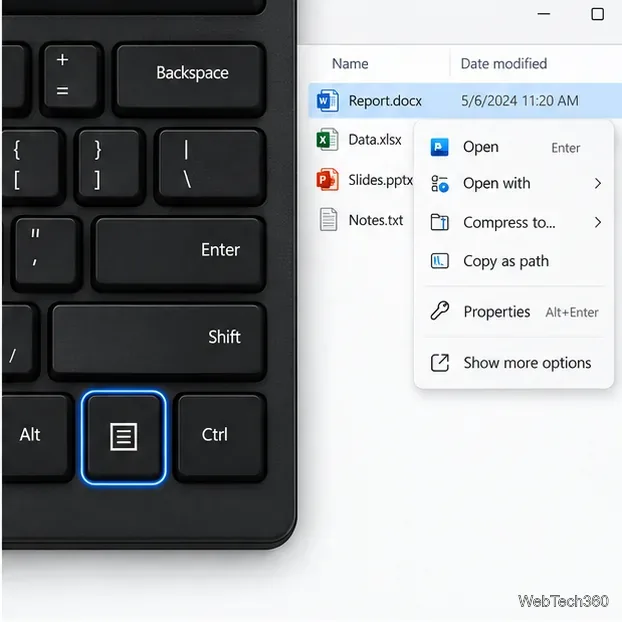
If no menu appears, select the target again. The shortcut opens a menu for the focused item, not for an arbitrary screen location, and shortcut behavior can vary by app.
Mouse Keys moves the pointer with a numeric keypad. In Windows 11, press Windows+U, select Mouse under Interaction, and turn on Mouse keys. Use Tab and the arrow keys to reach the switch if you are navigating without a pointer. In Windows 10, find it under Settings > Ease of Access > Mouse.
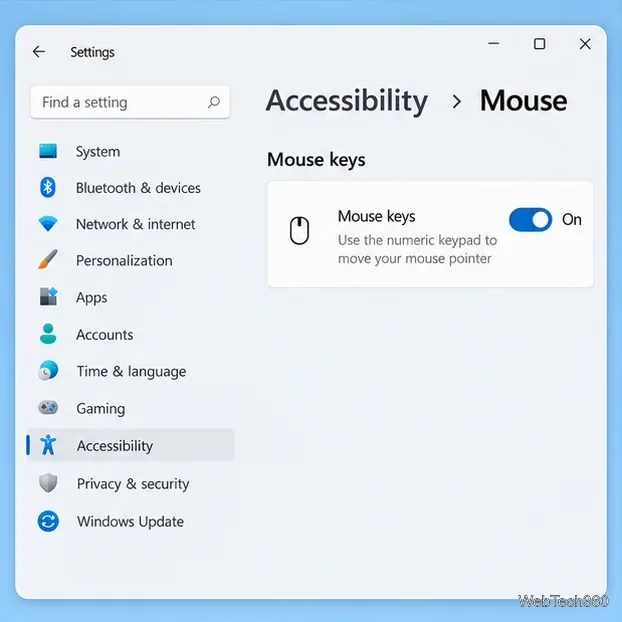
Use the numeric keypad, not the number row above the letters, to move the pointer:
| Movement | Keypad keys |
|---|---|
| Up, left, right, down | 8, 4, 6, 2 |
| Diagonally | 7, 9, 1, 3 |
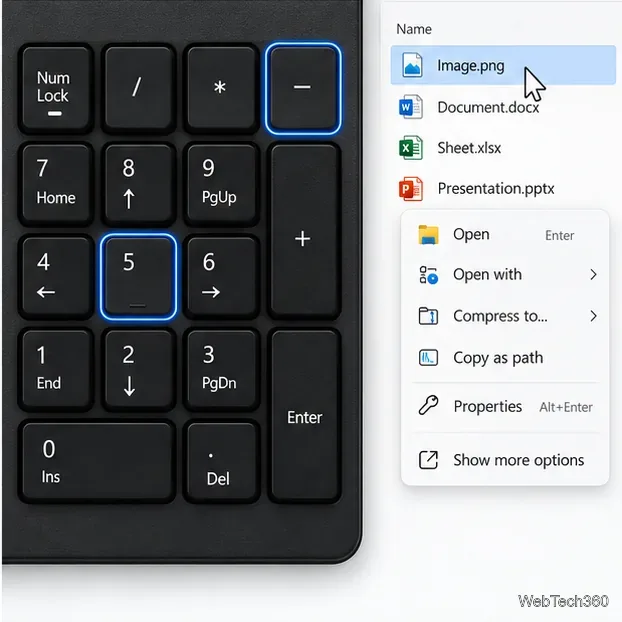
To right-click, move the pointer over the target, press keypad minus (-) to select the right button, then press 5. The selected button stays active until changed. Press keypad slash (/) to switch back to left-click. This method requires a numeric keypad; otherwise use Shift+F10.
See Microsoft’s Windows keyboard shortcuts and its Mouse Keys instructions for the official key mappings.
Apple calls a right-click a secondary click or Control-click. If you have a Magic Keyboard with Touch ID and Numeric Keypad (USB-C), Apple documents a Contextual Menu key below F13 that opens a shortcut menu. Focus an item with the keyboard, then press that key. It is specific to this keyboard, so other Mac keyboards may not have it.
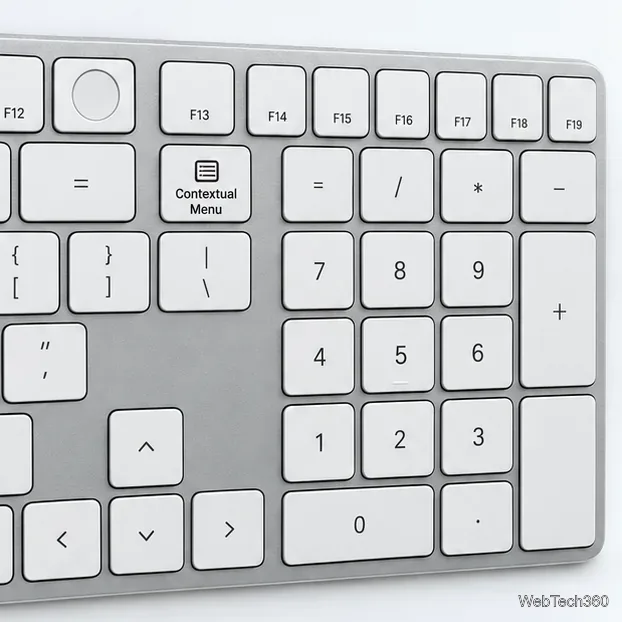
For details, see Apple’s Mac right-click guide.
Open System Settings > Accessibility > Pointer Control, then turn on Mouse Keys. To get to Settings with the keyboard, press Command+Space, type “System Settings,” and press Enter. Use Tab and the arrow keys to navigate.
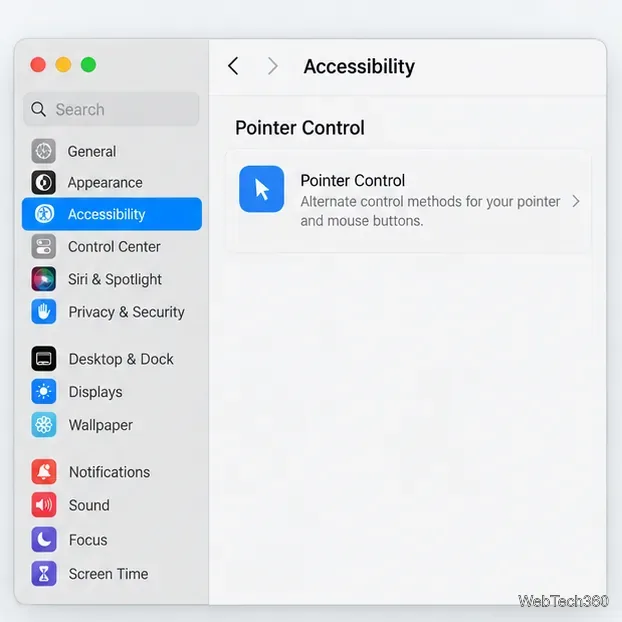
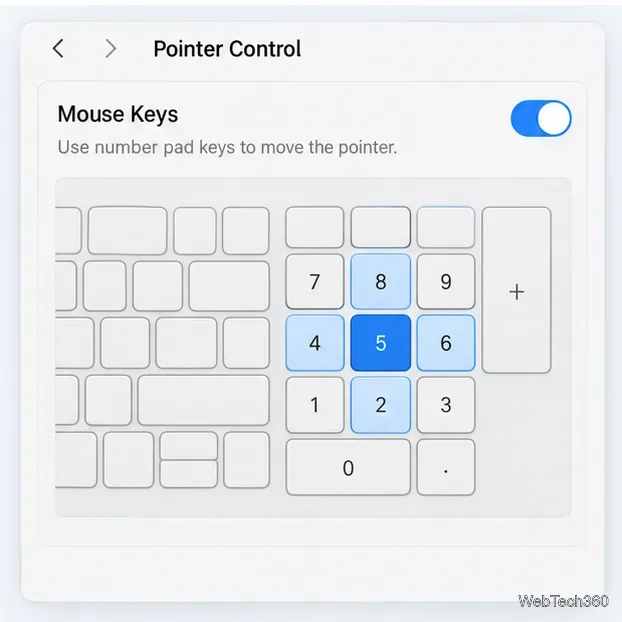
Mouse Keys moves the pointer with keypad 7, 8, 9, 4, 6, 1, 2, 3; without a keypad, Apple lists 7, 8, 9, U, O, J, K, L. Press keypad 5 or letter I for a regular click.
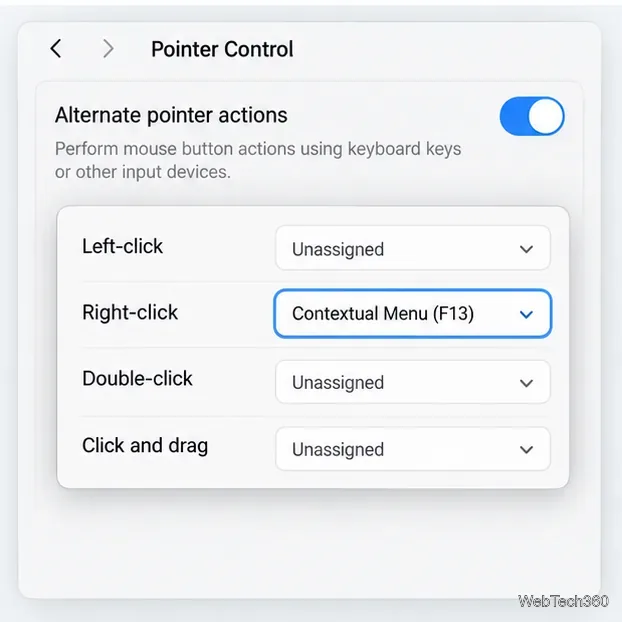
A regular Mouse Keys click is not a right-click. In Pointer Control, turn on Alternate pointer actions, open its options, and assign a key to Right-click. Move the pointer to the target with Mouse Keys, then press your assigned key. Apple explains how to use Mouse Keys and customize Pointer Control.
While Mouse Keys is on, the keyboard or numeric keypad cannot enter text. Turn it off in Pointer Control when finished, or use Accessibility Shortcuts to toggle it.
For a one-time context menu, start with Shift+F10 on Windows or the dedicated Contextual Menu key on a supported Mac keyboard. Choose Mouse Keys when the target needs pointer positioning or keyboard-based pointer control is more comfortable. The available menu commands depend on the selected item and app.
Learn how to screenshot on Mac with shortcuts for the full screen, an area, or a window, plus the Screenshot app, clipboard, editing, and save-location tips.
Combine multiple images into a single PDF on macOS using Finder or Preview. Control page order, avoid cropping, and fix missing pages without extra software.
Learn how to show FPS on a Mac with Steam’s performance overlay or Apple’s Metal Performance HUD, plus fixes when the counter does not appear.
Use Option–Command–Esc to force quit an unresponsive Mac app, or close it from the Apple menu, Dock, Activity Monitor, or Terminal.
Set up Split View, resize or replace a pane, use Mission Control, and learn when desktop window tiling is a better fit on your Mac.
Learn how to remove EXIF data from photos on macOS, hide location in Photos, clean exported JPEG copies with ExifTool, and verify the result.
Sync two folders on a Mac with SyncTwoFolders, choose a one-way or two-way update, and preview changes before files are replaced or removed.
Back up a Tumblr blog on your Mac with Tumblr’s web export. Download and unpack the ZIP, keep its posts and media safe, and know what the archive leaves out.
Use Google Maps on your Mac in Safari or Chrome, find places and routes, switch map layers, and add a Safari web app to your Dock on macOS Sonoma 14 or later.
Compare five free WAV-to-MP3 converters for Windows and macOS, including online file limits, local batch tools, and practical export settings.








