How to Take a Timed Screenshot from Terminal on macOS
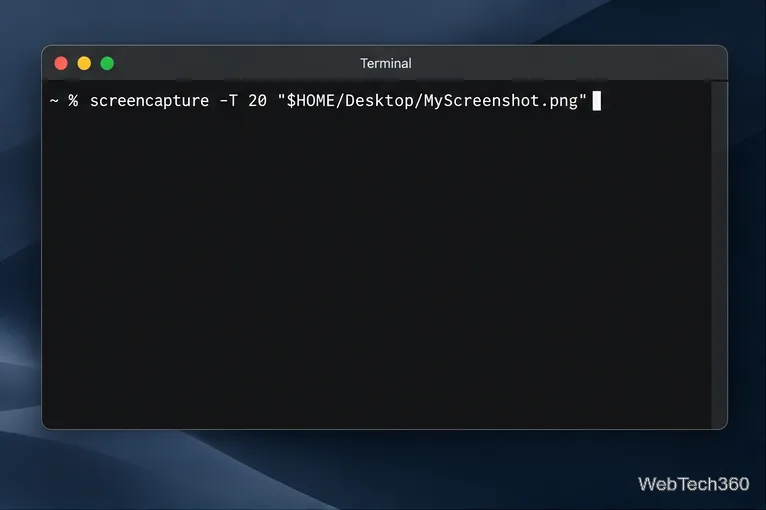
Set a custom delay for a timed screenshot from Terminal on macOS, then choose its filename, save folder, image format, and pointer settings.
To run a shell script on macOS, open Terminal, go to the folder containing the .sh file, and run it with its interpreter. For example, bash hello.sh runs a Bash script without changing its permissions. If you want to launch it as a command, make it executable with chmod +x hello.sh, then run ./hello.sh. These methods work on current macOS releases.
A shell script is a plain-text file containing commands. Those commands run with the permissions of your user account, so a script can edit or delete files, install software, or send data over a network. Read a script you received before running it, especially if it asks for an administrator password or uses sudo. Only run scripts from sources you trust; changing a file’s permissions does not make its contents safe.
Apple describes shell scripts as text files that contain UNIX commands and explains how a shebang selects the shell that runs the script. See Apple’s Terminal guide to shell scripts.
This is the simplest way to run a Bash script. You do not need to add execute permission first.
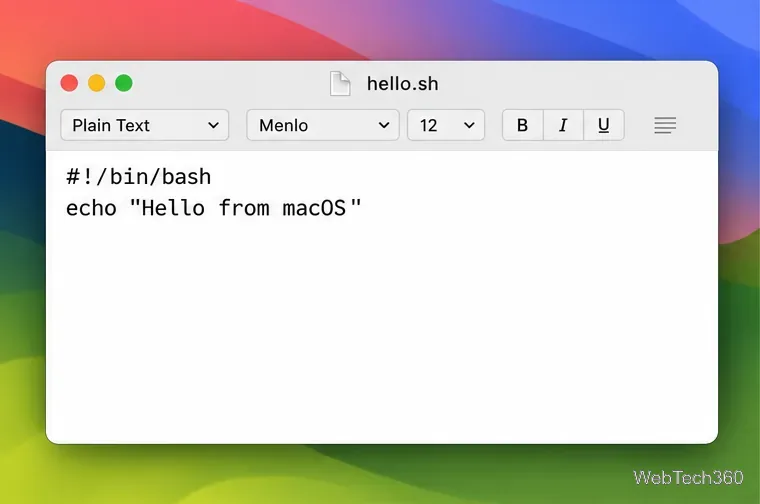
#!/bin/bash
echo "Hello from macOS"
Save the file as hello.sh. In the save dialog, check that the name ends in .sh and that TextEdit has not added .txt. The first line is the shebang: it identifies Bash as the interpreter when the script is launched directly. The second line prints a short message.
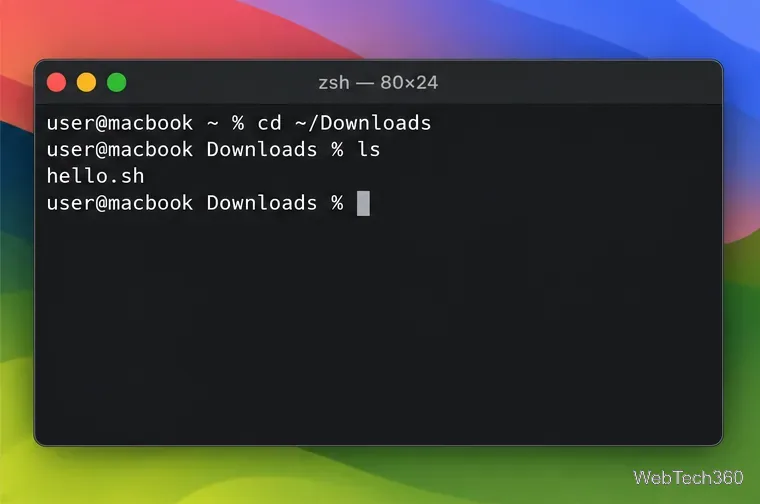
cd ~/DownloadsPress Return after each command. You can type ls to list files and confirm that hello.sh is there. Change Downloads to the folder you actually used. If a folder or file name contains spaces, put the path in quotation marks, such as cd "$HOME/My Scripts".
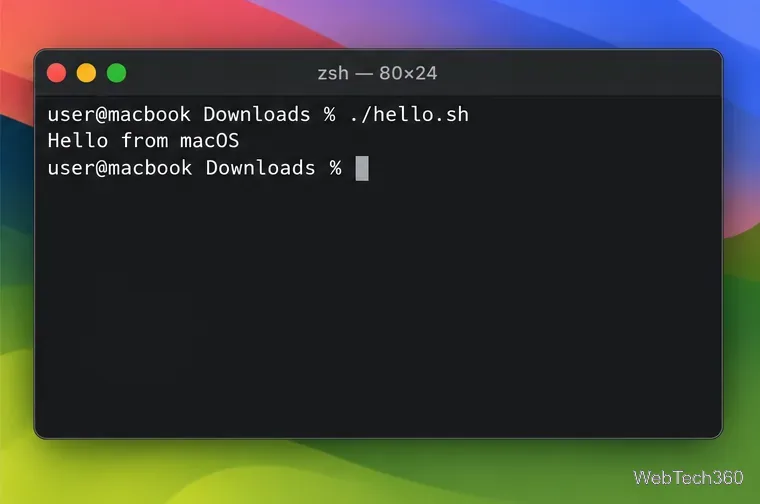
bash:bash hello.shTerminal should display Hello from macOS. If the script uses Zsh syntax instead of Bash, run zsh hello.sh. The shell that opens interactively in Terminal is usually Zsh, but that does not mean every script should be run with Zsh; use the interpreter the script was written for. A script’s shebang often indicates that interpreter.
You can also launch a script directly by its path. This is useful when you want to run it like a small command. Apple’s Terminal instructions for making a file executable use chmod for this step.
chmod +x hello.shThis adds execute permission to this file. It is a one-time change unless permissions are later reset. Avoid using broader permission settings than needed; chmod +x is sufficient for a personal script you own.
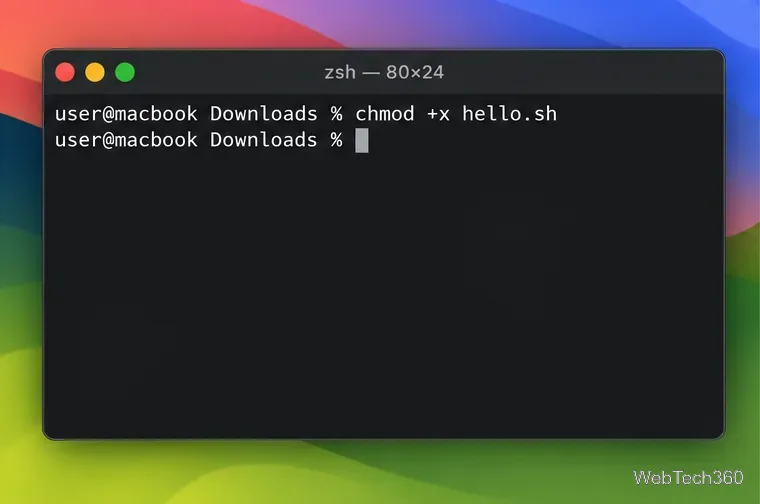
./hello.shThe ./ tells the shell to run the file in the current directory. Without it, the shell generally searches folders listed in PATH rather than the current folder. If you are elsewhere, either use cd to return to the script’s folder or enter its full path, for example ~/Downloads/hello.sh.
./hello.sh: confirm the filename, then run chmod +x hello.sh. Or use bash hello.sh if it is a Bash script and you do not need direct execution.pwd, list its contents with ls, and check the spelling and capitalization. Make sure the file is not actually named hello.sh.txt.PATH. Check the script’s documentation before installing anything.^M: the first line may point to an unavailable interpreter, or the file may use Windows-style line endings. Check the shebang and save the file with Unix (LF) line endings.Use bash hello.sh for a quick run when you know it is a Bash script. Use chmod +x hello.sh followed by ./hello.sh when you want to launch it directly and let its shebang choose the interpreter. Neither method installs missing dependencies, fixes incompatible commands, or verifies whether the script is trustworthy.
Set a custom delay for a timed screenshot from Terminal on macOS, then choose its filename, save folder, image format, and pointer settings.
Restore a solid Catalina-style menu bar on Big Sur with compatible Boring Old Menu Bar v1.27. Follow the install steps, set light and dark styles, and troubleshoot common issues.
Sign in with your Apple ID (now called an Apple Account) in System Settings, then configure the separate Mac login password recovery option for that user.
Turn off Mac sharing services and enable Firewall stealth mode to limit local discovery, with clear notes on what your router and other devices can still see.
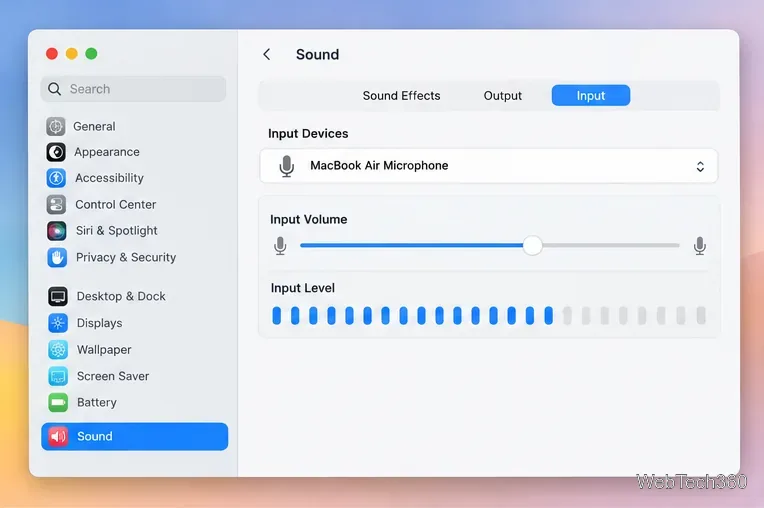
Learn how to check a Mac microphone using Sound settings and QuickTime, choose the right input, verify permissions, and fix common no-input problems.
Use the free Stats app to show CPU, memory, disk, and network usage in the macOS menu bar, customize widgets, and fix missing icons on macOS 26.
Install a Mail plugin on macOS using the current Mail Extensions workflow, enable it in Mail settings, and handle older .mailbundle plugins safely.
Learn how to download YouTube videos on a Mac with YouTube Premium, save your own uploads as MP4 files, and avoid outdated downloader apps.
Learn how to download older macOS installers from Apple using the App Store, Terminal, or official DMG links, with compatibility and error tips.
macOS has no built-in Touch Bar off switch. Learn how to change Touch Bar settings and use Hide My Bar to toggle it off and back on.