How to Screenshot on Mac: A Comprehensive Guide

Learn how to screenshot on Mac with shortcuts for the full screen, an area, or a window, plus the Screenshot app, clipboard, editing, and save-location tips.
macOS lets you choose defaults in different places depending on what you’re opening. Use Finder’s Get Info window for a file type such as PDFs or images, System Settings for web links, and Apple Mail’s settings for email links. These choices affect how macOS handles future opens; they do not change the file itself. Some apps may still open links in an internal browser.
Use this method for documents, images, audio, video, and other files. The setting applies to a file type (usually its extension), not just the sample file you select. Choose a file with the extension you want to change, such as .pdf, and make sure the app you prefer is installed.
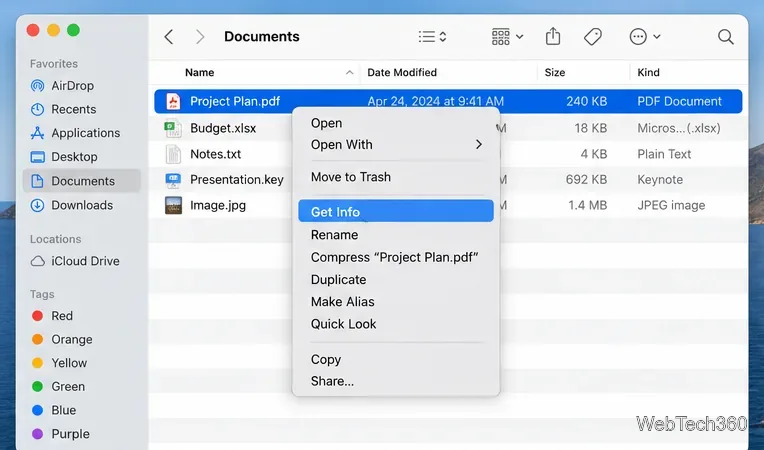
In Finder, select a representative file. Control-click it and choose Get Info, or select it and choose File > Get Info. The Info window identifies the selected file and its current settings.
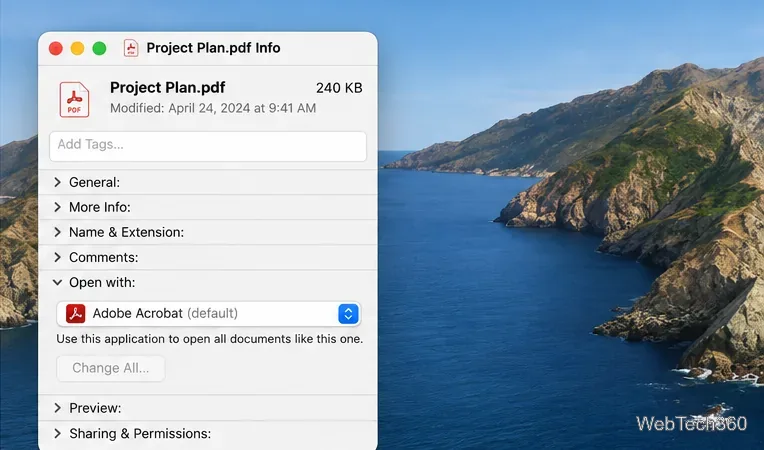
In the Info window, click the disclosure arrow beside Open with if the section is collapsed. Choose the app you want from the pop-up menu. If it is not listed, choose Other and select the app in the file dialog. The menu may show only apps macOS recognizes as able to open that file type.
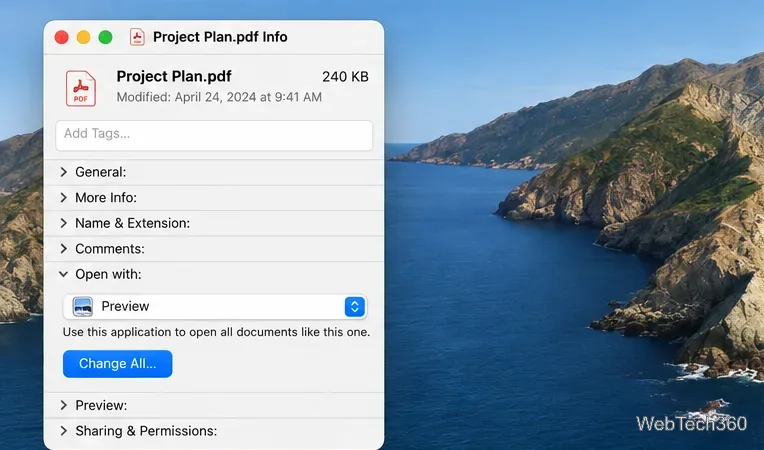
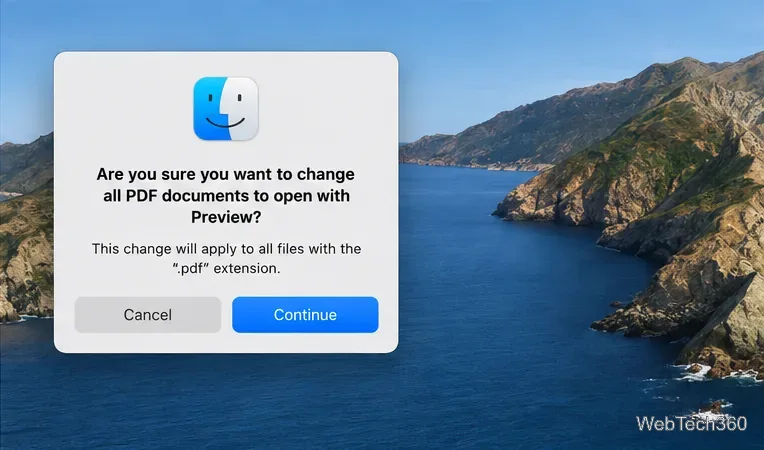
Click Change All, then confirm when macOS asks whether to update all files of that type. Future files with that extension will open in the selected app when you open them from Finder or another app that honors the macOS association.
To open only one file in a different app without changing the default, Control-click the file, choose Open With, and select an app. For full instructions, see Apple’s guide to choosing an app to open a file on Mac. Repeat the Get Info process for each extension you want to handle differently; for example, .jpg and .png are separate file types for this purpose.
The default browser is the app macOS uses for web links opened from many other apps. Install the browser first. If it does not appear in the settings menu, open it once and check for an update.
On macOS Ventura 13 or later, open the Apple menu and choose System Settings, then select Desktop & Dock in the sidebar. Scroll down to the default browser setting.
Open the Default web browser menu and choose the browser you want. The change takes effect for links that use macOS’s default browser setting. Apple notes that some apps can open web pages in a browser other than the default.
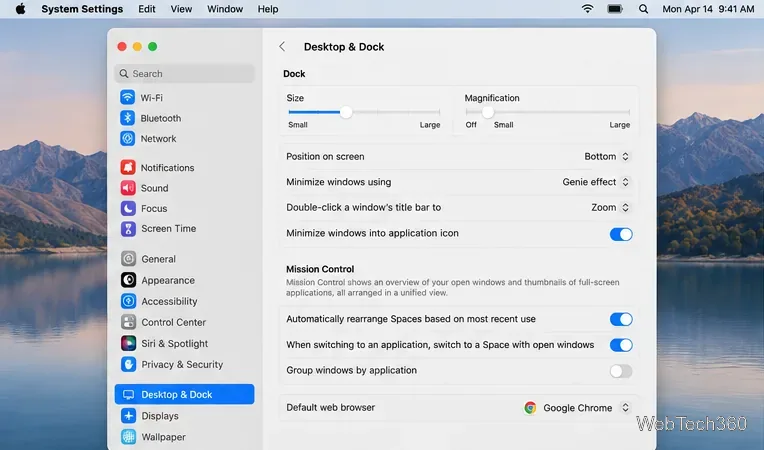
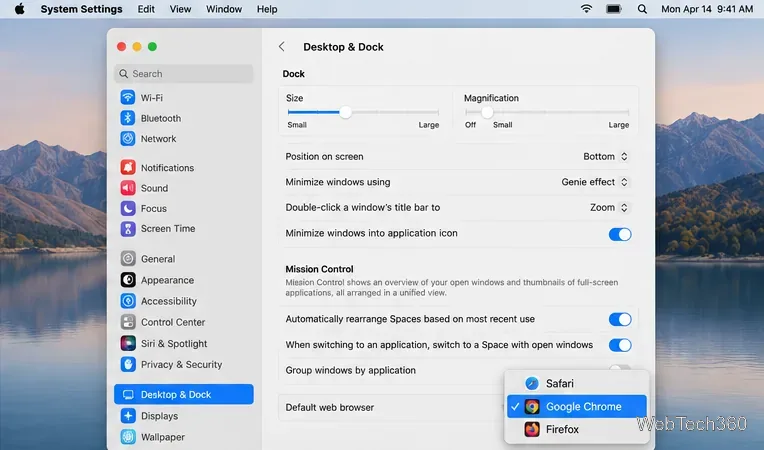
On macOS Monterey 12 or earlier, use Apple menu > System Preferences > General, then choose a browser from the Default web browser menu. Apple’s current browser and email app instructions list the paths by macOS version.
Mail links use the default email reader, often called the default mail app. This setting is separate from the default web browser. Install the email app you want before changing the preference.
Open Apple’s Mail app. Apple’s current instructions say Mail should be set up with an email account before you change the default. If you do not want to keep that account in Mail, you can remove or disable it afterward; some third-party email apps also provide their own default-app setting.
In the menu bar, choose Mail > Settings (or Preferences on older macOS releases), then open the General tab.
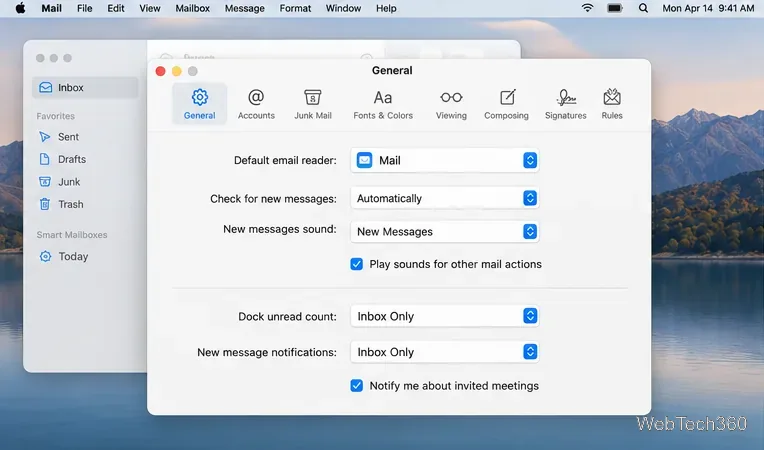
Open Default email reader and select your preferred app. If it is missing, choose Select from the menu and locate the app in the file dialog. Apple documents this control in its Mail General settings guide.
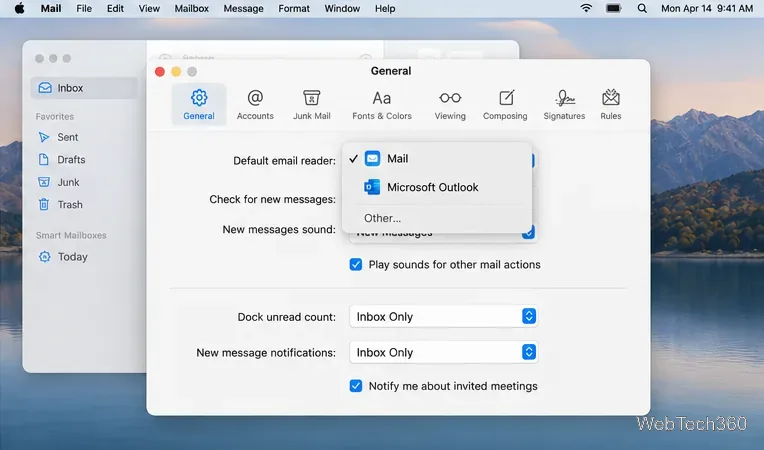
If you use webmail in a browser, choosing that browser as the email reader may not open your webmail service automatically when you click an email link. The browser or webmail provider may have a separate setting for handling email links. For a dedicated email client, choose the client itself from Mail’s menu.
Check that you changed the right setting for the item: Finder’s Open with controls a file extension, Desktop & Dock controls the system browser, and Mail’s General tab controls the email reader. A single document can still be opened another way through Open With, and an app may have its own preference to override the system’s behavior. If a file type is missing from the app menu, confirm that the app is installed and supports that format; a damaged file or unsupported format may not open even after you assign an app.
You can change these preferences again at any time. When updating a file association, use Change All only when you intend the choice to apply to every file with that extension.
Learn how to screenshot on Mac with shortcuts for the full screen, an area, or a window, plus the Screenshot app, clipboard, editing, and save-location tips.
Combine multiple images into a single PDF on macOS using Finder or Preview. Control page order, avoid cropping, and fix missing pages without extra software.
Learn how to show FPS on a Mac with Steam’s performance overlay or Apple’s Metal Performance HUD, plus fixes when the counter does not appear.
Use Option–Command–Esc to force quit an unresponsive Mac app, or close it from the Apple menu, Dock, Activity Monitor, or Terminal.
Set up Split View, resize or replace a pane, use Mission Control, and learn when desktop window tiling is a better fit on your Mac.
Learn how to remove EXIF data from photos on macOS, hide location in Photos, clean exported JPEG copies with ExifTool, and verify the result.
Sync two folders on a Mac with SyncTwoFolders, choose a one-way or two-way update, and preview changes before files are replaced or removed.
Back up a Tumblr blog on your Mac with Tumblr’s web export. Download and unpack the ZIP, keep its posts and media safe, and know what the archive leaves out.
Use Google Maps on your Mac in Safari or Chrome, find places and routes, switch map layers, and add a Safari web app to your Dock on macOS Sonoma 14 or later.
Compare five free WAV-to-MP3 converters for Windows and macOS, including online file limits, local batch tools, and practical export settings.








