How to Screenshot on Mac: A Comprehensive Guide

Learn how to screenshot on Mac with shortcuts for the full screen, an area, or a window, plus the Screenshot app, clipboard, editing, and save-location tips.
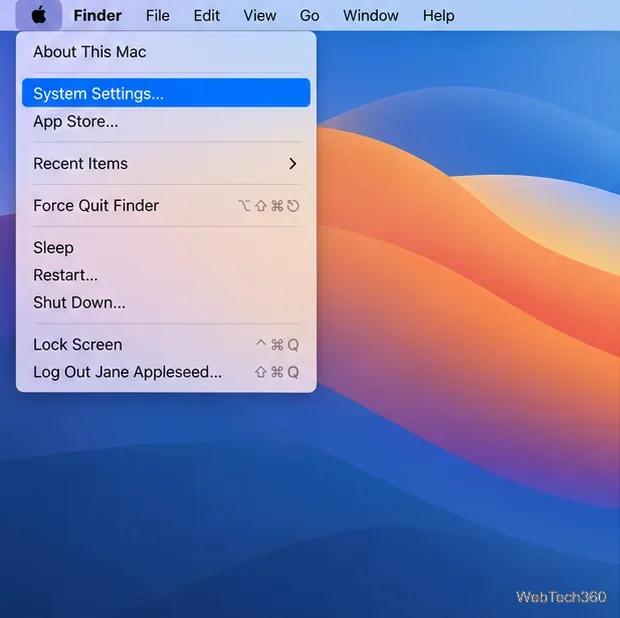
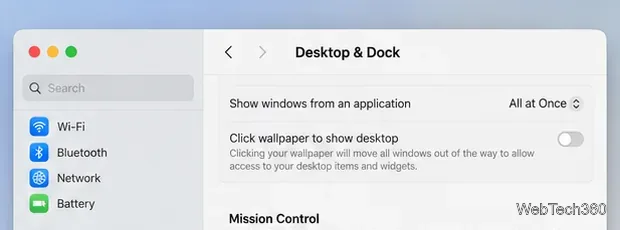
To keep Mac virtual desktops in a predictable order, turn off Automatically rearrange Spaces based on most recent use. Open Apple menu > System Settings > Desktop & Dock, scroll to Mission Control, and switch that option off. macOS will stop sorting your desktop Spaces according to which ones you used most recently.
Apple calls its additional virtual desktops Spaces. Each Space can hold a different set of app windows, and Mission Control shows your desktops as thumbnails in the Spaces bar at the top of the screen. With automatic rearranging enabled, macOS can change the order of those desktop thumbnails to bring recently used Spaces closer together. That can be convenient when you regularly jump between a few desktops, but it can make a numbered workflow harder to remember.
Turning the option off stops that recency-based reordering. Your windows stay open, your Spaces remain available, and you can still move between them with Mission Control, a trackpad gesture, or Control–Left Arrow and Control–Right Arrow. The change affects the order of desktop Spaces; it does not turn off virtual desktops or prevent you from creating more. Apple’s Desktop & Dock settings guide lists this control under Mission Control.
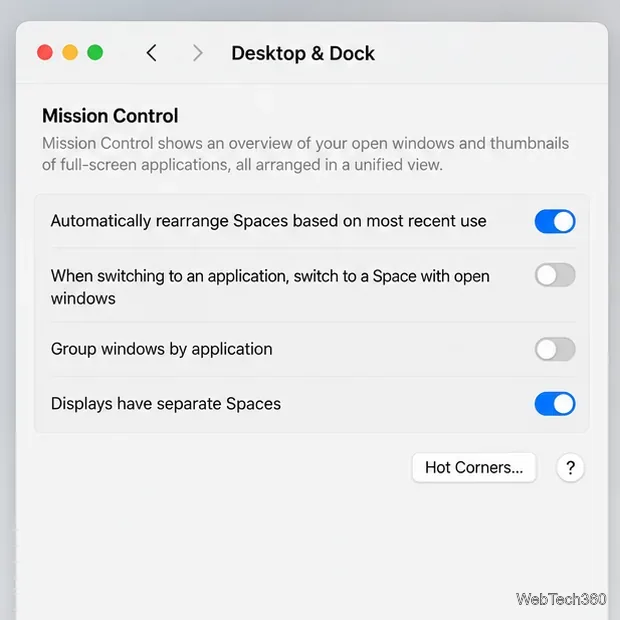
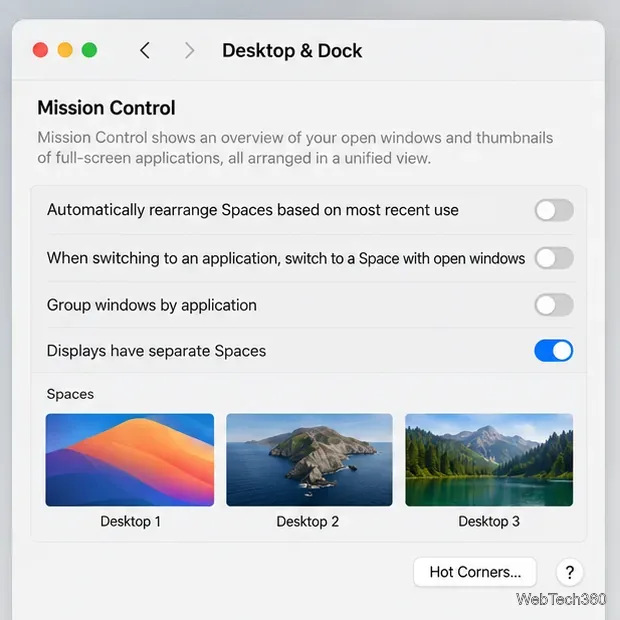
A Mac can move you to another Space when you switch to an app that already has an open window there. That behavior is controlled by a separate Mission Control option: When switching to an application, switch to a Space with open windows for the application. It can make the active desktop change even when the Spaces bar has not been reordered.
If the order of the thumbnails changes, turn off the automatic rearranging option described above. If the thumbnails stay in the same sequence but the active desktop changes after you click an app in the Dock or switch apps, review the separate app-switching option. Leave it on if you want macOS to take you to an app’s open windows; turn it off only if you prefer to stay on the Space you are using. Apple explains both behaviors in its guide to working in multiple Spaces.
Once the switch is off, you can continue using Spaces normally and choose the desktop you want from Mission Control or with the keyboard and trackpad shortcuts. If you later prefer macOS to bring your most recently used desktops forward, return to the same Mission Control setting and turn automatic rearranging back on.
Learn how to screenshot on Mac with shortcuts for the full screen, an area, or a window, plus the Screenshot app, clipboard, editing, and save-location tips.
Combine multiple images into a single PDF on macOS using Finder or Preview. Control page order, avoid cropping, and fix missing pages without extra software.
Learn how to show FPS on a Mac with Steam’s performance overlay or Apple’s Metal Performance HUD, plus fixes when the counter does not appear.
Use Option–Command–Esc to force quit an unresponsive Mac app, or close it from the Apple menu, Dock, Activity Monitor, or Terminal.
Set up Split View, resize or replace a pane, use Mission Control, and learn when desktop window tiling is a better fit on your Mac.
Learn how to remove EXIF data from photos on macOS, hide location in Photos, clean exported JPEG copies with ExifTool, and verify the result.
Sync two folders on a Mac with SyncTwoFolders, choose a one-way or two-way update, and preview changes before files are replaced or removed.
Back up a Tumblr blog on your Mac with Tumblr’s web export. Download and unpack the ZIP, keep its posts and media safe, and know what the archive leaves out.
Use Google Maps on your Mac in Safari or Chrome, find places and routes, switch map layers, and add a Safari web app to your Dock on macOS Sonoma 14 or later.
Compare five free WAV-to-MP3 converters for Windows and macOS, including online file limits, local batch tools, and practical export settings.








