How to Take a Timed Screenshot from Terminal on macOS
Set a custom delay for a timed screenshot from Terminal on macOS, then choose its filename, save folder, image format, and pointer settings.
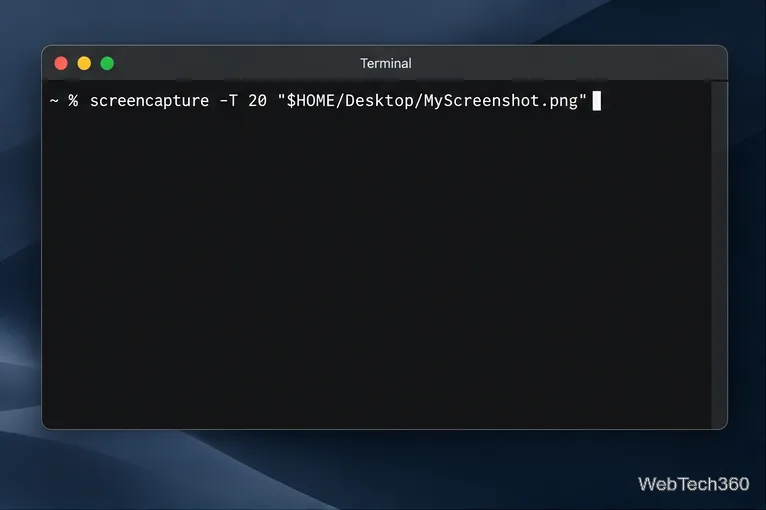
To take a timed screenshot from Terminal on macOS, use the built-in screencapture command with its -T delay option. For example, screencapture -T 20 "$HOME/Desktop/MyScreenshot.png" waits 20 seconds, then saves a PNG named MyScreenshot.png on your Desktop. Press Return, use the delay to arrange the screen, and check the file at the path you supplied.
The Screenshot app already has a timer, a save-location menu, and options for showing the pointer. It is often the easiest choice for a one-off capture: press Shift-Command-5, open Options, and choose a timer. Terminal is useful when you want to set a precise delay in seconds, name the output file in advance, save it to a specific folder, or reuse the same command in a workflow.
The command uses macOS’s built-in screenshot utility, so you do not need to install another app. The -T option specifies how many seconds to wait before capturing. The command below uses 20 seconds as an example; replace that value with the time you need.
$HOME expands to your user folder, so the command does not depend on your account’s short name.screencapture -T 20 "$HOME/Desktop/MyScreenshot.png"
The command runs in Terminal while macOS waits. It does not show a graphical countdown, so leave enough time to reach the target screen and open any menu or tooltip you want to capture. A short delay is convenient for a prepared screen; allow more time if you need to switch apps and interact with the interface.
| Part | What it does |
|---|---|
screencapture | Runs the macOS screen-capture utility. |
-T 20 | Waits 20 seconds before capture. Replace 20 with another delay in seconds. |
"$HOME/Desktop/MyScreenshot.png" | Sets the save location and filename. The quotes keep the path together if a folder or filename contains spaces. |
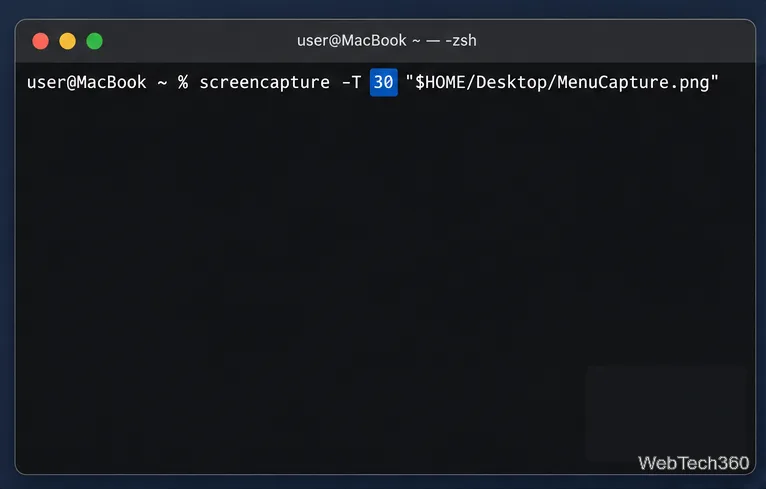
For a 30-second wait, change -T 20 to -T 30. To save in a Screenshots folder inside Pictures, use "$HOME/Pictures/Screenshots/Menu.png" as the final argument. Create that folder first if it does not exist; a command-line tool cannot save a file into a missing directory. Keep the quotation marks around paths with spaces, and use a filename that describes the capture so you can find it later.
PNG is the default format. To save a JPEG instead, set the format with -t jpg and use a matching filename extension:
screencapture -t jpg -T 10 "$HOME/Desktop/QuickCapture.jpg"The macOS manual lists PNG, JPEG, TIFF, PDF, and other format options; available details can vary by system version. Add -C to include the pointer in a noninteractive capture, or -x to suppress the capture sound. For example: screencapture -C -T 20 "$HOME/Desktop/WithPointer.png". These flags do not change the delay or destination.
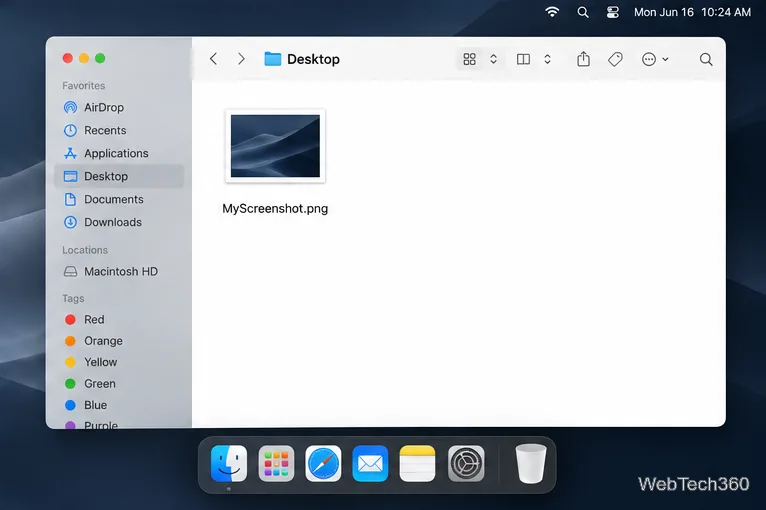
When the delay finishes, open the destination folder in Finder and look for the filename you entered. If the image is missing, check that the destination folder exists, the path is spelled correctly, and the filename extension matches the selected format. An absolute path beginning with $HOME helps avoid confusion about Terminal’s current working folder.
If capture is blank or macOS denies it, check System Settings > Privacy & Security > Screen & System Audio Recording for Terminal’s access. Apple documents this control for apps that record the screen. Some protected apps or media windows may still block screenshots, so a permission change cannot override an app’s restriction.
For a selected window or region, use the Screenshot app when its visual controls are easier than command-line options. Press Shift-Command-5, open Options, set the timer and save location, then choose the capture mode. Apple’s current Mac guide explains these controls and the available capture choices.
Because the command-line manual can differ between macOS releases, run man screencapture in Terminal to see the options installed on your Mac. The -T delay and -t format flags are documented in the macOS manual. For a no-command alternative, Apple’s Screenshot guide describes the timer and save-location controls; Apple also explains screen and system audio recording permissions. See the macOS 13.6.5 screencapture manual page as a reference, then defer to the manual on your own Mac for version-specific details.
Set a custom delay for a timed screenshot from Terminal on macOS, then choose its filename, save folder, image format, and pointer settings.
Restore a solid Catalina-style menu bar on Big Sur with compatible Boring Old Menu Bar v1.27. Follow the install steps, set light and dark styles, and troubleshoot common issues.
Sign in with your Apple ID (now called an Apple Account) in System Settings, then configure the separate Mac login password recovery option for that user.
Turn off Mac sharing services and enable Firewall stealth mode to limit local discovery, with clear notes on what your router and other devices can still see.
Learn how to check a Mac microphone using Sound settings and QuickTime, choose the right input, verify permissions, and fix common no-input problems.
Use the free Stats app to show CPU, memory, disk, and network usage in the macOS menu bar, customize widgets, and fix missing icons on macOS 26.
Install a Mail plugin on macOS using the current Mail Extensions workflow, enable it in Mail settings, and handle older .mailbundle plugins safely.
Learn how to download YouTube videos on a Mac with YouTube Premium, save your own uploads as MP4 files, and avoid outdated downloader apps.
Learn how to download older macOS installers from Apple using the App Store, Terminal, or official DMG links, with compatibility and error tips.
macOS has no built-in Touch Bar off switch. Learn how to change Touch Bar settings and use Hide My Bar to toggle it off and back on.