How to Take a Timed Screenshot from Terminal on macOS
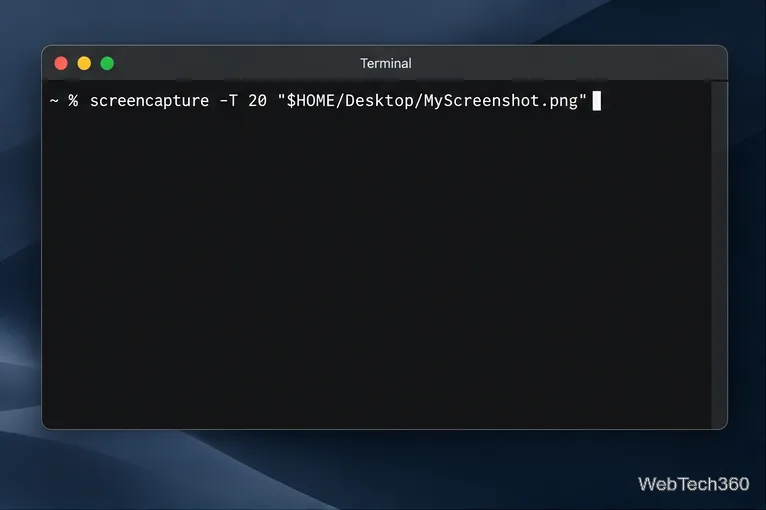
Set a custom delay for a timed screenshot from Terminal on macOS, then choose its filename, save folder, image format, and pointer settings.
Quick answer: macOS does not include a built-in switch that fully turns the Touch Bar off. Apple lets you change what the Touch Bar displays, but there is no native “Off” option. If you want to hide and restore the Touch Bar on demand, the current practical approach is a third-party utility such as Hide My Bar. It can disable the Touch Bar with a configurable double-tap shortcut and bring it back the same way.
The Touch Bar appeared on selected MacBook Pro models. Apple’s 13-inch MacBook Pro with M2 (2022) specifications, for example, list both a Touch Bar and Touch ID. MacBook Air models use physical function keys instead, so there is nothing to toggle on those machines.
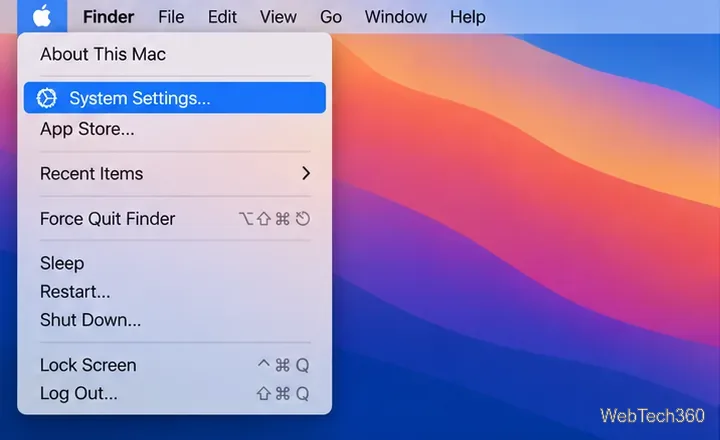
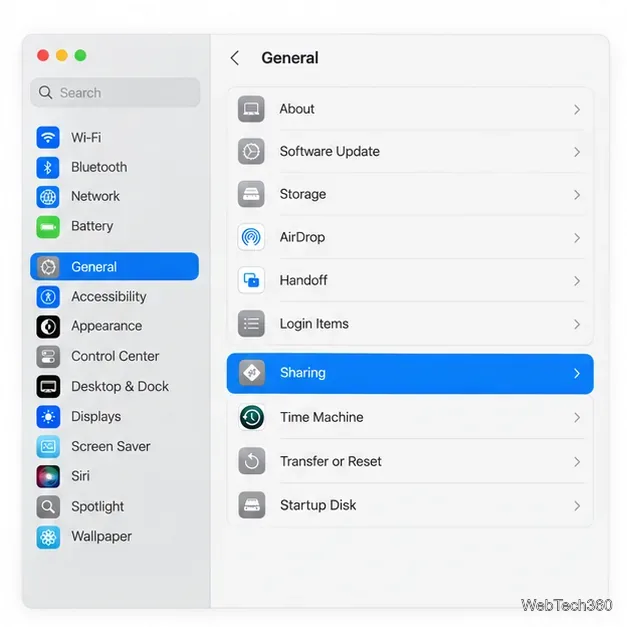
Apple still provides Touch Bar controls in System Settings. Open Apple menu > System Settings > Keyboard, then click Touch Bar Settings. Apple’s current Touch Bar settings guide lists choices such as App Controls, Expanded Control Strip, F1/F2 function keys, Quick Actions, and Spaces.
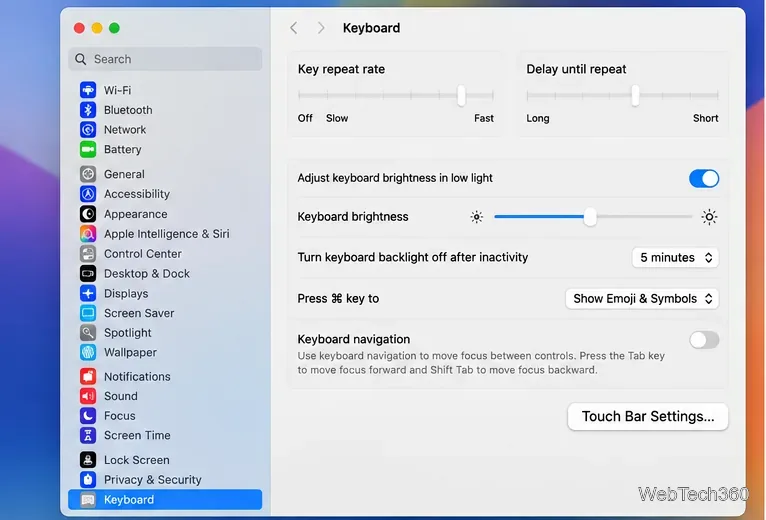
These controls are useful if your goal is to keep the Touch Bar predictable rather than disable it. You can also turn Show Control Strip on or off, change what the Fn or Globe key does, and control typing suggestions. What you cannot select is a system-wide “Touch Bar Off” mode.
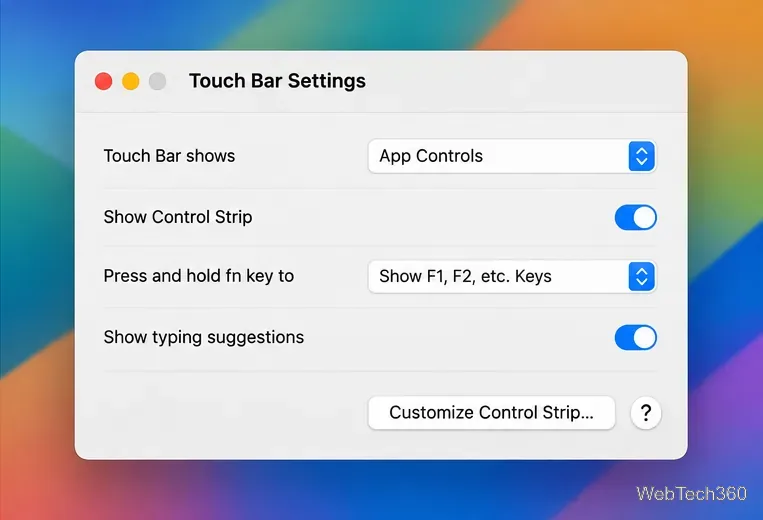
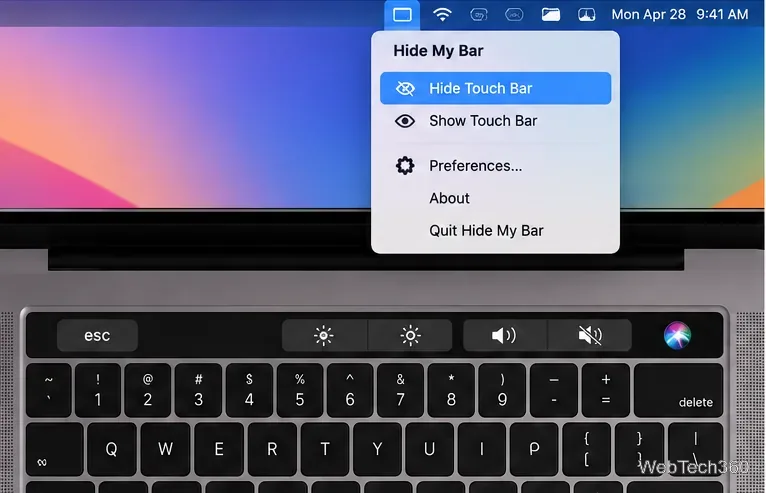
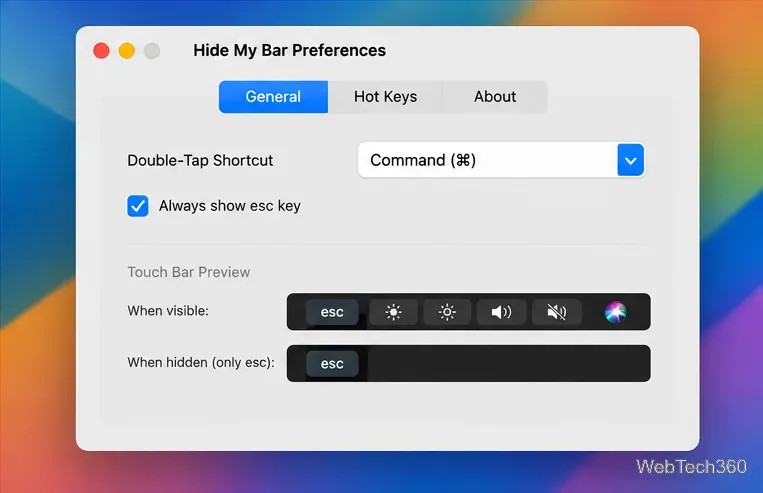
The most important setting to check is Apple’s own Touch Bar mode. The developer’s FAQ says that if you are using function-key behavior, set Touch Bar shows to either App Controls or Expanded Control Strip. Then reopen Hide My Bar and test your shortcut again.
You do not need a third-party utility if you simply want the Touch Bar to stop changing from app to app. In Touch Bar Settings, choose Expanded Control Strip for consistent system controls or F1, F2, etc. Keys for a traditional function-key layout. Apple also lets you customize Control Strip buttons; its Touch Bar customization guide explains how to add, rearrange, or remove them.
For a true quick hide/show workflow, however, macOS still does not provide a native toggle. Hide My Bar fills that gap while keeping the change reversible whenever you need the Touch Bar again.
Set a custom delay for a timed screenshot from Terminal on macOS, then choose its filename, save folder, image format, and pointer settings.
Restore a solid Catalina-style menu bar on Big Sur with compatible Boring Old Menu Bar v1.27. Follow the install steps, set light and dark styles, and troubleshoot common issues.
Sign in with your Apple ID (now called an Apple Account) in System Settings, then configure the separate Mac login password recovery option for that user.
Turn off Mac sharing services and enable Firewall stealth mode to limit local discovery, with clear notes on what your router and other devices can still see.
Learn how to check a Mac microphone using Sound settings and QuickTime, choose the right input, verify permissions, and fix common no-input problems.
Use the free Stats app to show CPU, memory, disk, and network usage in the macOS menu bar, customize widgets, and fix missing icons on macOS 26.
Install a Mail plugin on macOS using the current Mail Extensions workflow, enable it in Mail settings, and handle older .mailbundle plugins safely.
Learn how to download YouTube videos on a Mac with YouTube Premium, save your own uploads as MP4 files, and avoid outdated downloader apps.
Learn how to download older macOS installers from Apple using the App Store, Terminal, or official DMG links, with compatibility and error tips.
macOS has no built-in Touch Bar off switch. Learn how to change Touch Bar settings and use Hide My Bar to toggle it off and back on.