How to Screenshot on Mac: A Comprehensive Guide

Learn how to screenshot on Mac with shortcuts for the full screen, an area, or a window, plus the Screenshot app, clipboard, editing, and save-location tips.
To check app permissions on a Mac, open Apple menu > System Settings > Privacy & Security, then select a category such as Camera, Microphone, Photos, or Files & Folders. macOS organizes these controls by the type of data or device being protected. It does not provide one complete screen that lists every permission an app has requested, currently holds, or could ask for later.
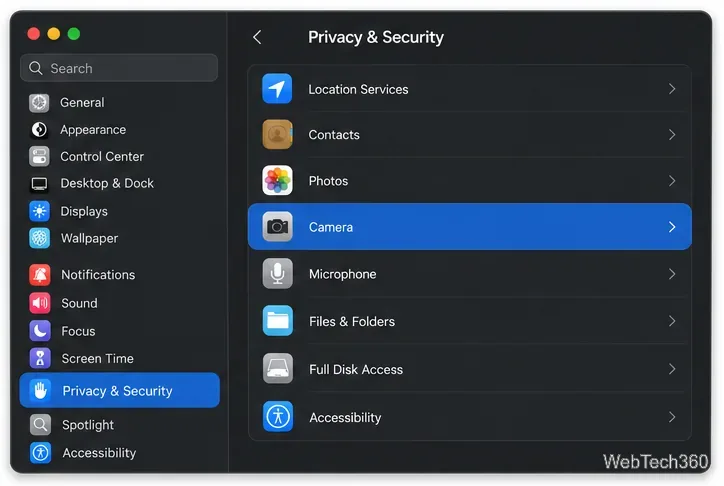
Apple describes these settings as the place to review and change access to information and hardware. Many lists show apps that have requested access to that specific resource; they are not a general inventory of every app installed on the Mac. A category with no app entries may simply mean no app has requested that protected access yet.
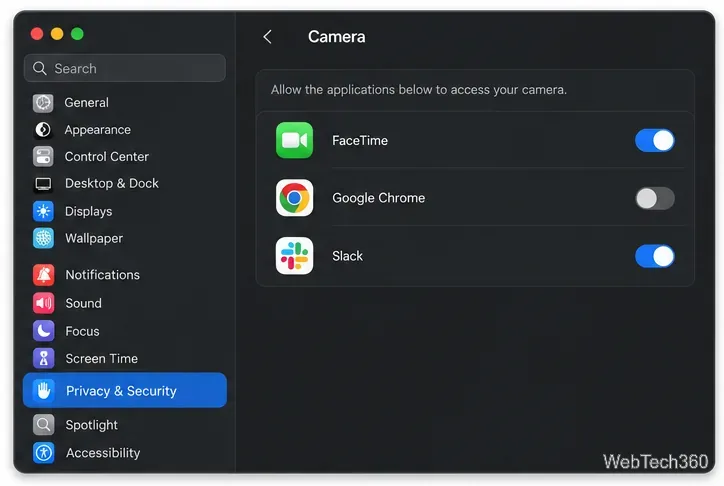
Open Camera or Microphone to see which listed apps can use those devices and turn off access you do not want to allow. Apple documents the same path for camera access in its Mac camera privacy guide. Current macOS versions also include categories such as Screen & System Audio Recording and Local Network. These cover different activities: recording the display or system audio is separate from communicating with devices on your home or work network.
Photos and Location Services have their own app lists. Select Photos to turn access on or off for an app; this is a control macOS provides, so do not assume photo access is permanently unchangeable. For location, review the individual app entries and the main Location Services setting. Apple has separate instructions for photo access and location access.
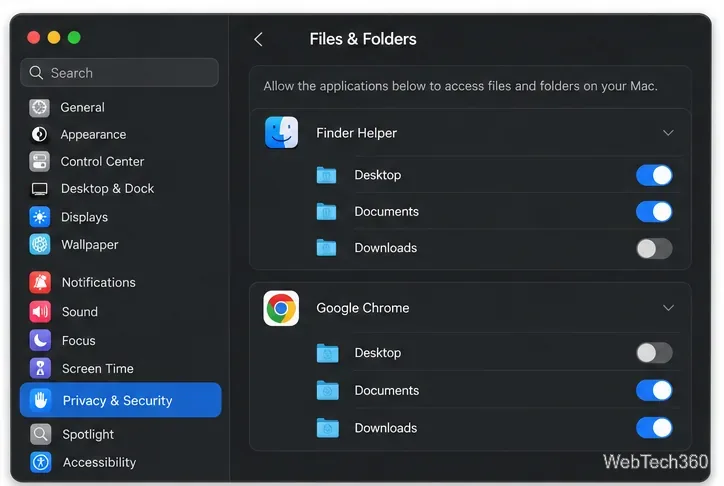
Under Files & Folders, an app may have separate controls for locations such as Desktop, Documents, or Downloads. These are narrower than Full Disk Access. Also remember that choosing a file in an Open or Save dialog can give an app access to that selected item without creating a broad, permanent folder permission. Apple's Files & Folders guide explains how to review the folder controls.
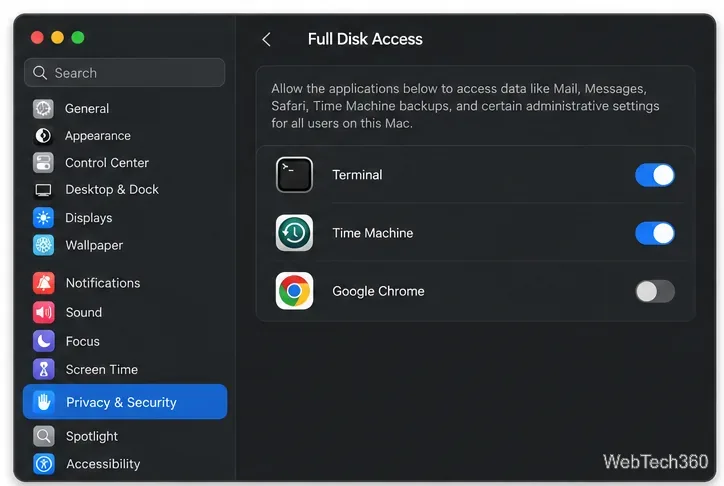
Full Disk Access is broader: it can allow an app to access data from other apps and certain system locations. Review it carefully and leave it off unless the app needs it for a feature you use. Also look at Accessibility, Input Monitoring, and Automation if you are checking whether an app can control your Mac or interact with other apps. These categories grant different kinds of access, so one switch does not replace checking the others.
System Settings shows the privacy controls macOS exposes for each category, but it is not a full audit of app behavior. An app can request access only when it reaches a feature that needs it, so you may see a permission prompt later. Access to a user-selected file can also work differently from a standing folder permission. App permissions are not identical to ordinary file ownership or every technical capability in an app.
For an advanced, static inspection of an app bundle, the developer of Taccy says the utility examines an app's Info.plist and code signature. That can help you inspect declared privacy descriptions and signing details, but it does not tell you which privacy switches are currently enabled for your account. The developer's current page lists Taccy 1.15 for macOS versions through Sonoma; compatibility with later releases is not documented there. See the Taccy product page and its version 1.15 release notes before relying on it.
In the relevant Privacy & Security category, switch off the app's access. The app may lose a related feature, such as video calls after camera access is disabled. If you are unsure why an app appears in a sensitive category, check its documentation or contact its developer before granting broader access. Avoid changing protected system databases or running broad reset commands just to inspect permissions; the category controls in System Settings are the supported place to review and manage these grants.
For Apple's complete category descriptions and instructions, use its Privacy & Security settings guide for Mac. Menu labels can vary slightly across macOS versions, but the Privacy & Security section remains the starting point.
Learn how to screenshot on Mac with shortcuts for the full screen, an area, or a window, plus the Screenshot app, clipboard, editing, and save-location tips.
Combine multiple images into a single PDF on macOS using Finder or Preview. Control page order, avoid cropping, and fix missing pages without extra software.
Learn how to show FPS on a Mac with Steam’s performance overlay or Apple’s Metal Performance HUD, plus fixes when the counter does not appear.
Use Option–Command–Esc to force quit an unresponsive Mac app, or close it from the Apple menu, Dock, Activity Monitor, or Terminal.
Set up Split View, resize or replace a pane, use Mission Control, and learn when desktop window tiling is a better fit on your Mac.
Learn how to remove EXIF data from photos on macOS, hide location in Photos, clean exported JPEG copies with ExifTool, and verify the result.
Sync two folders on a Mac with SyncTwoFolders, choose a one-way or two-way update, and preview changes before files are replaced or removed.
Back up a Tumblr blog on your Mac with Tumblr’s web export. Download and unpack the ZIP, keep its posts and media safe, and know what the archive leaves out.
Use Google Maps on your Mac in Safari or Chrome, find places and routes, switch map layers, and add a Safari web app to your Dock on macOS Sonoma 14 or later.
Compare five free WAV-to-MP3 converters for Windows and macOS, including online file limits, local batch tools, and practical export settings.








