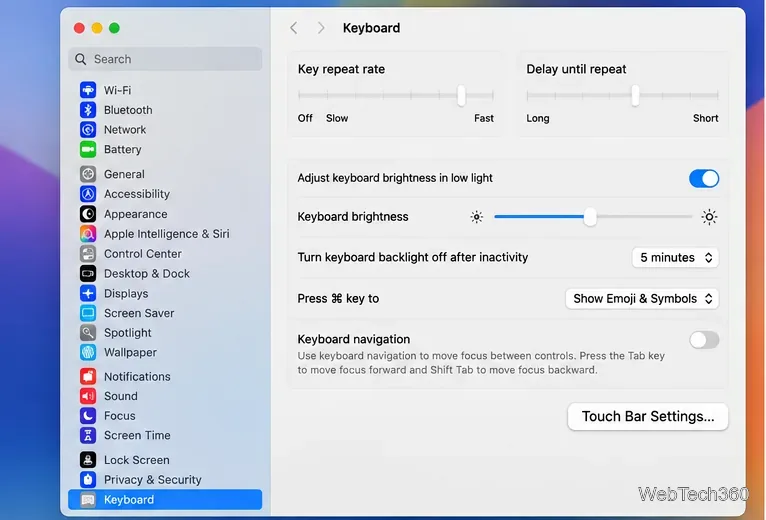
How to Take a Timed Screenshot from Terminal on macOS
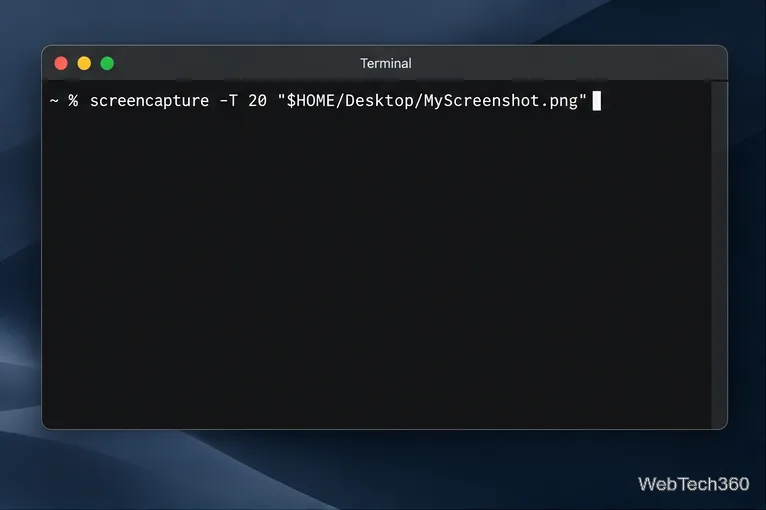
Set a custom delay for a timed screenshot from Terminal on macOS, then choose its filename, save folder, image format, and pointer settings.
To view a connected Bluetooth accessory’s battery on a Mac, open Control Center in the menu bar, expand Bluetooth, and check the device list. For AirPods, use Control Center > Sound and select them. A battery percentage appears only when the accessory and macOS make that information available.
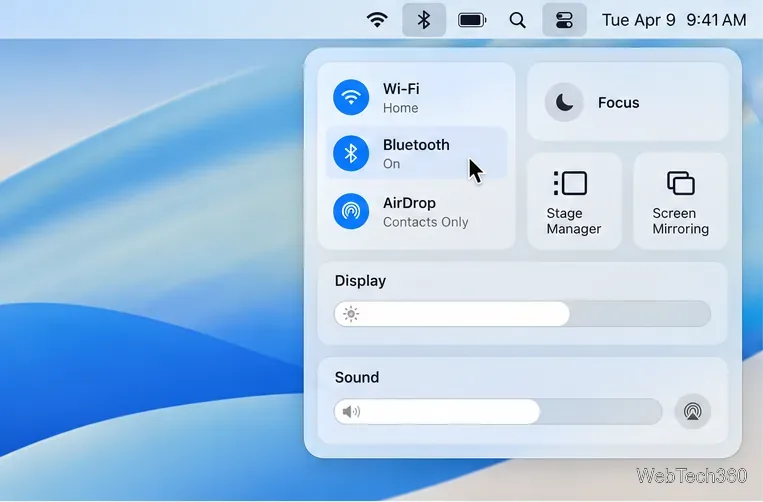
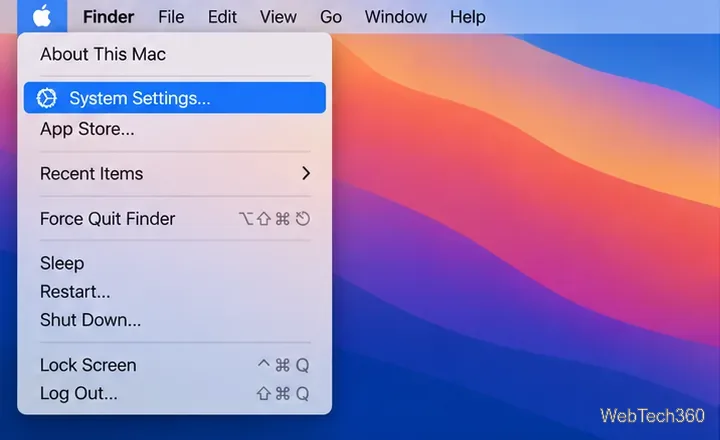
First, make sure the accessory is powered on, paired, and connected. If it is new to your Mac, open the Apple menu, choose System Settings > Bluetooth, and follow the accessory maker’s pairing instructions. The device should show as connected before you look for its charge level.
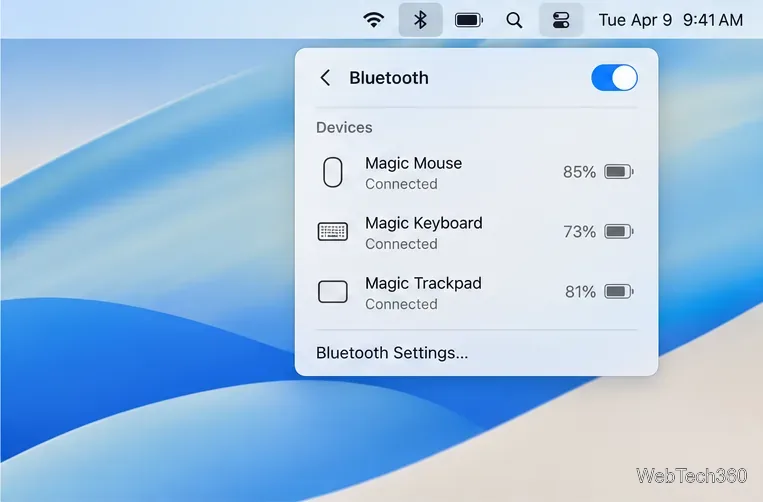
Apple documents this Control Center route for checking the charge on Magic Keyboard, Magic Mouse, and Magic Trackpad. The Apple wireless-accessory guide describes opening Control Center, pointing to Bluetooth, and clicking its arrow. If Bluetooth is not shown in the menu bar, add it in System Settings > Control Center or the Menu Bar settings available in your macOS release.
On macOS 11 or 12, add Bluetooth from System Preferences > Dock & Menu Bar; on macOS 10.15 or earlier, use System Preferences > Bluetooth. These settings expose the menu but cannot enable unsupported battery reporting.
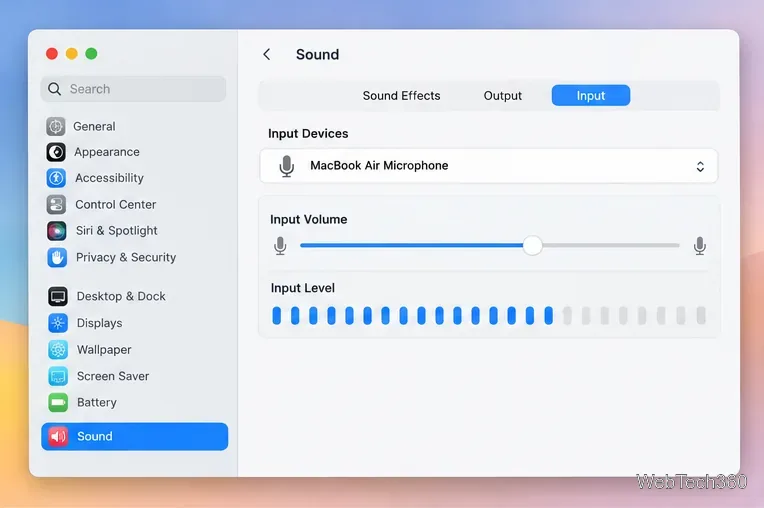
For AirPods, Apple’s current instructions use the Sound control. Open the AirPods case or take the earbuds out, keep them near the Mac, then click Control Center > Sound and choose your AirPods. When supported, the menu shows charge information for the earbuds and case. See Apple’s AirPods charging and status instructions for model-specific details.
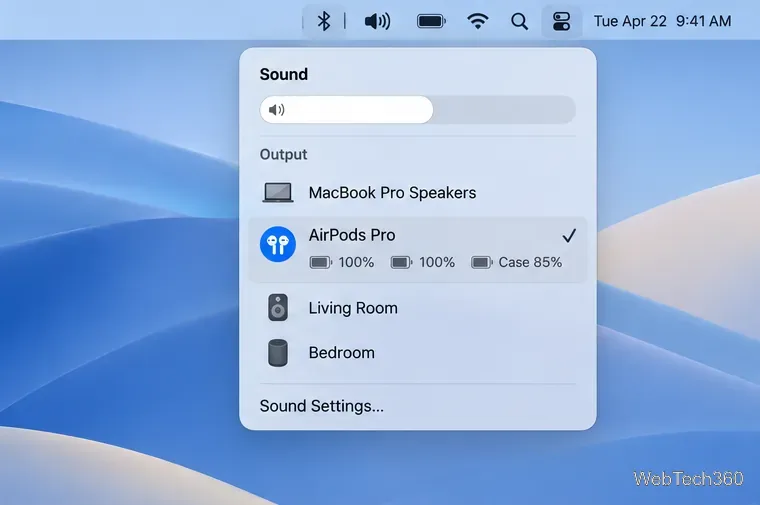
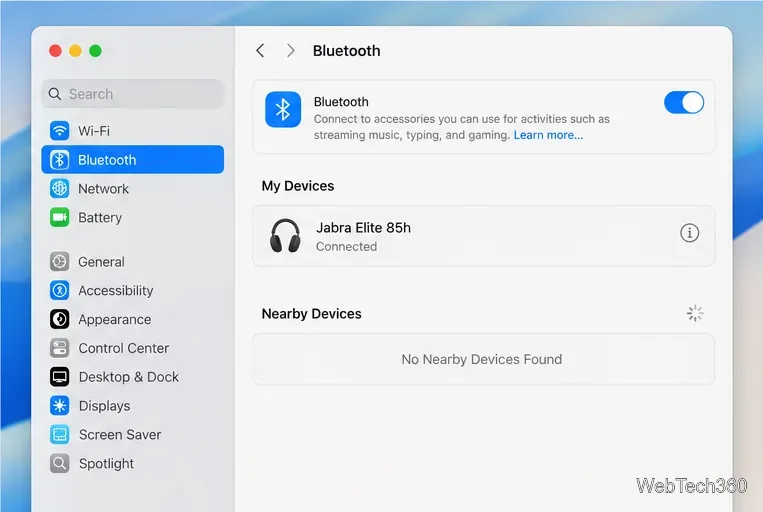
Bluetooth pairing does not guarantee battery reporting. The accessory must send battery information in a format that macOS can read, and some devices expose charge data only through their own companion app. A device can appear as connected in Bluetooth settings without showing any battery number. Bluetooth Low Energy accessories and devices that use proprietary protocols can have additional limits.
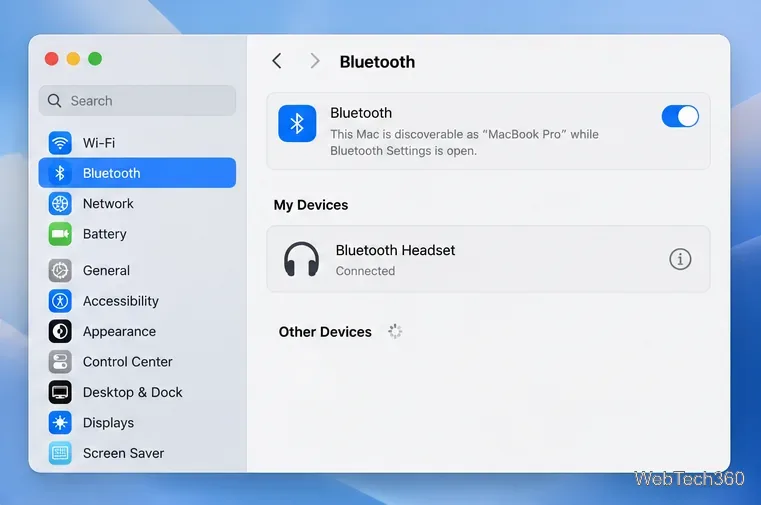
If the accessory is missing from the Bluetooth list entirely, turn it on, bring it close to the Mac, and reconnect it from System Settings > Bluetooth. If it is connected but no charge value appears:
ToothFairy is a paid Mac utility that can put Bluetooth-device icons and available battery status in the menu bar. Its developer says it supports many device types, including headphones, mice, keyboards, and game controllers, but it cannot show battery levels for every model. Check the ToothFairy manual and your local App Store listing for current compatibility and price.
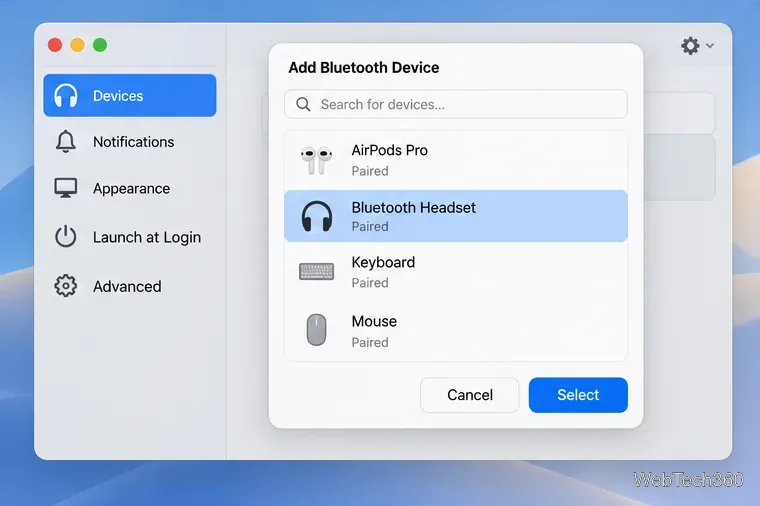
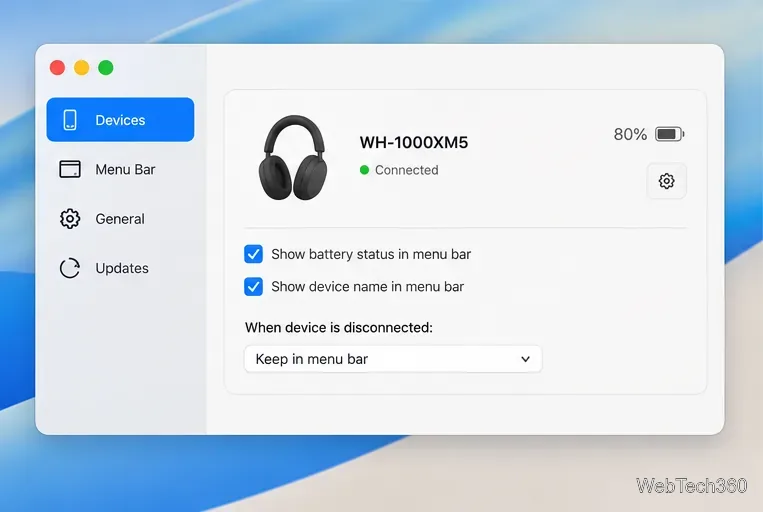
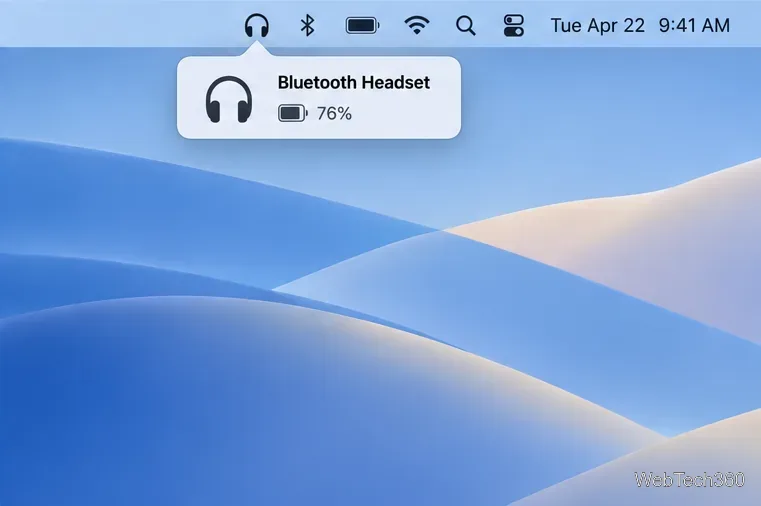
ToothFairy cannot bypass device limits. Its manual notes that some Bluetooth Low Energy devices may not provide a readable level. If both the built-in list and utility lack a percentage, use the maker’s app or hardware indicator.
Older instructions sometimes recommend Akku for third-party headsets. The project’s repository is archived, and its maintainer says development stopped after macOS Monterey added built-in support for third-party Bluetooth headsets. Akku was described as experimental and headset-focused, so do not treat its old download as a current all-purpose solution. See the archived Akku project for its status.
Start with Control Center, use Sound for AirPods, and try a menu-bar utility only if macOS receives battery data from the accessory.
Set a custom delay for a timed screenshot from Terminal on macOS, then choose its filename, save folder, image format, and pointer settings.
Restore a solid Catalina-style menu bar on Big Sur with compatible Boring Old Menu Bar v1.27. Follow the install steps, set light and dark styles, and troubleshoot common issues.
Sign in with your Apple ID (now called an Apple Account) in System Settings, then configure the separate Mac login password recovery option for that user.
Turn off Mac sharing services and enable Firewall stealth mode to limit local discovery, with clear notes on what your router and other devices can still see.
Learn how to check a Mac microphone using Sound settings and QuickTime, choose the right input, verify permissions, and fix common no-input problems.
Use the free Stats app to show CPU, memory, disk, and network usage in the macOS menu bar, customize widgets, and fix missing icons on macOS 26.
Install a Mail plugin on macOS using the current Mail Extensions workflow, enable it in Mail settings, and handle older .mailbundle plugins safely.
Learn how to download YouTube videos on a Mac with YouTube Premium, save your own uploads as MP4 files, and avoid outdated downloader apps.
Learn how to download older macOS installers from Apple using the App Store, Terminal, or official DMG links, with compatibility and error tips.
macOS has no built-in Touch Bar off switch. Learn how to change Touch Bar settings and use Hide My Bar to toggle it off and back on.