How to Take a Timed Screenshot from Terminal on macOS
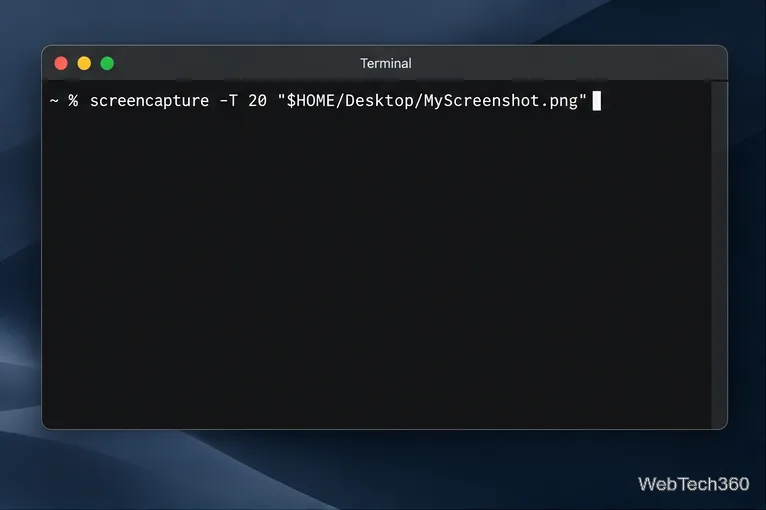
Set a custom delay for a timed screenshot from Terminal on macOS, then choose its filename, save folder, image format, and pointer settings.
If you want to keep an eye on your Mac without leaving Activity Monitor open, the menu bar is the most convenient place to put live system information. A free, open-source app called Stats can show CPU, memory, disk, and network activity directly in the macOS menu bar, with each module configurable on its own.
The current Stats project supports stable releases of macOS 12 Monterey and later. Its official documentation lists CPU utilization, memory usage, disk utilization, and network usage among its core features. Download it only from the official Stats GitHub repository or its linked release files.
brew install stats.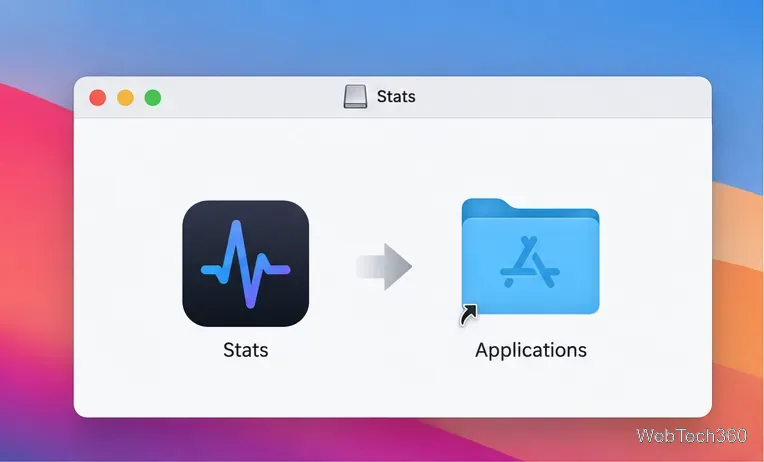
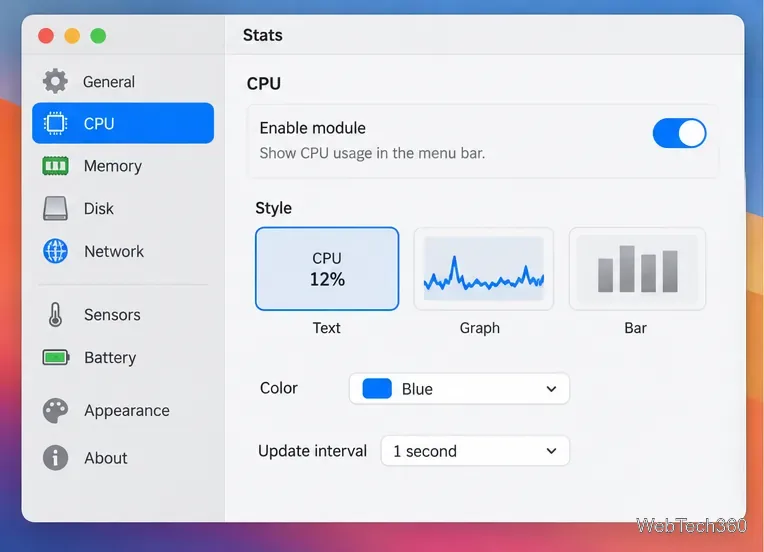
After Stats launches, open its settings and enable the modules you actually want to watch. The app separates system information into modules such as CPU, Memory, Disk, and Network, so you do not have to fill the menu bar with every available sensor.
Once a module and at least one of its menu bar widgets are enabled, its readout appears at the top of the screen. Depending on the module and current Stats version, you can use compact text, charts, bars, or other widget styles. The goal is to keep the display readable rather than show every possible metric at once.
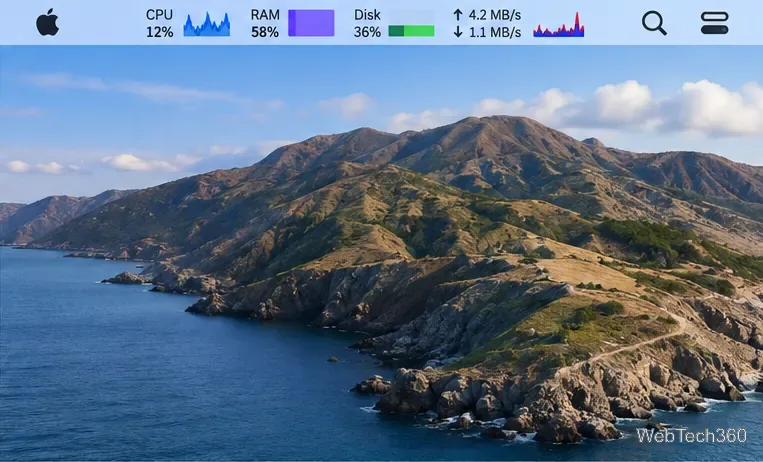
Stats is most useful when you trim it down to the measurements you check regularly. Open the settings for a module to adjust its menu bar presentation, then repeat that for the other modules.
On macOS 26, there is an additional menu bar privacy control. The Stats project specifically warns that the app can be running with modules enabled while its icons remain hidden until macOS allows the app to show menu bar items.
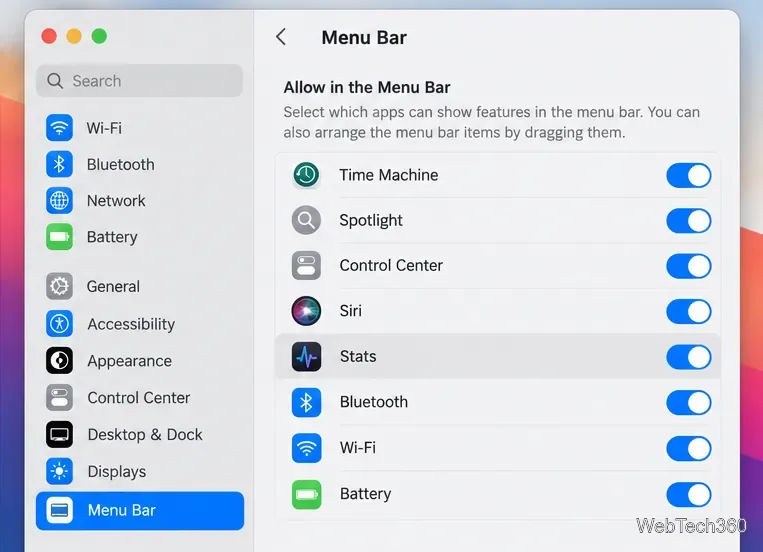
If the Wi-Fi network name inside Stats appears as Unknown, that is a separate permission issue: the project's documentation says macOS requires Location Services access to read the Wi-Fi network name. You can grant that permission under System Settings > Privacy & Security > Location Services, then quit and reopen Stats.
Activity Monitor remains the better tool when you need to investigate a specific process, sort apps by CPU or memory use, or diagnose a performance problem. Stats solves a different problem: it keeps a small, persistent summary of your Mac's CPU, RAM, disk, and network activity visible at a glance. For everyday monitoring, that makes it much faster to notice sustained load, heavy memory use, disk activity, or an unexpected burst of network traffic.
Set a custom delay for a timed screenshot from Terminal on macOS, then choose its filename, save folder, image format, and pointer settings.
Restore a solid Catalina-style menu bar on Big Sur with compatible Boring Old Menu Bar v1.27. Follow the install steps, set light and dark styles, and troubleshoot common issues.
Sign in with your Apple ID (now called an Apple Account) in System Settings, then configure the separate Mac login password recovery option for that user.
Turn off Mac sharing services and enable Firewall stealth mode to limit local discovery, with clear notes on what your router and other devices can still see.
Learn how to check a Mac microphone using Sound settings and QuickTime, choose the right input, verify permissions, and fix common no-input problems.
Use the free Stats app to show CPU, memory, disk, and network usage in the macOS menu bar, customize widgets, and fix missing icons on macOS 26.
Install a Mail plugin on macOS using the current Mail Extensions workflow, enable it in Mail settings, and handle older .mailbundle plugins safely.
Learn how to download YouTube videos on a Mac with YouTube Premium, save your own uploads as MP4 files, and avoid outdated downloader apps.
Learn how to download older macOS installers from Apple using the App Store, Terminal, or official DMG links, with compatibility and error tips.
macOS has no built-in Touch Bar off switch. Learn how to change Touch Bar settings and use Hide My Bar to toggle it off and back on.