How to Move a Picture in Microsoft Word
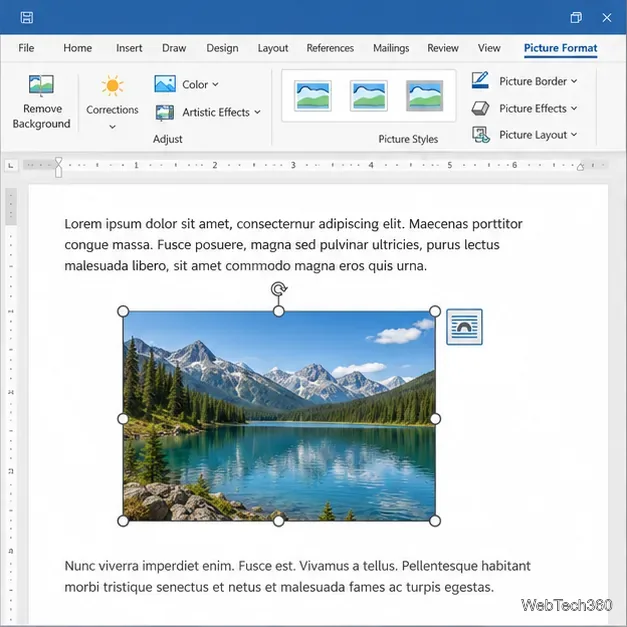
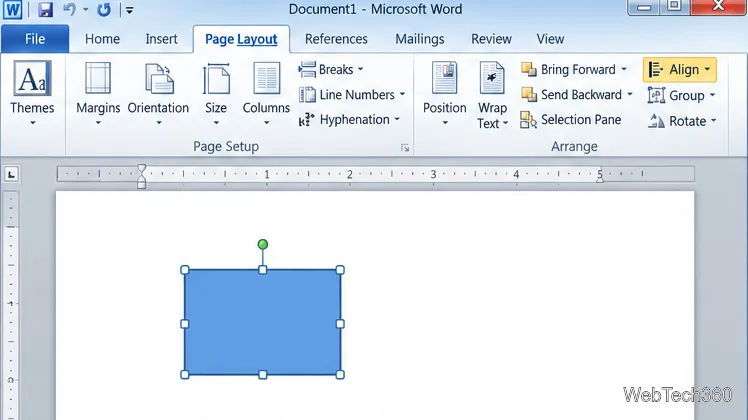
Learn how to drag a picture in Word, choose text wrapping, keep it with a paragraph or fix it on the page, and troubleshoot images that will not move.
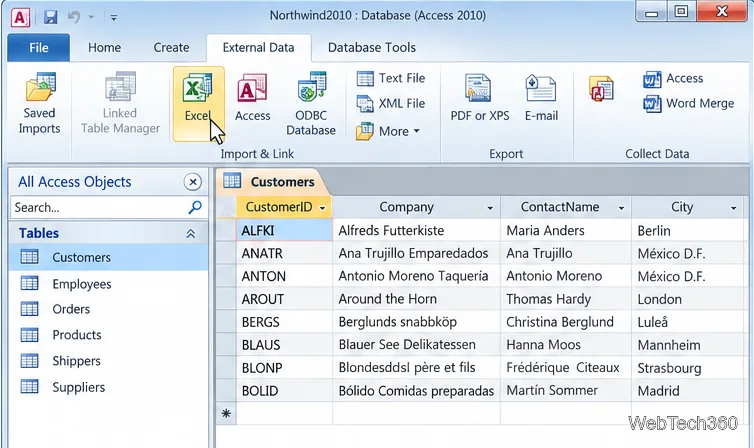
To export a table from Access 2010 to Excel 2010, select the table in Access, open the External Data tab, and choose Excel in the Export group. Set a destination workbook, choose whether Access should include the table's current formatting and layout, and click OK. Access creates a separate Excel copy; later edits in Excel do not update the Access table.
The steps below use the classic Access 2010 ribbon. Microsoft's current export guide covers Access 2016 and later, so some dialog wording or available formats may differ in Access 2010. The central path remains External Data > Excel. See Microsoft's Export data to Excel guide for current documentation on the export options and common data-transfer issues.
In the Navigation Pane, locate the table you want to copy. If you plan to export only certain records, open the table in Datasheet view and select those rows before starting. Check the table for errors and decide whether the export should contain the whole underlying table or only the data currently displayed.
Close the destination workbook if it is already open. If you want to protect other worksheets in an existing workbook, export to a new filename instead. A formatted export to an existing workbook can replace the workbook's existing worksheets.
.xlsx when available.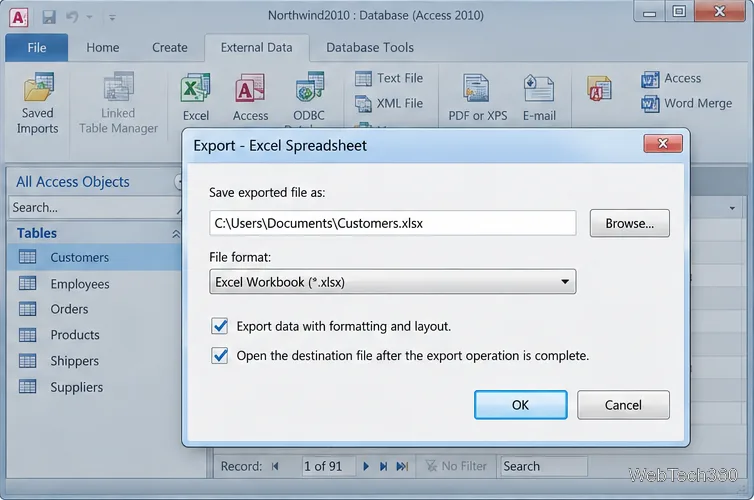
The formatting choice affects more than appearance. With formatting, lookup fields can show their displayed values and hyperlinks remain links. Without formatting, lookup fields export their underlying ID values, and hyperlink contents appear as text. Check this setting before exporting if the workbook will be shared with someone who needs to read the data without Access.
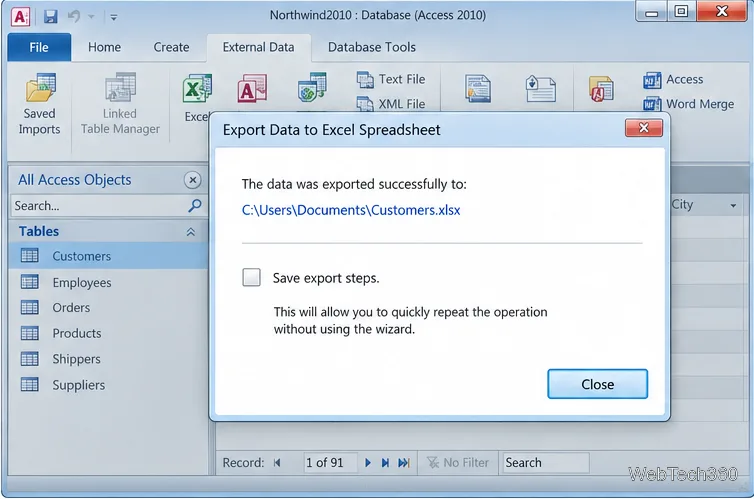
After a successful export, Access may show an Export Data to Excel Spreadsheet completion screen. Select Save export steps if you want to store the source, destination, and options as a reusable export specification, then give it a recognizable name if prompted. Otherwise, click Close. Saving these steps makes the export easier to run again; it does not turn the workbook into a live link to Access. Microsoft explains the saved specification in its guide to saving import or export details.
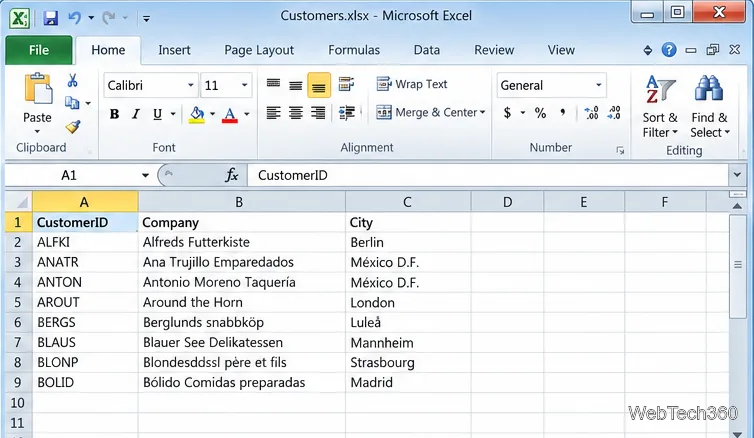
Compare the worksheet's headers and a few sample records with the Access table. Confirm the row count, dates, IDs, and any filtered or hidden fields that matter. If you used formatting and the workbook is missing columns or rows, return to Access, show the required columns, clear filters, and export again. For small formatting corrections, use Excel's Format Cells options after the export.
.xls format is limited to 65,536 rows, so choose .xlsx for larger tables. See Microsoft's worksheet size guidance.If Excel is meant to hold a one-time analysis or report, exporting is a straightforward way to create that copy. If the data must stay current, export it again when needed or use a supported import/link workflow rather than assuming an exported workbook will refresh from Access.
Learn how to drag a picture in Word, choose text wrapping, keep it with a paragraph or fix it on the page, and troubleshoot images that will not move.
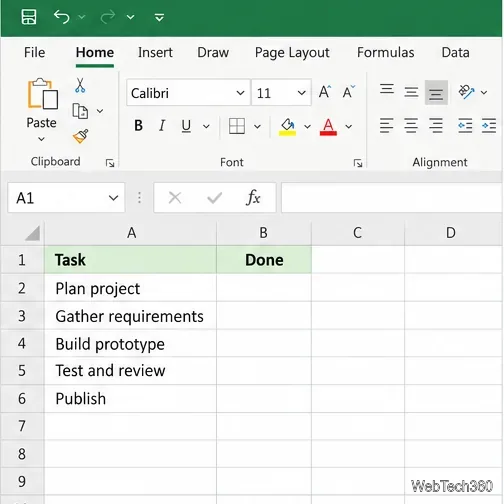
Learn how to insert a checkbox in Excel with the in-cell tool, count checked items with formulas, or add a linked Form Control in older desktop versions.
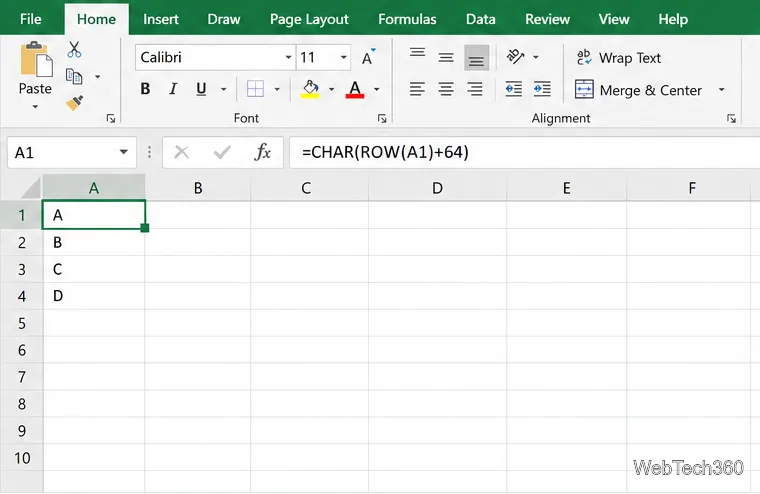
Generate A to Z, lowercase letters, or labels beyond Z in Excel with a fill-handle formula, SEQUENCE, or a reusable custom list.
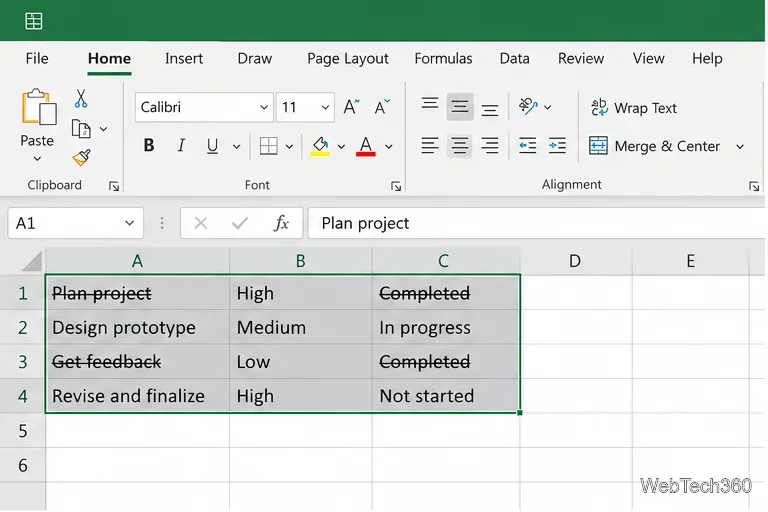
Learn how to strikethrough in Excel on Windows, Mac, and the web, format part of a cell, and remove the line without deleting its value.
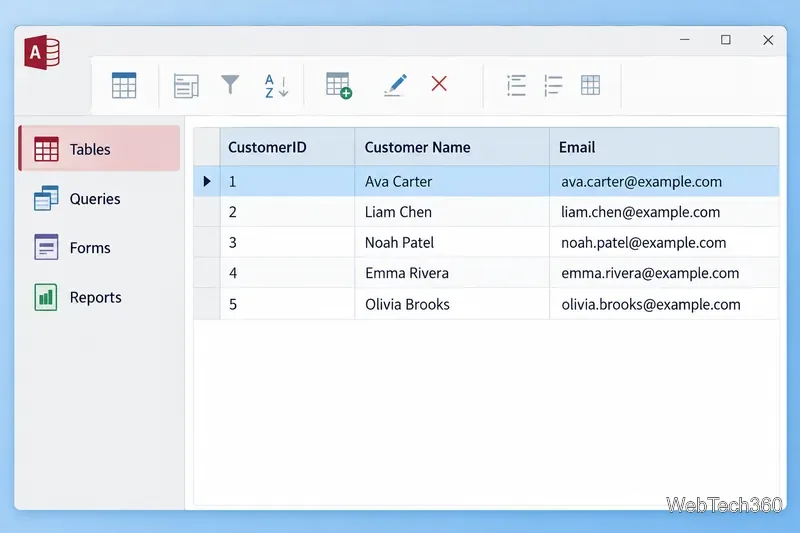
Microsoft Access is a Windows database app for storing related records, building queries, creating data-entry forms, and generating reports. Learn how it works and when it fits.
Learn how to import a PST into Outlook 2010 or export mail, contacts, calendar, and tasks. Follow the correct menus and avoid missing folders or duplicates.
Learn how to adjust gridline height and width in Word 2010, change visible line frequency, and set the underlying horizontal and vertical drawing-grid spacing.
Recover a forgotten Outlook PST password with Kernel’s current steps, including how to identify the right file, make a backup, and check the tool’s limits.
Use the LiveWeb add-in to place a website on a PowerPoint slide, set its size and refresh behavior, and check compatibility before presenting.
Set an Access 2010 database application to open directly to a data-entry form, hide object lists, limit menus, and check the setup before sharing.