Home
» MS OFFICE
»
Collabora Online vs ONLYOFFICE: Resource Usage and Latency Test
Collabora Online vs ONLYOFFICE: Resource Usage and Latency Test
Choosing between Collabora Online and ONLYOFFICE Docs is often framed as a feature or file-format question, but infrastructure teams usually discover a second decision after deployment: how much CPU and memory does each stack consume, and how responsive does editing remain as round-trip time and concurrency increase? There is no trustworthy universal number for either product because document complexity, fonts, conversion work, storage latency, browser behavior, reverse proxies, and the number of simultaneously open documents all change the result.
As of October 2026, neither vendor publishes a current, apples-to-apples head-to-head benchmark against the other. That matters. A fair comparison should therefore separate two kinds of evidence: vendor sizing guidance, which tells you what each project expects you to provision, and a repeatable latency/resource test that you run on identical hardware. The test plan below is designed to produce numbers you can use for your own deployment without pretending that one lab result applies everywhere.
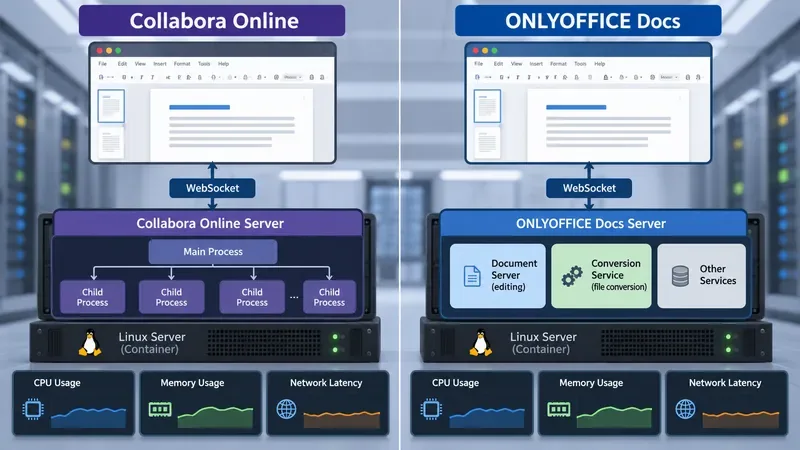
A side-by-side benchmark layout for Collabora Online and ONLYOFFICE Docs. The monitoring panels show the metrics to collect—CPU, memory, and network latency—rather than measured benchmark values.
What the official resource guidance actually says
The vendors publish useful sizing information, but the figures are not directly equivalent. Collabora's SDK manual includes a Kubernetes/Helm production example that recommends resource requests of 4 CPU and 6 GiB of memory, with limits of 8 CPU and 8 GiB. The same manual describes num_prespawn_children, which keeps child processes ready so new sessions can start faster at the cost of extra memory. See the Collabora Online SDK manual. Collabora's current configuration template also exposes a memory proportion limit and per-document concurrency controls; the project's official source is available in the Collabora Online configuration template.
ONLYOFFICE publishes more explicit reference tiers for Docs Community Edition in Docker. Its current guidance says 4 GB RAM or more and lists reference configurations of one 2.8 GHz core for fewer than 100 concurrent active users, two cores for 100–200, and four cores for 200–400, while keeping 4 GB RAM in those reference rows. The vendor explicitly warns that real capacity depends on the number, type, and size of documents. See the ONLYOFFICE Docs Community Edition Docker requirements.
Area
Collabora Online
ONLYOFFICE Docs
What to conclude
Published production sizing
SDK Helm example recommends 4 CPU / 6 GiB requested, up to 8 CPU / 8 GiB limits
Docker reference starts at 4 GB RAM; CPU tiers scale with concurrent active users
Do not call either product “lighter” from these numbers alone; the deployment assumptions differ
Warm-start behavior
Prespawned child processes can trade memory for faster session starts
Multiple server-side services handle editing, conversion, commands, and document building
Idle memory and first-open latency can reflect architecture and tuning, not just editor efficiency
Concurrency model
Per-document processing has configurable concurrency controls
A concurrent active user is a user with a document open, including view-only sessions under the vendor's definition
Count open sessions consistently before comparing capacity
Why an idle-memory screenshot is not a benchmark
A common comparison is to start both containers, open no documents, and declare the one with lower RAM usage the winner. That measures only baseline footprint. It misses the work that matters: opening a file, converting it when necessary, rendering pages or sheets, transmitting changes, recalculating spreadsheets, serving multiple editors, and saving the result back to storage.
Collabora's process model can keep child processes ready in advance. That can increase idle footprint while reducing the delay before a document becomes usable. ONLYOFFICE separates document editing from services such as conversion; its architecture documentation describes the document editor, editing service, command service, conversion service, and builder service. See How ONLYOFFICE Docs works. In other words, baseline RSS is a useful operational metric, but it is not enough to predict user-visible speed.
A fair resource and latency test setup
Run the two products one at a time on the same host or on two identically provisioned VMs. Avoid testing one on a warmed-up host with cached files and the other immediately after boot. Keep the Linux distribution, Docker version, CPU quota, memory limit, storage class, reverse proxy, TLS termination, browser version, and document storage path identical.
Use three document workloads
Text document: a representative DOCX with headings, tables, images, tracked changes, and comments.
Spreadsheet: an XLSX with formulas, conditional formatting, several worksheets, and enough data to trigger meaningful recalculation.
Presentation: a PPTX with images, charts, and multiple slides rather than a nearly empty deck.
Use the same files for both platforms. If a file requires format conversion in one product, record that fact because conversion can dominate open time. Do not optimize a file specifically for one editor and then treat the result as a general platform comparison.
Test at more than one concurrency level
A practical sequence is 1, 5, 10, and 20 simultaneously open editors, followed by a higher level that matches your real expected peak. A “user” should mean the same thing in every run: an editor tab with the document fully open. Repeat each level at least three times after a warm-up run and report the median plus the slowest result. This makes short background spikes less likely to distort the conclusion.
Resource metrics to record
Docker provides a vendor-neutral first layer of telemetry. The official Docker stats documentation explains that docker stats reports CPU percentage, memory usage, network I/O, block I/O, and PIDs. Capture both a live stream during the workload and a no-stream sample at defined checkpoints.
For each concurrency level, record idle memory before opening anything, steady-state memory after all documents are open, peak CPU during opening, CPU after sessions settle, and memory after every session is closed. Also watch whether memory returns near its baseline after a cooldown period. A higher post-test value is not automatically a leak—caches and shared memory can remain useful—but a continuously rising floor across repeated identical cycles deserves investigation.
Do not compare only container percentages if one container has a different CPU or memory limit. Record the actual host or cgroup limits with the benchmark results. Docker's Linux memory figure also has cache-accounting nuances, so use the same Docker and cgroup environment for both products.
How to measure open latency
Define open latency before testing. A defensible definition is the time from the user's open action until the editor is visibly ready for input and the document content has stabilized enough to begin typing. Measure the same marker for both products. A simple screen recording with timestamps can be more comparable than relying on product-specific internal events.
Collect two forms of open latency. Cold open starts after restarting the office container and clearing the test session. Warm open repeats the same file without restarting the service. Collabora's prespawn setting makes this distinction especially important because more waiting child processes can reduce startup delay while increasing memory usage. If you tune num_prespawn_children, list its value alongside the results rather than hiding it.
How to measure collaboration latency
For real-time co-editing, the meaningful metric is not ordinary ICMP ping. Measure the delay between an edit in browser A and the visible change in browser B. Use two separate browser profiles or machines and synchronize their clocks. Record 20–50 simple edits, such as adding a character to the same paragraph, then calculate median and 95th-percentile visible propagation delay.
ONLYOFFICE's official co-editing description confirms that changes travel from the editor to the document editing service and then to the other editor. See ONLYOFFICE co-editing workflow. Its server configuration also exposes WebSocket-related settings, including reconnection behavior and maximum payload size, in the ONLYOFFICE server configuration reference. Collabora likewise depends on persistent WebSocket traffic through the reverse proxy, so proxy buffering, timeout behavior, TLS termination, and network RTT should be treated as part of the test environment rather than as background details.
Add controlled network delay
If your users are remote, repeat the collaboration test with controlled round-trip latency such as approximately 20 ms, 80 ms, and 150 ms. Apply the same network shaping to both systems and document exactly where it is introduced. This exposes a difference that local-LAN benchmarks can hide: an editor may feel excellent at 1–5 ms RTT but noticeably less immediate for branch offices or international teams.
Save latency needs its own measurement
Saving is not identical to typing latency. ONLYOFFICE documents a workflow in which the editing service compiles changes and sends the storage service a callback after editing ends; its documentation notes a default conversion-start delay of five seconds and says the final timing also depends on conversion time, file complexity, and server performance. See ONLYOFFICE saving-file documentation. That means a “save took several seconds” observation should not automatically be interpreted as interactive lag.
For both products, measure save completion from the point at which the last editor finishes until the updated file is confirmed in the backing storage. Keep storage on the same network path and disk class. A slow Nextcloud, ownCloud, object store, database, or reverse proxy can otherwise be blamed on the office suite.
Result sheet: the numbers that matter
Metric
Record at
Why it matters
Idle memory
No open documents
Baseline cost for small servers
Steady memory per workload
1, 5, 10, 20+ open editors
Shows scaling behavior better than idle RSS
Peak CPU
During document open and spreadsheet recalculation
Reveals burst capacity requirements
Cold open latency
After service restart
Captures startup/process-spawn cost
Warm open latency
Repeated file open
Shows normal repeated-session responsiveness
Edit propagation p50/p95
Two-user co-editing
Measures perceived collaboration delay
Save completion
Last editor closes or finishes
Separates persistence time from interactive latency
How to interpret the outcome
If Collabora uses more idle memory in your setup but produces lower cold-open latency, that may be an acceptable trade if users open documents frequently and the server has spare RAM. If ONLYOFFICE shows a lower baseline but stronger CPU spikes during conversion, CPU headroom may matter more than memory. The opposite patterns are also possible; the point is to connect each resource curve to a user-visible event.
For a small self-hosted installation, focus on idle footprint, first-open time, and whether one or two large documents cause swapping. For a business deployment with dozens of active editors, prioritize the slope of memory growth, CPU saturation, p95 co-editing delay, and recovery after load. For geographically distributed users, network RTT and proxy configuration can outweigh modest server-side differences.
The most useful winner is therefore the product that stays within your CPU and RAM budget while meeting your latency target on your real documents. Vendor sizing pages are starting points, not benchmark results. Run the same workload, keep the environment controlled, publish your test configuration next to the numbers, and avoid generalizing a single idle-memory reading into a claim about overall performance.