To create and send a meeting invite in Outlook, open Calendar, create a meeting, add attendees, choose a date and time, and select Send. In new Outlook for Windows and Outlook on the web, start with Calendar > New event. In classic Outlook for Windows, choose New Items > Meeting from Mail or New Meeting from Calendar. A meeting request lets invitees respond; an appointment without attendees is only on your own calendar.
Outlook’s labels vary by version and account. The steps below cover new Outlook, the web app, and classic Outlook, so you can use the matching menu names on your screen.
Create and send a meeting invitation
Open a meeting form. In new Outlook, select Calendar, then New event. In Outlook on the web, select New event > Event. In classic Outlook, create a request from New Items > Meeting in your Inbox or New Meeting in Calendar. You can also use Ctrl+Shift+Q in classic Outlook. Microsoft lists the version-specific paths in its Outlook meeting scheduling instructions.

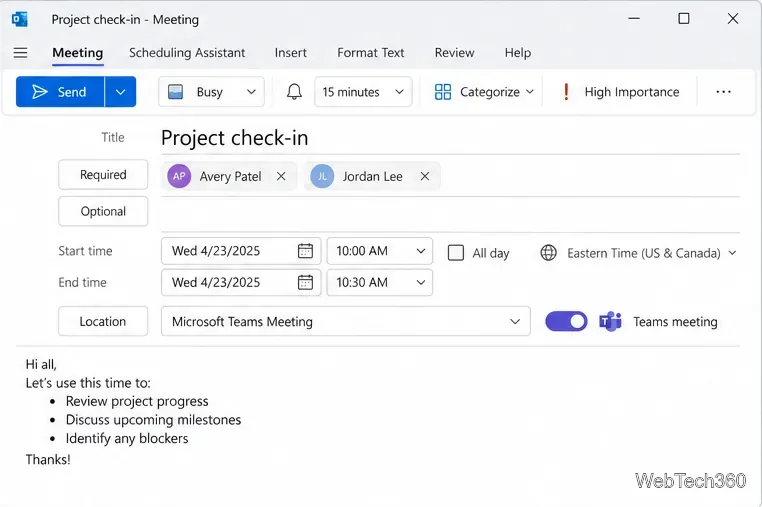
Add a subject and invitees. Enter a short, specific title so recipients know why the meeting is on their calendar. Select Invite attendees and enter each person’s name or email address. Mark essential participants as Required and people whose attendance is optional as Optional. “Optional” signals that attendance is not expected; it does not block the person from accepting. In classic Outlook, add people on the To line or use the attendee controls in Scheduling Assistant.
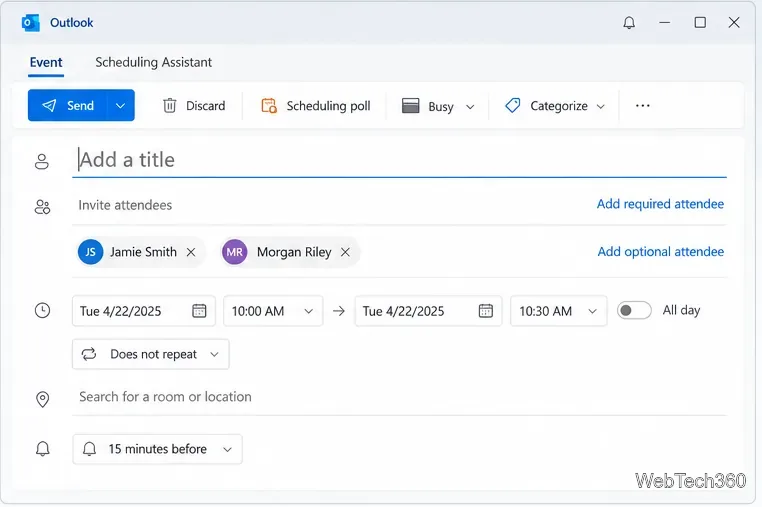
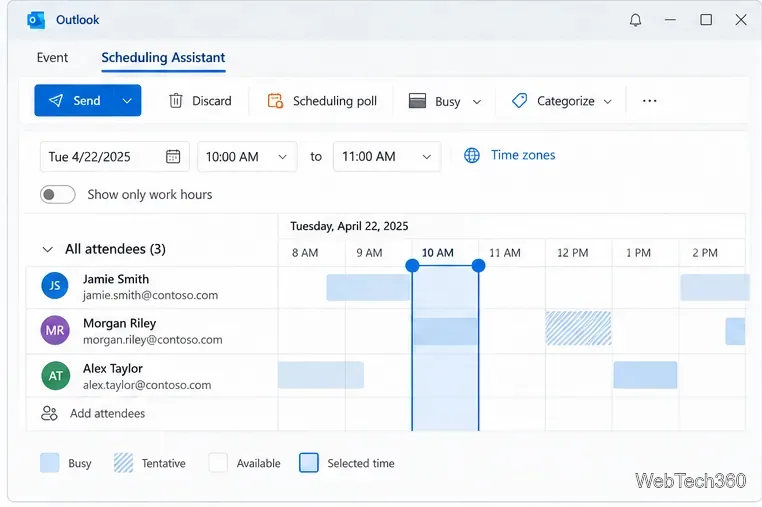
Choose a date and time. Enter the start and end times, or select All day for an all-day event. If the account offers suggested time slots, choose one that works. For Microsoft 365 or Exchange work and school accounts, Scheduling Assistant can show free/busy availability for invitees. Check the displayed date, time, and time zone before sending, especially when attendees are in different regions. Outlook saves meeting times in UTC and shows each recipient the equivalent in that person’s calendar time zone; see Microsoft’s time-zone guidance.
Add a location or online meeting. Enter the room or street address in Location. Depending on your account and organization, Outlook may offer room search or a room finder. If your account is connected to Teams, turn on the Teams meeting option to include online meeting details. Confirm the link appears in the invitation before sending. For another video platform, use the provider’s link and include it in the location or message body. Microsoft explains how Teams meetings are scheduled from Outlook.
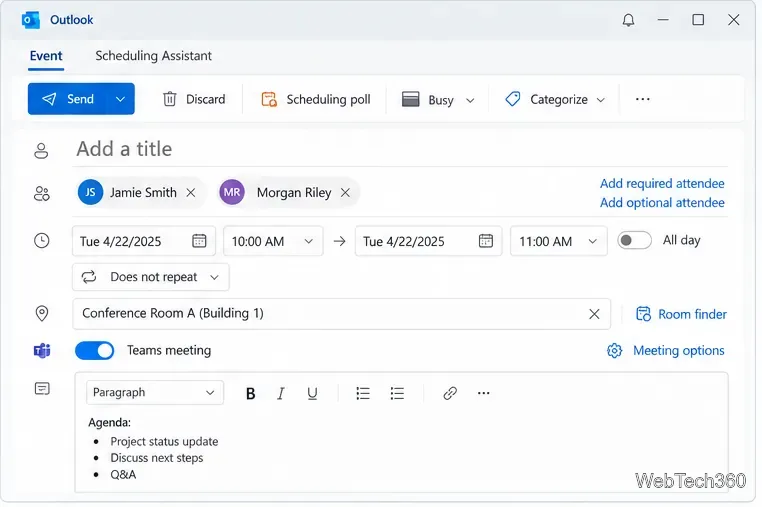
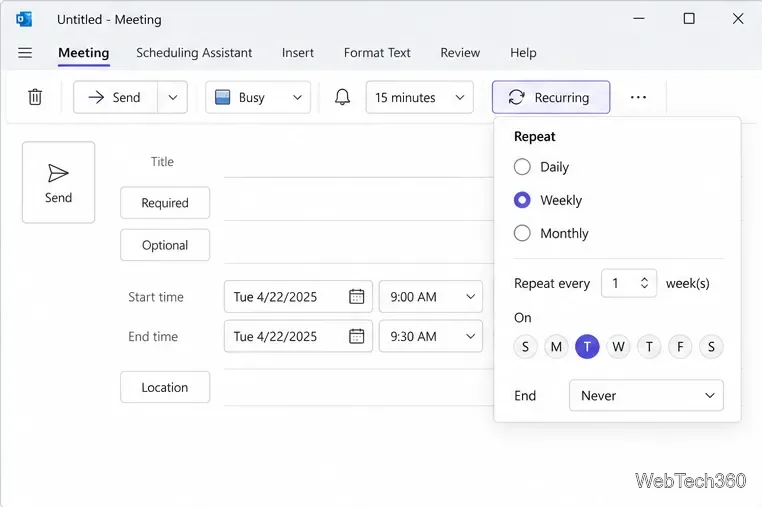
Add the agenda, files, and repeat schedule. Use the message or description area to list the purpose, preparation, and any links attendees need. Attach relevant files if your Outlook version allows it. For a recurring meeting, choose Recurring or Make recurring in new Outlook or Outlook on the web, then set the interval and end date. In classic Outlook, select Meeting > Recurrence, set the pattern, and select OK. Review the series carefully: a recurring invite creates multiple calendar entries, so choose an end date that matches the plan.
Review and send. Verify the attendee list, subject, date, time zone, location or Teams details, recurrence, and attachments. Then select Send. Outlook sends the meeting request to the invitees and tracks responses where supported. If you notice an error after sending, open the meeting from your calendar, edit it, and send an update so existing attendees receive the change.
How invitees respond and how to check replies
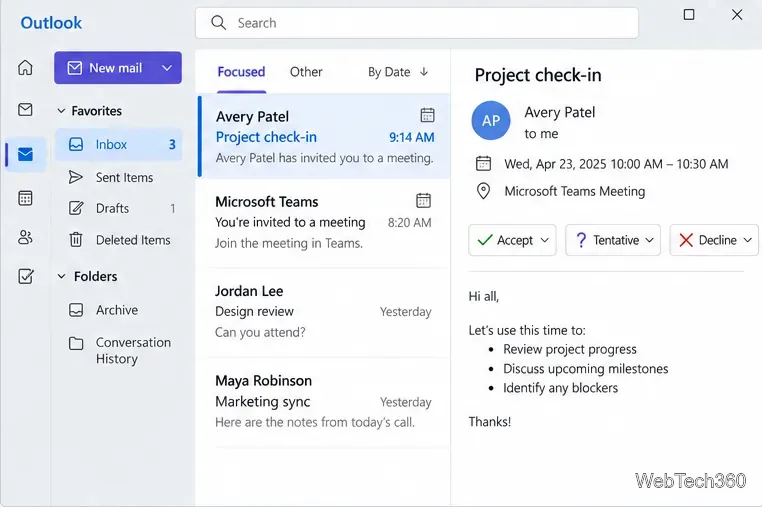
Invitees can open the request and choose Accept, Tentative, or Decline. In Outlook on the web, they may also RSVP from the message list; More options provides additional choices. An accepted invitation normally appears on the recipient’s calendar, though the exact display can vary with the recipient’s account or calendar service. Microsoft describes quick RSVP in Outlook on the web.
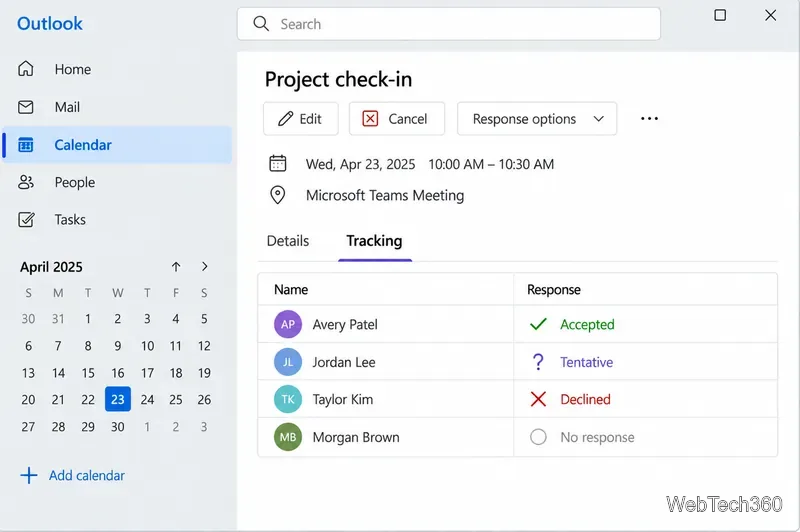
To review replies as the organizer, open the meeting from Calendar and select Tracking to open the tracking pane in new Outlook. In classic Outlook, open the meeting and select Tracking on the Meeting ribbon. The list shows who accepted, tentatively accepted, declined, or has not responded. A blank or “No response” status is not the same as a decline. Microsoft notes that response visibility for guests depends on their Outlook version and whether they are inside the same Microsoft 365 organization; in classic Outlook, a guest who chooses not to send a response may not appear as having replied. See the official Tracking pane instructions and response visibility notes.
If the meeting options look different
First check whether you are in new Outlook, classic Outlook, or Outlook on the web; Microsoft maintains separate instructions because their menus are not identical. If Scheduling Assistant is missing or does not show availability, your account may not provide work or school free/busy data, or your organization may restrict it. You can still enter a date and time manually. If a Teams toggle is unavailable, add the approved conferencing link and location your organization uses, then confirm those details are visible in the invite.








