Home
» MS OFFICE
»
How to Fix the “We Can’t Schedule the Meeting” Error in Outlook
How to Fix the “We Can’t Schedule the Meeting” Error in Outlook
If Outlook shows “We can’t schedule the meeting. Please try again later” when you try to add a Teams meeting, first check that the account and mailbox are supported. Then refresh the Teams–Outlook connection and, if you use Classic Outlook, make sure its Teams add-in is enabled. The steps differ by Outlook version: New Outlook has Teams meeting controls built in, while Classic Outlook uses a COM add-in.
1. Check that your account can schedule from Outlook
Outlook scheduling for Teams meetings requires a Microsoft 365 work or school account with a supported Exchange mailbox. Personal Microsoft accounts, Outlook.com mailboxes, and POP or IMAP accounts such as Gmail, Yahoo, and iCloud aren’t supported for this Outlook integration. Your organization also needs to assign a Teams plan that includes meetings. If you’re unsure, ask your Microsoft 365 administrator to confirm both the mailbox and license.
For New Outlook, Microsoft also requires the same work or school account in Outlook and the new Teams client. Check the account shown in each app before troubleshooting the button. Having several accounts in Outlook is not, by itself, a reason to remove them; make sure you’re creating the event on the eligible work calendar.
If you use a personal Teams account or an unsupported mailbox, schedule the meeting in the Teams app that belongs to that account and send the invitation from there. The Outlook add-in does not become supported by repeatedly signing out or removing mailboxes.
2. Use the scheduling control for your Outlook version
New Outlook for Windows or Outlook on the web
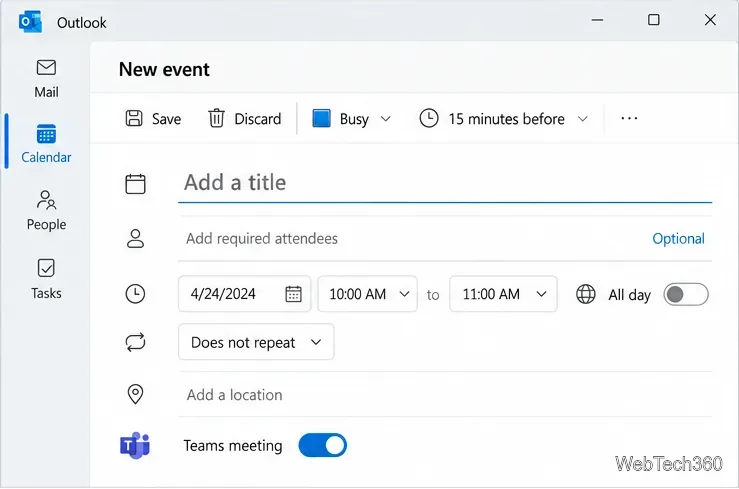
Open Calendar, choose New event, and turn on the Teams meeting toggle beside the event title. Add the subject, time, and attendees, then select Send. New Outlook does not use the Classic Outlook COM add-in, so reinstalling or enabling that add-in will not fix its built-in Teams control. Outlook adds the Teams join details after you send the event; saving it as a draft does not add those details.
Classic Outlook for Windows
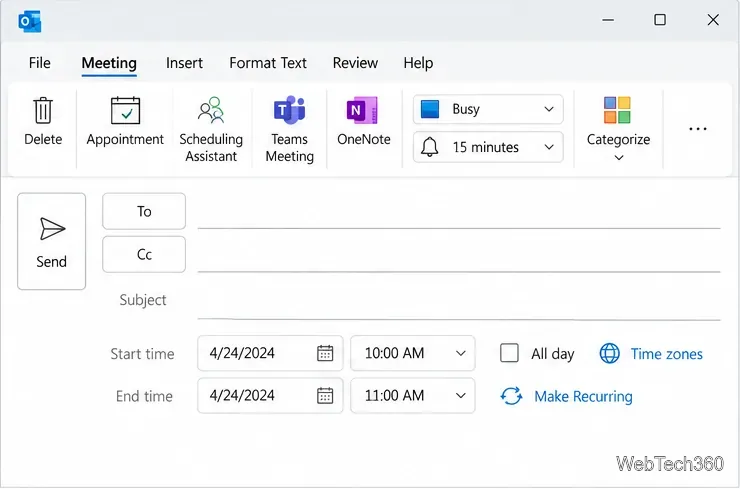
In the Outlook desktop app, open the Home tab, select the arrow beside New Email, and choose Meeting. On the meeting ribbon, open the Teams Meeting menu and choose Schedule meeting. Add attendees and meeting details, then send the invitation. Confirm that the Teams join information appears in the meeting before sending.
A stale sign-in or integration state can prevent Outlook from creating the meeting. Quit both apps completely, then start Teams first and Outlook second. For New Outlook, Microsoft’s specific reset sequence is:
Close Outlook.
Quit Teams from its taskbar or notification-area menu; closing the window may leave Teams running.
Open Teams and sign in with the work or school account used in Outlook.
Open Outlook and try creating a new Teams event.
If the same error remains, sign out of the work or school account in Teams once, quit and reopen Teams, and sign back in before restarting Outlook. Avoid repeating the sign-out process several times; if account eligibility is correct and a fresh sign-in does not help, check the add-in or ask your administrator.
Microsoft’s New Outlook integration guidance lists the same-account and new-Teams requirements and the close–quit–restart sequence.
4. Re-enable the add-in in Classic Outlook
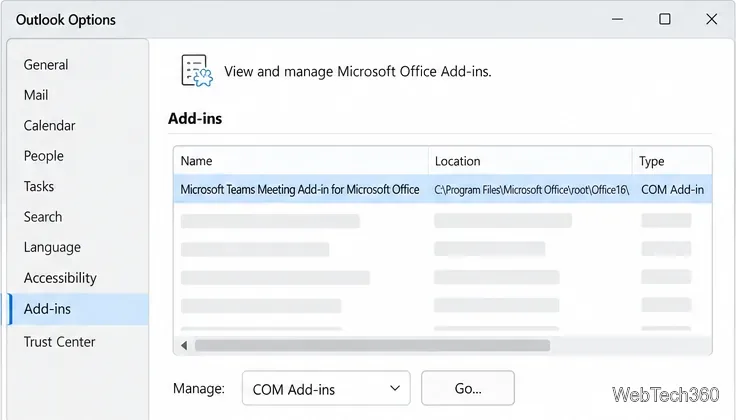
Use this section only if you’re using Classic Outlook. In Outlook, select File > Options > Add-ins. Look for Microsoft Teams Meeting Add-in for Microsoft Office in the active or disabled add-ins list. If it is disabled, set Manage to COM Add-ins, select Go, check the Teams add-in, and choose OK. Close and reopen Outlook, then try a new meeting.
If the add-in is absent, make sure the Teams desktop app is installed and both Teams and Office are up to date. The add-in is not supported in New Outlook; that version uses the built-in toggle described above. See Microsoft’s Classic Outlook add-in troubleshooting steps for the supported enable-and-restart procedure.
5. When to contact your administrator
If the account is a supported work or school Exchange account, Teams is signed in correctly, and the error continues, ask your administrator to check the assigned Teams service, Exchange mailbox, organization policies, and Microsoft 365 service health. Include the exact error text, whether you use New or Classic Outlook, and whether the Teams toggle or add-in appears. Admins can follow Microsoft’s advanced guidance for Classic Outlook add-in installation and registration; registry changes and add-in re-registration should be handled by IT.
If the message specifically says you must sign out of Teams before scheduling, note that Microsoft documents this error for personal Teams/Outlook.com accounts that are not supported by the Outlook add-in. In that case, use a supported work or school account, or schedule from the appropriate Teams app instead.