Home
» MS OFFICE
»
How to Go to a Page in Word for Microsoft 365
How to Go to a Page in Word for Microsoft 365
If you need to jump to an exact page in a long Word document, you do not have to scroll. In the desktop version of Word for Microsoft 365, the fastest method is the built-in Go To dialog: press Ctrl+G on Windows, choose Page, enter the page number, and press Enter. Microsoft also documents F5 as a shortcut that opens the Go To dialog.
Go directly to a page in Word
These steps apply to the desktop Word app in Microsoft 365. Microsoft lists Ctrl+G as the Windows shortcut for opening Go To, while Word for Mac uses Command+Option+G; F5 can also open Go To on both platforms, although Mac function-key settings may require you to press Fn as well.
Open the Word document and place the cursor anywhere in it.
Open Go To. On Windows, press Ctrl+G or F5. On Mac, press Command+Option+G or F5.
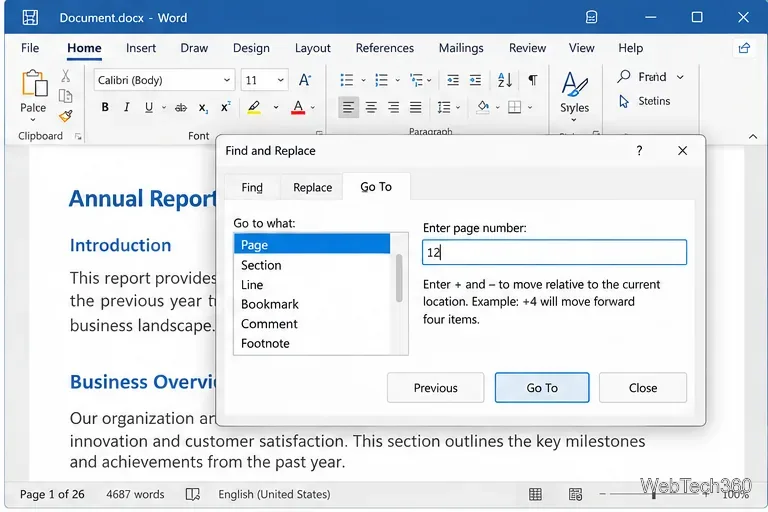
The Go To tab can jump to a page without scrolling through the document.
In Go to what, select Page. In Enter page number, type the page you want, such as 12.
Enter the destination page number, then choose Go To or press Enter.
Press Enter or select Go To. Word moves the insertion point to that page. Select Close when you are finished.
Microsoft's current shortcut reference confirms that Ctrl+G opens the Go To dialog in Word for Windows and that the dialog can navigate to a page, bookmark, footnote, table, comment, graphic, and other locations. See Microsoft's Word keyboard shortcuts.
Jump forward or backward by a number of pages
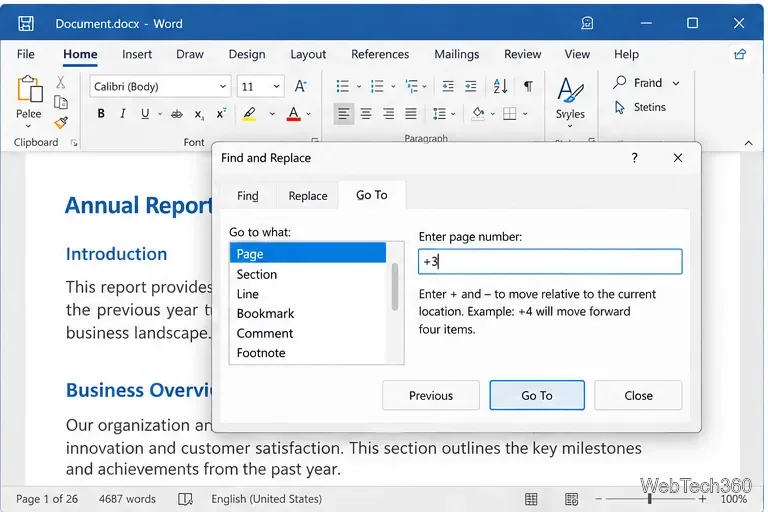
The same dialog accepts a relative page number. This is useful when you know how far away the target is but do not know its absolute page number.
Enter +1 to move forward one page.
Enter -1 to move back one page.
Enter +3 to move forward three pages, or -5 to move back five pages.
A plus or minus sign lets you move relative to your current position.
After typing the relative value, press Enter or select Go To. If you use this frequently, Shift+F4 can repeat the last Find or Go To action in Word for Windows.
Use the Navigation pane to browse pages visually
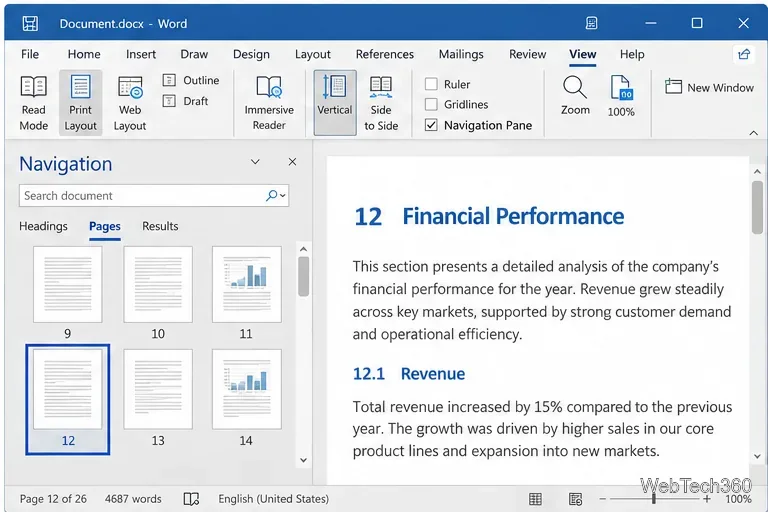
If you would rather see page thumbnails before choosing a destination, use Word's Navigation pane on Windows. Press Ctrl+F, or open View > Navigation Pane. Then select Pages and choose a thumbnail. Word highlights the current page in the pane as you move through the document.
The Pages view is useful when you recognize a page by its layout rather than its number.
Microsoft documents this behavior for Word for Windows, including Word with a Microsoft 365 subscription. The company notes that the Navigation pane behaves differently in Word for Mac and Word for the web. See Microsoft's Navigation pane guide.
Which page-navigation method should you use?
Method
Best for
Shortcut or path
Go To an exact page
You know the page number
Ctrl+G or F5 on Windows
Relative Go To
You want to move a set number of pages
Ctrl+G, then +N or -N
Navigation pane
You want visual page thumbnails
Ctrl+F or View > Navigation Pane
If Go To does not land where you expect
Remember that Word's displayed page count depends on document layout. Margins, paper size, fonts, paragraph spacing, images, section breaks, and printer-related pagination can change where content falls. If another person edited the file or you changed the layout, a passage that used to be on page 12 may now be on a different page.
Also check which Word version you are using. The shortcuts above are for the desktop Word apps documented by Microsoft. In Word for the web, keyboard behavior differs; for example, Microsoft's web shortcut list uses Ctrl+F or Ctrl+G for finding text in Editing view rather than documenting Ctrl+G as the desktop Go To dialog. If the exact desktop command is unavailable, use the web app's search and navigation controls instead.
Quick answer
To go to a page in Word for Microsoft 365 on Windows, press Ctrl+G (or F5), select Page, type the page number, and press Enter. To move relative to your current page, enter a value such as +3 or -2. For visual navigation, open the Navigation pane and select Pages.