Home
» MS OFFICE
»
How to Add a Character Limit to Cells in Excel
How to Add a Character Limit to Cells in Excel
How to Add a Character Limit to Cells in Excel
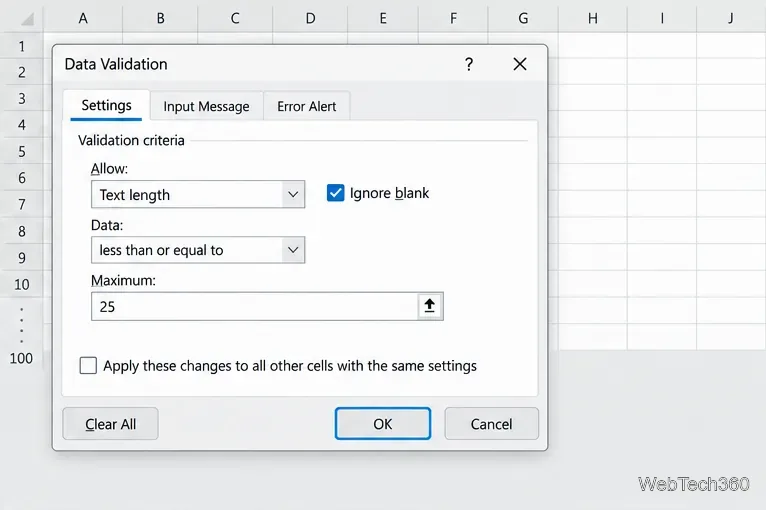
Use Data Validation to limit how many characters someone can enter in an Excel cell. The Text Length rule can require a minimum, set a maximum, enforce an exact length, or keep entries within a range. For example, to cap a name field at 25 characters, apply the rule to the input cells and choose “less than or equal to 25.”
Select the cells that will receive the character limit, then open Data Validation from the Data tab.
Set a text-length rule
The following steps use the Excel desktop ribbon. Select the full range where people will type, such as B2:B100, before opening the rule. Selecting the header too can restrict labels or other content that should not be validated.
Choose the target cells, column, or range. To apply a rule to a whole column, select only the entry cells if the top row contains a heading.
Open Data > Data Validation. In some Excel layouts, the command appears in the Data Tools group.
On the Settings tab, choose Text Length from Allow. Leave Ignore blank selected if empty cells are allowed.
Choose a condition from Data, enter the character count or counts, and select OK.
For a 25-character maximum, choose Text Length, less than or equal to, and enter 25.
Pick the condition that matches the field requirement:
Requirement
Data condition
Example
Maximum length
Less than or equal to
25 characters or fewer
Minimum length
Greater than or equal to
At least 5 characters
Exact length
Equal to
Exactly 10 characters
Length range
Between
5 to 15 characters
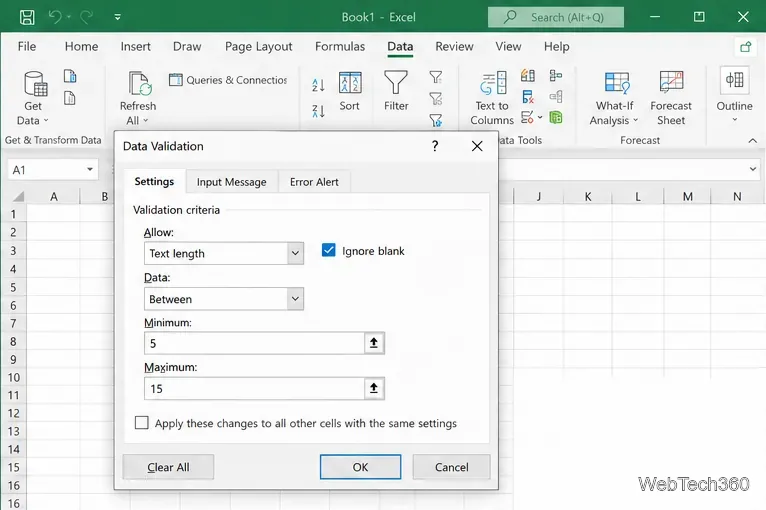
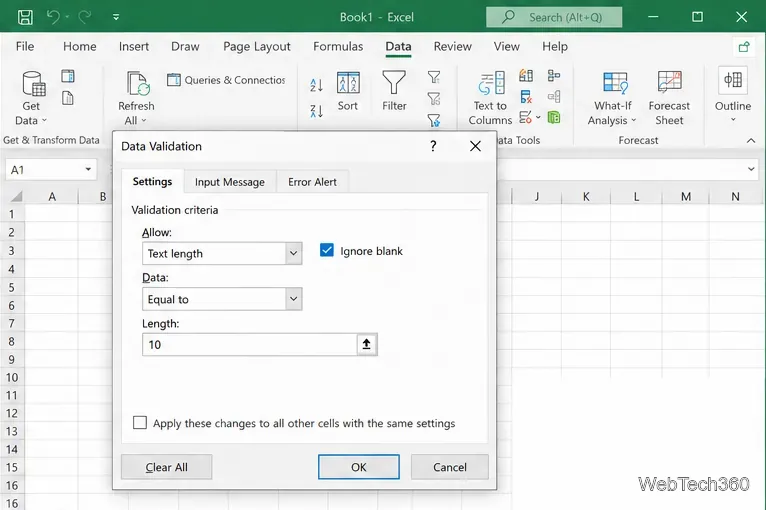
For a range, enter both a minimum and maximum. For an exact length, select Equal to and type one number. The examples below show a 5-to-15-character range and an exact 10-character rule.
Use Between when entries need both a minimum and a maximum length.Use Equal to when every entry must have the same number of characters.
A maximum-only rule does not make a field required. If a user must enter something, set a minimum of at least 1 character (or a higher minimum that fits the task). For phone numbers, postal codes, and IDs that may begin with zero, format the cells as Text before entry; a length rule checks the number of characters, not whether the content is a valid phone number or code.
Show an instruction when a cell is selected
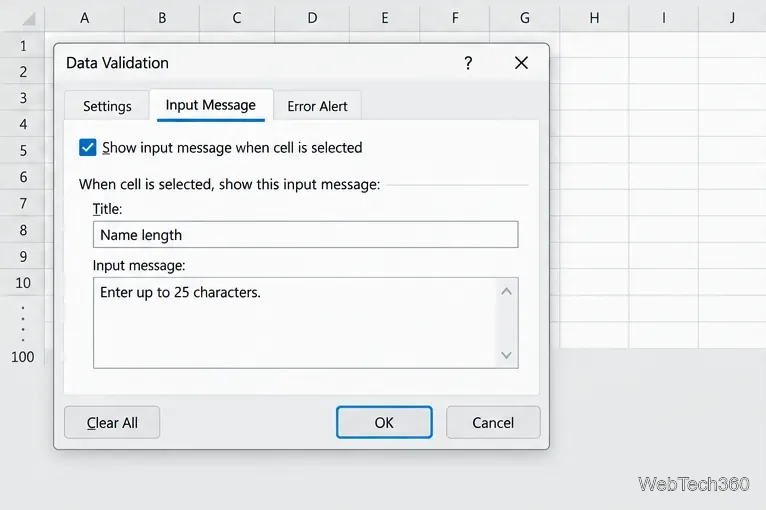
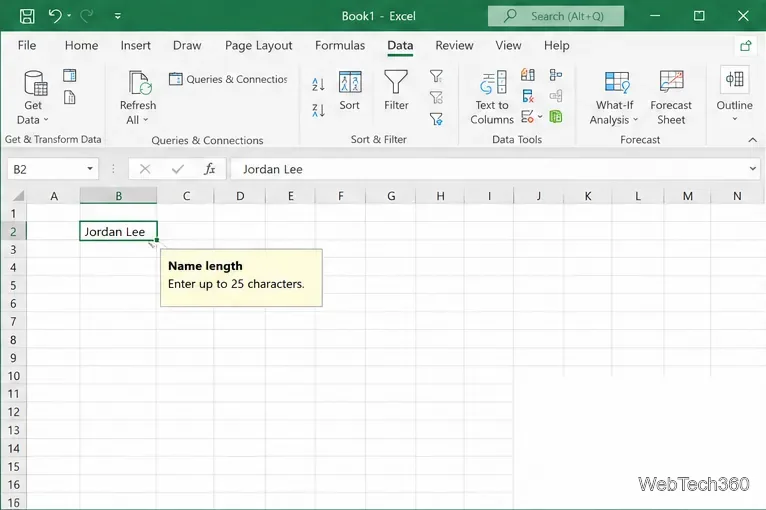
A validation rule is not obvious just by looking at the worksheet. To explain it, select the same cells, open Data > Data Validation, and use the Input Message tab. Check Show input message when cell is selected, add a short title, and write the instruction. For example, “Name length” and “Enter up to 25 characters.” Then select OK.
Write a short input message that states the limit and any other requirement.The prompt appears beside the cell when a user selects it.
Customize the error alert
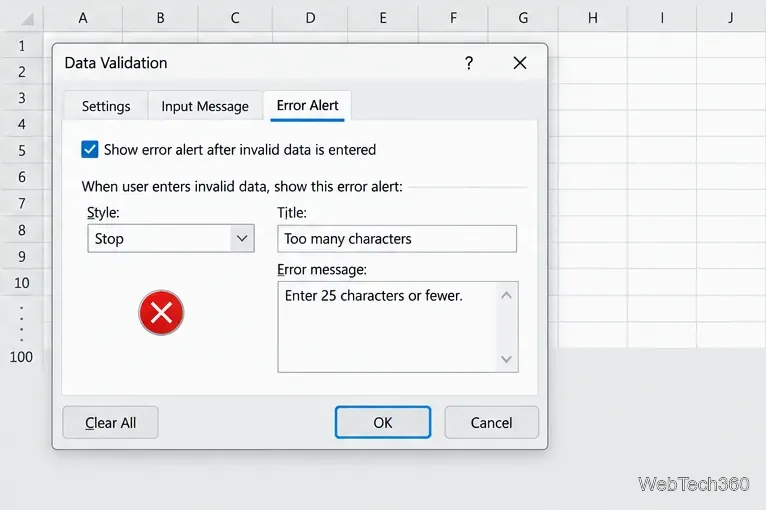
On the Error Alert tab, keep Show error alert after invalid data is entered checked. Enter a clear title and message, such as “Too many characters” and “Enter 25 characters or fewer.” Choose Stop if Excel should block a typed entry that breaks the rule. The Warning and Information styles tell users about invalid input but allow them to continue.
A Stop alert blocks an invalid value typed directly into the validated cell.
Test the rule and check existing data
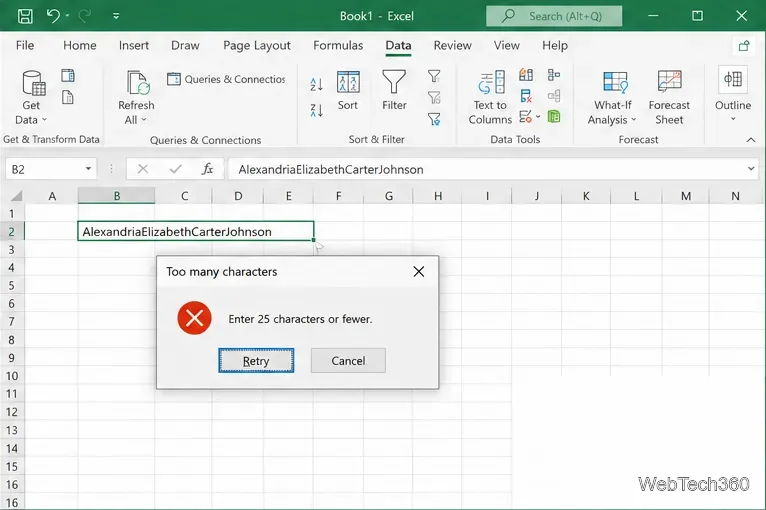
After selecting OK, type a value within the limit and then try one that exceeds it. Confirm the prompt appears when the cell is selected and the Stop alert appears for the overlong entry. In the alert, choose Retry to edit the value or Cancel to discard the entry.
The customized alert explains why the overlong entry was rejected.
Data Validation does not automatically flag values that were already in the cells when you added the rule. To audit a column, use =LEN(B2) in a spare column and fill the formula down; Excel’s LEN function counts spaces, including spaces after the last visible character. You can also select the cells and choose Data > Data Validation > Circle Invalid Data to mark existing entries that do not meet the rule.
Validation is a helpful guard for ordinary typing, but it is not a security check: copying, pasting, or filling cells can bypass the entry alert. Check imported or pasted data separately if the length requirement is critical. If Data Validation is unavailable, finish editing the current cell first; a protected sheet or shared workbook can also prevent changes. For more on supported settings and troubleshooting, see Microsoft’s instructions for applying data validation and its data validation guidance.
If you only need to inspect counts, use =LEN(B2). Microsoft explains the LEN function for counting characters. Excel cells can hold up to 32,767 characters, but a validation rule is useful for enforcing a much smaller field-specific limit; see Microsoft’s Excel specifications and limits.