Home
» MS OFFICE
»
How to Use Microsoft Editor in Word for Microsoft 365
How to Use Microsoft Editor in Word for Microsoft 365
Quick answer: In Word for Microsoft 365, open a document, go to the Home tab, and select Editor. The Editor pane groups potential problems into spelling, grammar, and writing refinements so you can review suggestions one at a time. On Windows, pressing F7 also starts a spelling and grammar check.
You do not need to repeatedly close and reopen Word or perform any old “Office 365 to Microsoft 365” conversion trick. That advice is obsolete. Microsoft 365 is the current product name, and Editor is built into supported versions of Word.
What Microsoft Editor checks in Word
Microsoft Editor analyzes text for spelling and grammar and can also suggest style improvements such as clarity, conciseness, formality, and vocabulary. The exact set of refinements depends on your Word version, subscription, and proofing language. Microsoft notes that not every language supports the same grammar and refinement features.
How to use Microsoft Editor in Word for Microsoft 365
1. Open the Editor pane
Open an existing Word document or create a new one.
Select the Home tab on the ribbon.
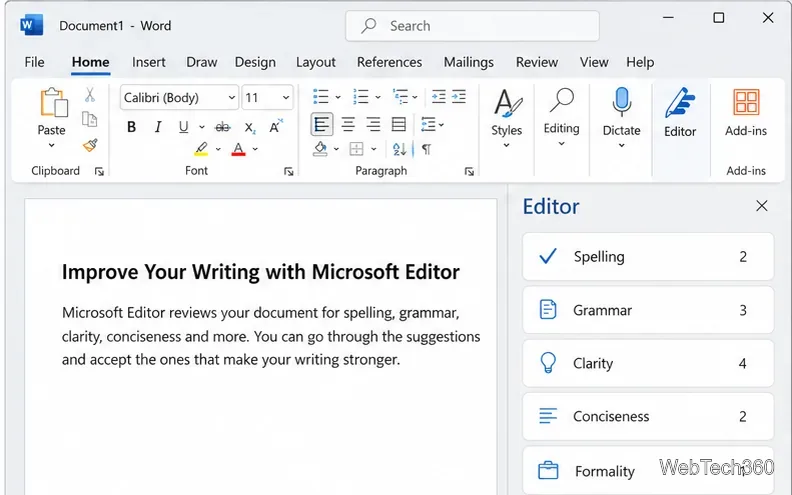
Select Editor. Word opens the Editor pane beside your document.
The Editor command is available from the Home tab in Word for Microsoft 365.
Editor also works while the pane is closed. Word can underline potential spelling, grammar, and style issues as you type, so you do not have to wait until the document is finished before checking it.
2. Choose the type of issue you want to review
The Editor pane organizes findings into categories. Under Corrections, you may see spelling and grammar. Under Refinements, Word can show categories such as clarity or conciseness when they are available for your language and account.
Select a category in the Editor pane to focus on one type of correction or refinement.
Select any category to move through its suggestions. This is useful when you want to handle obvious spelling errors first, then review stylistic changes separately instead of accepting everything at once.
3. Accept, ignore, or inspect each suggestion
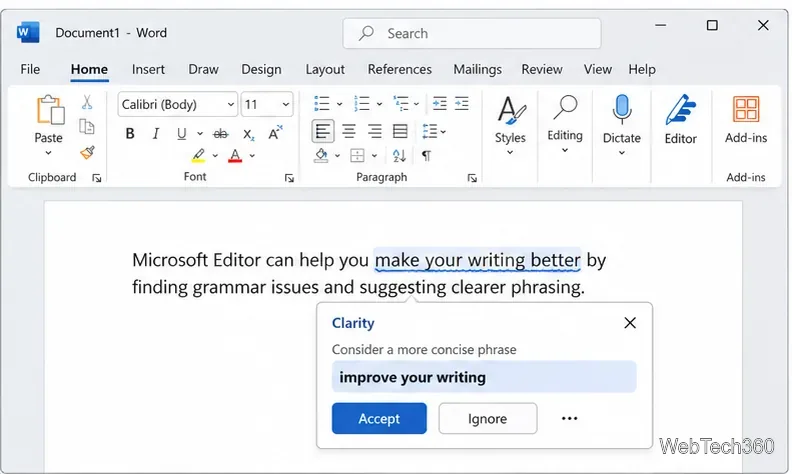
When Editor flags text, select the underlined word or phrase, or open the relevant category in the Editor pane. Word can offer a replacement and actions such as Accept or Ignore Once. Some suggestions also provide an option to stop checking for that type of issue.
Review each suggestion before applying it; style recommendations are not always appropriate for every sentence.
Treat style suggestions as recommendations rather than automatic corrections. A shorter or more formal phrase may improve business writing but be wrong for dialogue, technical terminology, or a deliberate writing style. If you ignore an issue and later want Word to find it again, Microsoft says reopening the document and returning to Editor can make the issue available for review again.
4. Customize what Word checks
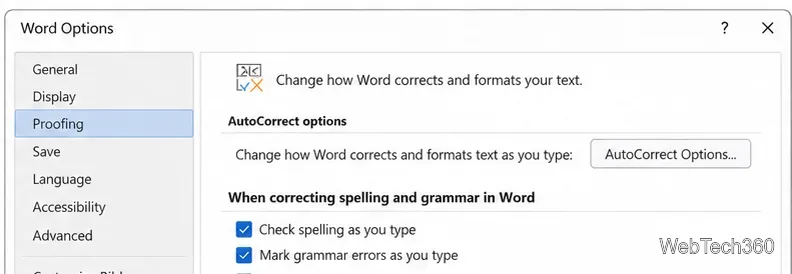
If Editor is flagging too much or too little, adjust the proofing rules. In the Editor pane, Microsoft documents a path through Grammar, the More options menu, and Customize suggestions. In Word for Windows, automatic proofing controls are also available under File > Options > Proofing, where you can turn options such as Check spelling as you type and Mark grammar errors as you type on or off.
Word’s Proofing settings control whether spelling and grammar checks run automatically as you type.
Change the proofing language when Editor checks the wrong language
If Editor is marking correctly spelled words as errors, the text may be assigned the wrong proofing language. Select the affected text, then go to Review > Language > Set Proofing Language and choose the correct language. For multilingual documents, Word can check more than one language, but the available refinements differ by language.
If Microsoft Editor is missing or not showing suggestions
Sign in to Word. Some Editor capabilities depend on your Microsoft account and Microsoft 365 subscription.
Check your internet connection. Editor uses Microsoft online services for advanced writing assistance.
Verify the proofing language. Unsupported or incorrectly assigned languages can limit what Editor shows.
Check automatic proofing settings. In Word for Windows, open File > Options > Proofing if spelling or grammar marks are not appearing.
Expect feature differences. Advanced refinements are not identical across every language, platform, or account type.
Microsoft Editor in Word for the web
The workflow is similar in Word for the web: open the Home tab and select Editor. Microsoft says a free Microsoft account includes basic spelling and grammar checks in Word for the web, while a Microsoft 365 account adds more advanced refinements. If you switch between desktop Word and the web version, the exact layout can differ, but the core review process remains the same.