Home
» MS OFFICE
»
How to Change the Language in Office 365 (Microsoft 365)
How to Change the Language in Office 365 (Microsoft 365)
Office 365 (now generally branded Microsoft 365) lets you change the language used by its apps. On Windows, open Word, Excel, or PowerPoint and go to File > Options > Language. For the web, use Microsoft 365 settings or your account profile. Display language, proofing language, and keyboard input are separate; changing one does not automatically change the others.
Change the display language in desktop Office on Windows
Open Word, Excel, or PowerPoint and select File.
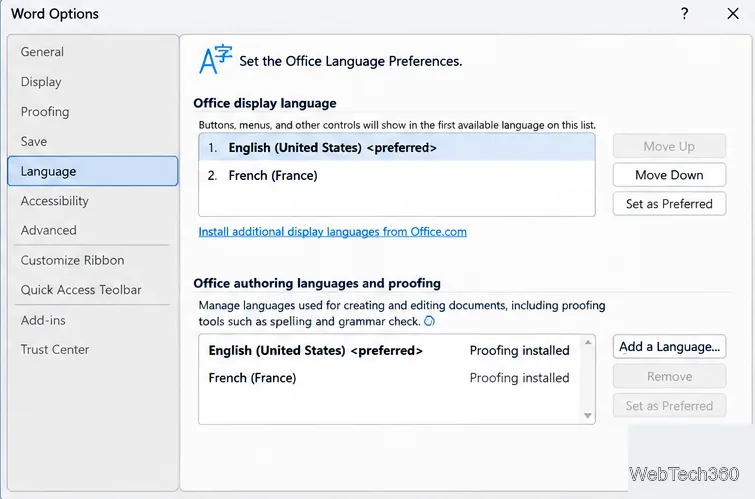
Select Options > Language.
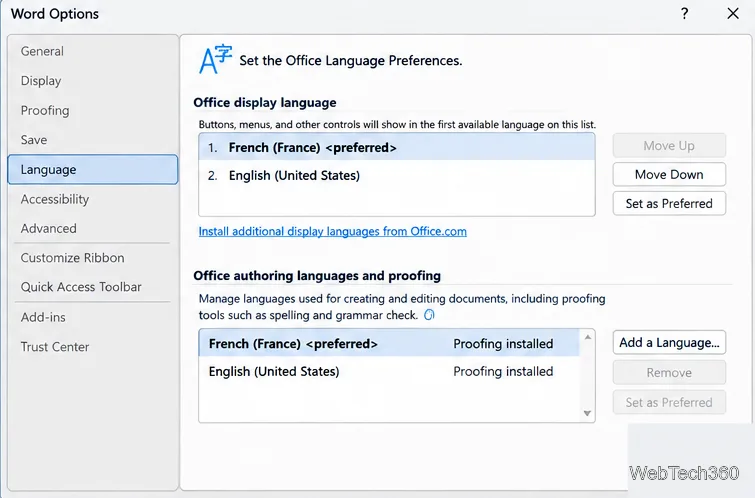
Under Office display language, choose your language and select Set as Preferred. To match Windows, choose Match Microsoft Windows when that option is available.
The display-language list controls menus, buttons, dialog boxes, and other interface text. The authoring-language list below it controls writing and proofing, so adding a language there alone will not change the app menus.
If the language is not listed
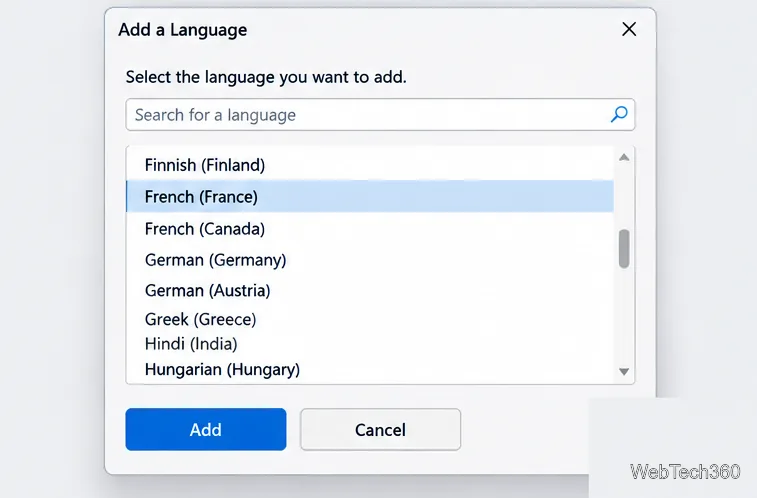
Under Office display language, select Add a Language, choose the language, and add it to the list.
If Office requires additional files, download the matching language accessory pack from Microsoft's Language Accessory Pack for Microsoft 365 page. Choose the correct language and the 32-bit or 64-bit download that matches your Office installation, run the installer, and follow its prompts. Avoid third-party download sites.
Return to File > Options > Language, set the new language as preferred, then close and reopen your Office apps.
Some language packs are only partially localized, so a few controls may remain in another language. If your organization manages Office, ask IT to install the pack if you cannot do it yourself.
Set the writing and proofing language separately
Changing the interface language does not automatically change spelling and grammar checks. In desktop Office, open File > Options > Language. Under Office authoring languages and proofing, select the language and choose Set as Preferred. If it is missing, select Add a Language in that section.
Proofing installed means the tools are ready. If the status is Proofing available, select the link to install them. If proofing is unavailable, Office may not provide spelling and grammar tools for that language. See Microsoft's guide to Office authoring and proofing languages.
For a single Word document, open Review > Language > Set Proofing Language. Select existing text first—or press Ctrl+A for the whole document—to apply the setting to text already written. You can also enable automatic language detection for documents that mix languages.
Add or switch the keyboard input language in Windows
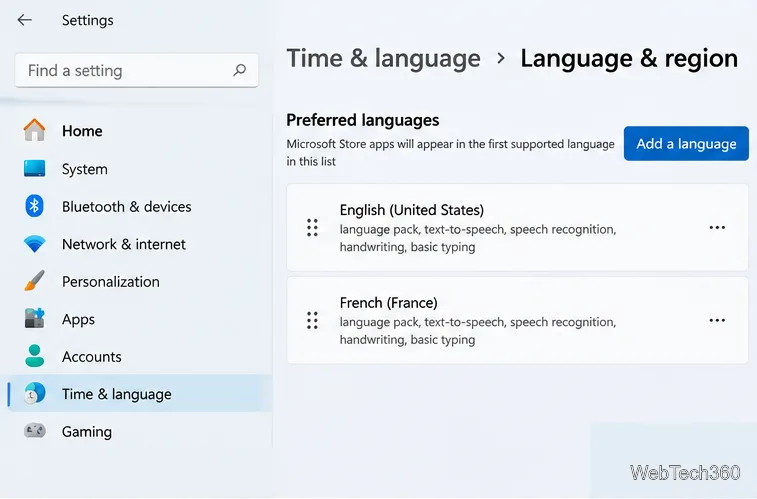
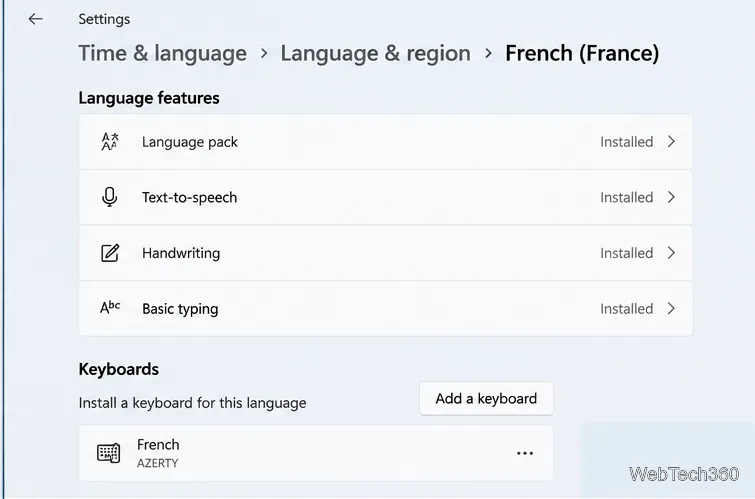
Windows controls which keyboard layout Office uses when you type. On Windows 11, open Settings > Time & language > Language & region, select Add a language, choose the language, and follow the installation steps. On Windows 10, open Settings > Time & Language > Language.
If you only need another keyboard layout, open the three-dot menu beside an installed language, choose Language options, and select Add a keyboard. You do not need to change the Windows display language just to type accented characters or use another layout.
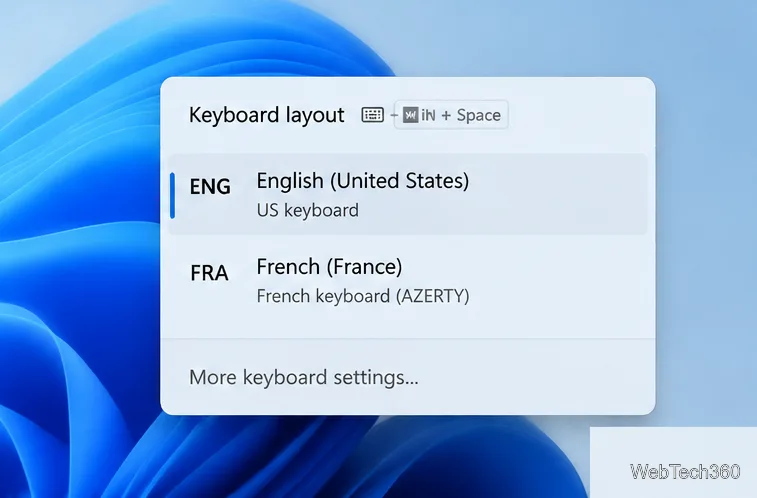
Switch layouts by pressing Windows key + Space and selecting the desired layout, or use the input-language indicator on the taskbar. French AZERTY, for example, places keys differently from US QWERTY, so the characters printed on your physical keyboard may not match what appears. Microsoft's Windows language and keyboard guide covers Windows 11 and Windows 10.
Change the language in Microsoft 365 for the web
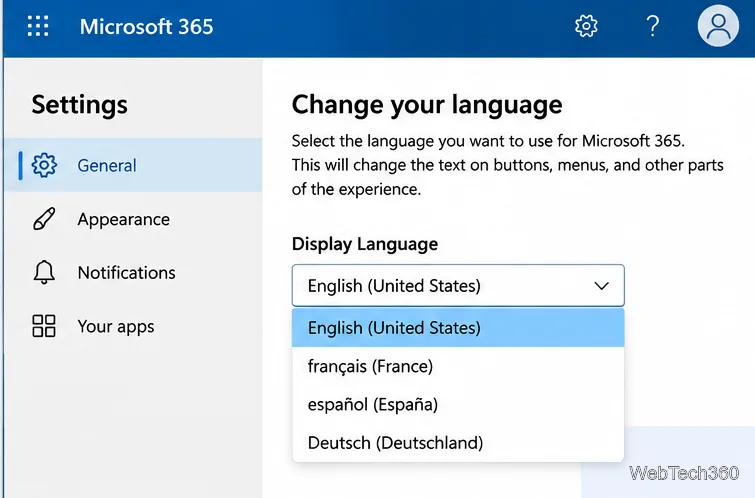
For a work or school account, sign in to Microsoft 365, select Settings (the gear icon), then choose Change your language. Under Display Language, select the pencil icon and choose your language. In some organizations, use Settings > Microsoft 365 settings > Settings > Language and time zone, then select the language and save.
Some web apps can take up to 24 hours to reflect a new work or school language. If the setting is missing, your organization may manage it centrally; contact your administrator. See Microsoft's Microsoft 365 for business language instructions.
For a personal Microsoft account, start with the language preferences in your Microsoft account profile. Office for the web can also follow the language set by the service hosting your files, such as OneDrive or SharePoint, so check that service's language settings if one site remains unchanged.
On a Mac
Office for Mac generally follows macOS's primary language. Open Apple menu > System Settings > General > Language & Region, move your preferred language to the top, then quit and reopen Office. Recent macOS versions also let you choose a language for an individual app in the Applications section of Language & Region. See Apple's Language & Region guide.
If the language does not change
Restart desktop Office apps after changing the display language.
Make sure the language is preferred under Office display language, not only under authoring and proofing.
Install the official language accessory pack if Office says the display language is unavailable.
For web apps, allow time for the setting to update or ask your administrator whether changes are restricted.
Choose the setting that matches the problem: display language changes Office menus, proofing language changes spelling tools, and the operating system's input source changes how keystrokes are entered.