Home
» MS OFFICE
»
How to Change the Microsoft Word Background Color or Add an Image
How to Change the Microsoft Word Background Color or Add an Image
To change a Word document’s page background, open Design > Page Color and choose a color. To use a picture, open Design > Watermark > Custom Watermark, select Picture Watermark, and choose an image. These are document page settings, so they normally affect every page. If you only want a darker screen for reading, use Word’s separate Dark Mode controls instead.
The steps below are for desktop Word for Microsoft 365, Word 2024, 2021, or 2019. Ribbon placement can vary by platform and version; on some Mac builds, Page Color or Watermark may be under Layout.
Change or remove the page color
Open the document and select Design > Page Color. If you do not see it, check the Layout tab.
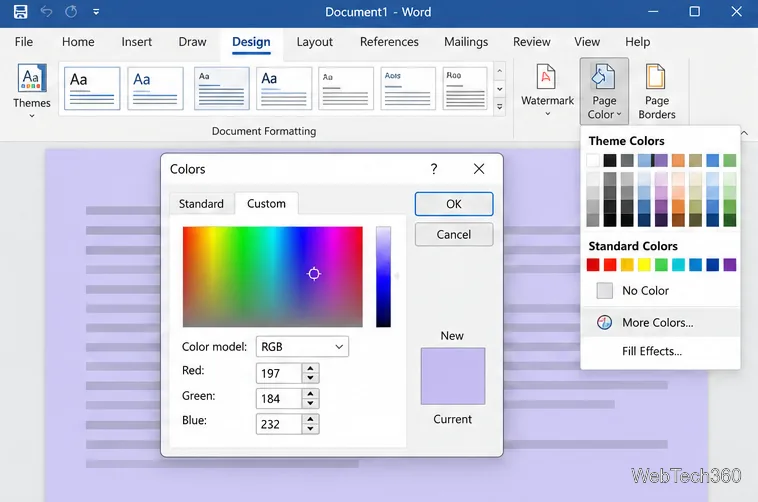
Choose a swatch under Theme Colors or Standard Colors. Select More Colors to choose a custom shade.
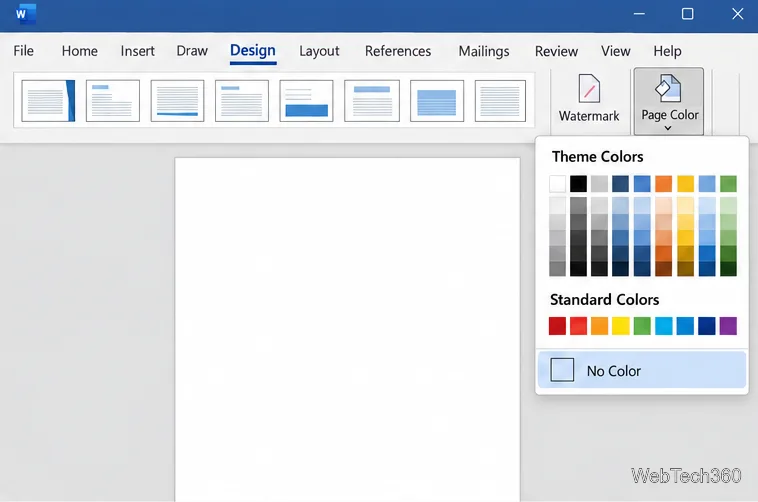
To return the page to its default background, select Page Color > No Color.
The page color applies throughout the document. It does not recolor the text, so check that the text remains easy to read against your chosen shade. A pale tint is usually easier to read and less expensive to print than a full dark background.
Illustrative interface: choose a swatch from the Page Color palette.
For a specific shade, choose More Colors and use the color picker. The dialog may show different controls on Windows and Mac, but the result is still a page color. Select No Color if you want Word to use the normal page background again.
Illustrative interface: the custom color dialog lets you choose a specific shade.Illustrative interface: No Color removes a page color applied through Page Color.
Add a picture background
A picture watermark is the straightforward way to place an image behind text across a document. Microsoft documents this option for desktop Word on Windows and Mac. Use a high-resolution image with a simple composition; a busy or dark image can make paragraphs difficult to read.
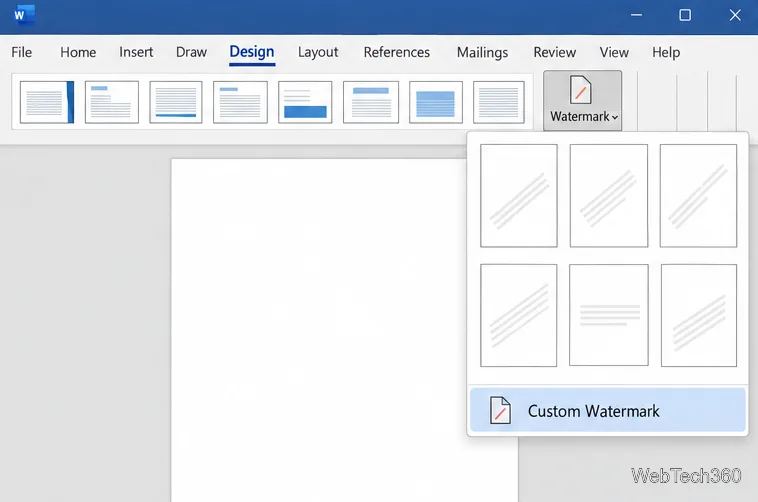
Select Design > Watermark > Custom Watermark. If your ribbon places Watermark under Layout, use that tab instead.
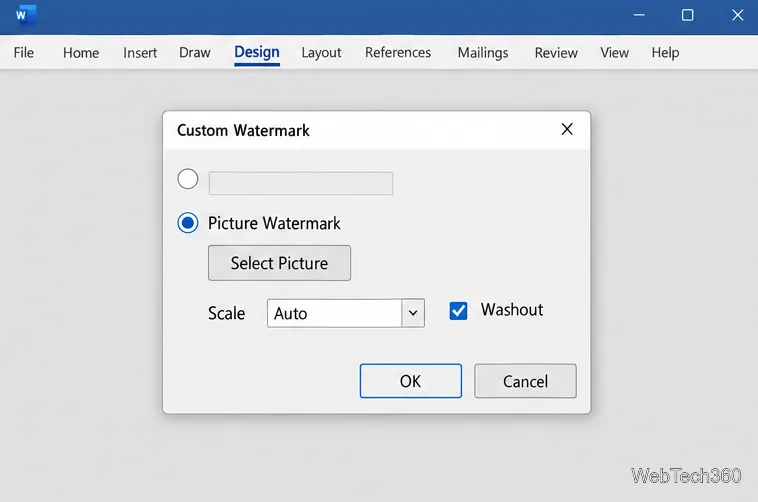
In the dialog, choose Picture Watermark, then select Select Picture and open the image file you want.
Keep Scale at Auto to start. Leave Washout checked for a faded image behind readable text; clear it when you need stronger color. Select OK.
Illustrative interface: open Custom Watermark from the Watermark menu.Illustrative interface: choose a picture and adjust its scale and washout before applying it.
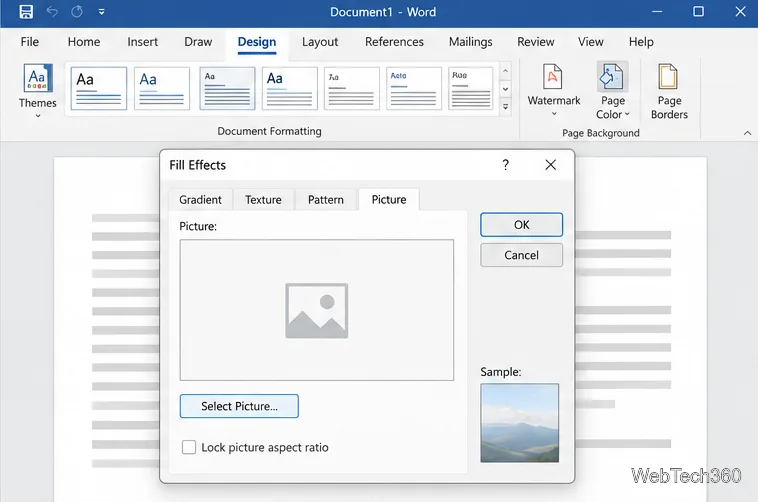
The image watermark is designed to repeat across the document. To replace or remove it, open Design > Watermark and choose another watermark or No Watermark. For a page-fill picture instead, choose Design > Page Color > Fill Effects > Picture > Select Picture. That route is useful when you want a picture as the page fill; the available dialog can differ by Word version.
Illustrative interface: the Picture tab in Fill Effects offers another way to use an image as a page fill.
Make the background print
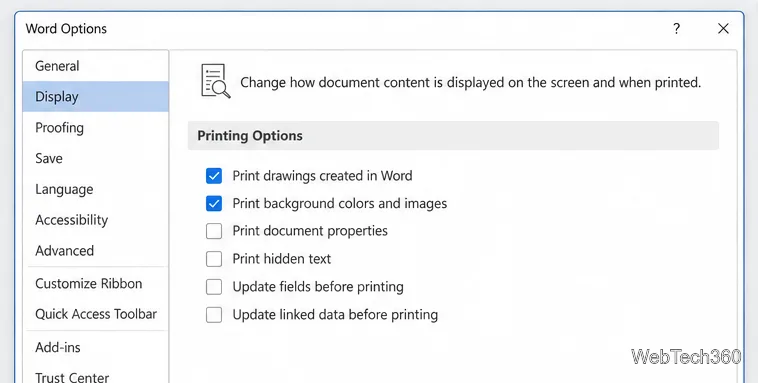
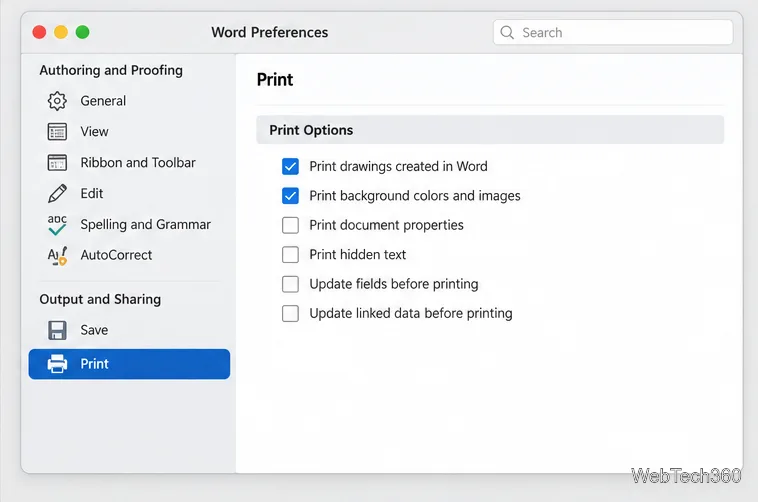
A background visible on screen may be omitted from printouts until the print option is enabled. In desktop Word for Windows, go to File > Options > Display, then under Printing Options check Print background colors and images. On Mac, choose Word > Preferences > Output and Sharing > Print, then check the same option under Print Options. Return to File > Print and review the preview before printing.
Illustrative interface: enable background printing in Word for Windows.Illustrative interface: enable background printing in Word for Mac.
Printing a full-page color or photo can use substantial color ink, and many printers cannot print to the paper’s very edge. If you are using colored paper, you may not need a digital page color at all. Check the print preview and, for an important document, test one page first.
Use a background on only one page
Page Color and the standard picture watermark are document-wide choices. For a one-page watermark, click where it should appear, open Design > Watermark, right-click a gallery watermark, and choose Insert at Current Document Position. Word inserts that watermark as a text box.
For a full-page picture on one page, insert the picture on that page, open Layout Options, and choose Behind Text. Resize it with a corner handle and position it carefully. A floating picture is anchored to a paragraph and can shift when nearby text changes, so review the layout after editing. Microsoft explains picture wrapping and positioning in its Word picture layout guide.
If you only want a dark screen
Dark Mode changes how Word displays a page for you; it does not set a saved page color or change the print background. In desktop Word, use View > Switch Modes to toggle the page between dark and light while Dark Mode is on. In Word for the web, use View > Switch Backgrounds. Microsoft notes that Dark Mode is a personal view preference and the document prints with its light page color. See Microsoft’s Dark Mode guide if you want to adjust that setting.