To auto-forward emails in Outlook 365, the quickest method is to open Settings > Mail > Forwarding, turn on forwarding, enter the destination address, and save. Use an Outlook rule instead if you only want to forward messages from certain senders or messages that match specific conditions.
Auto-forward all emails in Outlook 365
In the new Outlook for Windows and Outlook on the web, Microsoft provides a dedicated forwarding setting. Microsoft documents the current path in its official automatic forwarding guide.
- Open Outlook and select the Settings gear.
- Go to Mail > Forwarding. You may be asked to sign in again before these settings are shown.

Open Mail settings and choose Forwarding.
- Turn on Enable forwarding.
- Enter the email address that should receive your incoming mail.
- If you also want messages to remain in the original mailbox, select Keep a copy of forwarded messages.
- Select Save.
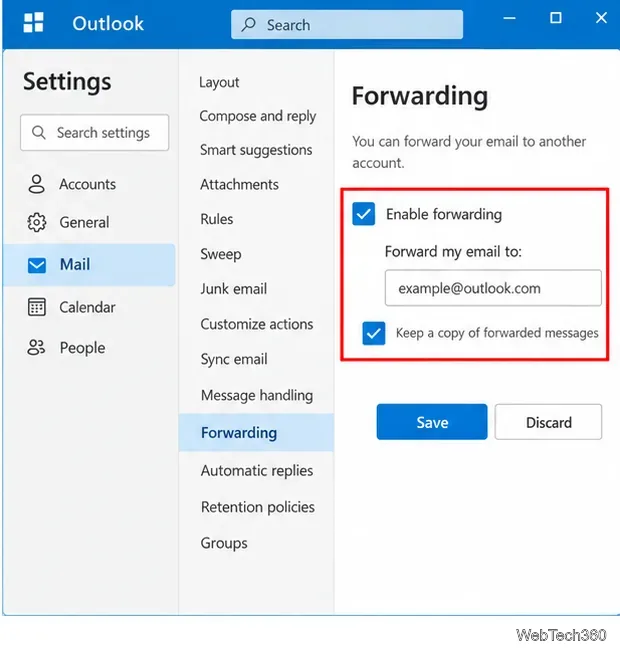
Enable forwarding, enter the destination address, and choose whether Outlook should keep a copy.
This method is best when you want every incoming message sent to the same account. To stop it later, return to Settings > Mail > Forwarding, disable forwarding, and save.
Auto-forward only selected emails with a rule
Rules are more flexible because they can forward only the messages that match conditions such as the sender, subject, or other message properties. Microsoft lists Forward to, Forward as attachment, and Redirect to as available forwarding actions in current Outlook rules. See Microsoft's rule-based forwarding instructions.
- Open Settings > Mail > Rules.
- Select Add rule.
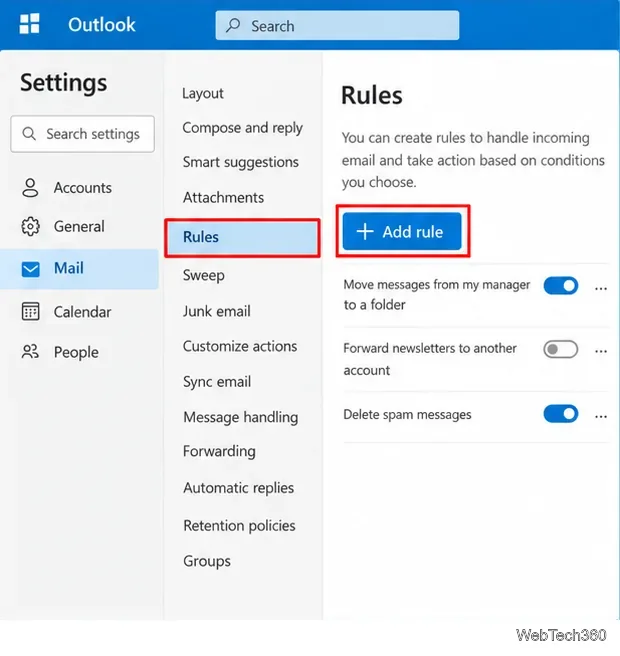
Use Mail > Rules when only certain incoming messages should be forwarded.
- Give the rule a clear name, such as Forward invoices.
- Choose a condition. For example, select a sender if you only want messages from one person forwarded. Choose Apply to all messages only if the rule should affect everything.
- Under actions, choose Forward to and enter the recipient. Add another action or an exception if needed.
- Use Stop processing more rules only when you do not want later rules to run after this rule matches.
- Select Save.
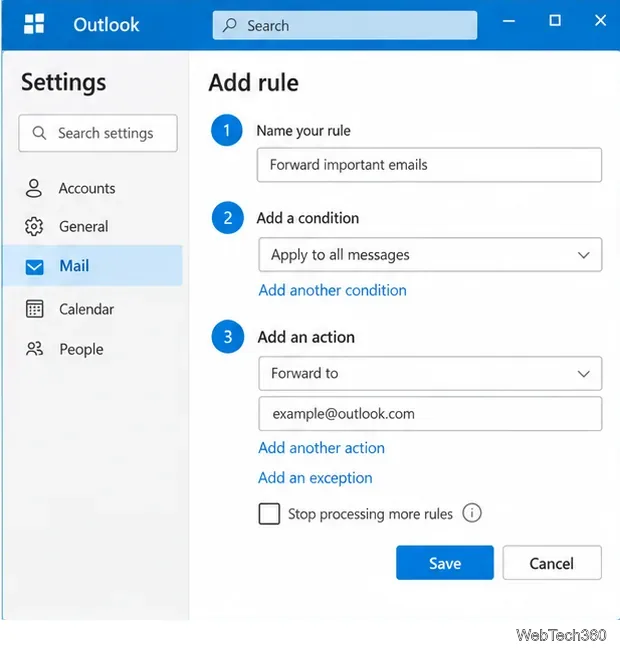
A forwarding rule can use conditions, forwarding actions, exceptions, and rule-order controls.
Forward versus redirect: what is the difference?
Forward and redirect are not identical. With forwarding, the message appears to have been forwarded by you, so replies go to the address the message was forwarded from. With redirection, the message appears to come from the original sender, so replies go back to that sender. If preserving the original sender is important, choose Redirect to in a rule instead of Forward to.
What about classic Outlook?
Classic Outlook for Windows uses the Rules wizard instead of the newer Mail > Forwarding screen for automatic forwarding. Go to Home > More commands > Rules > Manage Rules & Alerts, select New Rule, choose Apply rule on messages I receive, set conditions if needed, then select a forwarding or redirect action and finish the rule.
If external forwarding does not work
Work and school Microsoft 365 accounts can be subject to organization-wide security policies. Microsoft says administrators can block automatic forwarding to external recipients through outbound spam policies. When that policy blocks an automatic external forward, Exchange Online can return error 5.7.520 stating that the organization does not allow external forwarding. Internal forwarding within the organization is not affected by that particular setting. Microsoft's Exchange Online guidance on external forwarding explains these controls.
If forwarding to an outside address fails, confirm the destination address, test with a new message, check the receiving account's Junk or Spam folder, and contact your Microsoft 365 administrator if the account is managed by an organization. Do not try to bypass company policy, especially when messages may contain confidential or regulated information.
How to forward one message manually
If you do not need automation, select the message, choose More actions > Forward in Outlook on the web, enter the recipient, add any note you want, and send it. Manual forwarding is also the safer choice when only occasional messages should leave a work mailbox.








