Home
» MS OFFICE
»
How to Add Contacts to Outlook on Web, Windows, and Mobile
How to Add Contacts to Outlook on Web, Windows, and Mobile
To add contacts to Outlook, open People, choose New contact, enter the person’s details, and save the record. You can also create a contact directly from an email sender’s profile card. The exact save button differs by Outlook version, so use the section below that matches what you see.
Add a contact in Outlook on the web or new Outlook
In Outlook on the web and the new Outlook for Windows, contacts are managed from the People area. A saved contact can include a name, email address, phone numbers, company, job title, address, birthday, notes, and other fields. Microsoft’s current contact guidance is available on its Outlook contacts support page.
Open People in Outlook, then choose New contact to start a new contact record.
Open Outlook and select People from the navigation pane.
Select New contact.
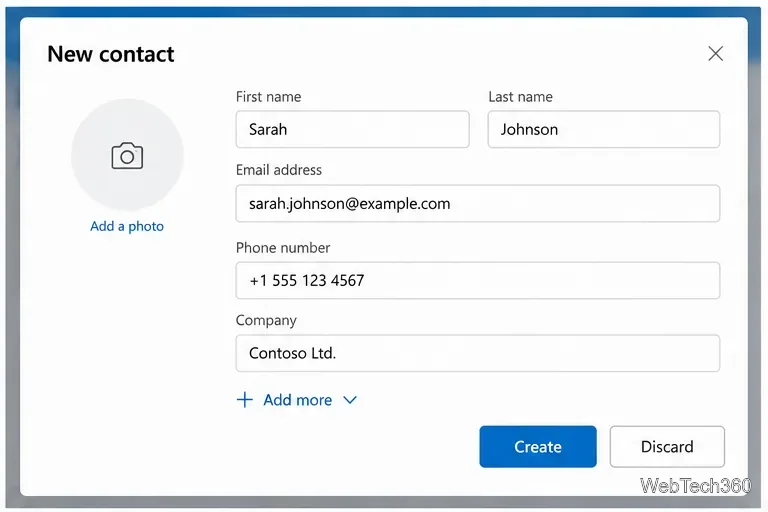
Enter the person’s name and email address, then add any useful phone, company, address, or other details.
Select Add more if you need fields that are not shown initially.
In Outlook on the web or Outlook.com, choose Create. In new Outlook for Windows, the button may be labeled Save.
Fill in the contact details you want to keep, then create or save the contact.
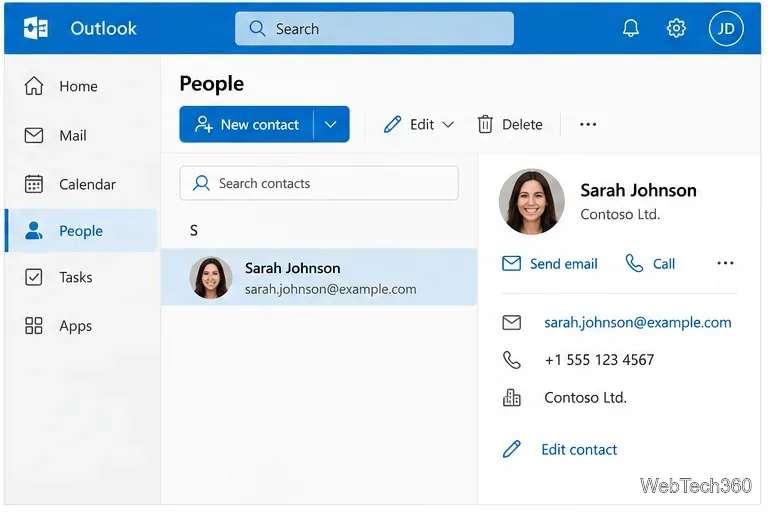
The contact will appear in your contacts list for the account and contact folder you selected. If you use more than one account, pay attention to which account or folder is active before you create the contact.
After saving, the contact appears in People and can be edited later.
Add a contact directly from an email
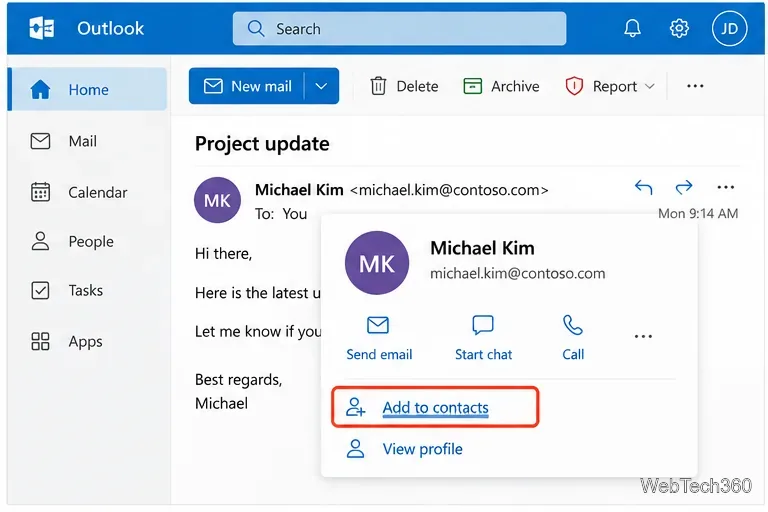
If someone has already emailed you, you do not need to type their email address again. Open the message, select the sender’s name or picture to open the profile card, and choose Add to contacts. Add any extra details you want, then save the contact. This is also useful when Outlook already suggests an address while composing mail but you want a full contact record that is easier to find and edit.
Open a sender’s profile card and choose Add to contacts to save that person from an email.
Add a contact in classic Outlook for Windows
Classic Outlook uses a different contact form from new Outlook. If your desktop app has the traditional ribbon interface, use these steps:
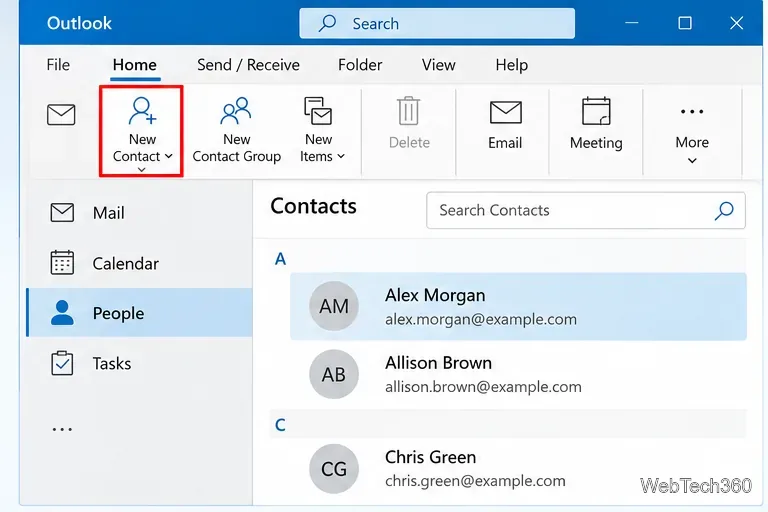
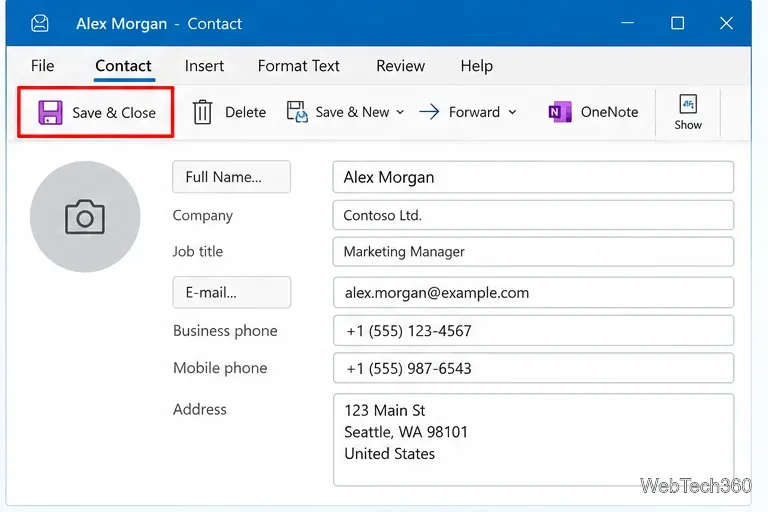
In classic Outlook, switch to People and choose New Contact from the ribbon.
Open Outlook and select People.
Choose New Contact.
Enter the contact information you want to keep.
Select Save & Close.
Classic Outlook saves the contact when you choose Save & Close.
You can also add someone from a message in classic Outlook by opening the person’s profile card or using the name on the From, To, Cc, or Bcc line, then choosing the option to add that person to Outlook Contacts.
Add and sync contacts in Outlook on iPhone or Android
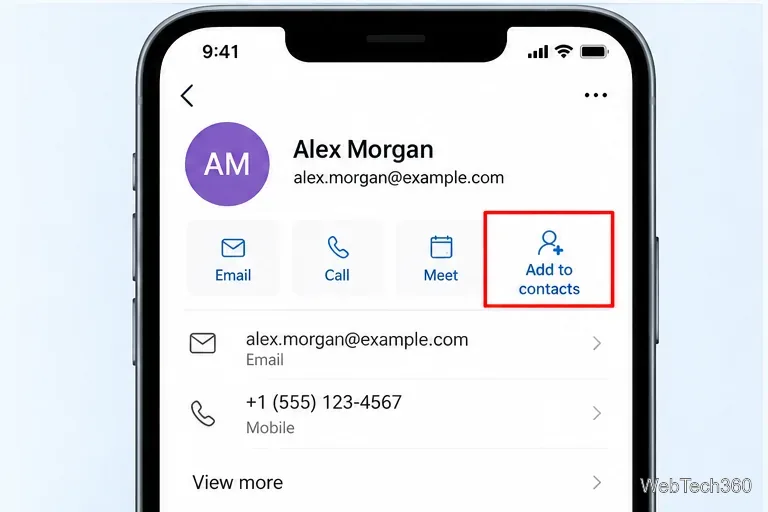
Outlook mobile can show contact cards and, for supported accounts, lets you add or edit contacts associated with your Microsoft account. Open a person’s contact card from a message or the People area and use Add to contacts or New contact when that option is available.
On Outlook mobile, a contact card can offer Add to contacts for supported accounts.
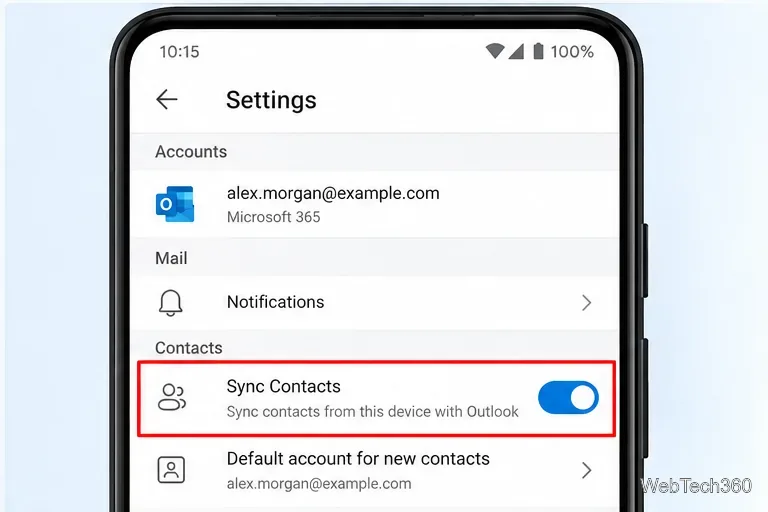
Saving contacts in Outlook is separate from making those contacts available to the phone’s built-in address book. Microsoft documents the following account setting:
Android: Outlook Settings > choose the account > turn on Sync Contacts.
iPhone/iPad: Outlook Settings > choose the account > turn on Save Contacts.
Use the account-level contact sync setting if you want Outlook contacts available in the phone address book.
Microsoft says contact-sync behavior varies by account type. Microsoft 365, Outlook.com, and supported hybrid Exchange configurations have broader sync support, while legacy Exchange can be more limited. Gmail and iCloud contact sync are not supported through this Outlook setting. See Microsoft’s Outlook mobile contact sync guidance for the current details.
Import many contacts at once
If you have dozens or hundreds of contacts, creating them one by one is inefficient. Outlook can import contacts from a CSV file. In new Outlook or Outlook on the web, go to People, choose Manage contacts, then Import contacts. Select your CSV file and start the import. Microsoft recommends UTF-8 encoding so names and characters from different languages import correctly. The full steps are in Microsoft’s CSV contact import and export guide.
What to check if a contact does not appear
Make sure you are viewing the same Outlook account and Contacts folder where you saved the person.
Search in People by name or email address instead of relying only on autocomplete suggestions.
If you recently moved from classic Outlook to new Outlook, locally stored classic Outlook contacts may need to be exported to CSV and imported into new Outlook.
On mobile, check the account’s Save Contacts or Sync Contacts setting if you expect the contact to appear in the phone’s native Contacts app.
For most users, the fastest method is simple: open People, create the contact, and save it. When the person has already emailed you, adding them from the sender profile card is usually even quicker.