Home
» MS OFFICE
»
How to Add an RSS Feed to Outlook 365 in Classic Outlook
How to Add an RSS Feed to Outlook 365 in Classic Outlook
If you use classic Outlook for Windows with Microsoft 365, adding an RSS feed is straightforward: right-click RSS Subscriptions in the folder pane, choose Add a New RSS Feed, paste the feed URL, then select Add and confirm. Microsoft notes that the new Outlook for Windows does not support RSS feeds, so these steps apply only to classic Outlook. See Microsoft's current RSS subscription instructions for Outlook.
Before you add an RSS feed
You need two things: classic Outlook for Windows and the direct URL of the RSS or Atom feed you want to follow. The feed address is not always the same as the site's home page. Look for an RSS icon or a link labeled RSS, Feed, or XML. If clicking that link opens a page of XML, copy the URL from the browser's address bar.
If you are using the new Outlook interface and cannot find an RSS Subscriptions folder or RSS options, that is expected. Microsoft currently states that new Outlook cannot add, remove, or retrieve RSS feed content.
How to add an RSS feed to Outlook 365
Open classic Outlook and go to Mail. In the folder pane on the left, find RSS Subscriptions or RSS Feeds. The wording can vary by Outlook configuration.
Right-click the RSS folder. Choose Add a New RSS Feed.
Right-click the RSS Subscriptions folder in classic Outlook, then choose Add a New RSS Feed.
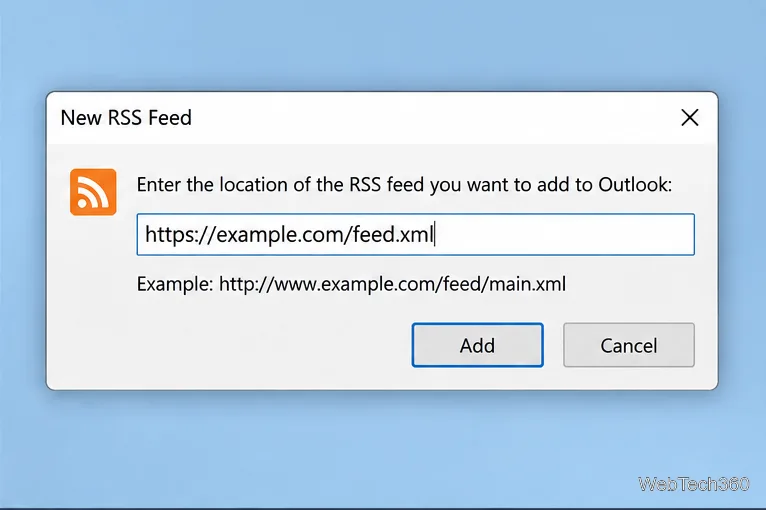
Paste the feed URL. In the New RSS Feed dialog, enter the direct RSS or Atom address. A typical feed URL may end in .xml or use a path such as /feed/, but the exact format depends on the publisher.
Select Add and confirm. Outlook validates the address and subscribes to the feed. If a confirmation or options dialog appears, review it and continue with the default settings unless you have a specific reason to change the delivery folder or download behavior.
Paste the direct feed address into the New RSS Feed dialog and select Add.
Where RSS items appear in Outlook
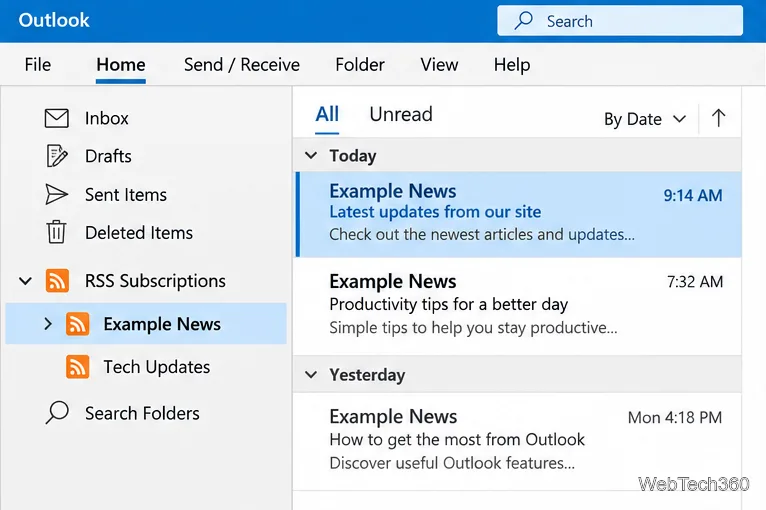
After the subscription is added, expand RSS Subscriptions in the folder pane. Outlook creates a folder for the feed and periodically downloads new posts. Feed items behave much like messages: you can open them, mark them read or unread, search them, and organize the folder using Outlook's normal tools.
Each subscribed feed appears as its own folder, with new posts listed like messages.
Manage or remove an RSS feed
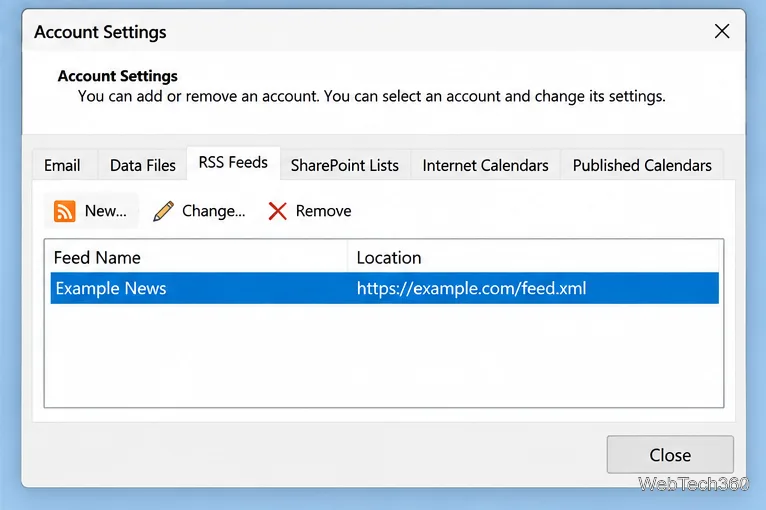
For subscription settings, open File > Account Settings > Account Settings, then select the RSS Feeds tab. From there, you can select a feed and use options such as Change or Remove. Microsoft's RSS feed settings guide also documents options for the feed name, delivery folder, attachments, and update behavior.
The RSS Feeds tab in Account Settings lets you review, change, or remove subscriptions.
There are two useful ways to unsubscribe. If you right-click the feed's folder and choose Delete Folder, Outlook unsubscribes and removes the downloaded items in that folder. If you want to stop future updates while keeping previously downloaded content, use File > Account Settings > Account Settings > RSS Feeds, select the feed, and choose Remove. Microsoft explains these choices in its RSS unsubscribe instructions.
What to do if the RSS feed will not add or update
The RSS option is missing
First check whether you are in new Outlook. RSS functionality is not available there. This guide requires classic Outlook for Windows.
Outlook says the feed address is invalid
Open the feed URL in a web browser. A working address should load feed content rather than a normal web page, a sign-in error, or a missing-page message. If the publisher changed or removed its feed, you will need the current feed address from that site.
New posts are slow to appear
Outlook checks subscribed feeds periodically, but publishers can specify a maximum polling frequency. Microsoft recommends respecting the publisher's update limit because requesting updates too frequently can cause the publisher to restrict access. In classic Outlook, feed timing and related options are available under the RSS settings and Send/Receive settings.
A feed comes back after you remove it
Classic Outlook can synchronize subscriptions with the Windows Common Feed List. Check File > Options > Advanced and look under RSS Feeds for the synchronization setting. If a subscription is being restored from that shared list, turning off synchronization before removing the feed from Outlook can prevent it from reappearing.