How to Move a Picture in Microsoft Word
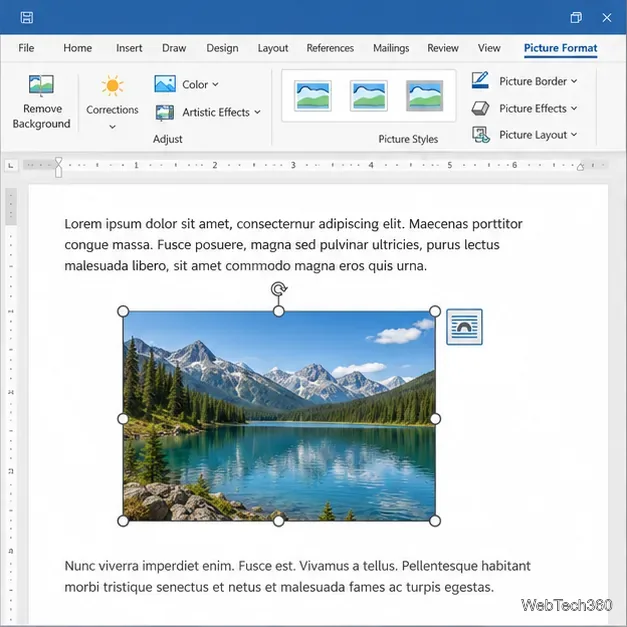
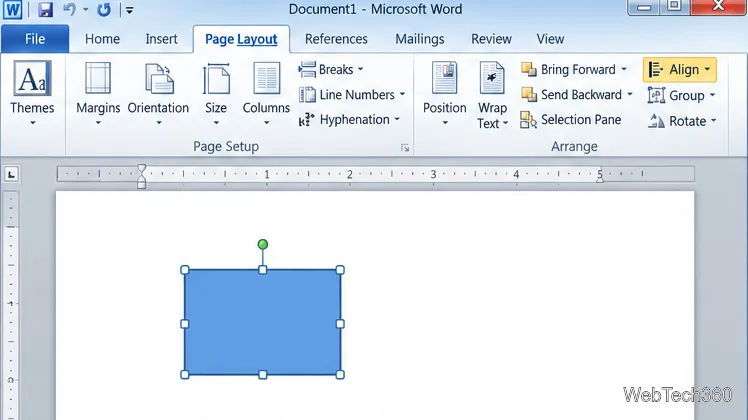
Learn how to drag a picture in Word, choose text wrapping, keep it with a paragraph or fix it on the page, and troubleshoot images that will not move.
Short answer: Office 2010 Starter has no supported setting for removing or collapsing its advertising pane. The ads were part of the free Starter edition of Word and Excel. You can move to a supported editor or Office edition, but editing the Starter installation is not a reliable ad-removal method.
Office Starter 2010 is a legacy product, so old instructions and download links may no longer work. Microsoft ended Office 2010 support on October 13, 2020; the apps may still run, but Microsoft no longer provides security fixes, bug fixes, or software updates for them. If you still use Starter, treat it as unsupported software and keep copies of important files.
Starter was a reduced-functionality edition containing Word Starter and Excel Starter. Advertising helped fund the no-cost edition, and the pane was built into the app layout rather than offered as a normal document pane that users could close. In a locked, archived Microsoft support-community answer, a volunteer moderator said the pane could not be removed; the historical workaround was to use a paid Office edition. That answer describes the Starter design, not a current Microsoft support path.
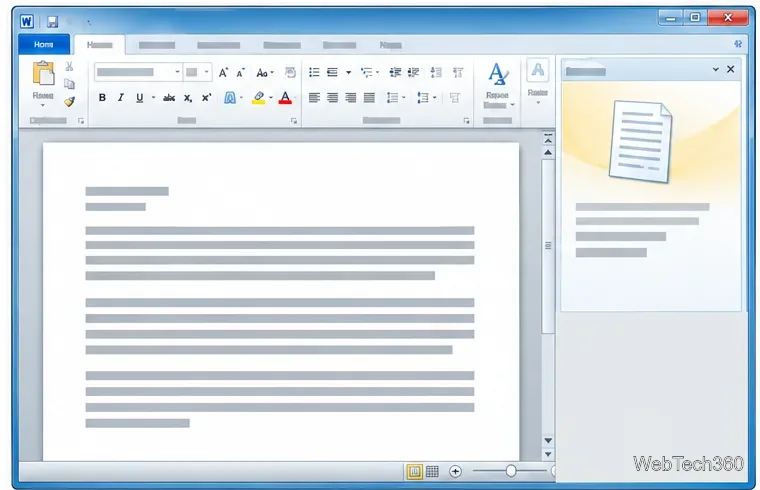
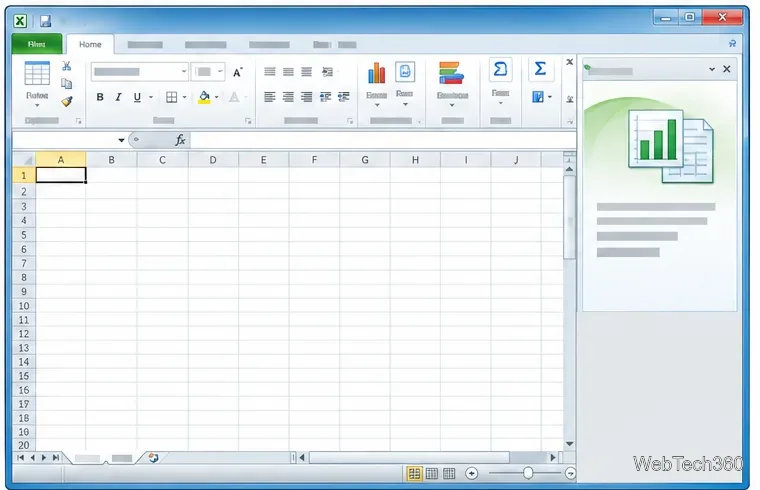
That distinction matters: dismissing a tip, changing a privacy preference, or blocking an individual ad does not necessarily give the worksheet or document the pane’s space. A second reply in the old Microsoft Q&A thread points to an option for disabling personalized advertising. That is different from disabling all advertising or removing the pane, and the linked privacy material is from the Office 2010 era. Do not rely on that old setting being available on every installation.
The original article focused on Office’s Virtualization Handler folder and CVH.EXE, then speculated that Microsoft had made the software difficult for developers to modify. That explanation was not established by evidence, and the executable is not a documented ad-control switch. Renaming, deleting, or patching Office program files—or blocking suspected ad servers with a firewall or hosts file—can break launch, repair, or update behavior without reclaiming the reserved pane. Do not download “ad removers” or cracks for this purpose.
The old source also claimed that Starter secretly updates itself and adds more ads whenever the computer goes online. That claim is not supported by the Microsoft documentation cited here. What is verifiable is that Office 2010 is past end of support, so you should not expect current security or product updates for it.
Bottom line: There is no supported switch that removes the Office 2010 Starter ad pane. The dependable fix is to move to an ad-free supported Office edition or another editor, while preserving and checking your files during the change.
Learn how to drag a picture in Word, choose text wrapping, keep it with a paragraph or fix it on the page, and troubleshoot images that will not move.
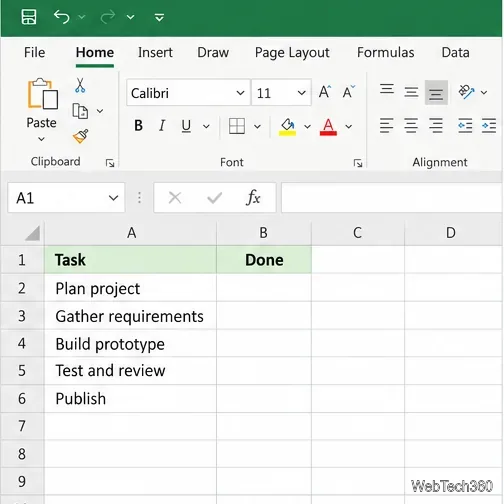
Learn how to insert a checkbox in Excel with the in-cell tool, count checked items with formulas, or add a linked Form Control in older desktop versions.
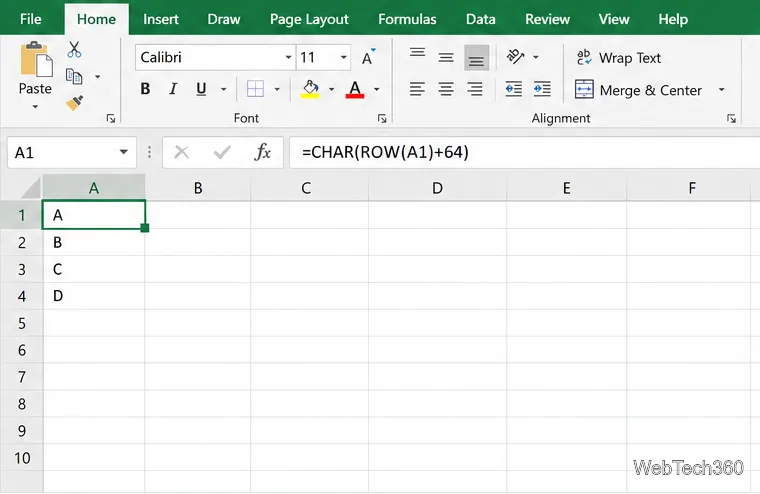
Generate A to Z, lowercase letters, or labels beyond Z in Excel with a fill-handle formula, SEQUENCE, or a reusable custom list.
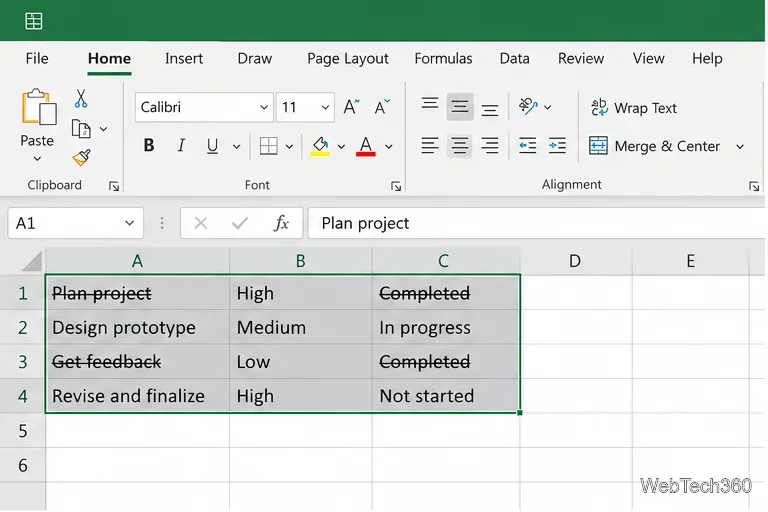
Learn how to strikethrough in Excel on Windows, Mac, and the web, format part of a cell, and remove the line without deleting its value.
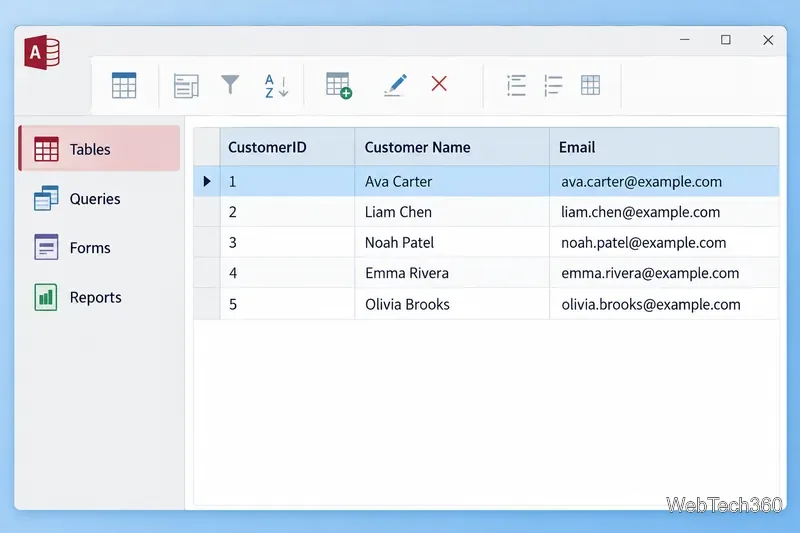
Microsoft Access is a Windows database app for storing related records, building queries, creating data-entry forms, and generating reports. Learn how it works and when it fits.
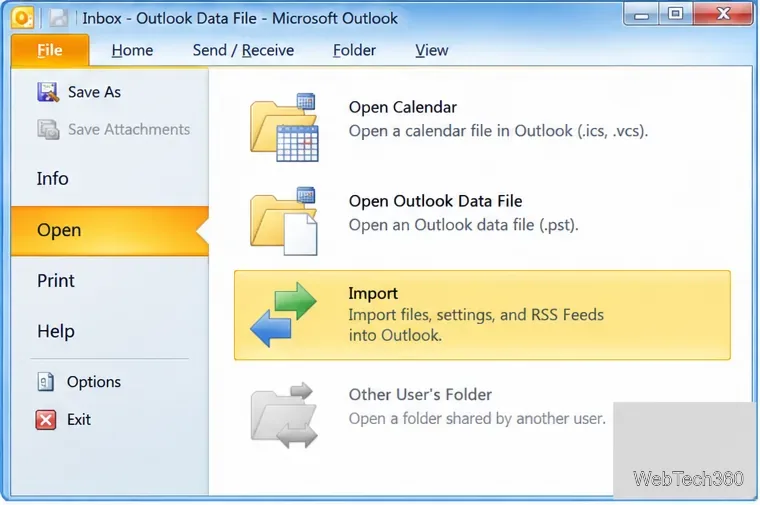
Learn how to import a PST into Outlook 2010 or export mail, contacts, calendar, and tasks. Follow the correct menus and avoid missing folders or duplicates.
Learn how to adjust gridline height and width in Word 2010, change visible line frequency, and set the underlying horizontal and vertical drawing-grid spacing.
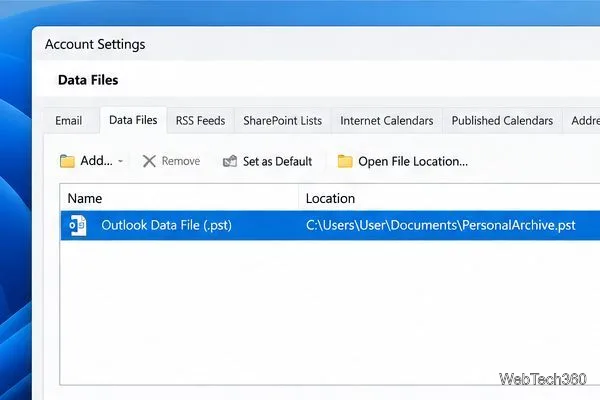
Recover a forgotten Outlook PST password with Kernel’s current steps, including how to identify the right file, make a backup, and check the tool’s limits.
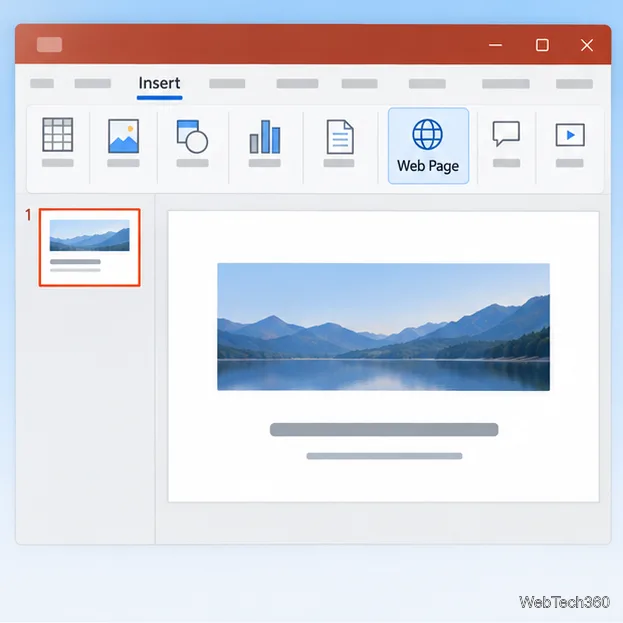
Use the LiveWeb add-in to place a website on a PowerPoint slide, set its size and refresh behavior, and check compatibility before presenting.
Set an Access 2010 database application to open directly to a data-entry form, hide object lists, limit menus, and check the setup before sharing.