How to Move a Picture in Microsoft Word
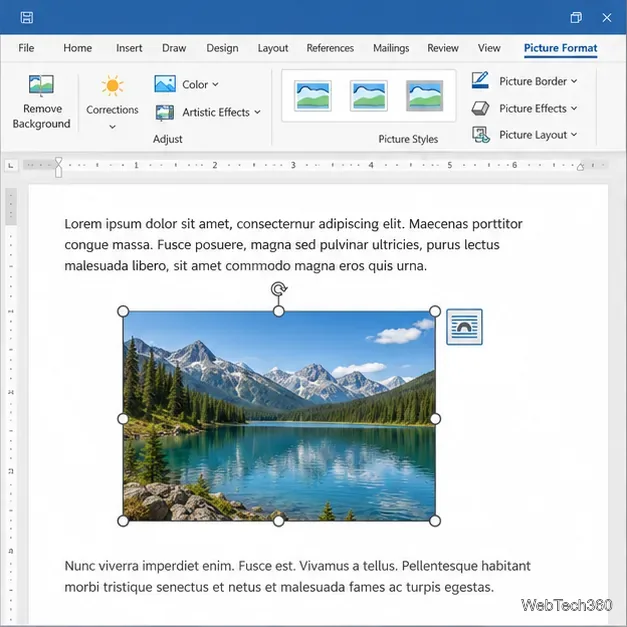
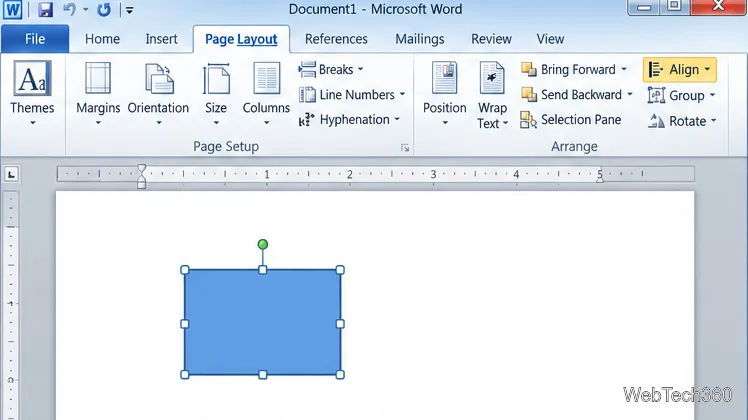
Learn how to drag a picture in Word, choose text wrapping, keep it with a paragraph or fix it on the page, and troubleshoot images that will not move.
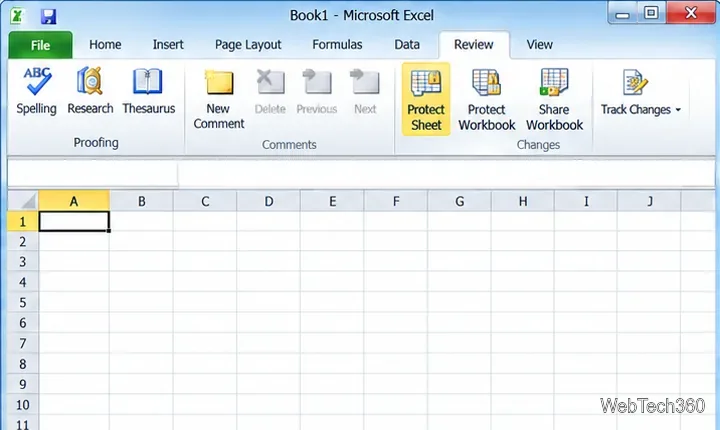
Excel 2010 offers three different controls: Protect Sheet limits cell edits; Protect Workbook locks worksheet tabs; Encrypt with Password requires a password to open the file. Only the last option encrypts the workbook for access control—sheet and structure protection mainly prevent changes.
These steps use Excel 2010’s desktop interface.
| Control | What it does | When to use it |
|---|---|---|
| Protect Sheet | Restricts actions on a worksheet and prevents edits to cells marked as locked. | Keep formulas or layout from being changed while allowing selected input cells. |
| Protect Workbook structure | Blocks structural changes such as adding, deleting, moving, renaming, hiding, or unhiding sheets. | Keep the workbook’s set of tabs organized. |
| Protect Workbook windows | An older Excel 2010 option for workbook-window behavior, separate from sheet structure. | Use only for a legacy Excel 2010 workflow; do not rely on it in Excel 2013 or later. |
| Encrypt with Password | Requires a password to open the workbook. | Keep people without the password from opening the file. |
Microsoft notes that worksheet protection is not intended to be a security feature. A protected sheet remains viewable, and workbook-structure protection does not stop someone from opening the file. If you need an opening password, use file encryption.
Excel marks cells as locked by default, but that setting does not take effect until you protect the worksheet. If the sheet is a form or template, unlock the entry cells before turning on protection:
Leave formula and heading cells locked. If users should not edit any cell, skip this preparation and keep the default cell settings.
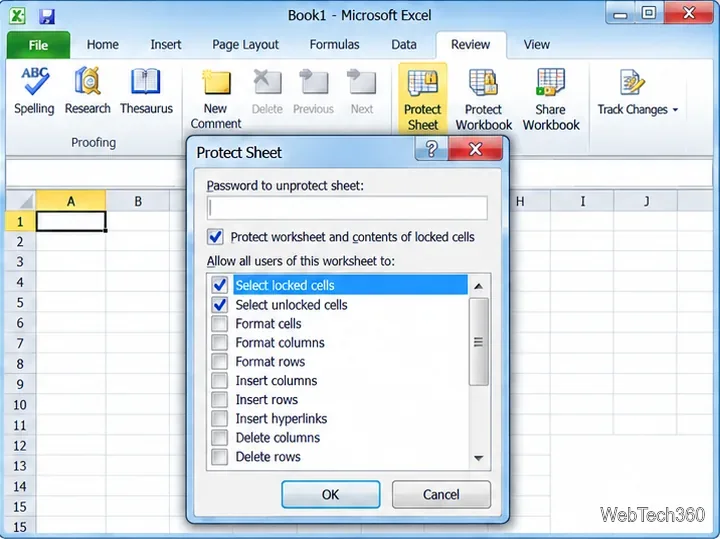
Try editing a locked cell to confirm the restriction, then check that the unlocked input cells still accept entries. To remove the protection later, open Review, click Unprotect Sheet, and enter the password if Excel requests it. Excel changes the command back to Protect Sheet after the sheet is unprotected.
To prevent changes to sheet tabs, choose Review > Protect Workbook. In Excel 2010, the Protect Structure and Windows dialog appears. Select Structure to prevent users from adding, deleting, moving, copying, renaming, hiding, or unhiding worksheets. Enter a password, click OK, and confirm it in the next dialog. A password is optional, but without one another user can remove this protection.
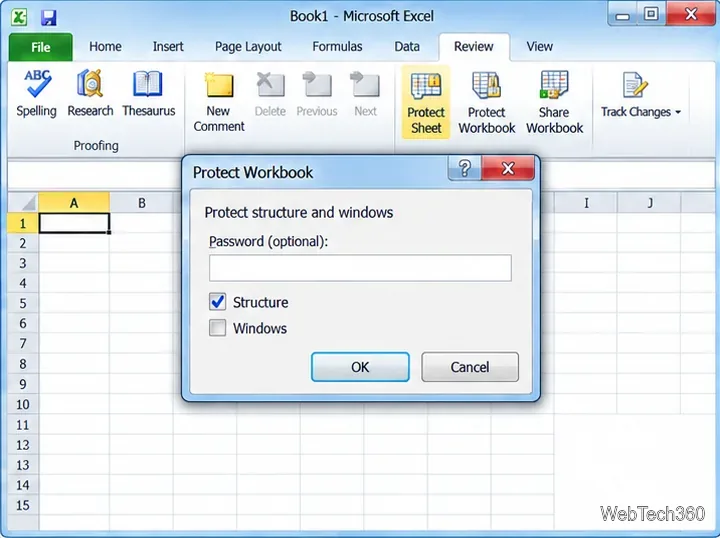
The Windows checkbox is a separate, older option for workbook windows. Microsoft documents that Excel 2013 introduced a different window interface and no longer enforces workbook-window protection; an older workbook’s saved window settings do not prevent people from arranging or closing windows in those versions. For workbooks shared with newer Excel, rely on Structure only for sheet-tab restrictions. To remove workbook protection in Excel 2010, click Review > Protect Workbook again and supply the password.
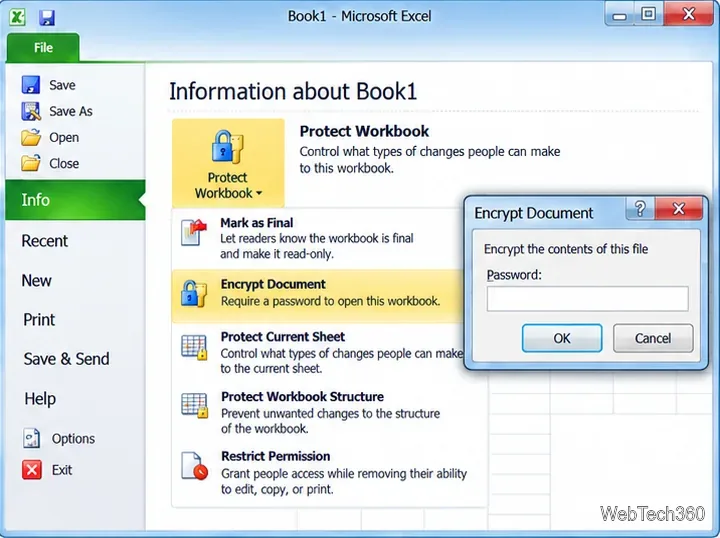
This file-level setting is the right choice when the goal is to keep a workbook from opening without authorization. It can be combined with sheet or structure protection, but those extra controls serve different purposes.
For details, see Microsoft’s Protect a worksheet, Protect a workbook, Protect an Excel file, and Protection and security in Excel guidance. Microsoft’s Excel interface documentation explains why the Windows option was deprecated after Excel 2010.
Learn how to drag a picture in Word, choose text wrapping, keep it with a paragraph or fix it on the page, and troubleshoot images that will not move.
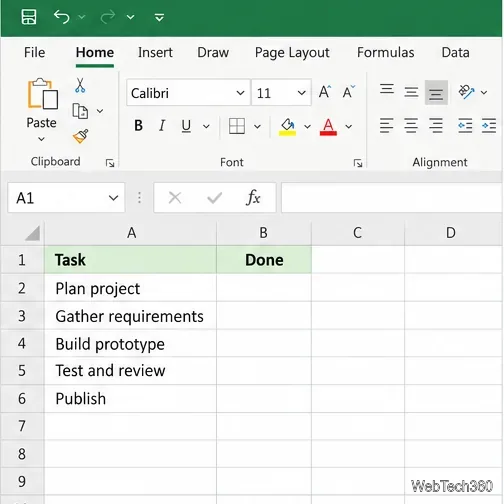
Learn how to insert a checkbox in Excel with the in-cell tool, count checked items with formulas, or add a linked Form Control in older desktop versions.
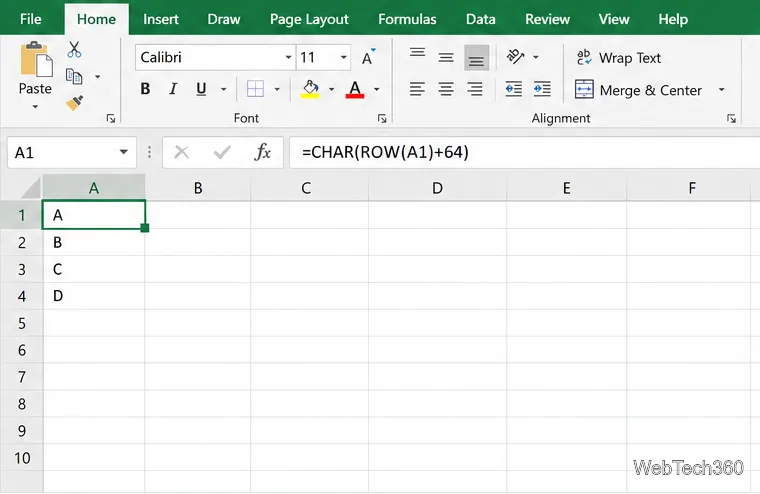
Generate A to Z, lowercase letters, or labels beyond Z in Excel with a fill-handle formula, SEQUENCE, or a reusable custom list.
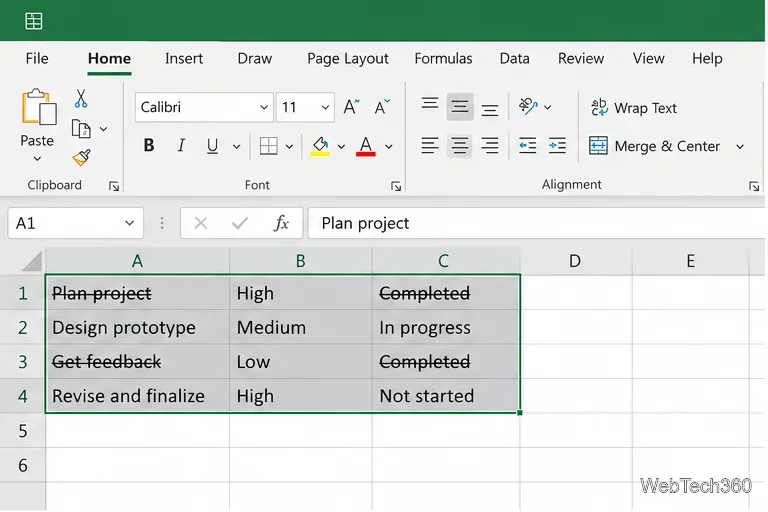
Learn how to strikethrough in Excel on Windows, Mac, and the web, format part of a cell, and remove the line without deleting its value.
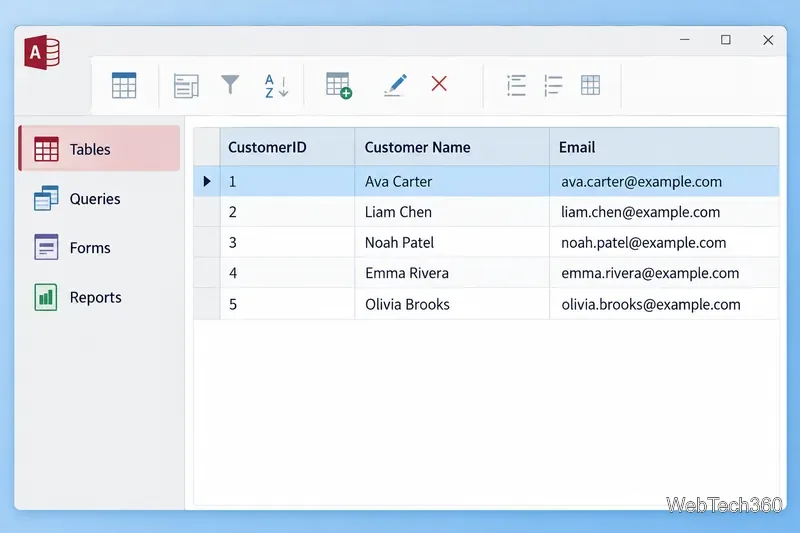
Microsoft Access is a Windows database app for storing related records, building queries, creating data-entry forms, and generating reports. Learn how it works and when it fits.
Learn how to import a PST into Outlook 2010 or export mail, contacts, calendar, and tasks. Follow the correct menus and avoid missing folders or duplicates.
Learn how to adjust gridline height and width in Word 2010, change visible line frequency, and set the underlying horizontal and vertical drawing-grid spacing.
Recover a forgotten Outlook PST password with Kernel’s current steps, including how to identify the right file, make a backup, and check the tool’s limits.
Use the LiveWeb add-in to place a website on a PowerPoint slide, set its size and refresh behavior, and check compatibility before presenting.
Set an Access 2010 database application to open directly to a data-entry form, hide object lists, limit menus, and check the setup before sharing.