How to Move a Picture in Microsoft Word
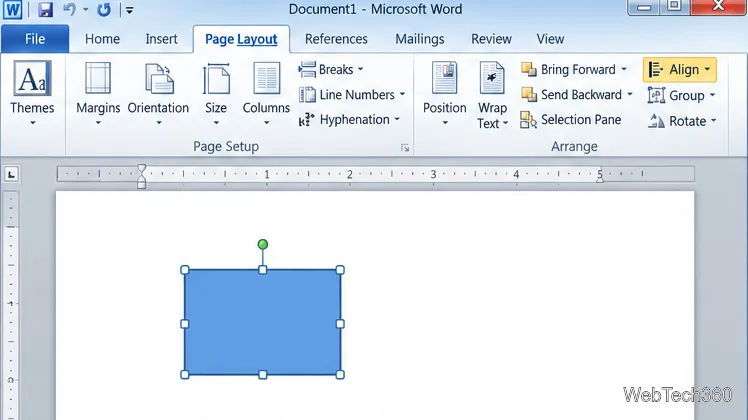
Learn how to drag a picture in Word, choose text wrapping, keep it with a paragraph or fix it on the page, and troubleshoot images that will not move.
To move custom Ribbon tabs, groups, and Quick Access Toolbar (QAT) commands from one Office 2010 computer to another, export the settings from the Office program you customized, then import that file in the same program on the destination computer. Excel 2010 is used below, but the process is similar in Office apps that provide the same Import/Export control.
Keep one important point in mind: importing a customization file replaces the Ribbon and QAT settings already in that destination app. Export the destination app’s current setup first if you might want to restore it later.
The export is a compact backup of the active program’s supported Ribbon and Quick Access Toolbar layout. It can include custom tabs and groups, command placement, and QAT commands. It is not a backup of Office itself or of your documents. Move workbooks, templates, macros, and add-ins separately if you need them on the new computer.
Export from each Office app you want to transfer. An Excel export is for Excel’s interface; it does not copy the separate customizations you made in Word or PowerPoint. Microsoft’s Excel 2010 product guide documents the File > Options route and the Import/Export control for sharing Excel Ribbon settings.
On the computer that has the layout you want to keep, open Excel 2010. If you want to back up Word or another Office app, open that program instead. The export is created from the active app, so confirm that you are in the correct one before continuing.
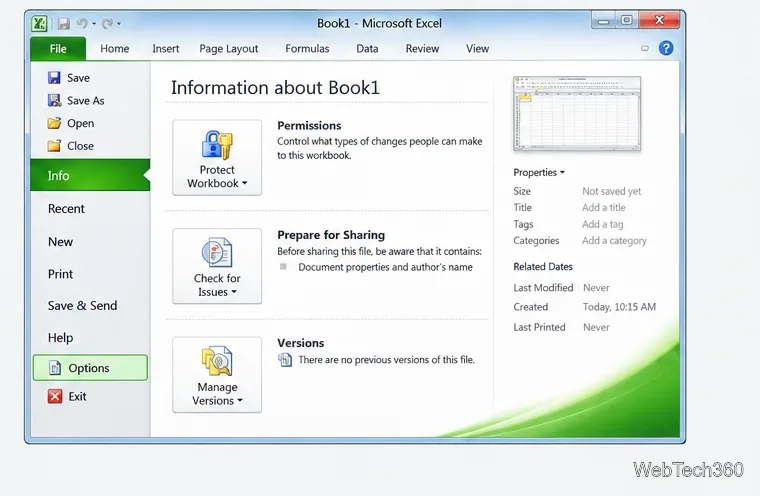
Select File to open Backstage view, then choose Options. In the Options window, select Customize Ribbon in the left pane. The Import/Export button appears near the lower-right area of this page.
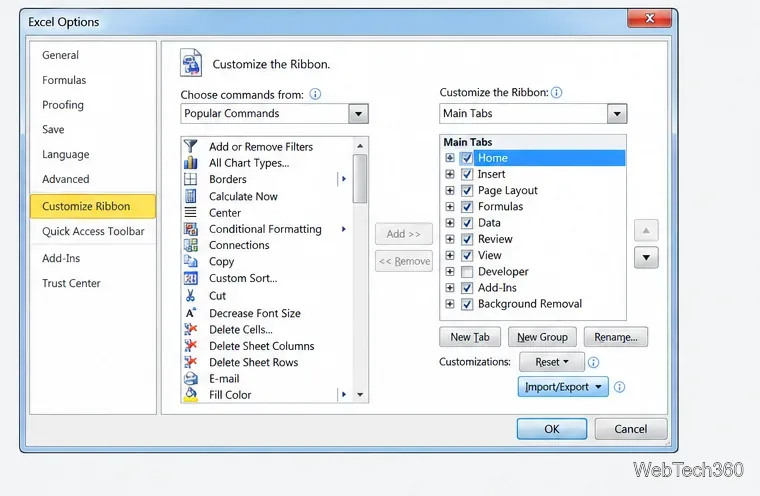
Open Import/Export and select Export All Customizations. This saves the application’s Ribbon and QAT customizations together; you do not need to create a separate export for the toolbar.
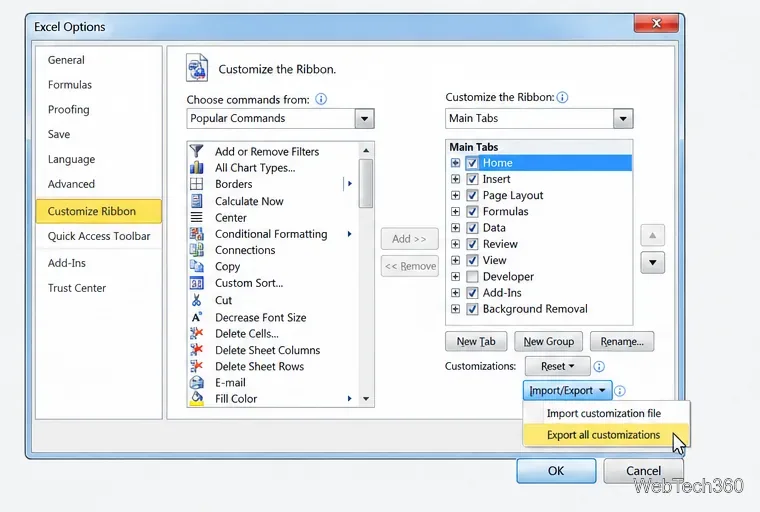
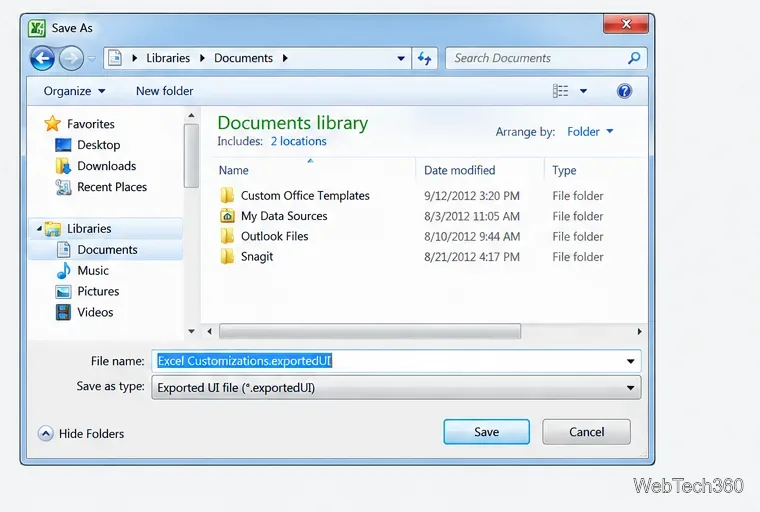
In the Save dialog, choose a folder you can reach from the destination computer, such as a shared network folder or a cloud-synced folder. Keep the suggested Office UI file type and give the file a recognizable name, such as Excel Customizations.exportedUI. Select Save, then copy or sync the file to the other computer if you saved it locally.
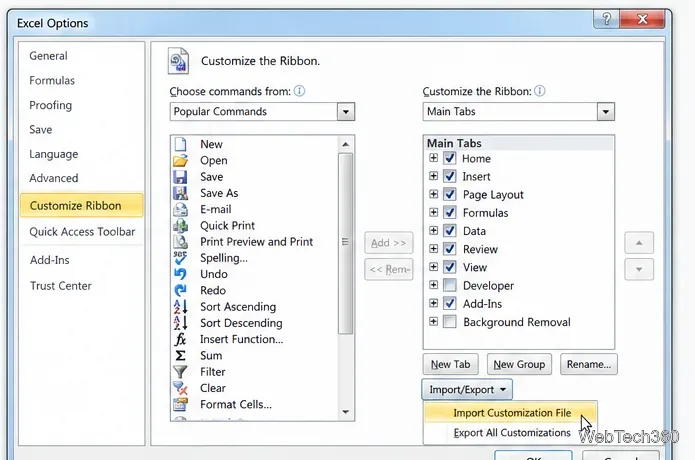
On the destination computer, open Excel 2010, then go to File > Options > Customize Ribbon. To import another program’s layout, use that program’s own Options window.
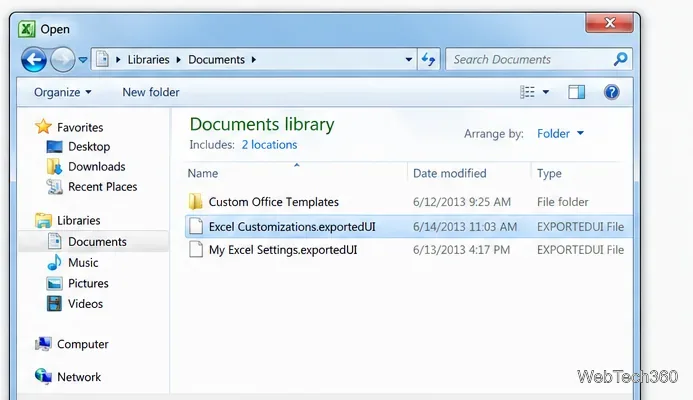
Select Import/Export > Import Customization File. In the Open dialog, browse to the folder containing the export, select the .exportedUI file for this app, and choose Open.
Office displays a confirmation that the file will replace the existing Ribbon and Quick Access Toolbar customizations for that program. Choose Yes only if you are ready to replace them. If you are unsure, choose No, export the destination app’s current layout as a backup, and then repeat the import.
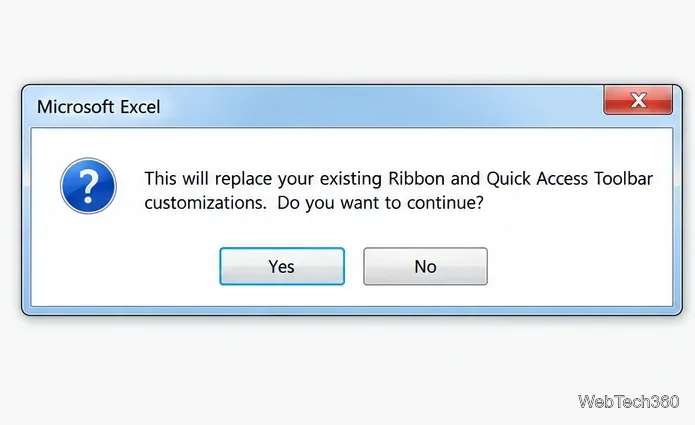
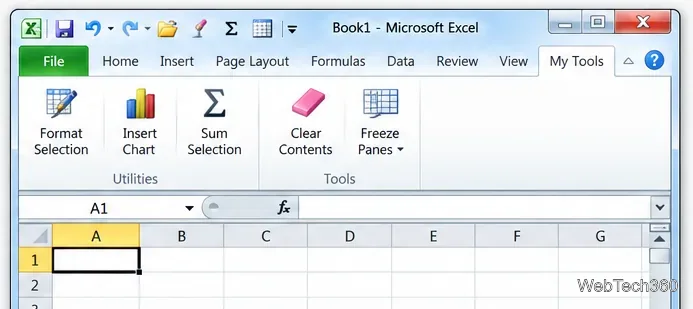
After confirmation, return to the app and check the custom tabs, groups, and QAT buttons. If a command is missing, verify that you imported the file into the same Office program from which it was exported and that you selected the intended file. Repeat the export and import separately for each Office app you want to transfer.
You can also begin from File > Options > Quick Access Toolbar. Its Import/Export control provides the same all-customizations export and import commands. That route is useful when your immediate goal is saving toolbar buttons, but the file covers both the QAT and Ribbon customizations for the active program.
Microsoft’s current support pages describe the same export/import workflow and warn that importing replaces existing Ribbon and QAT settings. Their screenshots may look newer than Office 2010, but the controls in this guide use the Office 2010 File and Options menus. See Microsoft’s Ribbon customization instructions and Quick Access Toolbar instructions for the current support references.
Learn how to drag a picture in Word, choose text wrapping, keep it with a paragraph or fix it on the page, and troubleshoot images that will not move.
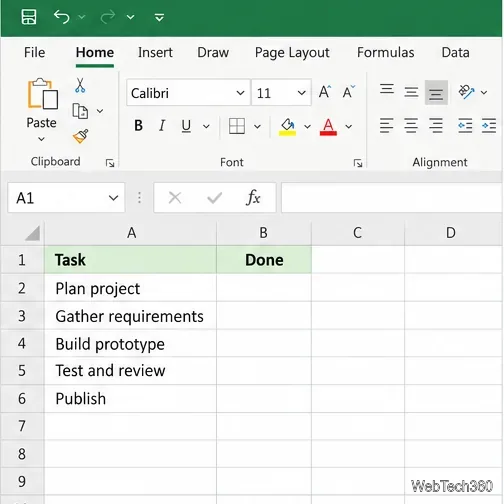
Learn how to insert a checkbox in Excel with the in-cell tool, count checked items with formulas, or add a linked Form Control in older desktop versions.
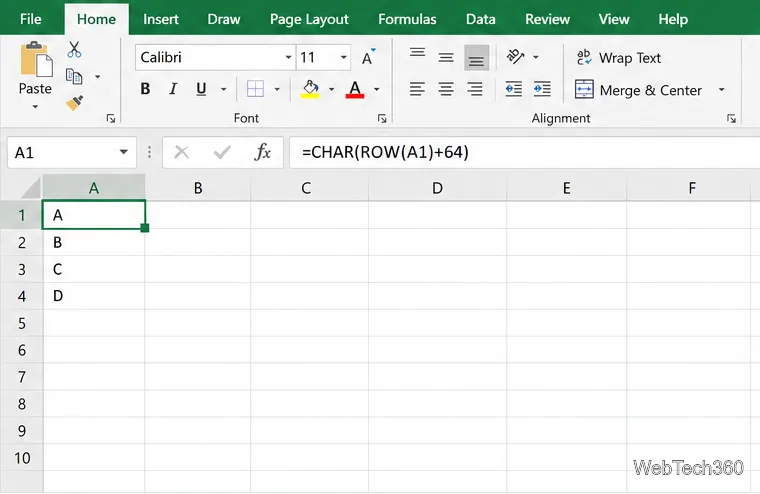
Generate A to Z, lowercase letters, or labels beyond Z in Excel with a fill-handle formula, SEQUENCE, or a reusable custom list.
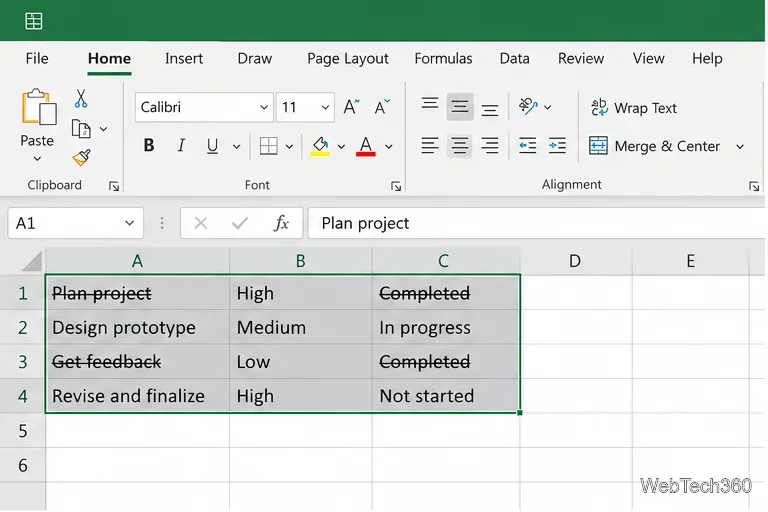
Learn how to strikethrough in Excel on Windows, Mac, and the web, format part of a cell, and remove the line without deleting its value.
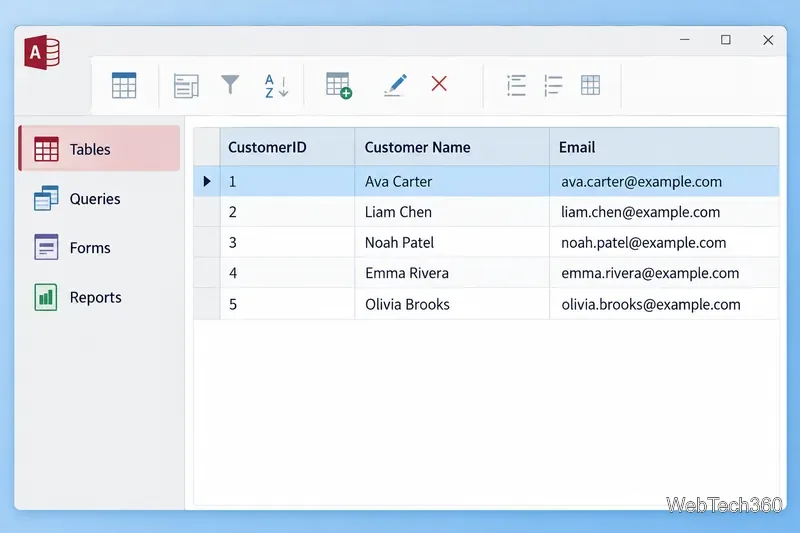
Microsoft Access is a Windows database app for storing related records, building queries, creating data-entry forms, and generating reports. Learn how it works and when it fits.
Learn how to import a PST into Outlook 2010 or export mail, contacts, calendar, and tasks. Follow the correct menus and avoid missing folders or duplicates.
Learn how to adjust gridline height and width in Word 2010, change visible line frequency, and set the underlying horizontal and vertical drawing-grid spacing.
Recover a forgotten Outlook PST password with Kernel’s current steps, including how to identify the right file, make a backup, and check the tool’s limits.
Use the LiveWeb add-in to place a website on a PowerPoint slide, set its size and refresh behavior, and check compatibility before presenting.
Set an Access 2010 database application to open directly to a data-entry form, hide object lists, limit menus, and check the setup before sharing.