Home
» MS OFFICE
»
Fix CODE Document Editing Sessions Disconnecting After 10 Minutes
Fix CODE Document Editing Sessions Disconnecting After 10 Minutes
If a Collabora Online Development Edition (CODE) document opens normally, edits work, and then the editor disconnects at almost exactly 10 minutes, start with the WebSocket path between the browser and CODE. A repeatable 600-second cutoff is much more suggestive of a reverse proxy, ingress controller, load balancer, or firewall timeout than of CODE's documented default idle timers.
That distinction matters because changing CODE's own idle settings first can hide the real problem without fixing the connection that carries editing traffic. The current Collabora configuration template documents a 15-minute per-view idle timeout and a one-hour idle-document timeout, not a 10-minute editing-session limit. See the upstream coolwsd.xml template. If users are actively typing when the disconnect happens, an idle-only CODE setting is an even weaker explanation.
What a 10-minute disconnect usually means
Verified: Collabora's published Nginx example uses WebSocket upgrade headers and a long proxy_read_timeout 36000s for the main WebSocket. Nginx itself documents that proxied WebSocket connections are closed when no data is received within the configured read timeout, and its generic proxy_read_timeout default is 60 seconds. See the Collabora Online SDK manual and Nginx WebSocket proxy documentation.
Environment-dependent: a 600-second timeout can be introduced by a different proxy layer even when the Nginx host in front of CODE looks correct. Common places include Kubernetes Ingress, HAProxy, a cloud load balancer, a WAF, or an upstream reverse proxy. The exact timeout and configuration key depend on that component.
Not proven by the symptom alone: “disconnects after 10 minutes” does not prove that Nginx is the component responsible. Capture the failed WebSocket and correlate its timestamp with proxy and CODE logs before changing several layers at once.
Action: reproduce the failure with browser developer tools open and record the exact lifetime of the WebSocket request.
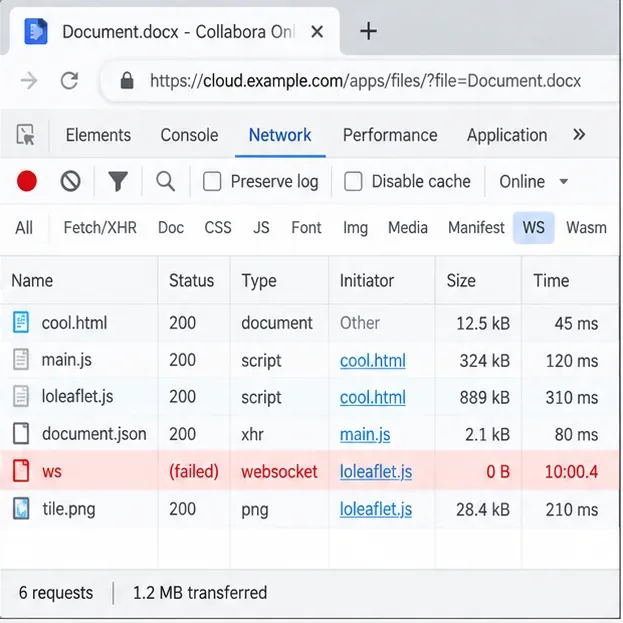
Use the browser Network panel to check whether the editing WebSocket ends at a repeatable time. This is an illustrative diagnostic view, not a captured production session.
Step 1: Confirm that the WebSocket is what actually dies
Open a document, then open the browser's developer tools and switch to the Network panel. Filter for WebSocket traffic. CODE editing traffic normally includes a WebSocket under the /cool/ path. Keep the document open beyond the failure point.
When the session disconnects, inspect the WebSocket request. The most useful facts are its duration, close timing, HTTP status during the initial upgrade, and whether the browser reports a network error. A clean initial 101 Switching Protocols followed by a close around 600 seconds points toward a connection lifetime or inactivity policy somewhere in the path.
If the WebSocket never upgrades successfully, this is not a “10-minute timeout” problem; fix WebSocket routing and headers first. If the WebSocket stays connected while the editor shows a storage or save error, investigate the WOPI/storage path instead.
Action: write down the start time and disconnect time, then compare those timestamps with reverse-proxy access/error logs and the CODE container or service logs.
Step 2: Check the CODE reverse-proxy rule before changing CODE idle values
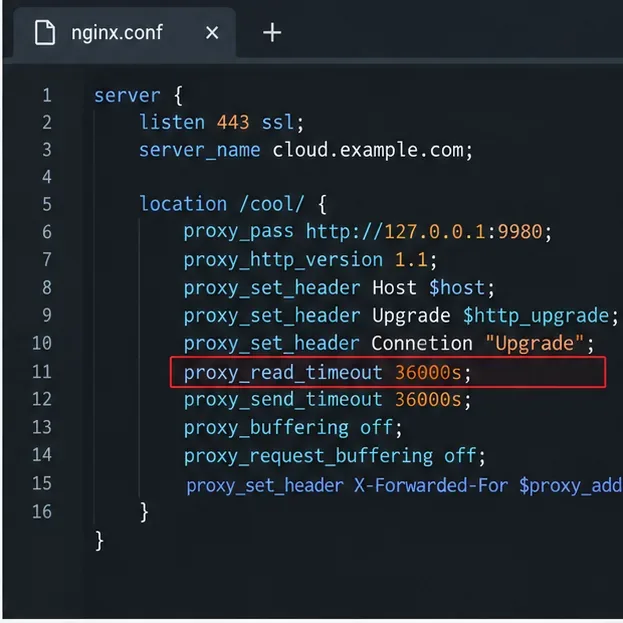
For Nginx, the important part is that the WebSocket location passes the upgrade headers and has a sufficiently long read timeout. Collabora's SDK manual shows this pattern for the main WebSocket:
If TLS is terminated at Nginx and CODE is intentionally serving plain HTTP behind it, the upstream scheme may be http:// instead. Do not copy the scheme blindly: it must match how your CODE instance is configured.
One common misunderstanding is that proxy_connect_timeout controls the lifetime of an already-established editing session. It does not; it applies while establishing the connection to the upstream. The setting most directly relevant to an established proxied WebSocket with periods of no upstream data is proxy_read_timeout. Nginx documents this behavior in its HTTP proxy module reference.
Action: locate the actual Nginx block that matches the CODE WebSocket URL and confirm the timeout is set there, not only in an unrelated location.
Place the long timeout on the rule that actually handles CODE WebSocket traffic. The exact upstream protocol and path must match your deployment.
Step 3: Account for CODE 26.04 proxy changes
As of October 2026, Collabora's current CODE 26.04 release notes list CODE 26.04.4.2, released September 24, 2026. The 26.04 series introduced a more compact WebSocket URL. Collabora notes that existing proxy configurations may need updates; in later 26.04 builds, CODE can fall back to the legacy URL and emit an audit warning when the proxy is not updated. Apache2 users were specifically told to update their ProxyPass rule when 26.04 was introduced. See the official CODE 26.04 release notes.
This does not mean every 10-minute disconnect is caused by the compact URL change. It means that on 26.04 you should verify your reverse-proxy rules against the documentation for the version you actually run, especially if the issue appeared after an upgrade.
Action: check your CODE version in the product's About information or container image tag, then compare your proxy configuration with the current Collabora proxy guidance. Do not assume a rule copied from an older 24.04 deployment is still ideal.
Step 4: Check Kubernetes Ingress, HAProxy, Apache, and other middleboxes
If Nginx is only one layer in front of CODE, extending its timeout may not be enough. For Kubernetes using ingress-nginx, the project documents per-Ingress annotations named nginx.ingress.kubernetes.io/proxy-read-timeout and nginx.ingress.kubernetes.io/proxy-send-timeout. Its WebSocket guidance recommends values greater than one hour for long-lived connections. See the official Ingress-Nginx annotations reference and WebSocket notes.
For HAProxy, Collabora's SDK example uses a long tunnel timeout for WebSocket-style traffic. For Apache, the generic proxy timeout is controlled by ProxyTimeout, but CODE 26.04 also requires attention to the current WebSocket ProxyPass pattern. Apache's own mod_proxy documentation explains what ProxyTimeout controls.
Action: draw the connection path from browser to CODE and inspect every hop. A 600-second limit at any one hop can still terminate the session.
Step 5: Validate and reload the proxy safely
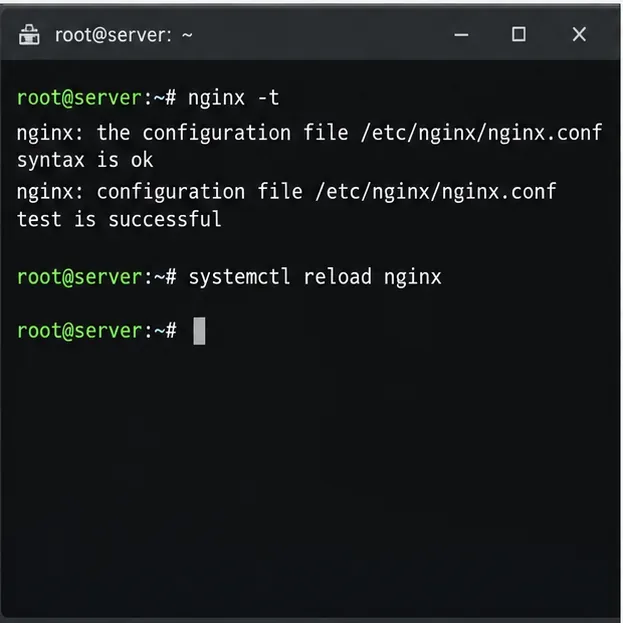
After editing Nginx configuration, test it before reloading:
sudo nginx -t
sudo systemctl reload nginx
If Nginx runs in a container, use the equivalent container-aware validation and reload procedure instead of assuming systemctl exists. The important part is to validate syntax before replacing the running configuration.
Action: change one layer at a time, record the previous value, validate the configuration, and then retest the same document workflow.
Validate the reverse-proxy configuration before reloading it so a timeout fix does not introduce a separate availability problem.
Step 6: Prove the fix with a test longer than the old cutoff
Do not stop testing when the document reopens. Leave the same editing session connected well beyond the former failure point. For a 10-minute symptom, a 20- to 30-minute validation window is more useful than a two-minute smoke test. Keep the Network panel open and make occasional edits so you can distinguish active editing from a fully idle tab.
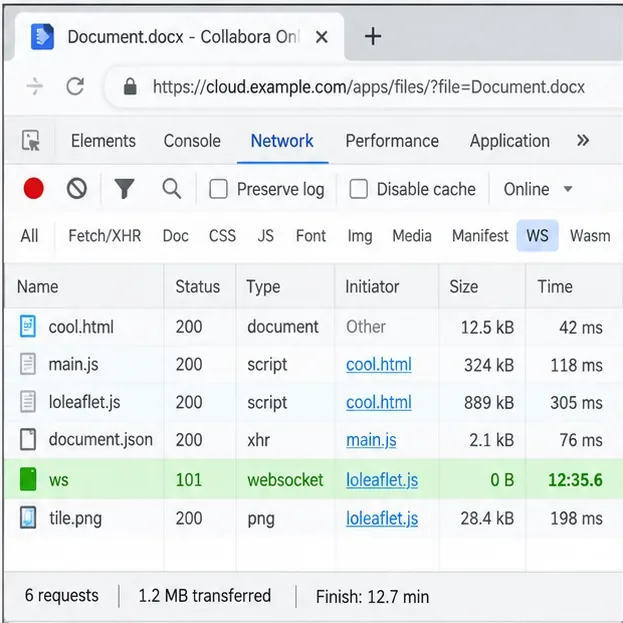
A good result has three signs: the WebSocket remains established beyond 10 minutes, the editor continues accepting edits without reconnect prompts, and no corresponding timeout appears in the intermediary or CODE logs.
If the connection still closes at exactly 10 minutes after you increased the nearest proxy timeout, that is useful evidence that another hop still has a 600-second policy.
Action: continue tracing outward until the component that emits the close or timeout is identified.
After the change, verify that the WebSocket stays established beyond the previous 10-minute cutoff; the duration shown here is illustrative.
Do not confuse CODE's idle timers with a 10-minute network cutoff
The upstream CODE configuration template currently documents per_view.idle_timeout_secs as 900 seconds, or 15 minutes. Its description says the view is dimmed and updates stop when the user is inactive. The document-level idle_timeout_secs default is 3600 seconds, or one hour, before an idle document is unloaded.
Those values are worth checking if your behavior matches them, but neither default explains an exact 600-second disconnect. If someone previously customized coolwsd.xml, environment variables, Helm values, or container parameters, your deployment may differ from the defaults.
Action: inspect the effective CODE configuration only after you have established whether the failure is network-level or application-level. Do not increase every idle value as a first response.
Fast diagnosis table
Observed behavior
Most useful next check
What not to assume
WebSocket closes at about 600 seconds while the user is active
Proxy, ingress, load balancer, or firewall timeout
That CODE has a built-in 10-minute editor limit
WebSocket never reaches HTTP 101
Upgrade headers, routing, TLS upstream scheme, current 26.04 proxy paths
That increasing timeouts alone will help
Failure began after upgrading to CODE 26.04
Compare proxy rules with current 26.04 guidance
That an old 24.04 proxy configuration is automatically equivalent
Only idle/background tabs are affected
CODE per-view idle behavior plus intermediary idle timeouts
That active-session and idle-session failures have the same cause
WebSocket remains open but saves fail
WOPI/storage logs and save requests
That the WebSocket timeout is the root cause
Bottom line
For a CODE editing session that disconnects after a repeatable 10 minutes, the most efficient sequence is: confirm the WebSocket failure, verify the matching reverse-proxy rule, inspect every intermediary timeout, account for CODE 26.04 proxy-path changes, reload safely, and test beyond the old cutoff. Change CODE idle settings only when the observed behavior and effective configuration actually point there.
If the failure time is not repeatable, or if CODE logs show crashes, process termination, memory pressure, or WOPI errors at the same moment, stop treating it as a simple timeout case. Those symptoms require a different diagnosis.