Home
» MS OFFICE
»
Fix Collabora CODE Container Failing to Start on ARM64 Architecture
Fix Collabora CODE Container Failing to Start on ARM64 Architecture
If a Collabora Online Development Edition (CODE) container exits immediately on an ARM64 machine, start with architecture compatibility before changing networking, certificates, or WOPI settings. As of October 7, 2026, the official collabora/code repository lists native linux/arm64 variants for current releases, including the current latest tag and version 26.04.4.2.1. That means a modern ARM64 host normally does not need x86 emulation just to run CODE. The most useful beginner workflow is to confirm the host architecture, inspect the exact image tag, remove any forced AMD64 setting, pull an ARM64-capable image, and only then troubleshoot application-level configuration.
This guide focuses on the startup failure itself. It does not assume that every ARM64 problem has the same cause. If the container starts successfully but Nextcloud, ownCloud, or another WOPI host cannot connect to it, that is a different layer of troubleshooting.
What you need to know before changing anything
ARM64 is a 64-bit ARM CPU architecture. Linux commonly reports it as aarch64, while Docker usually labels the same target as linux/arm64. AMD64, also called x86-64, is a different CPU architecture. A container image contains binaries built for one or more architectures; Docker can automatically select the correct variant only when the image tag provides a compatible manifest.
A multi-platform image is a single image tag whose registry manifest points to separate image builds for architectures such as AMD64 and ARM64. Docker documents that, when a multi-platform image is pulled, it selects the matching variant for the host automatically. See Docker's multi-platform image documentation for the underlying behavior.
For Collabora CODE specifically, check the official collabora/code tag list on Docker Hub rather than relying on an old tutorial. When this article was checked on October 7, 2026, latest and 26.04.4.2.1 included linux/arm64, and a dedicated latest-arm64 tag was also listed. Older pinned releases may differ, so the tag you actually deploy matters more than a general claim that “Collabora supports ARM.”
Prepare a safe troubleshooting session
Keep a copy of your current docker-compose.yml or deployment command.
Record the exact Collabora image tag you are using.
Do not delete application data or reverse-proxy configuration just to diagnose an architecture mismatch.
If this is a production deployment, test a replacement tag in a maintenance window or on a staging host first.
The target result is simple: Docker should pull an ARM64 image, the container should remain running instead of exiting immediately, and its logs should progress into normal Collabora startup rather than fail with an architecture error.
Step 1: Confirm the host and Docker architecture
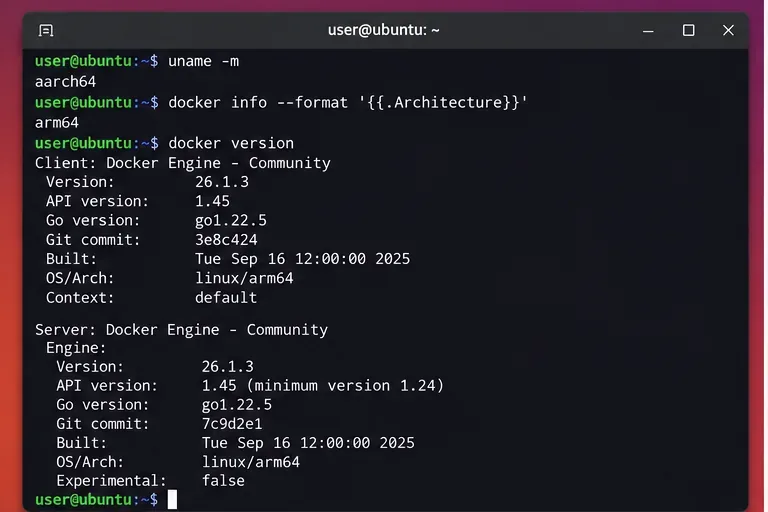
Run these checks on the machine that actually runs the Collabora container:
uname -m
docker info --format '{{.Architecture}}'
docker version
On a native 64-bit ARM Linux host, uname -m commonly returns aarch64, while Docker should report arm64. These names refer to the same architecture family in this context.
Check both the operating system and Docker daemon architecture first. A native ARM64 host typically appears as aarch64 in Linux and arm64 in Docker.
If Docker reports AMD64 even though the physical machine is ARM64, determine whether you are using a remote Docker context, a virtual machine, or Docker Desktop with a different backend. Fix that ambiguity before continuing. Otherwise you may inspect one system while deploying to another.
What error points to an architecture mismatch?
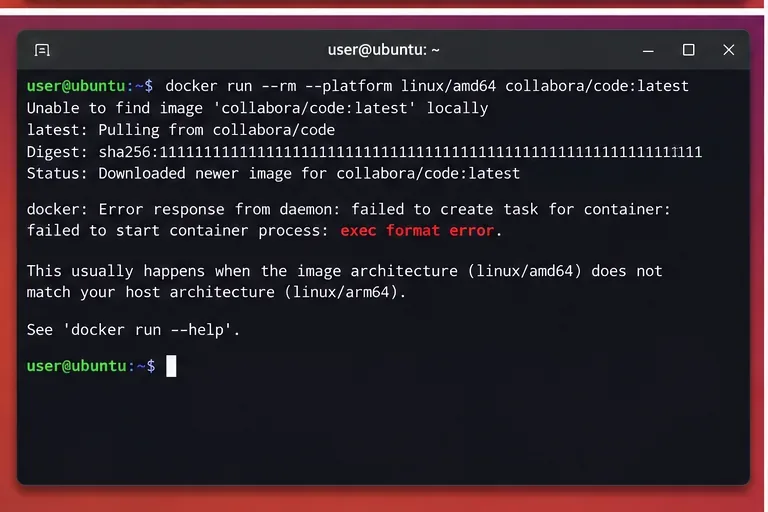
Typical signals include exec format error, a registry message that there is no matching manifest for linux/arm64, or a Compose service explicitly configured with platform: linux/amd64. These messages are stronger evidence of a platform mismatch than generic “container exited” output.
Step 2: Inspect the exact Collabora image tag before pulling it
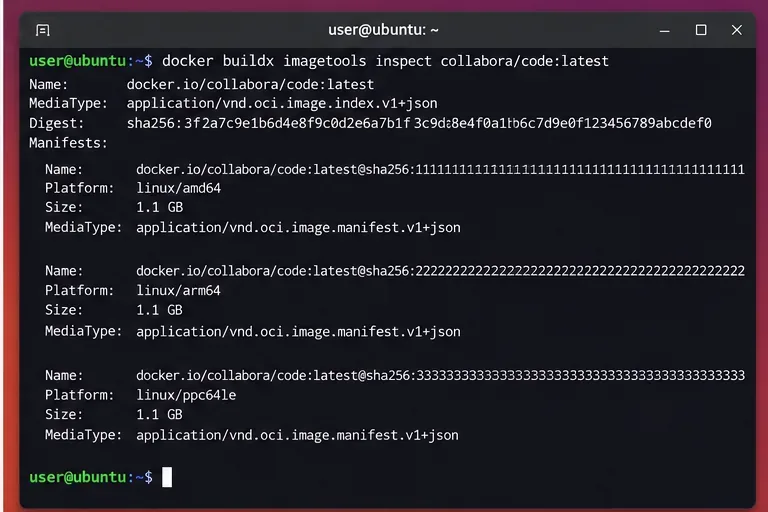
Do not assume that every historical tag has the same platform support as today's latest. Inspect the registry metadata for the tag in your deployment:
Inspect the image manifest and look specifically for linux/arm64. Current official CODE tags can be multi-platform, but an older pinned tag may not be.
If linux/arm64 appears, you can use the multi-platform tag and let Docker select the correct image. For an explicit troubleshooting test, the official repository also lists latest-arm64. For long-lived production deployments, an exact versioned tag that you have tested is usually easier to reproduce than latest, because latest moves as new releases are published.
If your pinned tag does not include ARM64, you have three choices:
Choice
Best fit
Tradeoff
Move to a current native ARM64 CODE tag
Most ARM64 servers and home labs
You must validate release compatibility and your integration settings
Stay on the old release using AMD64 emulation
Short-term compatibility testing
Extra complexity and possible performance overhead; not the preferred fix when a native image exists
Keep the old release on an AMD64 host
Strict version pinning where upgrade risk is unacceptable
Requires different hardware or VM capacity
Step 3: Remove an accidental AMD64 override and pull cleanly
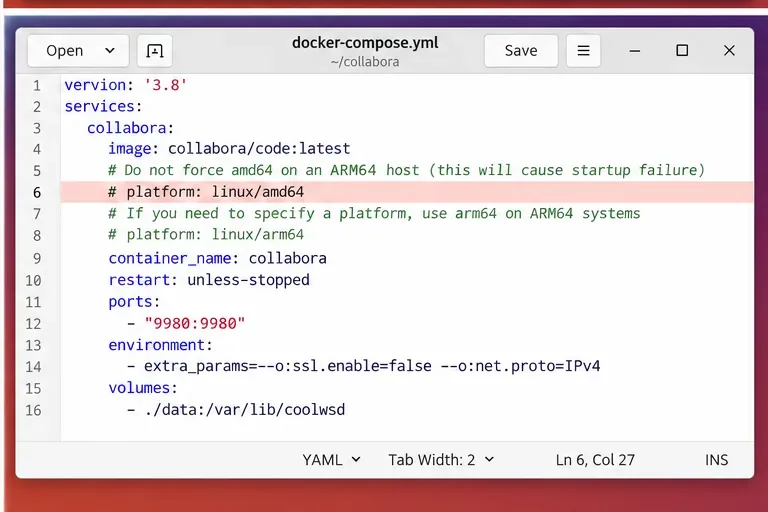
A common failure is not the Collabora image itself but a deployment file that forces the wrong platform. Docker Compose defines platform as the target operating system and architecture used to select the image variant. Docker's Compose service reference shows values such as linux/arm64/v8.
If you do not need emulation, remove that line and let Docker choose the host-native variant. Alternatively, specify platform: linux/arm64 when you deliberately want the architecture to be explicit.
An exec format error is a strong clue that an AMD64 binary has been selected on an ARM64 system without a suitable emulation path.
Then remove only the failed container and repull the image. Do not delete persistent data unless you have a separate reason to do so:
docker compose down
docker image rm collabora/code:latest 2>/dev/null || true
docker pull --platform linux/arm64 collabora/code:latest
docker compose up -d
If you are using the dedicated architecture tag for a diagnostic run, substitute collabora/code:latest-arm64. Once you confirm the deployment works, consider pinning an exact release such as a tested 26.04.x tag rather than leaving a production system on a moving tag.
Step 4: Verify that CODE starts before troubleshooting integration
After recreating the container, check state and logs:
For a single-container deployment, the equivalent commands are docker ps -a and docker logs --tail=100 <container-name>.
A corrected Compose service should not force linux/amd64 on an ARM64 host. Let a multi-platform tag resolve automatically, or explicitly choose linux/arm64 when needed.
Your first success criterion is that the container remains up and no longer fails with a manifest or executable-format error. Only after that should you move on to port 9980 reachability, reverse proxy settings, TLS, allowed WOPI hosts, or application integration. Collabora's official CODE Docker documentation is the right place to verify current deployment parameters.
Common beginner mistakes to avoid
Installing QEMU before checking the official image
Emulation can be useful when software exists only for another CPU architecture, but current Collabora CODE images include ARM64 variants. Adding emulation first can hide the real issue and adds another moving part. Prefer native ARM64 when your required CODE version provides it.
Assuming “latest” and an old pinned tag are equivalent
Platform availability is attached to a particular image tag and manifest. A current tag can support ARM64 while an older release does not. Inspect the exact reference in your Compose file.
Forcing platform: linux/amd64 because an old guide used it
That can make an ARM64 host pull the x86-64 variant even when a native ARM64 image exists. Remove the override unless you have a deliberate, tested reason for emulation.
Changing WOPI, SSL, or proxy settings before the process can execute
An exec format error happens before Collabora can meaningfully process most application-level configuration. Fix architecture selection first. Networking and WOPI troubleshooting come later.
Deleting volumes during diagnosis
Architecture mismatches normally do not require destroying persistent data. Keep the scope of the fix narrow so rollback remains easy.
What if the ARM64 image still exits?
If the manifest clearly includes linux/arm64 and Docker pulls that variant, architecture is no longer the leading explanation. At that point, capture:
docker compose ps or docker ps -a
the last 100-200 log lines
the exact CODE tag
your Docker Engine and Compose versions
the non-secret parts of your Compose service definition
Then investigate permissions, mounted paths, security profiles, memory pressure, port conflicts, certificates, or WOPI configuration according to the actual log message. Avoid repeatedly switching architectures once you have verified that the running image is ARM64.
A practical decision path
If the host is not ARM64, stop using an ARM64-specific fix and diagnose the real platform.
If the host is ARM64 but the chosen CODE tag has no ARM64 manifest, move to a supported native tag or deliberately choose a different hosting strategy.
If the tag supports ARM64 but Compose forces AMD64, remove or correct the platform setting.
If the correct ARM64 image still exits, treat it as a normal Collabora startup problem and follow the logs rather than continuing to blame the CPU architecture.
Bottom line
On a modern ARM64 system, the preferred fix is usually not emulation. As verified on October 7, 2026, current official Collabora CODE tags include native ARM64 images. Confirm aarch64/arm64 on the host, inspect the exact image manifest, eliminate stale or forced AMD64 references, repull the ARM64-compatible image, and verify that the container stays running. This sequence keeps the troubleshooting beginner-friendly and prevents unrelated SSL, proxy, or WOPI changes from obscuring a basic platform mismatch.