Home
» MS OFFICE
»
Fix Collabora Online Black Screen or Blank Document on Load
Fix Collabora Online Black Screen or Blank Document on Load
Start by checking the WebSocket connection and the two servers’ reachability. A Collabora Online editor that opens to a black screen, a white page, or an empty document canvas is often failing before the document UI finishes loading. If the problem affects every file, inspect the browser-to-Collabora route, reverse proxy, and Nextcloud-to-Collabora connection first. If only one file fails, test another document and check that file’s permissions and format before changing server settings.
Use this order: check the browser, test Collabora’s discovery endpoints, read the integration and server logs, then correct only the proxy or WOPI setting that the evidence points to. A browser cache reset can help with stale assets, but it will not repair a broken WebSocket or an unreachable WOPI host. The interface images below are schematic examples; exact labels and request paths vary by browser, cloud platform, proxy, and Collabora release.
Quick diagnosis by symptom
What you see
First place to check
Likely next action
All documents stay blank or keep loading
Browser Network tab and Collabora proxy
Inspect failed /cool/…/ws, /browser, or discovery requests
Collabora URL works, but Nextcloud cannot open a file
Nextcloud Office URL, WOPI allow list, and server logs
Confirm correct public URL and two-way server connectivity
Only one document is blank
File permissions, sharing state, format, and file integrity
Try a known-good document before changing global proxy settings
Works in one browser but not another
Browser console, extensions, and cached site data
Test a private window and compare failed requests
1. Find out whether the problem is browser-side or server-wide
First, open a second document that you know is readable and try the same file in a different browser or private window. If one document fails while others open, check that the user can still download or preview it in the file platform. A damaged file, unsupported format, expired share, or missing permission can look like an editor problem, but changing the reverse proxy will not fix a file-specific issue.
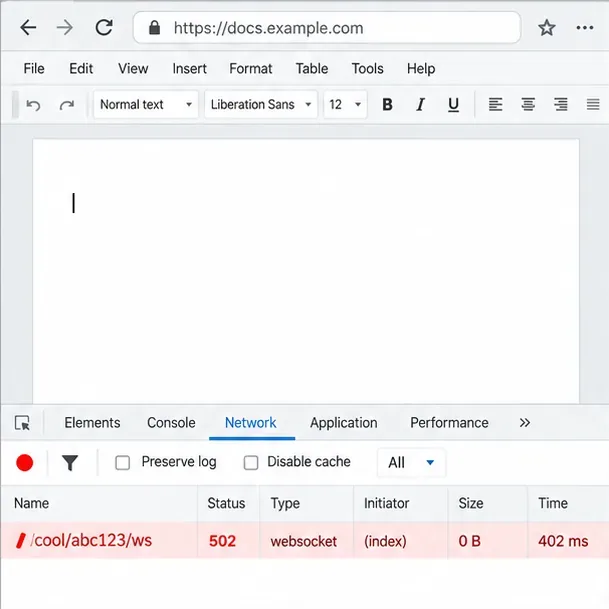
For a browser-side check, open Developer Tools before reloading the blank document. In Chromium-based browsers, press F12 or Ctrl+Shift+I, select Network, enable Preserve log, and reload. Filter for ws, cool, or browser. Also review the Console tab for blocked scripts, certificate warnings, or content-security-policy errors.
A failed WebSocket request is a useful clue when the editor canvas remains blank; the displayed request and status are illustrative.
A failed request under /cool/…/ws points toward a WebSocket handshake or proxy problem. A 502 usually means the proxy could not get a usable response from its upstream; a 404 can mean the path is not routed; and a 403 can indicate a rejected host or access rule. These status codes narrow the search, but the matching proxy and Collabora logs are needed to identify the exact cause. If the failing requests are JavaScript or CSS files under /browser, check that the proxy forwards those static assets to the Collabora service.
If the network requests succeed in a private window, temporarily disable browser extensions that block scripts or cross-site requests, then clear site data only for the cloud and Collabora hostnames. Retest before changing server configuration. Do not make cache clearing the main fix when the same request still fails in the Network tab.
2. Confirm the Collabora URL and discovery endpoints
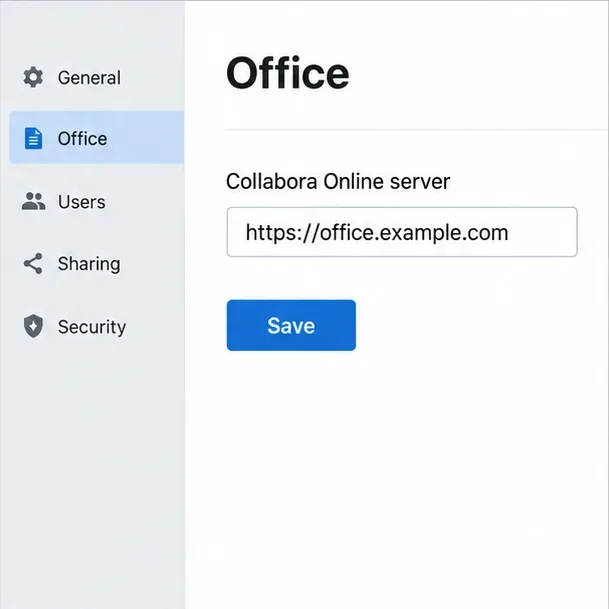
For a Nextcloud integration, verify the Collabora Online server URL under the Office administration settings. Use the public URL that browsers can reach, with the correct hostname and port. Nextcloud’s current guidance says the Collabora and Nextcloud services should use the same protocol; HTTPS is recommended. A mismatch such as one service configured with http:// while the other is reached through https:// can cause blocked mixed-content requests or failed callbacks.
Check that the integration points to the public Collabora URL browsers and the storage server are meant to reach; settings labels vary by platform.
From a browser on the affected client, open https://office.example.com/hosting/discovery and https://office.example.com/hosting/capabilities, replacing the example hostname with your own. The discovery endpoint should return XML describing supported document actions; capabilities should return a response from the Collabora server. A browser error, login page, proxy-branded 404, or gateway error means the public route is not reaching the expected Collabora endpoint.
Then test from the Nextcloud host, because the browser test alone does not prove that the servers can communicate with each other:
Replace office.example.com with the configured Collabora hostname. A successful HTTP response is a useful reachability check, while a timeout, DNS failure, TLS error, or 5xx response needs to be resolved at the corresponding network, certificate, DNS, or proxy layer. For installations where the Collabora server must call back to Nextcloud, also test the Nextcloud status URL from the Collabora host:
curl -fsS https://cloud.example.com/status.php
Use your actual Nextcloud hostname. Built-in CODE installations can use an internal proxy URL instead of a separate public Collabora hostname, so follow the instructions for that deployment rather than applying the standalone-server example literally.
3. Check the WebSocket route and reverse proxy
Collabora serves browser assets and document sessions through several routes. A reverse proxy must forward the paths expected by the installed release, including the editor assets, discovery and capabilities endpoints, and the document WebSocket route. Current Collabora documentation uses /cool/…/ws; older deployments may still have configuration for legacy /lool paths. Nextcloud’s migration documentation specifically notes the historical path changes from loleaflet to browser and from lool to cool.
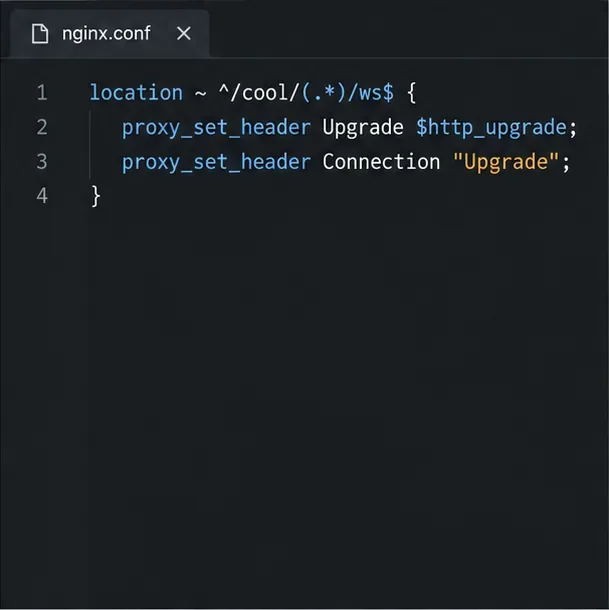
In your proxy configuration, check that the WebSocket location is matched before broader catch-all rules, that the proxy forwards the required upgrade headers for your proxy software, and that the upstream points to the actual Collabora service and port. Also confirm the proxy preserves the expected host and scheme information and allows long-lived connections to remain open. If TLS ends at the proxy, make sure Collabora’s SSL termination settings match that design.
A WebSocket proxy rule needs the correct route and upgrade handling; this excerpt is not a complete configuration.
The short code excerpt above shows the kind of WebSocket headers an Nginx-style proxy may need; it is not a complete proxy configuration. Do not paste it alone or combine directives from different releases. Compare your full configuration with the official Collabora reverse-proxy guide for the proxy and Collabora version you run. After editing a proxy file, validate its syntax with that server’s configuration-test command before reloading it.
4. Check WOPI host validation and server logs
Collabora uses WOPI, the Web Application Open Platform Interface, to request a document from a connected storage service such as Nextcloud. The Collabora server must accept the WOPI host, and the storage server must be able to reach the Collabora service. In Nextcloud, check the Office settings and the allow list for WOPI requests. Add only the expected Collabora server address; do not disable host validation or allow arbitrary hosts to make a blank screen disappear.
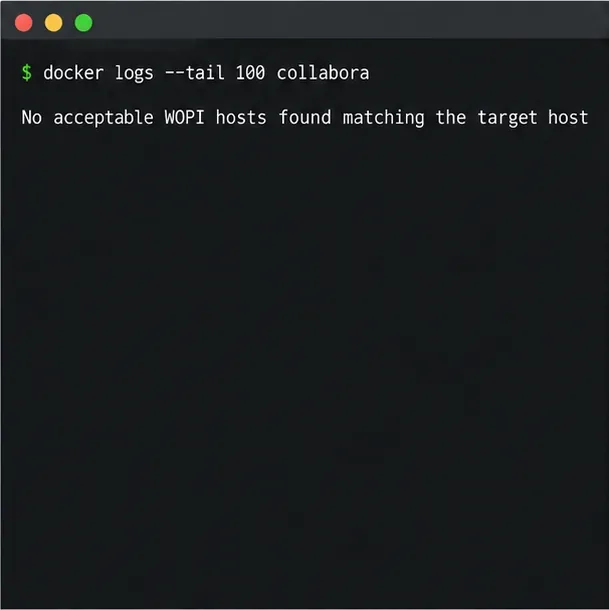
Read the logs at the moment you reproduce the problem. For a Docker deployment, Nextcloud’s troubleshooting guide documents checking the container log; use the actual container name or ID:
docker logs --tail 100 collabora
For a package-based installation, service names and log destinations depend on the operating system and package version. A common systemd check is:
sudo journalctl -u coolwsd -n 100 --no-pager
Look for a matching timestamp and errors about an unauthorized WOPI host, failed CheckFileInfo request, TLS verification, unavailable storage, or a failed WebSocket. A message that no acceptable WOPI host matches usually means the storage hostname configured for the integration does not match the host allowed by Collabora. Correct the hostname or allow-list entry rather than adding unrelated domains.
Compare the Collabora log message with the request time; this message is an example of a WOPI allow-list mismatch.
Also inspect the file-platform log for the same request time. If Collabora cannot reach Nextcloud, check DNS resolution from the Collabora host, firewall rules, the public or internal route, and whether the service is trying to reach itself through a hostname that resolves differently inside the container network. Nextcloud’s troubleshooting manual recommends checking connectivity in both directions and using the server logs to identify the failed side.
5. Retest the document and make only targeted changes
After fixing a route, URL, certificate, or allow-list entry, reload the proxy and the affected services only when your deployment requires it. Reopen Developer Tools, reload the file, and confirm that the previous failed request now completes. The document should render its pages or sheets, accept a small edit, and save that edit successfully. A blank page that disappears but cannot save still points to an unresolved WOPI or storage connection.
Discovery works, but WebSocket fails: focus on the proxy’s WebSocket route, upgrade handling, upstream address, and connection timeout.
Browser can reach Collabora, but Nextcloud cannot: test DNS, firewall, TLS trust, and routing from the Nextcloud host.
Collabora reports an unauthorized WOPI host: compare the exact storage hostname in the integration settings with the WOPI host allow list.
Only old installations fail after an upgrade: compare proxy paths with the installed release documentation and update legacy /lool or /loleaflet routes where required.
Only one file fails after connectivity checks pass: verify file access and test a copy or a different supported format before altering global settings.
What a successful fix looks like
A reliable result is more than an editor toolbar appearing. The document content renders, there are no persistent failed editor or WebSocket requests, and a harmless test edit saves and remains after a refresh. If the problem persists, preserve a short, redacted browser Network/Console excerpt and the matching Nextcloud, proxy, and Collabora log lines. Logs can contain hostnames, user names, file identifiers, or tokens, so remove sensitive values before sharing them.